

Summary
Use Accounts to find organizations and properties in your account’s permitted scope, see their configured channels and PMS connections, and open the relevant settings page.
Open Accounts
Choose Org Admin → Accounts. This page is available to users with Org Admin permission in a distributor organization, including eligible partner organizations. It is not limited to ChannelRUSH staff, but ordinary Org Admin permission in a non-distributor organization does not grant access.
Search results follow your account’s organization/distributor scope. The property selected in the header provides navigation context; it does not limit the list to that property.
Find a property or organization
- Enter a property name or ID in Property Name or ID. For example, the demo property Marivela Beach Resort has ID 2177.
- Leave User Name, Email, or ID empty unless you also want to restrict the search by a user or reservation-email address.
- Click Search. Typing alone does not update the results.
- Check the organization and property names against the ID column before opening a link.
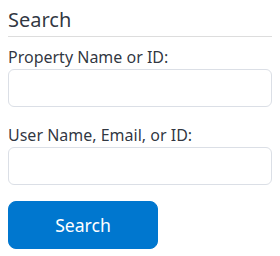
How the search fields match
| Field | What it searches |
|---|---|
| Property Name or ID | Matches parts of property or organization names, billing-company names, and numeric IDs. Name matching is case-insensitive. You can also enter the complete property ID used by a channel or PMS connection to find that mapping. |
| User Name, Email, or ID | Matches parts of a user’s first name, last name, login email or numeric user ID, and property reservation-email addresses. It finds organizations, not a list of individual users. |
Separate words with spaces to require all of them to match; they do not have to be next to each other. A partial numeric ID can match more than one record, so use the complete ID when you know it. If both fields are filled, both restrictions apply. Leave an unused field genuinely empty rather than entering spaces, and remove leading or trailing spaces when searching for a channel/PMS property ID.
A user search hides the property and channel/PMS branches. The result shows organization rows even when the property field is also filled. Clear User Name, Email, or ID and click Search to see property branches again. A reservation-email match does not prove that the address belongs to a login user.
An organization-name or organization-ID match can show the organization without any properties beneath it: the property branches must separately match the property search. Search by the property’s own name or ID when you need its settings.
Understand the organization list
Current Org versus search results
Current Org is a separate view of your current organization and its properties. It appears on the first page when both text search fields are blank. It disappears when you search by property or user, or move to a later result page.
The result list below it contains organizations matching your search within your permitted scope. Current Org is not part of that paged result count and is not filtered by the additional account filters. Your current organization may also appear in the result list; this does not represent a second account. An empty search-result table below Current Org does not mean your current organization has no properties.
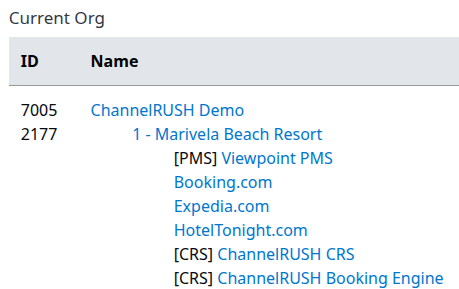
Current Org example: the first demo property and its channel/PMS subtree.
Read the hierarchy and open the right page
The ID column identifies organizations and properties. Indentation in the Name column shows the relationship between an organization, its properties and their connections.
| Link or label | Meaning or destination |
|---|---|
| Organization name | Opens Org Edit for that organization. |
| Indented property name | Opens Property Edit for that property, changing the property context to that record. |
| Channel or PMS name | Opens that property’s channel-settings page for the selected connection. |
| [PMS] | Identifies a PMS connection. |
| [CRS] | Identifies a connection using CRS inventory. The tag links to the property’s CRS Settings, Rooms & Rates section; the connection name is a separate link. |
| [NS] | Indicates setup is not complete. Beside a connection name it refers to that connection; beside [CRS] it refers to CRS setup. |
| [Inactive], OD, LO | Account-status information: inactive, overdue date, or lockout date. These are not channel-delivery results. |
When the property search exactly matches a channel/PMS property ID, that property’s connection list is narrowed to matching mappings. This can happen even when the same number is also the property’s ChannelRUSH ID, so name and ID searches can show different connection lists for the same property. Search by its name, or clear the property search and click Search, to see the broader tree.
These links navigate to separate editors. Search does not save organization, property or channel settings, create an account, or send an update to a provider. Check the destination’s organization, property and channel before making changes there. A listed connection is not proof that it is fully configured or that its latest update succeeded.
If Add New Org or Add New Property is shown, it opens a creation form; it is not a search or reset control. Creation and saving take place in the destination workflow.
Page through results or clear a search
Results are ordered by organization name, with up to 25 organizations per page. Properties and connections are nested within those organizations, not counted as separate paging items. Page links appear above and below the list when there are more results, and keep the submitted search criteria.
To change a search or return to its first page, edit the fields and click Search. To clear a text search, empty both fields and click Search; clear any additional filters you want to remove as well. There is no separate Reset button.
Opening Accounts again from the menu starts a fresh view with active accounts as the default. Clearing fields and clicking Search is a new search, not the same as restoring all fresh-page defaults.
Additional filters shown to ChannelRUSH staff
Most customer distributor accounts show only the two text fields above. ChannelRUSH staff may also see:
| Filter | Use |
|---|---|
| Type | Choose Customers, Customers, Trials, & Free, Channels, or Free / No Charge. Blank removes this restriction. A fresh staff view defaults to Customers, Trials, & Free. Type applies only when both text fields are empty; entering a property or user search bypasses it. |
| Active Accounts Only | Choose Active Only, Inactive Only, or blank to remove the active-status restriction. This checks organization/property status, not connection setup. Inactive Only can include an organization because of an inactive property; it does not mean every displayed organization is itself inactive. |
| CR Account Holder / Customer Account Holder | Staff system-administrator filters for account-holder relationships. They are not available to ordinary customer distributor administrators. |
Click Search after changing a filter. Text searches do not bypass account-access scope or an active-status filter that is still selected.
If you cannot find the expected result
- No organizations match: remove one search field at a time, use a shorter name or the complete property ID, and click Search. Check additional filters if they are visible. An empty list means no match in this search and scope, not that the account was deleted.
- Organizations appear without properties: clear the user field first. If you searched by organization name or ID, try the property’s own name or ID instead.
- Only one connection appears: an exact channel/PMS property-ID search can narrow the connection list. Clear it and search again.
- Accounts is missing or access is refused: ask your organization administrator or ChannelRUSH support to check your distributor-account eligibility and Org Admin permission. Do not try to widen access by changing IDs in the address.
If the expected record is still missing, give support the organization/property name and ID, the search fields and filters used, and any error text. Do not send passwords or unnecessary personal data.