

Use Availability Settings to choose how availability updates open or close dates, when bookings trigger an early close-out, and whether a channel receives a percentage of a room type's availability.
Open the page
- Select the property you want to configure.
- Open Admin, then Availability in the Channel Manager section.
- Check the property name above the form before changing anything.
You need Channel Settings permission to save. Without it, the form is read-only. These settings belong to the selected property, not every property in your organization.
Changes stay on the form until you select Save or Save & Refresh. Saving changes the settings; it does not itself send an availability update or recheck every existing date.
Stop sell rules
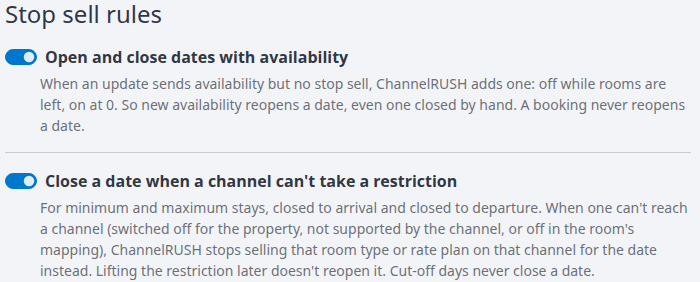
Open and close dates with availability
Turn this on if availability updates should also open or close dates when they do not include a Stop Sell value. Where the channel supports Stop Sell:
| Availability in the update | Stop Sell added by this rule |
|---|---|
| Greater than 0 | No — open |
| 0 or less | Yes — closed |
| No availability value | No Stop Sell value is added by this rule |
An explicit Stop Sell value in the update is not replaced by this rule. Other close-out rules can still apply.
Before enabling it: positive availability can reopen a date that was closed manually. Reservation-driven updates carry forward an existing Stop Sell = Yes, rather than clearing it. A saved Stop Sell override, where enabled for incoming PMS updates, can also keep the date closed.
For example, positive availability with no Stop Sell can reopen a date, but positive availability accompanied by Stop Sell = Yes does not ask to reopen it. Check both fields and any applicable override when investigating an unexpected closure or reopening.
Turning this switch off stops this automatic coupling; it does not reopen dates, remove saved Stop Sell values or disable other close-out rules. Manual update screens can submit Stop Sell alongside availability. In particular, setting Calendar availability to 0 also closes Stop Sell, even with this switch off.
Close a date when a channel can't take a restriction
Turn this on if an active restriction that cannot be applied should close the affected room type or rate plan on that channel and date instead.
The restrictions covered are:
- Minimum stay, including Min Nights Through, when greater than 1.
- Maximum stay, including Max Nights Through, when greater than 0.
- Closed to arrival or Closed to departure, when set to Yes.
Cut-off days do not trigger this rule.
A restriction can be unavailable because it is switched off for the property under Standard Features, unsupported by the channel, or disabled in the room-type or rate-plan mapping. ChannelRUSH checks whether it can be applied at either the room-type or rate-plan level before using this fallback. For a room-type update, support through rate plans must cover the relevant enabled plans, not just one. For stay restrictions, support for Nights and Nights Through is considered before closing.
For example, a minimum stay does not require a fallback close-out merely because the room-type level lacks that field: the applicable rate-plan level may support it. If neither level can apply it, ChannelRUSH requests a close-out. It uses Stop Sell = Yes, or Allocation = 0 where Stop Sell is unavailable but allocation can be updated.
Removing the restriction alone does not reopen the date. Review the date's Stop Sell and availability and use the appropriate update to reopen it. With this switch off, an unsupported restriction is omitted; that is not a guarantee that the date is open, because another restriction or close-out may still apply.
Close out early
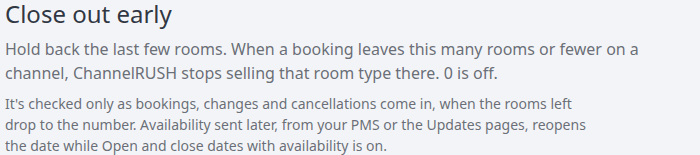
Use these settings to hold back the last few rooms when bookings reduce availability. Enter a whole number from 0 to 9,999. 0 or blank disables early close-out for that entry, not ordinary sold-out closure or another entry's threshold.
When a threshold takes effect
The thresholds are checked during reservation-driven availability processing: bookings, changes and cancellations. They are not checked whenever the PMS sends availability, when you manually edit availability, or just because you save this page.
A close-out is triggered only when the applicable channel allocation moves from above the threshold to the threshold or fewer. For a threshold of 5, a move from 6 to 5 or 4 qualifies. A move from 5 to 4 does not trigger that threshold again. This does not mean an already-closed date reopens.
The property needs Reservation Handling and Availability Management enabled, and reservation handling must also be enabled for the incoming channel's applicable settings. If you see Not working for this property yet, follow Reservation Settings and ask ChannelRUSH support to review activation. The absence of that warning does not verify every incoming channel's settings.
Choose which products close
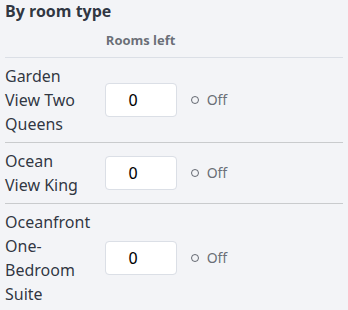
By room type
Applies the room type's threshold on each configured, enabled channel. A room-type close-out also closes its enabled, mapped rate plans. Where a channel has separate rate-plan availability, the room-type threshold is also checked against each rate plan's allocation.
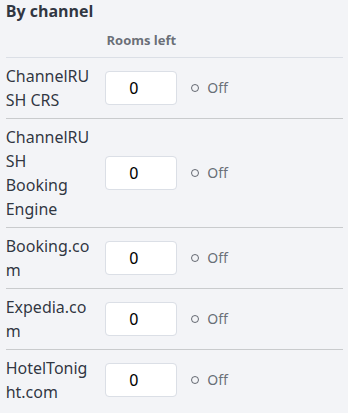
By channel
Applies the channel's threshold separately to its configured, enabled room types and their rate plans. Each check uses the applicable room-type or rate-plan allocation on that channel, not the property's total rooms. Virtual room mappings use their own channel allocation. If a master-image channel is listed here, its threshold uses the master allocation.
By rate plan
Applies only to the selected rate plan; this threshold does not itself close the other rate plans. The section appears only when the property has rate plans.
- Where the mapping sends rate-plan availability, the check uses that plan's allocation.
- Where the mapping sends only rate-plan Stop Sell, the check uses the room type's allocation.
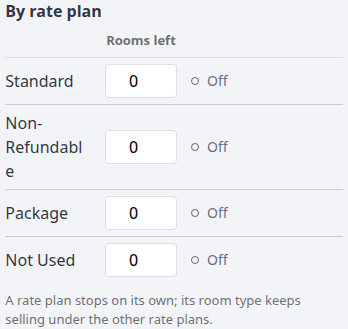
Set one rule without overlooking the others
- Choose the scope: one room type across channels, one channel across room types, or one rate plan.
- Enter the rooms-left threshold in that list.
- Review the other two lists for overlapping rules. A 0 in one list does not cancel a nonzero rule in another.
- Read the Off, Stops at … left and summary text, then save.
Room-type and channel thresholds are checked separately. If the same allocation starts above both, the higher threshold is reached first. For example, with a room-type threshold of 2 and a channel threshold of 3, a booking that takes that room type from 4 to 3 on that channel triggers the channel rule. This is not a permanent priority setting: the lower threshold can still trigger on a later qualifying crossing.
For rate plans with their own availability, the room-type, rate-plan and channel thresholds are checked against the plan's allocation. A room-type close-out also closes its mapped plans. Setting only a rate-plan threshold can leave other plans selling; it cannot exempt that plan from a room-type or channel close-out.
The summary describes the values on the form, including unsaved edits. It is not a report of which dates are currently closed.

This example has all thresholds set to 0. “Nothing closes early” refers to these threshold settings, not to every possible reason a date could be closed.
Reopening after an early close-out
These thresholds do not block later availability updates. Positive availability from the PMS or Updates pages can reopen a date when Open and close dates with availability is on, subject to explicit Stop Sell values and saved overrides described above. A later reservation-driven update carries an existing closure forward; a cancellation is not an instruction to reopen Stop Sell.
Changing a threshold to 0 stops that entry from triggering future early close-outs. It does not reopen dates already closed. If reopening is intended, review the affected products and dates before making a separate availability/Stop Sell update.
Share of rooms per channel
This section sets a percentage of a room type's availability for each channel. It is not a pool that divides the property's rooms between channels: each cell is applied independently, and the columns do not have to add up to 100%.
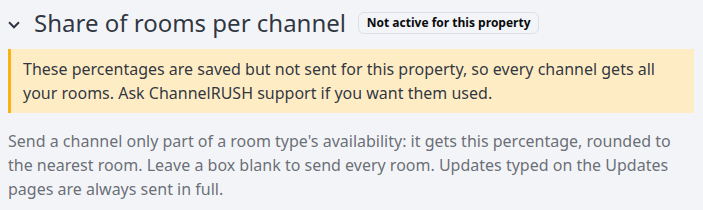
Current demo example: allocation sharing is not active for this property. The complete table below shows its existing room and channel mappings.
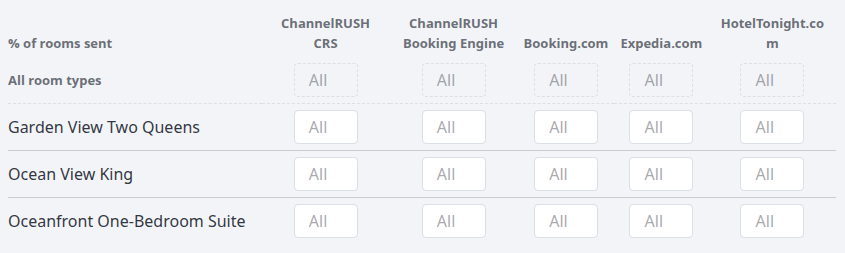
Check whether sharing is active
If the section shows Not active for this property, the percentages can be saved but are not applied to outgoing availability for this property. Expanding the section or entering percentages does not activate it. Ask ChannelRUSH support whether sharing is available for your property.
“Inactive” means this percentage rule is not reducing availability. It does not guarantee that all rooms are sent to every channel: mappings, update permissions, overrides and close-out rules still apply.
Enter a share
- Expand Share of rooms per channel if it is collapsed.
- Find the room-type row and channel column.
- Enter the percentage, or leave the cell blank to remove that percentage reduction.
- Review every affected cell, then save.
| Cell value | Meaning when sharing applies |
|---|---|
| Blank, shown with the All placeholder | No percentage reduction |
| 100 | 100% of the availability being sent |
| 1–99 | That percentage, rounded to a whole room |
| 0 | Zero availability; not the same as blank |
| Dash, with no input box | No corresponding mapping in that cell; not a zero share |
Use whole numbers from 0 to 100, without a percent sign. Rows are room types; virtual room types appear underneath their parent with their own channel cell. A parent cell does not replace its virtual-room cells.
All room types is a fill shortcut, not a separate saved setting. Typing there replaces the editable cells in that channel's column, including virtual-room cells. Clearing it clears those cells back to All. A blank shortcut can also mean the individual cells currently differ, so inspect the rows before changing it.
Channels without room types set up have no percentage column and are named beneath the grid. The master image has no percentage column. If there are no eligible channels, the whole sharing section may be absent.
Rounding and updates that use the share
For an active property, the percentage is applied to eligible outgoing allocation updates, including PMS-originated updates and refresh requests. It only affects products and allocation fields that are enabled and supported for sending.
Rounding uses the nearest whole room; an exact half rounds to the even number. Illustrations, not this demo property's settings:
| Availability before sharing | Share | Resulting allocation |
|---|---|---|
| 10 | 50% | 5 |
| 5 | 50% | 2 |
| 3 | 50% | 2 |
| 1 | 50% | 0 |
Important interactions:
- Daily, Detail, Quick and Calendar updates bypass this percentage calculation. Their availability is not reduced by the share, although other update and close-out rules still apply.
- Reservation-driven updates are not split again. They adjust the allocation already stored for that channel. If an eligible update sent a share of 5 rooms and a booking removes one, the adjustment starts from 5 rather than taking the percentage a second time.
- A zero share is not a substitute for Stop Sell. Automatic Stop Sell from availability uses the allocation before the percentage calculation. A small positive allocation can therefore round to 0 while Stop Sell remains No. If you intend to close sales, review Stop Sell as well.
The explanation displayed when you focus a share cell is a calculation example, not proof that sharing is active, that the value has been saved, or that a channel accepted an update.
Save, verify and recover
- Save saves the form and returns to Admin.
- Save & Refresh, in the arrow menu beside Save, saves and reloads this settings page. It does not refresh channel inventory.
- Cancel returns to Admin without saving your form edits.
After saving, check the confirmation and reopen Availability Settings, or use Save & Refresh, to review the stored values.
To review a later availability update, open Updates → Status for the same property. Choose the channel, room type and rate plan as needed, set the stay-date and sent-time filters for the update you are investigating, then select Search. Read the matching update's recorded status and any error details. An empty search is not proof that the settings had no effect; check the filters and update timing first. Do not resend an update merely to test these settings.
Saving settings and successfully delivering a later availability update are different results. Neither this page's summary nor its share example is a delivery confirmation.
If a value is rejected
A threshold must be blank or a whole number from 0 to 9,999. A share must be blank or a whole number from 0 to 100. Use digits only: no decimals, minus signs, thousands separators or percent signs.
For an invalid threshold or share, the form rejects the submitted settings changes, names the affected rows and redisplays the entered values with the refused boxes marked. A rejected share expands the grid. Correct all flagged cells and save again. Other validation messages must also be resolved before the form can be saved.
A timeout, connection failure or unexpected error during Save is different from a validation refusal: do not assume all changes were rolled back. Record the message, reopen the page and compare the saved settings before retrying. If the outcome is unclear, ask support to review it.
If the result is unexpected
| What you notice | What to check |
|---|---|
| The form cannot be edited or saved | Your Channel Settings permission. |
| A low-availability date did not close early | Whether a reservation-driven adjustment crossed the threshold from above; property and incoming-channel reservation settings; enabled mappings; which room-type or rate-plan allocation was used. |
| A date reopened after a PMS update | Open and close dates with availability, the update's explicit Stop Sell value and applicable saved overrides. |
| A date stayed closed after a cancellation or after clearing a threshold/restriction | Existing Stop Sell and availability. Those changes do not by themselves instruct a reopening. |
| A share appears to have no effect | The inactive notice, the individual cell rather than just All room types, and whether the update came from a manual Updates page or reservation adjustment. |
| The share calculation looks lower than expected | Whole-room rounding and the channel-specific allocation; check Stop Sell separately. |
When contacting support, include the property, channel, room type/rate plan, affected stay dates, action time and time zone, and any error text. Do not include passwords, payment details or unnecessary guest information.