

Save a standard room type’s minimum-rate setting and four-step price calculation, and find its date-specific and occupancy rules.
Saving this page changes configuration only. It does not recalculate existing stored prices or send rates to channels. Agree on the applicable update or recalculation workflow before expecting these settings to change selling prices.
Before you start
- Select the correct property and an existing standard room type.
- You need the property’s Channel Manager Update - Rates or Settings permission to save. View-only and demonstration access cannot save these settings.
- Agree on the intended source price, adjustments and minimum with your revenue administrator. This editor is not a channel-specific markup or a rate-plan editor.
- Check whether your property uses occupancy pricing or linked parent-room rates before changing related rules.
Open the room’s calculation settings
- Select your property.
- Open Admin → Home.
- In Channel Manager, click Rate Calculations.
- Under Room Types, click the room type’s name.
- Confirm Edit Room Type and the room name above the fields.
The parent Rate Calculations page also lists rate plans and the property’s Rate Rounding Setting. Those are separate settings; opening a room does not edit them.
Set the minimum and four calculations
These fields do not autosave. Changes are submitted by Save or Save & Refresh.
- Enter a positive amount in Minimum Rate Allowed.
- Enter the first adjustment in Rate Calculation 1.
- Choose % Percentage or Flat Fee, shown with the property’s currency symbol.
- Enter any further adjustments in Rate Calculation 2, 3 and 4, selecting the unit for each.
- Set unused calculation values to 0.00.
- Review the signs, units and order before saving.
Do not use zero to disable the minimum. Zero or a negative minimum resolves to the system default of 40.00. Enter the positive minimum you intend and verify it after saving. The minimum is used in rate-update validation; it does not automatically raise a calculated price or repair existing prices.
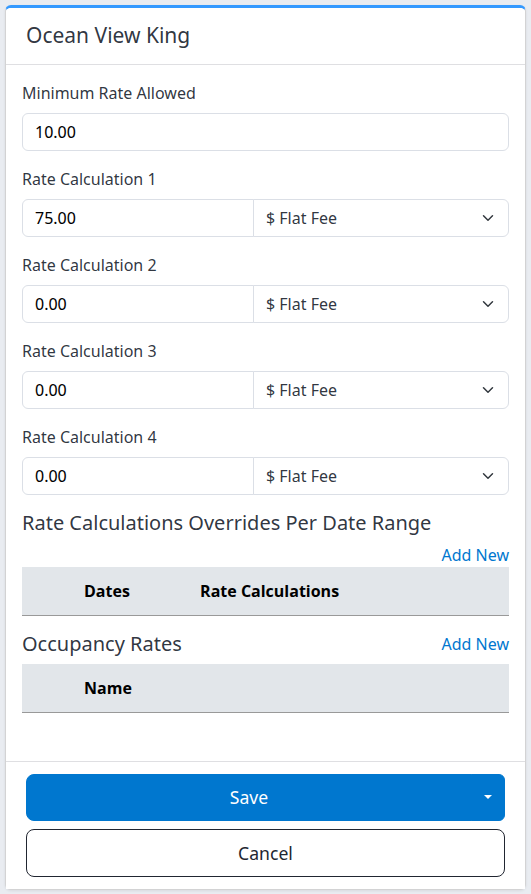
Example saved demo configuration in a narrow layout. Wider screens place the calculation fields side by side. The empty lists show that this room has no saved dated or occupancy rules; they are not a rate preview.
How the four steps work
The calculation runs 1 → 2 → 3 → 4. Each step uses the previous step’s result.
- Flat Fee: adds the signed amount. A negative amount subtracts it.
- % Percentage: increases the current amount by the entered percentage. A negative percentage discounts it.
- 0.00: makes no adjustment at that step, apart from rounding.
- The property’s rate-rounding setting applies after each step. Do Nothing still rounds to two decimal places.
For example, with Rate Rounding Setting set to Do Nothing, starting from 100.00, step 1 of -10 % Percentage gives 90.00. Step 2 of 25 Flat Fee then gives 115.00. Reversing those steps gives 112.50, so their order matters. Other rounding settings can change these results. This is an arithmetic example, not a live-price preview.
These room rules are used when the applicable workflow derives a room price from a source price—for example, when populating room prices from a global rate. Entering a price directly for a room is not a promise that the same room adjustment will be applied again. Rate-plan rules, occupancy rules and destination-channel calculations can affect later results. Review the intended products and final prices rather than assuming this form shows what every channel will receive.
Save and check the result
- Click Save to save and return to Rate Calculations. Alternatively, open the arrow beside Save and choose Save & Refresh to save and remain in this room editor.
- Check for the saved-settings confirmation.
- If you returned to Rate Calculations, find the room under Room Types and review its Rate Calculations and Min Allowed Rate columns.
- Open the room again and check the minimum, all four values and all four units.
A redisplayed form containing your typed values is not enough to establish a successful save. Reopening and checking the saved values is the result check.
Save & Refresh changes the return destination; it does not add a recalculation or channel send. Cancel returns to Rate Calculations without submitting current edits. It does not undo an earlier save. Save or cancel your current edits before following Add New, Edit, or another navigation link.
If you need existing dates to change
Confirm the applicable workflow with your administrator. This editor has no date selector, recalculation button or delivery action. Repeated saves are not a remedy for unchanged prices.
Where ChannelRUSH Master Image and linked parent-room rates are configured, the separate standard room-type settings workflow offers administrator-controlled recalculation. That workflow can affect forward room and rate-plan inventory; it is not a narrow date update on this page. Agree on its scope and any separate channel delivery before proceeding.
After an agreed recalculation, use Rates & Availability — List View to inspect the correct property, source, rooms, plans and dates. Open Reports → Rates & Availability, select the criteria and click List. If changing criteria within List View, click Apply — reloads report or Load as appropriate and check the reloaded rows.
Saved settings, stored master prices, requested channel values and channel acceptance are different results. Neither a saved-settings confirmation nor a stored report price proves a channel accepted an update.
Date-specific calculations
Rate Calculations Overrides Per Date Range lists this room’s saved dated rules.
- Dates shows the date span and, when not every weekday is selected, the weekday pattern.
- Rate Calculations summarizes the row’s adjustments.
- Add New opens a separate dated-rule editor.
- Edit opens the rule on that row.
- Delete opens a separate confirmation page; it is not an immediate deletion link.
In the applicable linked-parent room recalculation workflow, a matching dated rule replaces the default four-step calculation for that date. It is not added after the defaults. Do not assume it governs every global-rate entry or PMS update.
Use Set date-specific room-type rate calculations for dates, weekdays, overlap checks, saving and deletion. Removing or shortening a rule does not itself restore prices already calculated for its former dates. Four zero steps still leave a dated override; they do not delete it.
Occupancy calculations
Occupancy Rates appears only when occupancy rates are enabled for the property. It holds separate rules for the named occupancy or additional-rate type; the four main room calculations do not themselves specify a guest count.
- Name identifies the configured rate type; the adjacent calculation summary shows its adjustments.
- Add New opens the occupancy-rule editor.
- Edit opens an existing rule; Delete opens its confirmation page. These row actions require pricing-edit access.
- An empty list means no rules are listed for this room. It does not prove that a channel has no occupancy pricing or that all occupancy prices are zero.
Occupancy calculations depend on the enabled configuration and update workflow. For example, when populating room/plan prices in Quick Updates, an applicable rate-plan occupancy rule takes precedence over the corresponding room rule. Do not assume every occupancy value is recalculated whenever the main rate changes.
Save your current room settings before opening an occupancy rule. Confirm the intended rate type and pricing basis with your administrator before creating or deleting one; an occupancy-total price is not interchangeable with an extra-person supplement. Verify the rule in this list after completing its separate editor. Saving or removing a rule is not proof of channel delivery.
Field and control reference
| Field or control | Meaning and accepted input |
|---|---|
| Room name | Identifies the existing standard room type. Choose a different room from the parent list; this editor does not rename it. |
| Minimum Rate Allowed | Positive monetary amount used in rate-update validation. Zero or negative resolves to 40.00, not “disabled.” Use an explicit number rather than blank. It does not clamp calculated prices to the minimum. |
| Rate Calculation 1 | First signed numeric adjustment to the workflow’s source rate. |
| Rate Calculation 2 | Adjustment to step 1’s result. |
| Rate Calculation 3 | Adjustment to step 2’s result. |
| Rate Calculation 4 | Adjustment to step 3’s result. |
| Calculation units | Percentage or flat monetary amount. Select independently for every step. Enter the number in the value box, not a currency or percent symbol. Calculation inputs support up to five decimal places; each result is rounded under the property setting. |
| Unused calculation | Use 0.00. Clearing a calculation value is converted to zero when its change handler runs; explicit zero avoids relying on that browser behavior. Existing saved values load when you open the editor. |
| Rate Calculations Overrides Per Date Range | Separate saved dated rules, with Add New and per-row Edit/Delete links. This is not a calendar of effective prices. |
| Occupancy Rates | Conditional list of separate occupancy/additional-rate rules. Hidden when the property’s occupancy-rate feature is off. |
| Save | Saves configuration and returns to Rate Calculations. |
| Save & Refresh | Saves configuration and stays in this editor. Found in Save’s arrow menu. |
| Cancel | Leaves without submitting current edits. No rollback of previous saves. |
Common problems
The minimum returns as 40.00
Zero and negative values resolve to the default. Enter the intended positive minimum and reopen the room after saving. If another positive value changes unexpectedly, send support the property, room, entered value and saved value; do not lower the minimum merely to get a rate accepted.
Prices did not change after saving
This page saves settings only. Confirm the separate calculation/update workflow and source price with your administrator. Do not resend inventory or repeatedly save as a diagnostic step. Escalate with the property, room/plans, affected dates, intended source price and expected versus observed result.
A rate fails minimum-rate validation
Review the main and additional calculated prices, discounts, units and destination currencies. A minimum setting is not a substitute for checking those values. Check both stored results and any update error before retrying; an unsuccessful delivery does not establish that every earlier local change was rolled back. Ask support if the failing value or destination is unclear.
The form remains open without a clear success message
Check numeric entries, especially a blank minimum or a value containing a currency/percent symbol. Reopen the room to establish what persisted before retrying. If validation refers to another dated or occupancy rule, have the administrator review that rule: saving also validates those related settings. Do not alter unrelated pricing to get past an error.
Save is unavailable, refused, or occupancy controls are missing
Check the selected property and Update - Rates or Settings permission. Demonstration access cannot save. Occupancy Rates also requires the property feature to be enabled; pricing access alone does not make that section appear. Ask your administrator to review the intended setup rather than using another update screen to bypass a restriction.
For support, include the property, room, affected dates, exact error, action time and time zone, and whether you used Save or Save & Refresh. Do not send passwords, payment details or guest information.