

Attach photos to an existing add-on so its images are available for your booking-engine presentation.
Before you start
- Select the correct property. The add-on and the property's content profiles must already exist.
- You need Content permission to upload files and save photo mappings. Changing the add-on's prices or selling rules is a separate task. The public demonstration login cannot save photo changes.
- A photo mapping attaches a file to the add-on. Uploading a file only places it in the property's photo library; it does not attach it to the add-on.
- Add-on photo membership and order are shared across the property's existing language profiles. Alt text and descriptions are separate text settings; adding a photo does not translate them.
Select Files saves immediately. Highlighting files does not save mappings, but clicking Select Files does. There is no later Save button on the picker.
Open the add-on's photo picker
- Select your property in the property selector.
- Open Admin → Settings - CRS.
- On Rooms & Rates, find Add Ons.
- Select the add-on's name.
- In Photo Mappings, review the photos already attached to the add-on.
- Select Add photos.
- On Add Photo Mappings, check the add-on name above the file picker.
Use this entry path rather than changing IDs in a bookmarked URL. It selects the property's shared photo source for you.
The Content - Photos workspace also has an Add photos button, but it opens an embedded picker and returns to that workspace. This guide describes the separate Add Photo Mappings page opened from the add-on editor.
Add photos already in the library
- Open the folder containing the photos, or use Search to locate them.
- Select the photo files you want to attach. You can select more than one file; do not select a folder as a substitute for its contents.
- Check the selected files against the add-on's existing photos.
- Select Select Files once.
- Back in the add-on editor, inspect Photo Mappings for the added photos.
Mapped and Mapped ×N show that a file is used in photo mappings across the property. The count can include other targets and language profiles. It does not tell you whether the file is already attached to this add-on. Selecting an already-attached file can create another mapping; it does not replace the existing one.
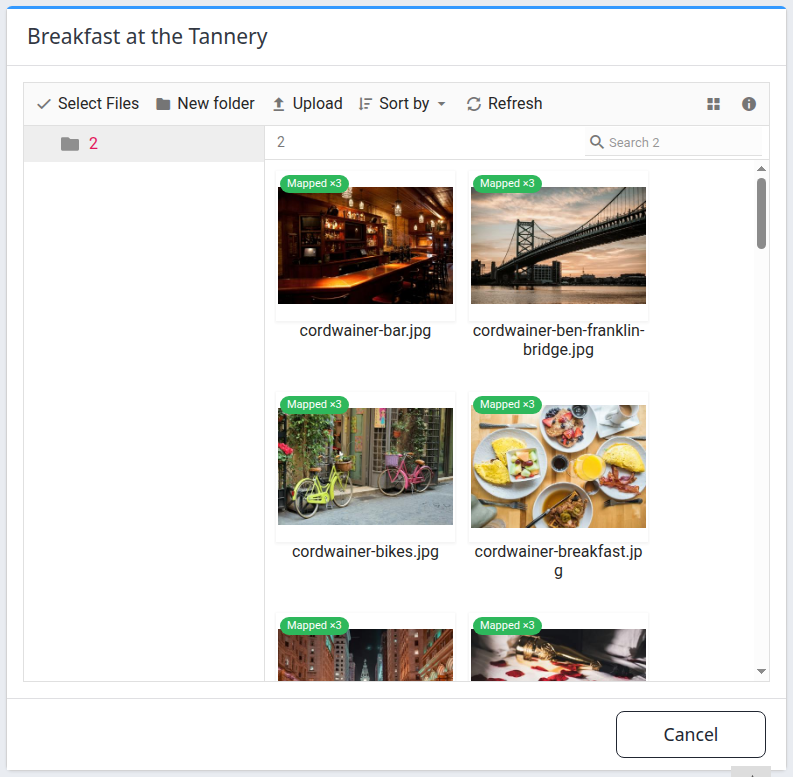
The picker displays the property's shared photo files, not only photos already attached to this add-on.
Upload new photos, then attach them
- Open the folder where you want the new files stored.
- Select Upload.
- Choose the photo files from your device.
- Wait for the upload to complete and confirm the files appear in the picker.
- Select the uploaded files.
- Select Select Files to attach them to the add-on.
Uploads accept JPG, JPEG, PNG, GIF, WEBP, AVIF, SVG, ICO, TIF and TIFF, up to 50 MB per file. HEIC and ZIP are not accepted. An accepted extension does not guarantee that a damaged file can be previewed or processed.
If a filename already exists, consider the Replace and Keep both choices carefully. Replace changes the shared file used by its existing mappings, not only this add-on. Use a distinct filename or Keep both when the new image must remain separate.
Uploading, creating folders, renaming and moving files are separate saved operations. Cancel does not undo them. To leave without attaching the current selection, select Cancel; you return to the add-on's Photo Mappings section.
Check the result
After a successful mapping submission, the page returns to the add-on editor and displays a save confirmation. Check the Photo Mappings count and the actual photo tiles, not only the message.
- Confirm each intended image appears once and belongs to the right add-on.
- Check the order. The first photo in Photo Mappings is marked Main photo. If you rearrange photos using dragging or the arrows, select Save order; the add-on editor's ordinary Save button is not a substitute for saving photo order.
- Use a photo's Edit link to maintain its alt text and description. See Edit an add-on photo's alt text and description.
- Check the customer-facing booking page where the add-on is offered. A saved mapping is not proof that the guest-facing image has finished processing or is already visible.
Photo processing happens separately from the mapping save. New photos may not appear in booking content until a cached image is available. There is no fixed completion time shown by this picker. Do not repeatedly add the same photo to try to speed this up.
Saving also reconciles the property's shared photo lists across its existing language profiles, including other photo sections. It is not a language-only change. Existing per-language alt text and descriptions are not overwritten by that reconciliation; newly mirrored photos need their own text.
Adding an add-on photo here does not confirm delivery of that image to an OTA.
Picker control reference
Some controls appear only when a file is selected or inside a toolbar menu on narrower screens.
| Control | What it does | Example or caution |
|---|---|---|
| Add-on name | Identifies the destination for the new photo mappings. | Check it before selecting files. |
| Folder tree and breadcrumb | Navigate the selected property's photo library. | Open a folder to choose its files; selecting the folder itself does not attach its contents. |
| Search | Finds files in the current library location. | Search for part of a filename. |
| File selection | Marks files for the next Select Files submission. | Multiple files are supported; selection alone does not save mappings. |
| Select Files | Immediately saves mappings for selected files and returns to the add-on editor. | Submit once, then inspect the result before trying again. |
| Upload | Adds files to the property's library. | Attach the uploaded files separately with Select Files. |
| New folder | Creates a folder in the shared library. | The folder is not private to this add-on. |
| Rename / move | Changes the shared file's name or location and updates its existing property mappings. | Do not use these merely to change the text shown for this add-on's photo. |
| Download | Downloads selected files. | It does not attach them to the add-on. |
| Sort by | Changes the file browser's display order. | It does not set the add-on's guest-facing photo order. |
| Refresh | Reloads the file browser. | It does not submit the selected mappings. |
| Selection controls | Manage the current file selection. | Recheck what is selected before submitting. |
| View | Changes the file browser's display mode. | It does not change guest-facing presentation. |
| Details | Shows information about the selected item. | Use it to check the file rather than assuming similar filenames contain the same image. |
| Mapped / Mapped ×N | Indicates existing property-wide uses of the file. | Not a duplicate-prevention check for this add-on. |
| Cancel | Returns to the add-on editor without submitting the current file selection. | Already completed file operations remain saved. |
Common problems
“No files selected, no mappings have been saved....”
No usable file selection reached the mapping save. You may have selected only a folder. Open the folder, select the actual photo files, and submit Select Files. If the message repeats with files visibly selected, stop and contact support with the property, add-on and filenames.
An upload is rejected or a preview does not load
Check the file extension and the 50 MB limit. Open the image on your device to confirm it is readable. Convert an unsupported format to an accepted image format before uploading. If an accepted, readable file still fails, retain the error text and contact support; do not keep replacing a file already used elsewhere.
A photo appears twice
The file may have been selected more than once across submissions. Check each tile's View link. Remove only the unwanted photo mapping using its Delete link and confirmation. Do not delete the shared library file to remove one duplicate placement; other mappings can use it.
An error or timeout appears after Select Files
The initial mapping save and the later language-profile synchronization are separate operations. An error does not prove that nothing was saved. Reopen the add-on through Settings - CRS and inspect its photo tiles before resubmitting. If you cannot tell what succeeded, contact support rather than repeating the submission.
The mapping exists, but the guest-facing image is absent
Confirm the correct add-on has the mapping and that its source file still exists and opens. Check the relevant booking page without making another booking or resubmitting the mapping. If the image remains absent, provide support with the property, add-on, filename, affected booking-page URL and action time with time zone. A mapping count alone does not establish completed image processing.
Add photos is unavailable, or the page does not open
Start from the correct property and an existing add-on. Ask your organization administrator to check Content permission. If navigation still fails, reopen the add-on from Settings - CRS rather than editing a saved URL. Send support the page name and error text if the problem persists.