

Use Update Status to find properties and channels with queued or unsuccessful inventory requests, then open the matching requests for investigation.
Before you start
This organization-wide report is for Org Admin users in distributor or PMS Connect partner organizations with portfolio access. Access to one property alone does not grant access to this report. If you cannot open it, ask your organization administrator or ChannelRUSH Support to confirm your access.
The report covers active properties and organizations in your authorized portfolio that have a corresponding channel mapping. The property selected in the application's top bar provides navigation context; it does not restrict this report to that property.
Refresh only reloads the report. It does not resend inventory, retry requests or check the channel's live rates and availability.
Run the report
- Confirm you are signed into the intended organization.
- Open Org Admin → Updates - Status Report. The page heading is Update Status. You can also reach it through Org Admin → Reports → Update Status.
- Choose a Status. The initial selection is Pending.
- Choose a Channel, or leave Select ... for all channels within the report's scope.
- Click Refresh.
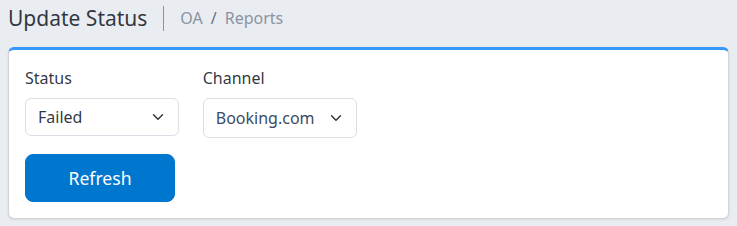
The example shows where to select a status and channel. It does not demonstrate a failed request.
After changing either filter, click Refresh again. Confirm that the dropdowns retain your selections and the heading above the results matches the selected status. The page does not refresh itself automatically.
Check the result
Each row groups requests for one property and one channel. The # column counts requests in the selected status, not rooms, stay dates or delivery attempts. Rows with the largest counts appear first. Groups with no matching requests do not appear.
A table containing only its column headings means there are no matching groups in the report's current scope. It does not prove that every channel has the correct inventory or that an earlier failure was resolved.
Understand the status and reporting period
| Status | What it means | What the count includes |
|---|---|---|
| Pending | Requests waiting to be processed. | Current, unarchived requests, without a date-window filter. |
| Processing | Requests marked as being processed. | Current, unarchived requests, without a date-window filter. |
| Successful | ChannelRUSH recorded successful request processing. | Periodically refreshed summary counts for requests created since the reporting day's start 90 days ago, including archived requests. |
| Unsuccessful | Request processing did not succeed. Read the request's message to investigate. | The same creation-based summary window, including archived requests. |
| Failed | Request processing failed. Read the request's message rather than assuming a particular cause. | The same creation-based summary window, including archived requests. |
The completed-status window follows the system's reporting calendar, not the requested stay dates or your selected display time zone. It is not a rolling 90 × 24-hour period. There is no date-range control on this summary page.
Completed-status counts are refreshed periodically and can lag behind request details. Successful is a processing status, not an independent check of the channel's current inventory. A pending or processing count alone does not establish that an update is overdue.
Open the requests behind a count
- Find the relevant property/channel row.
- Click its Channel name to open Update Requests - Processing Status in a new tab.
- Confirm Property, Channel and Status on the new screen. The linked selection loads when the screen opens.
- If you change a filter, click Search to apply it. Use More Filters to reveal additional criteria when needed.
- Inspect the matching request's affected dates, room/rate plan, requested values, attempts and status message. Note its transaction ID and Created / Last Run times before asking support to investigate. Displayed request timestamps use your signed-in user's time zone.
The three row links do not open identical searches:
| Link | Scope passed to the request screen |
|---|---|
| Channel | The row's organization, property, channel and selected status. Use this for the closest matching investigation. |
| Hotel | The row's organization, property and selected status. The channel restriction is dropped. |
| Org | The row's organization and selected status. Both the property and channel restrictions are dropped. |
The original summary stays open. Opening a link does not retry or archive anything.
Why the detail count may differ
The summary and request search are not two views of one frozen result:
- Pending and Processing summary counts use current unarchived requests. Completed-status counts use a periodically refreshed, creation-based summary window that includes archived requests.
- The linked request search does not inherit that summary date window and excludes archived requests by default. Older requests may no longer be available in this search.
- Clicking Hotel or Org broadens the scope as described above.
- The request screen normally shows 50 requests per page. Its Pending, Unsuccessful and Failed count indicators stop at 10,000+; those capped indicators are not the summary report's counts.
- Requests can change status between opening the summary and opening the details.
For older requests, More Filters → Archived includes archived requests as well as unarchived requests. Check the resulting rows and recheck this control before searching or paging again; do not assume it remains selected. If a summary count still has no corresponding detail, give support the organization, property, channel, selected status and the time you checked it. An empty detail search does not establish that the original failure was repaired.
On the request screen, Date Range → Start/End Date refers to the dates the inventory update affects. Creation Timestamp and Processing Timestamp instead refer to request timestamps. They are not interchangeable. Leave date filters blank for the initial investigation rather than accidentally excluding the request.
Keep investigation separate from retrying
Use Search for investigation. The separate Select Action and Go controls can retry or archive requests; they are not another way to refresh the report.
Do not retry solely because a count is nonzero or because a request is old. A retry can also requeue later overlapping requests for the same product. Archiving changes request visibility; it does not repair or successfully deliver an update. If the cause or intended scope is unclear, contact support before using those actions.
Summary-page field reference
| Field or control | Selection and effect | Example |
|---|---|---|
| Status | One of the five statuses above. Required selection; initially Pending. Different statuses use the different counting windows described above. | Choose Unsuccessful to investigate requests whose processing did not succeed. |
| Channel | One channel, or Select ... for no channel restriction. The list comes from channels configured for inventory sending within your portfolio. | Choose Booking.com to exclude other channels from this summary. |
| Refresh | Applies Status and Channel and reloads the report. Does not initiate delivery. | Change the channel, then click Refresh. |
| # | Count of matching requests for that property/channel group. | A count of 12 means twelve requests, not twelve rooms or twelve failed attempts. |
| Channel / Hotel / Org | Identifies the group and opens a differently scoped request search in a new tab. | Click Channel to retain both property and channel. |
This page has no property filter, date-range input, export button or pagination control. Use the linked request screen to investigate a specific property or request. Account Holder, if visible to ChannelRUSH staff, is not a customer control required for this workflow.
Common problems
- The report is unavailable or says organization administrator access is required. This report needs distributor/partner portfolio access, not only a property assignment. Ask your organization administrator or support to confirm the account's eligibility. Do not change another user's permissions to troubleshoot the report.
- No rows appear. Check Status and Channel, then click Refresh. Confirm the organization and whether the expected property and channel mapping are active. If a known request remains absent, ask support to check its scope and status; do not interpret the empty table as proof of delivery.
- Counts remain unchanged after Refresh. There may be no status change, or completed-status summaries may not yet reflect current details. Open the relevant request search and compare its message and Last Run time. Escalate unexplained differences instead of repeatedly retrying the update.
- More requests appear after clicking Hotel or Org. Those links intentionally remove narrower filters. Return to the summary and click the Channel name, or select the intended property/channel on the request screen and click Search. If the scope still looks wrong, stop and contact support.
- A Failed search shows a request labeled Unsuccessful. The request-row label can use Unsuccessful for a failed request. Keep the selected status and transaction ID with the request's message when escalating; the label alone is not a diagnosis or evidence of recovery.
For support, include the organization, property, channel, selected status, affected inventory dates, transaction ID when available, the time/time zone you checked and the exact message. Do not include passwords, payment details or guest information.