

Use Org Status to review your organization's user-account summary, compare property configuration and identify setup warnings that need investigation.
This is a setup overview, not a live connection test or delivery-success report. Viewing it does not send inventory or resend reservations. A Yes, Y or absent warning does not prove that a channel accepted an update or that a reservation reached its destination.
Before you start
You need Org Admin access and access to the organization you want to review. Select a property belonging to that organization before opening the summary.
The summary lists the organization's properties, including inactive properties. It is not limited to the property selected in the main application. Child organizations are separate: their properties are not automatically included in the parent's summary.
Open Org Status
- Open Admin → Home.
- Click Users. This opens Org Edit at its Users section.
- Scroll to the top and confirm the organization name and ID in the card header.
- Open the menu icon at the right of that header.
- Under General, click Summary. The summary opens in a new tab; its page title is Org Status. Do not select Updates Summary, which is a different report.
- Check the organization name above the Users information, then find the property card you want to review.
If your account has Org Admin → Accounts, you can also click the organization's name there to open Org Edit, then follow steps 3–6.
The summary has no editable settings, Search, Save or export control. Use your browser's Find function to locate a property on a long page. The OA, Accounts and organization breadcrumb links provide navigation; their destinations remain subject to your permissions. Close the summary tab to return to the original editor without saving anything.
Review the organization and users
The first card shows the organization name and any applicable Org and Users messages.
- Red messages identify account or setup conditions requiring attention.
- Yellow messages identify configuration or activity conditions to investigate.
- Blue messages provide information, such as the user-account count. They are not confirmations from a PMS or channel.
Active users counts unlocked users with the login information required by this check. Inactive includes locked users or users missing that information. These are not counts of people currently signed in, recently active or assigned to every property. For example, 1 active users, 2 inactive. describes account configuration, not three concurrent sessions.
An inactivity warning may appear when the most recent recorded user login is at least ten days old. It is not a property-activity measurement. If no user has ever logged in, the displayed day count can be misleadingly large; inspect Users rather than treating that number as reliable history.
The Org section appears only when it has messages. A lockout error takes precedence over an overdue warning. A message about zero hotels means the organization has no properties listed; it is not a count of saleable rooms. Contact your account administrator or Support about unexpected lockout or overdue findings.
Review each property
Each property has its own card with Channels, Reservation Settings, Reservation Delivery Emails, Room Types and Rate Plans. Warnings & Errors appears when that property has an error or warning.
Always check the property-card heading before following an edit link. The property name opens Property Edit in a new tab. Other links can replace the summary tab with a settings or confirmation screen.
Channels
The channel table lists assigned connections, not successful transmissions.
| Column or marker | Meaning |
|---|---|
| ID | ChannelRUSH's identifier for the integration. It is not the property's identifier at that channel. |
| Name | Integration name. Click it to open that property's channel settings. |
| [PMS] | Marks a PMS integration. It does not confirm that inventory was recently received. |
| [CRS] | Marks a CRS integration. Where the marker is linked, it opens CRS settings separately from the channel-name link. |
| [NS] | The connection is not marked as setup. Review its settings; this is not a delivery-attempt status. |
| Not on CRS Channels or another CRS status | For applicable CRS partners, identifies a missing CRS Channels entry or a status other than Active. Review that connection's CRS configuration. |
| Delete | Opens the separate removal workflow. Do not use it to clear a warning or reset a connection. |
Add New opens channel addition. Sort appears when more than one channel is assigned. These are setup workflows, not diagnostics; an assigned channel still needs the appropriate configuration and mappings.
Reservation Settings

Read-only settings from a demonstration property. These values can coexist with channel-specific warnings.
| Field | Meaning |
|---|---|
| Reservation Delivery | Yes means the property's reservation-handling setting is enabled; No means it is off. Channel-specific handling and destination configuration must still be checked separately. |
| Availability Management | Reports whether reservation-driven availability management is enabled. Do not assume receiving a reservation lowers availability elsewhere when it is off. A Yes value alone does not prove that any particular adjustment was processed. |
| Auto-Replenish On Mod / Cancel | Reports whether replenishment is enabled for eligible cancellation and modification adjustments. It is not proof that cancelled inventory has been restored or sent to every channel. |
| Enabled Timestamp | The stored reservation-handling activation timestamp, displayed in your signed-in user's time zone. It is not the last reservation, send, successful delivery or page-refresh time. When Reservation Delivery is No, the display is -. |
These are separate stored settings. For example, Availability Management can display Yes while Reservation Delivery displays No. Investigate the intended workflow rather than interpreting one switch as overriding every other condition.
Reservation Delivery Emails
| Column | Meaning |
|---|---|
| Email Address | Stored delivery recipient. Click the address to open its editor. |
| Type | Configured recipient type, such as Primary or Backup. |
| Format | Configured message format, such as Html. |
| Language | Configured language/culture code, such as en-US. |
| Verified | Y means the address has a recorded verification; N means it has not. Verification is not proof that a particular email was delivered or read. |
| Delete | Opens recipient removal. Do not remove or duplicate a recipient to test delivery. |
Add New opens the recipient-creation workflow. Before adding an address because of a warning, inspect existing entries and their Verified values. Unverified addresses can trigger the message saying that no delivery email addresses are stored.
Room Types and Rate Plans
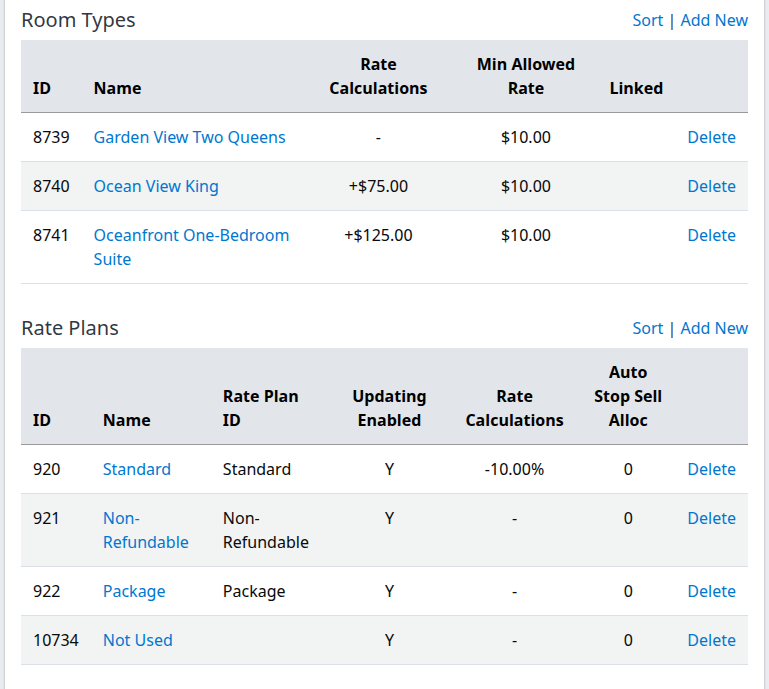
Example standard-product configuration. These tables do not show date-specific rates, available-room counts or channel acceptance.
Room Types
| Column | Meaning |
|---|---|
| ID | Internal standard room-type identifier. |
| Name | Standard room-type name; opens its editor for this property. |
| Rate Calculations | Nonzero configured rate adjustments, such as +75.00 or -10.00%. Multiple adjustments are listed in order. - means all four displayed adjustment values are zero, not that every possible rate rule is absent. |
| Min Allowed Rate | Configured minimum allowed rate, displayed using this property's currency. It is not today's selling rate. |
| Linked | Name of the linked parent room type, when configured. Blank means no parent is displayed. |
| Delete | Opens the standard room-type removal workflow. |
Currency caution: flat-amount symbols in Rate Calculations can use the property selected when the summary was opened rather than the property on that row. In a mixed-currency organization, do not use that symbol as evidence of a conversion. Check the intended property's own room/rate editor and currency before making a pricing decision. Min Allowed Rate uses the row property's currency separately.
Rate Plans
| Column | Meaning |
|---|---|
| ID | Internal standard rate-plan identifier. |
| Name | Standard rate-plan name; opens its editor. A name such as “Not Used” does not disable the plan. |
| Rate Plan ID | Configured standard rate-plan code. It is separate from the internal ID and channel-specific mapping IDs; it may be blank. |
| Updating Enabled | Y/N reports the plan's inventory-sending switch. Y is not a successful-send indicator. |
| Rate Calculations | The plan's nonzero configured adjustments, with the same - and currency-display limitations described above. |
| Auto Stop Sell Alloc | Stored allocation threshold for the plan's automatic stop-sell rule. 0 means no positive threshold is set here; it does not mean current allocation is zero or Stop Sell is off. This is configuration, not a live restriction value or proof that the rule ran. |
| Delete | Opens the standard rate-plan removal workflow. |
For both tables, Add New opens product creation and Sort appears when more than one item exists. Do not change products, sorting or enabled settings merely to make the summary look correct. Follow the appropriate setup workflow and verify its saved result separately.
Interpret Warnings & Errors
Property messages may start with Hotel:, Updating: or Reservations: to identify the check. This section shows errors and warnings only; it does not display every informational message available on the individual Hotel Status page. An absent section is not an all-clear result.
| Finding | What it establishes and safe next step |
|---|---|
| 0 room types or 0 channels | No standard room types or assigned channels were found for that property. Confirm the intended setup before adding anything. These are not availability or successful-connection counts. |
| No users … assigned access to this property | No unlocked organization user with an explicit assignment was found. Org Admins can have broader access, so the message is not a complete effective-permissions audit. Review the intended users and their access before changing permissions. |
| Min Nights feature is disabled | That property feature is off. Confirm whether this is intentional; do not enable it solely to remove the warning. |
| Locked out or overdue | An account-date condition was found. Contact the account administrator or Support rather than changing channel mappings. |
| [Channel] is not currently setup | Stored setup is missing or incomplete for the applicable inventory check. Review the named connection. |
| [Channel] Inventory Send disabled | An inventory-send-capable connection is setup, but sending is disabled. Confirm whether that is intentional before enabling it. |
| 0 updatable channels | Channels exist, but none passed the setup/enabled checks for inventory sending. This can have different significance for a PMS-only property than for an OTA-distribution property. Review the intended configuration. |
| 'Reservation Handling' is not enabled | The property-wide setting is off. Compare Reservation Delivery and the intended operational workflow. |
| Not enabled for availability management | Reservation handling is on, but reservation-driven availability management is off. Confirm which system is responsible for availability. |
| [Channel] is not activated for reservation handling | An eligible, configured channel has its own handling setting off. Property-wide Yes does not remove this channel-specific condition. |
| [Channel] — no reservations received in the past 30 days | For eligible channels whose settings are older than 30 days, the check found no stored reservations by creation time in that lookback. It does not search stay dates or prove a failed PMS delivery. If bookings were expected, compare Reservation Search and the channel's records before considering recovery. |
| No reservation delivery email addresses stored or no VERIFIED reservation delivery emails | No verified delivery recipient was found while handling is enabled. Existing unverified entries can produce both messages. Check Verified before adding duplicates. |
| Only 1 verified reservation notification email, and 0 verified backup emails | Exactly one verified primary and no verified backup were found. Review the intended backup arrangements with your administrator. |
| Unverified reservation delivery emails | At least one stored recipient lacks verification. This warning can appear even when property-wide handling is off. Review the intended recipient before verification. |
The checks are selective. A disabled PMS inventory-receive connection may have no separate disabled warning. The summary also does not flag every missing product: an empty Rate Plans table is not necessarily accompanied by an error. Review the tables and intended configuration, not only the warning list.
Check the result and investigate safely
- Note the organization, property, affected channel or product, and exact finding.
- If a configuration review is needed, open the relevant property, channel, recipient or product link. Confirm the destination's property before making any authorized change. Opening an editor is not a requirement to save it.
- After an authorized correction has been saved, return to the summary and reload it, or reopen Org Edit → General → Summary.
- Confirm that the relevant displayed configuration or finding now reflects the saved change.
- For an actual reservation-delivery question, use the separate reservation delivery status guide. Select the intended property, choose the required filters and click Search; changing filters alone is not the result check.
A cleared warning establishes only that this setup check no longer reports the condition. It does not establish that work was queued, delivered or accepted. Do not resend reservations or inventory as a diagnostic test.
The Close cross hides a message from the current display. It does not correct the condition or save an acknowledgement. Reloading evaluates the checks again and can bring the message back.
Common problems
- Users, Summary or Org Status is unavailable: confirm Org Admin permission and the intended organization/property scope. Accounts has additional access requirements; use Admin → Home → Users for your own organization when available. If your administrator confirms access and the page still fails, send Support the URL and error text.
- A property is missing: check the organization name on the first card. A child organization's properties require that organization's own summary. If the property should belong directly to the selected organization but remains absent, ask Support to reconcile its membership; do not recreate it.
- A field or warning disagrees with another screen: reload the summary and compare the same property and setting. Check the field's meaning—especially account activity, currency symbols, email verification and timestamps. Escalate persistent discrepancies rather than changing live configuration to match a label.
- A warning returns after dismissal or after a saved correction: dismissal is display-only. Recheck the underlying setting and correct property. If the saved configuration still disagrees after reload, contact Support with the exact finding and correction time/time zone.
- A warning appears beside enabled settings: property-wide settings, channel-specific settings and actual delivery are separate checks. Investigate the named connection. Do not treat a Yes/Y value as grounds to retry a send.
For Support, include the organization, property, affected channel/product, page URL, exact message and observation time/time zone. Avoid passwords, verification codes, payment details and unnecessary guest information.