

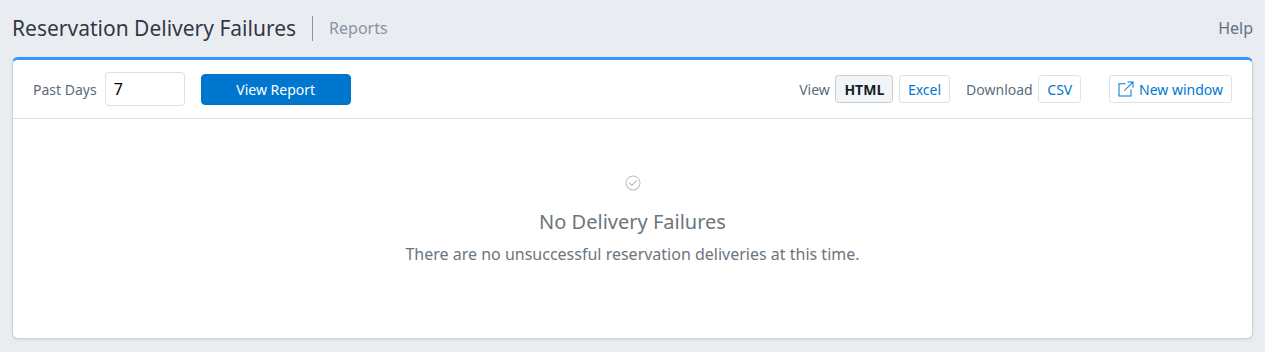
Property report with a seven-day lookback and no matching delivery failures.
Use the Reservation Delivery Failures report to find unsuccessful reservation-delivery requests, share the details and decide what needs investigation before taking corrective action.
Before you start
Sign in with access to the property you want to check. Select that property in the property selector. You do not need Org Admin access specifically to view this report.
This report counts delivery requests, not unique reservations. Several requests can relate to the same reservation. A failed request does not, by itself, prove the reservation is missing from your property management system (PMS).
Open and run the report
- Open Reports → Home.
- In the Reservations section, select Delivery Failures.
- Enter a positive whole number in Past Days. The default is 1; increase it when investigating an older delivery issue.
- Select View Report to apply the lookback to the selected property.
The lookback uses the delivery request's creation date, not the guest's arrival date. Treat it as a date-based lookback, not an exact rolling number of hours.
Running the report does not resend reservations or change their delivery status. You can run it again to refresh the results. New window opens the report without the main navigation and retains the applied lookback. Help opens this guide in a new tab.
Read the results
The number before Failed Deliveries is the full count of matching unsuccessful delivery requests. The in-app list shows the newest requests first, up to a safety limit of 10,000. If more match, a Listing the newest … notice points you to View all matching deliveries. Scheduled email reports remain limited to the newest 50 requests; their total can be larger.
Each row shows Channel Reservation ID | Status, with PMS: … underneath when a PMS reference is available, followed by Source, Destination, Timestamp, and the workflow links. Two values need particular care:
- Status is the reservation state, such as New, Modified, or Canceled. It is not the delivery outcome: the requests in this report are already filtered to unsuccessful deliveries.
- Timestamp is the delivery request's last-updated time, displayed in your signed-in timezone. It is not the creation date used by Past Days.
A recorded error message appears beneath its request. View all matching deliveries opens Delivery Status with the property, unsuccessful status and start date carried over. That screen is paginated; its first page is not necessarily the complete list.
Share the list with your PMS provider
Use the controls beside View Report to hand the failures to whoever needs to enter or investigate them:
- Copy to Clipboard (in the HTML view, beside Failed Deliveries) copies a plain-text list you can paste into an email or support ticket: the property, the Past Days lookback and count, then for each failure its reservation ID, PMS ID, status, source, destination, timestamp and error.
- View: Excel shows the same failures as a spreadsheet, one row per request: ReservationId, ReservationPmsId, ReservationStatus, SourceChannelId, SourceChannelName, DestinationChannelId, DestinationChannelName, Timestamp and ErrorMessage. Use the spreadsheet's File → Save As to keep a copy.
- Download: CSV downloads those same columns as a file that opens in Excel or any spreadsheet program.
These outputs use the same request selection and 10,000-row limit as the HTML list. Run View Report after changing filters, then choose your output. Timestamp uses your signed-in timezone; Excel and CSV write it year first (for example 2026-10-16 14:12:34). IDs and error text can be sensitive, so review the output before sharing it and send it only to people who need it.
All your properties in one report
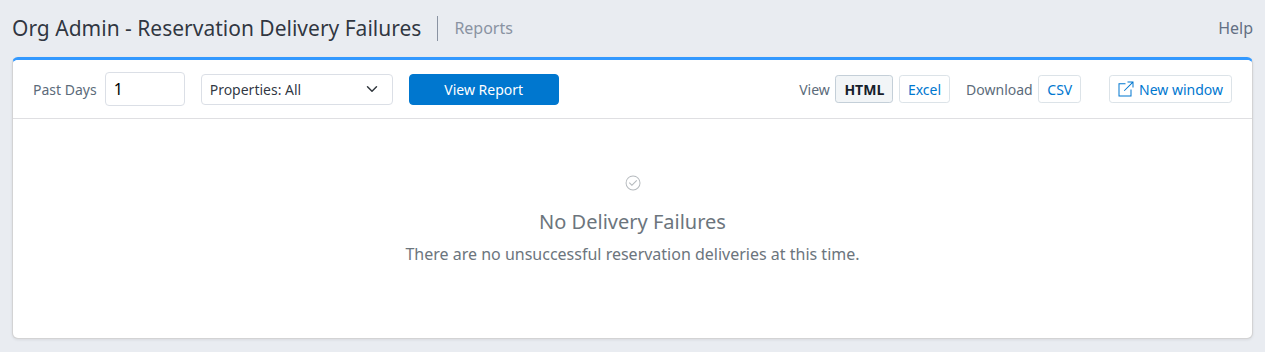
Organization report with all offered properties selected and no matching delivery failures.
Open Org Admin → Reports and, under Reservations, select Reservation Delivery Failures. This report covers the organization of the currently selected property. Org Admins can report on all active properties in that organization; other users are limited to their assigned active properties in that organization. Each failure names its property beneath the reservation information:
- Open Properties, search by name and tick the properties to include. Select all toggles the properties currently shown by the search; it does not clear selections hidden by the search. Select View Report to apply your choice. With nothing ticked—or every property ticked—the report covers all properties offered by the filter.
- Excel and CSV start each row with PropertyId and PropertyName, and Copy to Clipboard starts each failure with its property.
- View all matching deliveries opens the organization's Delivery Status page with the report's property scope, unsuccessful status and start date.
Open the report from Delivery Status
On Reservations → Delivery Status (or the organization's Delivery Status page), set Status to Unsuccessful and select Search. A Reservation Delivery Failures link appears in the top right when that scope can be represented by the report. It carries the property or property selection and converts Start Date into a day lookback, defaulting to 30 days when no Start Date is set. Other Delivery Status filters are not all carried over, so the result counts can differ. If you switch organizations without selecting a property, the link may disappear; select a property in that organization first.
Use the reservation shortcuts
Use History | Email | PMS | View in the Actions column to investigate or act on a reservation. Each link opens in a new tab, keeping the report open. PMS appears only when reservation delivery is enabled for the property.
View opens the reservation version associated with the failed request in a new tab. History, Email and PMS use the latest reservation version:
- History: review the reservation history.
- Email: open Email Reservation. Enter or select the intended recipients and check the Email field before choosing Send. Opening the form does not send anything; Send queues a new email delivery. This is not a PMS retry.
- PMS: open Send Reservation to PMS. This link appears when the property has reservation delivery enabled. Review the listed destinations before choosing Send: it queues new delivery requests to all currently enabled PMS destinations, not just the destination on the failed request. Opening the form does not send anything.
Check the destination system before submitting an email or PMS resend. Use Cancel if you are not ready to send. These links navigate to existing workflows; they do not repair the failed request merely by being opened.
A send confirmation means a new delivery request was queued, not that the recipient received the email or the PMS accepted the reservation. Check the new attempt in Delivery Status and confirm the result in the destination system. The report opens Delivery Status filtered to unsuccessful requests; change that status filter when looking for a successful new attempt. An older failed request can remain listed after a separate attempt.
On Delivery Status, Status describes delivery processing, and the displayed time is the request's creation time—not the report's last-updated Timestamp.
Check the result and follow up safely
No Delivery Failures means no matching unsuccessful requests were found for the selected property scope and lookback. It does not prove that every reservation was delivered or that older failures have been resolved.
For a listed failure, check the reservation and recorded error, then confirm the reservation's current state in the destination system. Although the report displays a manual-entry warning, verify whether the reservation already exists before entering it or requesting a resend. Do not assume repeated sends are duplicate-safe.
The report itself does not repair delivery. A failed request alone cannot establish the outcome of a separate delivery attempt. If you cannot establish what happened, contact support before repeating the action.
Common problems
- The report is empty, but you expect a failure. Check the selected property and increase Past Days if needed. If a known issue still cannot be located, give support the reservation reference and approximate delivery time.
- The list says "Listing the newest …". A very large lookback can match more failures than one page lists (over 10,000). Shorten Past Days, or use View all matching deliveries and the paging controls on Delivery Status for the rest.
- The reservation says Modified or Canceled. That describes the reservation, not successful delivery. Read the recorded error and check the corresponding change in the destination system.
- The PMS link is missing. It is shown only when reservation delivery is enabled for the property. Ask your administrator to check the PMS delivery setup; using Email does not enable or repair PMS delivery.
- You cannot access the property or report. Ask your account administrator to check your property access. Contact support if access is confirmed but the page still cannot be opened.
When escalating, include the property, source channel, destination, reservation reference, selected Past Days, relevant time and timezone, and error text. Do not include passwords, payment details or unnecessary guest information.