

Use Excel View to inspect rates, allocation and restrictions in a read-only spreadsheet, then download the workbook or a report CSV for further analysis.
Before you start
- Select the property you want to inspect. You need access to every property included in the report. Org Admin access is not required for a single-property report.
- Decide which inventory source you need. PMS data, manual PMS overrides, the ChannelRUSH master image, stored channel report data and CRS/booking-engine data are different representations of inventory.
- Excel View is not an inventory editor. Save As downloads a file; it does not save rates or send inventory to channels.
- A displayed price, positive allocation,
Nrestriction or recent timestamp is not proof that a guest can book, that a channel accepted an update, or that the value was read back from the channel.
Open Excel View
- Select the intended property in the application's property selector.
- Open Reports → Rates & Availability.
- Choose the Date Range, Days, Data To Display, Room Types, Rate Plans and sources you want to inspect.
- Under View, click Excel.
- In the new tab or window, confirm the heading Rates & Availability Report - Excel View, the property name and the date range above the spreadsheet.
Both date endpoints are included. Select at least one room type, source, weekday and data group. Leaving all rate plans clear requests room-level rows rather than all rate plans.
For the starting screen's full field reference and remembered selections, see Choose filters for a rates and availability report. For an organization-wide starting point, see Compare rates and availability across properties.
Change the loaded report
The controls above the spreadsheet refine the report. They do not change inventory.
Dates
- Enter the Start date and End date, or choose a month using Month / Year.
- Click Load.
- Confirm the dates remain selected and the spreadsheet's Date values match the requested range and weekdays.
Sources, products, data and weekdays
- Open All Channels, Room Types, Rate Plans, Data or Days.
- Select the entries you need. A dropdown may show a selected-count badge or different summary when only some entries are selected.
- Click Apply in that dropdown. Its accessible label is Apply — reloads report.
- After the page reloads, check the selected entries and the spreadsheet's rows or columns.
Changes are pending until the report reloads. Apply reloads all pending filter choices, not only the dropdown you clicked. A changed badge alone does not prove the spreadsheet has changed. If you switch view, download CSV or open a new window with pending changes, the application can ask you to Apply and continue or Cancel. Cancel stops that navigation; it does not necessarily clear your pending choices.
Filter reference
| Control | What it changes |
|---|---|
| All Channels | The selected inventory sources. Available entries depend on the property's connections. A master or PMS source is not an OTA read-back. |
| All Live Read, when available | Selects eligible connected sources to request when the report loads. It is not a local-only filter. Use one property matching the currently selected property. Clear all entries when you only want stored data. |
| Room Types | Standard room types to include. At least one eligible room type is required. Mapped virtual channel rooms can appear with their selected real parent. |
| Rate Plans | Standard plans to include. No selected plans means room-level rows only, where supported. Unmapped, when offered, includes configured channel plans without a standard rate-plan mapping. |
| Data → Rates | Includes SellRate and spreadsheet Rate Params. Toolbar CSV includes SellRate but not Rate Params. |
| Data → Availability | Includes Allocation and RoomsSold. These do not override stop-sell or other restrictions. |
| Data → Restrictions | Includes StopSell, minimum/maximum stay, cutoff, CTA and CTD columns. |
| Days | Includes inventory dates on the selected weekdays. At least one weekday is required. |
Fresh criteria default to all three Data groups and all weekdays. Excel View retains the choices supplied by the starting screen. Clearing a Data group removes its columns from the spreadsheet and from the toolbar CSV; it does not turn the omitted values into zero. Identity, Date and Timestamp columns remain. Channel Inventory Images are restricted to ChannelRUSH administrators and are not a customer-access requirement.
Read the spreadsheet
- Scroll horizontally to reach the remaining columns. The report is wider than a normal page.
- Resize columns when a heading or value is clipped.
- Use the Grid or List link above the spreadsheet if another presentation is easier to inspect. Excel identifies the current view.
- New window, when shown, opens another report window with the current criteria. Excel View already uses a standalone layout without the usual application navigation.
- Cells are read-only. Disabled editing or formatting controls do not mean you lack permission to download the report. Do not use spreadsheet editing commands as a way to update inventory.
Rows represent a property, source, product and inventory date. There may be room-only rows, rate-plan rows and multiple channel products mapped to the same standard product. Do not add allocation across these rows or across sources as though each row were separate stock.
Blank values and defaults need care
- Blank SellRate or Allocation means this projection has no value to show; it does not mean a zero price or zero rooms.
- Missing minimum-stay values can display as 1, missing cutoff as 0, and missing boolean restrictions as N. Those defaults are not confirmation that the channel explicitly supplied those values.
- Maximum-stay value 99 is displayed as blank, as is a missing maximum.
- RoomsSold is blank for sources that do not provide it, and zero can also be suppressed. Blank does not establish that no rooms sold.
- On rate-plan rows, some allocation and numeric restrictions can fall back to the room's values. Stop Sell, CTA and CTD can be true when either the room or rate-plan flag is true.
- A missing stored day can receive a current-looking Timestamp when the report creates an empty row. A timestamp beside blank values or normalized defaults is not evidence of a fresh source observation. On a combined rate-plan row, it is not necessarily the latest edit time of every displayed field.
- Live Read rows have no timestamp in this output. An empty Live Read result does not prove zero inventory or a healthy connection.
Download the spreadsheet workbook
Use this when you want the spreadsheet's selected columns, including its additional source/product identifiers and Rate Params.
- Finish applying your filters and check the loaded report.
- Inside the spreadsheet, open File → Save As.
- Choose Microsoft Excel (
.xlsx). - In Save As, check or change File Name.
- Click Save.
- Open the downloaded file and confirm the property, dates, source/product rows and selected data columns.
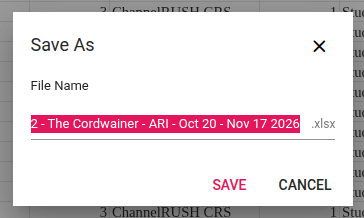
The workbook download dialog for a demo-property report.
The suggested filename includes the property and date range; a multi-property report uses Multiple Properties. Cancel closes the download dialog without producing the file. Downloaded files contain operational property data; check their contents before sharing them.
Save As exports the workbook currently loaded in the browser. It does not re-query inventory. Changes that remain pending in the report controls are not a newly loaded workbook.
The menu also offers older Excel, comma-separated values and PDF formats. A CSV chosen inside File → Save As exports the spreadsheet, not the separate toolbar CSV schema below. Do not treat those two CSV choices as interchangeable. File → Print opens the spreadsheet's print workflow; review the print preview before printing.
Download the report CSV
Use this when you want the report's separate CSV format, with standardized date and number formatting.
- Apply the report criteria and confirm the selected Data groups.
- Above the spreadsheet, click CSV in the Download group.
- Open the downloaded
.csvfile in a spreadsheet application or import tool. - Check its headers, property, sources and date range before using the data.
Toolbar CSV runs the report again for the criteria sent with the download. Values or timestamps can therefore differ from an earlier workbook if the underlying data changed. Its dates use yyyy-MM-dd; timestamps include a time-zone offset, not necessarily UTC. The spreadsheet uses localized display dates and timestamps.
When importing CSV, preserve identifier columns as text if leading zeroes or long external IDs matter. The report CSV escapes commas, quotes and line breaks and protects formula-like text. If your import tool displays a protective leading apostrophe, inspect the original text rather than treating it as part of an identifier.
Toolbar CSV headers
With all Data groups selected, the columns appear in this order:
PropertyId,PropertyName,ChannelId,ChannelName,RoomTypeId,RoomTypeName,RatePlanId,RatePlanName,ChannelRatePlanId,ChannelRatePlanName,Date,SellRate,Allocation,StopSell,MinNights,MinNightsThrough,MaxNights,MaxNightsThrough,CutOffDays,CTA,CTD,RoomsSold,Timestamp
Clearing Rates removes SellRate. Clearing Availability removes Allocation and RoomsSold. Clearing Restrictions removes StopSell through CTD. The CSV never includes SourceFamily, SettingRoomTypeId, SettingRatePlanId or Rate Params. ChannelName retains any source-specific suffix. The remaining fields have the meanings in the reference below.
Spreadsheet column reference
The spreadsheet orders the identity columns first, then Date, the selected Rates/Availability/Restrictions groups, and Timestamp last. RoomsSold sits beside Allocation here, rather than near the end as it does in toolbar CSV.
| Column | Meaning and example |
|---|---|
| PropertyId | ChannelRUSH property identifier. Use with PropertyName to distinguish properties in a combined report. |
| PropertyName | Property name for this row. |
| SourceFamily | C is the ordinary selected-source path, which can contain master, PMS, stored channel or CRS data. CLR identifies Live Read. CCI identifies the administrator-only stored Channel Image. C alone does not establish an OTA response. |
| ChannelId | Identifier for the source channel or inventory representation. It is not a reservation ID. |
| ChannelName | Source name. Read it with SourceFamily; special source names can include Live Read or Channel Image. |
| RoomTypeId | Standard property room-type ID. Several mapped channel rooms can share it. |
| RoomTypeName | Standard property room-type name. |
| RatePlanId | Standard property rate-plan ID. Blank on room-only rows or when no standard plan is mapped. |
| RatePlanName | Standard property rate-plan name, when applicable. |
| SettingRoomTypeId | ChannelRUSH channel-room mapping identifier. Distinguishes mapped products sharing a standard room type. It is not the provider's external room ID. Blank where not applicable. |
| SettingRatePlanId | ChannelRUSH channel-plan mapping identifier. Blank on room-only rows and sources without that mapping. |
| ChannelRatePlanId | External channel rate-plan ID, when applicable. Different from the standard RatePlanId. |
| ChannelRatePlanName | Configured channel plan name. It can differ from the standard RatePlanName. |
| Date | Inventory/stay date, not the report-run date or change time. |
| SellRate | Selected source's sell price, displayed to two decimals. Blank when absent. No currency column is included; this is not a guaranteed final channel quote. CRS values can reflect applicable configured promotions. |
| Rate Params | Additional or occupancy-related prices, where supplied, shown as amount - key/type, separated by semicolons. Blank when no prices are available. These appear only in the spreadsheet/its exports, not toolbar CSV. |
| Allocation | Source allocation or rooms available to sell. Positive allocation can coexist with StopSell=Y and does not by itself prove bookability. |
| RoomsSold | Source rooms-sold count where supplied. Not a total of reservations across report rows; blank can mean absent, inapplicable or suppressed zero. |
| StopSell | Y for a true stop-sell flag; N for false or a normalized missing value. |
| MinNights | Minimum length of stay for an arrival on Date. A displayed 1 can be a fallback for missing data. |
| MinNightsThrough | Minimum length of stay for a stay including Date. The same fallback caution applies. |
| MaxNights | Maximum length of stay for an arrival on Date. Missing values and 99 display blank. |
| MaxNightsThrough | Maximum length of stay for a stay including Date. Missing values and 99 display blank. |
| CutOffDays | Advance-booking cutoff in days. A displayed 0 can be a fallback for missing data, not a verified channel rule. |
| CTA | Closed to arrival on Date: Y/N, with missing values normalized to N. |
| CTD | Closed to departure on Date: Y/N, with missing values normalized to N. |
| Timestamp | Chosen stored day's edit timestamp displayed in your user time zone. Blank for Live Read. Missing stored days can show a newly generated timestamp; do not use this column alone to assess freshness or delivery. |
Check the result
After loading, verify the property, dates, sources and products against the task you intended. Check the actual columns after changing Data, not only the dropdown badge. In a downloaded file, check the headers again: toolbar CSV and workbook exports are deliberately different.
A successful download confirms that a file was generated. It does not confirm inventory delivery, channel acceptance, live retail prices or resolved synchronization problems. Investigate an unexpected value using its property, source, room/plan and date. Do not send or resend inventory merely because this report is blank or shows defaults.
Common problems
| Symptom | Likely cause and safe next action |
|---|---|
| A dropdown changed but the spreadsheet did not | The choice may still be pending. Click Apply in that dropdown; for dates, click Load. Confirm the loaded rows/columns. If they still disagree, record the criteria and contact support. |
| Required-selection or date error | Choose a valid start/end range and at least one eligible room, source, weekday and Data group. No selected rate plans is allowed for room-only output. Correct the displayed error and load again. |
| A source, room or plan is unavailable | Choices depend on accessible properties and configured mappings. Confirm the property and ask your administrator to check setup. Do not change mapping or permissions merely to make a report row appear. |
| Live Read refuses a multi-property report | Run it for one property matching the currently selected property, or clear Live Read and use stored sources. Escalate if a valid single-property selection is still refused. |
| Rates, allocation or restriction columns are missing | Check Data and apply the needed groups. Rate Params and mapping/source metadata are never in toolbar CSV; use the workbook export when those fields are required. |
| The same standard room/plan appears several times | Check source, channel plan and mapping identities. Virtual or multiple mapped products can share standard IDs. Do not deduplicate or total them without identifying what each row represents. |
| Blank values, N flags or recent timestamps look inconsistent | Missing-data normalization can produce that combination. Compare the correct source/product/date and contact support if the value matters operationally. Do not infer an open channel or successful synchronization. |
| A download fails or no usable file appears | Check the browser's downloads and any displayed error. Reopen the report after signing in again if needed, then retry the file download. A retry generates another file, not an inventory send; a toolbar CSV with Live Read selected can request source data again. If it still fails, send support the format, property, criteria, action time/time zone and error text. |
| A downloaded date is shown as a number | Workbook applications can display Excel's stored date serial when date formatting is not applied. Format that Date column as a date, or use toolbar CSV for ISO date text. |
Keep support examples scoped to the affected inventory. Do not send passwords, payment details or unrelated guest information.