

Keep your property's channel market-manager details in one place, find the right person, and update or remove a local contact record.
Before you start
- Select the correct property. Contacts belong to that property, not to every property in your organization.
- You need Channel Settings permission to add, change or delete contacts. Seeing an Edit or Delete link does not by itself confirm you can save changes.
- Have the person's current business contact details ready. Use plain text, and do not store passwords, payment details or guest information in Notes.
This is a local contact directory. Saving a contact does not update the channel's extranet, invite a user, send an email or add a reservation-notification recipient.
Find a contact
- Select the property in the property selector.
- Open Admin → Home.
- In the Channel Manager section of Settings, select Channel Contacts.
- Leave Channel blank to see all contacts for the property, or select a channel to show only its contacts.
Changing Channel reloads the list immediately; there is no separate Search button. Choose the blank option at the top of the selector to clear the filter. This changes what you see, not the contacts themselves.
The list has Channel and Contact columns, with Edit and Delete beside each entry. Contact shows the name in last-name-first order, followed by any job title, phone number and email address. A blank Channel cell means the contact has no channel association. Notes are available in the editor, not in the list.
An empty table means no saved contacts match this property and channel selection. It does not mean the channel has no market manager. Clear the filter and check the property before adding another entry.
If an email address is present, its link opens your configured email application. Opening that link does not send a message from ChannelRUSH.
Add a contact
The editor saves only when you select Save. Changing fields or choosing a channel in this editor does not save immediately.
- From Channel Contacts, select Add New.
- Enter First Name, Last Name, or both. At least one name is required.
- Enter the available Email, Phone Number and Job Title.
- Select Channel if the contact belongs to a particular channel.
- Add any useful business context in Notes.
- Select Save.
- Check the returned contact list and reopen the entry with Edit to confirm the saved details.
Channel starts blank for a new contact even when you selected a channel in the list first. Select it explicitly if you want that association. Leaving it blank creates a property contact that is visible in the unfiltered list but not when you filter to a particular channel.
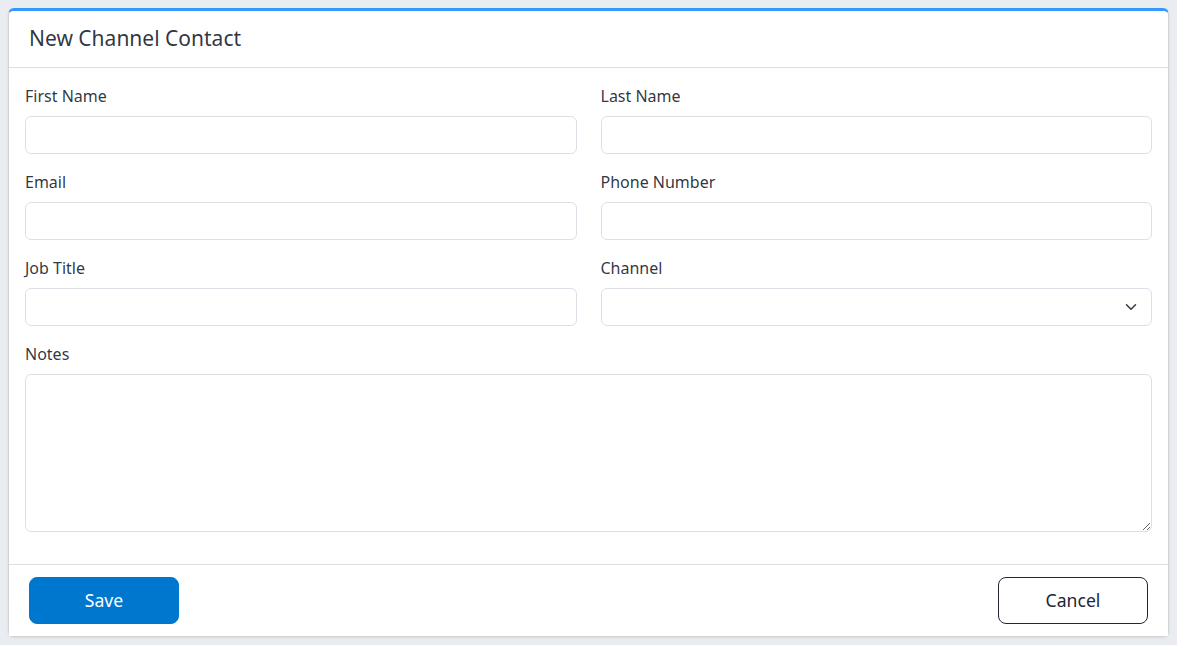
The new-contact form starts empty. The list's channel filter is not copied into it.
A successful Save returns you to the unfiltered Channel Contacts list with a success message. That confirms a local save, not that an email address works or a phone number is correct. Check those details against your source.
Edit an existing contact
- Open Channel Contacts for the correct property.
- Select Edit beside the intended contact.
- Check the existing name and channel before changing the details.
- Change the relevant fields.
- Select Save.
- Reopen that contact from the returned list and verify the changes, including Notes.
Changing Channel moves the contact's association to the selected channel. Choosing blank removes the association without deleting the contact. Clearing an optional text field removes its saved value when you save.
Cancel from the editor returns to Settings without saving your edits. Use the Contacts breadcrumb to return to the contact list. If you changed fields, navigation may ask whether to discard those unsaved changes.
Delete a contact
Deletion removes the local contact record. It does not remove the property's channel connection or delete a user or contact in the channel's own system. There is no undo control on this page.
- Find the record in Channel Contacts and verify its details with Edit if names are similar.
- Select Delete beside the intended record, or select Delete in its editor.
- Check the contact name on Delete Channel Contact. The confirmation asks, Are you sure you want to proceed with this delete?
- Select Delete on the confirmation page only when you intend to remove that record.
- Check the returned, unfiltered contact list to confirm the intended record is gone.
Opening the confirmation page does not delete anything. Cancel returns to the contact editor; Contacts returns to the list. The confirmation identifies the contact by name, so return to Edit Contact first if you cannot distinguish duplicate names.
Field reference
| Field | What to enter and what it changes |
|---|---|
| First Name | The person's given name. Optional only when Last Name is filled in. Leading and trailing spaces are removed on save. |
| Last Name | The person's surname. Optional only when First Name is filled in. Leading and trailing spaces are removed. When both names are present, the list displays surname, then given name. |
Optional business email address, such as manager@example.com. Saved in lowercase with surrounding spaces removed. Check the spelling yourself; saving does not verify the address or send a confirmation. |
|
| Phone Number | Optional business number. Parentheses, hyphens and spaces are removed when the value is saved. Seven- and ten-character stored values are displayed with hyphens; other lengths are displayed without that automatic grouping. Include any needed country code and check the result after saving. |
| Job Title | Optional role, such as Market Manager. Displayed beneath the name in the list. Surrounding spaces are removed. |
| Channel | Optional association with one of this property's channels. Blank means no channel association. The list filter and this saved field are separate controls. |
| Notes | Optional multiline business context. Surrounding spaces are removed. Reopen Edit to read or verify notes; they are not shown in the contact list. |
All fields start blank on Add New. Only the name rule requires a value: First Name and Last Name cannot both be blank or contain only spaces.
Common problems
A contact is missing or the table is empty
Check the selected property, then choose the blank Channel option. The record may be unassigned or assigned to a different channel. If it is still missing, confirm with a colleague whether it was added or deleted before creating a replacement.
A channel is missing from the selector
The selector lists channels associated with the current property. Check the property and ask your administrator to confirm its channel setup. Do not choose another channel merely to complete the form.
Add New is missing, fields are disabled, or Save/Delete is refused
Ask your administrator to check Channel Settings permission for the property. A demo login can browse contacts and use the list filter but cannot save or delete contacts. Do not treat a visible action link as proof of write access.
Save returns to the editor
Check that at least one name contains text and review any displayed message. Recheck the channel selection. If the form returns without a useful explanation, do not repeatedly submit it; contact support with the property, action time and error text, if any.
Save or Delete gives an error or an uncertain result
Return to the unfiltered Channel Contacts list for the same property and inspect the current record before retrying. An error after submission does not prove that nothing was saved. Repeating an uncertain Add New submission can create another contact rather than update the first one.
If you cannot establish the result, ask support to check the property, channel, action and action time with time zone. Include the error text, but do not send passwords, payment details or unnecessary personal information.
An old Edit/Delete link no longer opens
Return through Admin → Home → Channel Contacts and select the current record. It may have been removed or the selected property may have changed. If a link from the current list still fails, report that page and the error to support rather than changing identifiers in the address.