

Configure a property's rooms, offers, booking access, guest-facing content and photos, then check that the intended website or CRS connection uses them.
Before you start
- Select the correct property and check its name above the tabs. These settings belong to that property, not every property in your organization.
- Booking Engine / CRS - Settings permission lets you save the settings in Rooms & Rates and BE & CRS Channels. Content permission lets you save property content and manage photos. You can have one permission without the other. Ask your organization administrator if the relevant fields or save controls are disabled.
- Prepare the property's real descriptions, contact details, selling policies and intended booking connections. Do not copy another property's payment, tax or policy values.
- Settings can affect an existing guest-facing site and connected services. Saving is not a private preview. Coordinate changes to booking access, payment processing, policies and shared booking profiles before applying them.
Open CRS Settings
- Select the property in the property selector.
- Open Admin → Settings - CRS.
- Check the property name on CRS Settings.
- Choose the tab for your task.
Settings - BE and Settings - Content in the Admin menu open the corresponding sections of the same settings page. You can prepare booking-engine settings before its channel is assigned; a warning explains what still needs to be set up before guests can book.
| Tab | Use it for |
|---|---|
| Rooms & Rates | Room types, rate plans, add-ons, venues, promotions, booking policies, fees and taxes. General Settings, including payment and email settings, is at the bottom. |
| BE & CRS Channels | Booking profiles, booking-engine options, widget keys, hosted websites and CRS partner access. |
| Content | Each language profile's property information, links, website content and shared channel amenities. |
| Content - Photos | A separate page for the file-library entry point, gallery mappings, photo order, logo, favicon and search photo. |
The links near the top of Rooms & Rates and each content profile jump to sections. General Settings, Channel Amenities, and several Links & Scripts fields expand when you click their headings. A collapsed section still keeps its values in the form.
BE Settings Summary and Content Summary open separate review tabs. Reload a summary after saving changes; an already-open summary is not automatically updated.
Understand what saves together
The first three tabs share one form. Switching between them, switching a language profile or opening a disclosure does not save. A main save submits all editable parts of that form—not only the visible tab. Parts you do not have permission to edit are not saved.
| Control | Result |
|---|---|
| Save | Saves the editable settings/content and returns to Admin. |
| Arrow beside Save → Save & Refresh | Saves the same form and reloads CRS Settings. Use this when you want to continue checking or editing. |
| Save & Continue | Shown for new settings; saves and returns to the settings editor. |
| Cancel | Returns to Admin without submitting the current form edits. It does not undo earlier saves. |
| A row's name, Edit, Add New, Sort, calendar or other editor link | Opens a separate workflow with its own save controls. Save your current form first. |
| Content - Photos | Leaves the settings form for a separate page. Photo actions have their own submission rules, explained below. |
After an error, reopen and compare the saved values before retrying. Settings, content profiles, amenities and photo changes are not one all-or-nothing operation. Some changes can already be saved when a later step fails. A success message also does not replace checking the individual fields you changed.
Saving can notify connected services that use CRS settings. It does not confirm that a channel accepted an update, that a payment works, or that a guest can book a particular stay.
Recommended setup and review order
For a new property, or a thorough review of an existing one:
- Review Rooms & Rates. Enable the intended rooms and plans and confirm their associations. At least one enabled room with an enabled assigned rate plan is needed for CRS setup.
- Review Booking Policies, including the default, plan-specific choices and calendar overrides. Add only the fees, taxes and extras the property actually sells.
- Expand General Settings. Check location, booking window and enabled state. Configure payment and email services only when you have the correct provider information.
- Use Save & Refresh and check the saved settings before opening other editors.
- In Content, complete each language profile you intend to offer. Save before adding separate pages, sections or other content records.
- In BE & CRS Channels, review the booking profile's languages and currencies, then the websites, widgets or CRS partners using it. Each connection has separate readiness requirements.
- Open Content - Photos to upload and map the appropriate images.
- Review both summaries and perform the non-booking checks under Check the result below.
Initial setup can provide starting room, rate-plan, policy and content records. Review what exists before using Add New; a default record is not confirmation that the property's commercial setup is correct.
Rooms & Rates
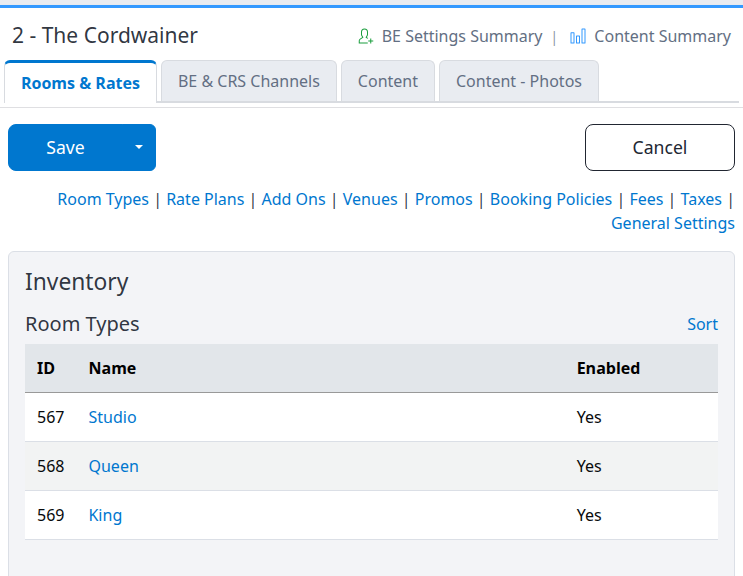
Start with the correct property and section; names and enabled states summarize saved setup, not live availability.
Inventory lists
These tables summarize saved records. They are not daily rate or allocation grids. Click a name to open its editor, make the intended changes there, use that editor's save control, then return and check the row.
| Section | What the list shows and what you can do |
|---|---|
| Room Types | ID, Name and Enabled. Click the room name to review its capacity, eligible rate plans, content and photos. Sort appears when there is more than one room. Rooms come from the property's room setup; this list has no Add New room control. |
| Rate Plans | ID, Name, Enabled and Delete. Use Add New for a CRS plan, or open an existing plan to review its room assignments, standard-plan mapping, booking policy and language content. |
| Add Ons | ID, Name, default Amount with currency and charging basis, Type, Enabled and Delete. Type identifies the add-on's level, such as Reservation. Rates & Availability opens the separate date-specific editor for eligible separately sold add-ons. The section-wide link covers the eligible items; a row link opens that item. Sort appears with multiple add-ons. |
| Venues | ID, Name, Enabled and Delete. Use Add New or a name to maintain facilities such as a restaurant and their descriptive content. |
An Enabled = Yes row does not prove that the item is available for every date or guest count. Room/plan assignments, usable rates, inventory and booking rules still matter. The add-on amount in this table is a default, not proof of the final price for a selected stay.
For detailed room and plan procedures, see Configure a CRS room type and Set up and edit a CRS rate plan.
Pricing & Policies
| Section | What the list shows and how to use it |
|---|---|
| Promos | ID, Name, Enabled and Delete. Use the name to edit, Add New to create, and Sort when multiple promotions exist. Review the offer's actual conditions in its editor rather than inferring eligibility from the enabled flag. |
| Booking Policies | ID, Name and the Rate Plans using each policy, plus Delete. The Default badge marks the fallback policy. Open a policy to maintain its terms; Booking Policy Calendar opens date-specific assignments. |
| Fees | ID, Name, Amount, Type, Enabled and Delete. Amount distinguishes a flat amount in the property's currency from a percentage; Type shows the charging basis. Open the fee to review its full scope. |
| Taxes | ID, Name, Amount, Rates, Add Ons, Fees, Enabled and Delete. The Yes/No columns summarize which components are selected. Open the tax to review its full treatment, including any room scope or included-in-price setting. |
Policy order has a commercial effect. The first booking policy is the default for plans without their own policy. Changing the policy sort order can therefore change that fallback; it is not only a presentation change. A rate plan can select its own policy. The Booking Policy Calendar can override the arrival-date policy, and a policy configured to apply throughout a stay can affect stays that overlap its dates. Check the actual stay's terms before promising a deposit, cancellation or refund outcome.
Delete links open separate removal workflows. Review the affected record and dependencies before confirming. The main CRS Settings Cancel cannot restore a record deleted in another workflow.
General Settings field reference
On Rooms & Rates, scroll to General Settings and click its heading. It opens automatically when setup needs attention or the settings save fails. Payments and Email Settings are inside the same block.
Fields marked with a red asterisk should be completed. Do not assume a save message verifies every required-looking field, geographic coordinate or business rule; review the saved values and summaries.
| Field | Meaning and accepted input |
|---|---|
| Default Language | The default for the widget and CRS partners when no language is requested, and the starting default for a new website. Choices come from the languages offered by booking profiles. The field appears when those languages exist. Each existing website has its own default language. |
| Maps Latitude | Property latitude as a decimal number, such as 40.71280. Use a decimal point, not degrees/minutes notation. Check the actual map location. The adjacent Google Maps and Instructions links help you locate coordinates. |
| Maps Longitude | Property longitude as a decimal number, such as -74.00600. Preserve the minus sign where required. This coordinate pair is separate from the map embed URL in Content. |
| Enabled | Yes allows the CRS setup to be active when its other requirements are met. No makes it not set up for CRS use. This is not a general instruction to close every connected OTA. |
| Property Type | Choose Hostel, Hotel, Cottage / Cabin, Resort or Vacation rental to describe the property. This information is used by supported CRS/content presentations; it does not create rooms or nightly inventory. |
| Pets Allowed | Yes or No property information for supported CRS consumers. It does not create a pet fee or add-on. |
| Max Days Bookable | How far ahead an arrival may be offered in the hosted/widget booking flow, measured from the property's current date. Enter a positive whole number, for example 365. The normal starting value is 730. This is not the maximum length of stay. Zero or a negative value uses the booking flow's 730-day fallback, not unlimited booking; use an explicit positive value. |
| PostalCode | The CRS property's postal code. Keep it consistent with the property's address and each content profile's separate PostalCode value. Saving one does not replace all profile addresses. |
Payments
Passthrough (No Authorization / No Charge) does not authorize or collect a payment. It is not the same as putting every website, widget and CRS partner into test mode. Confirm each connection's live/test state separately.
The Credit Card Gateway Settings Example reflects the gateway loaded with the page and does not update when you change the selection. Do not save a different gateway merely to refresh its example. Changing the gateway or replacing its settings can interrupt live payments.
- Before changing a live processor, obtain its complete required configuration and coordinate the change with support.
- Choose the intended Credit Card Gateway. Use the gateway arranged for the property rather than selecting a provider merely because it appears in the list.
- Enter that gateway's complete replacement configuration in Credit Card Gateway Settings before saving. Use a JSON object with one quoted name and quoted value per setting, separated by commas. Use the displayed example only when it belongs to the intended gateway.
- Save and check the saved-value and missing-setting indications. Keep credentials out of support messages and screenshots.
Do not submit a real charge merely to check this page.
| Field or indication | Meaning |
|---|---|
| Credit Card Gateway | The configured payment processor or Passthrough option. A selected processor alone does not establish a working merchant account. |
| Credit Card Gateway Settings | Protected provider settings. A nonblank replacement replaces the saved settings as a whole; it does not merge only the named keys. Keep all required keys. |
| Credit Card Gateway Settings Example | The expected settings names and format for the loaded gateway. It is not a set of working credentials. |
| Holds / Missing | Saved setting names and any required names still missing. Presence checks do not verify authentication or payment acceptance. |
The page displays a designated fake card for test reservations. Use it only within an agreed test-booking procedure; even a test reservation is a booking workflow, not a read-only settings check.
Email Settings
These optional settings let supported booking-engine email workflows use the property's provider. Leaving them unconfigured does not mean guest email is switched off; ChannelRUSH's standard sending path remains available. A provider failure can also fall back to the standard path. Neither a saved password nor a successful settings save proves delivery to an inbox.
| Field | Meaning |
|---|---|
| Email Provider | Blank for no configured property provider, or Smtp, Resend, SendGrid. Choose only the provider you intend to use. |
| Email Host | SMTP server host when using Smtp. Obtain it from your email administrator. |
| Email Username | SMTP account username when using Smtp. |
| Email Password | SMTP password for Smtp, or the provider API key for Resend/SendGrid. This is a protected replacement field. |
SMTP setup requires host, username and password. Resend and SendGrid require the API key in Email Password. The page does not provide separate port or TLS controls; ask support if your provider requires settings not offered here.
Protected values: keep, replace or remove
For Credit Card Gateway Settings, Email Password, Tweets Access Token Secret and Tweets Consumer Key Secret:
- A saved value is not shown in full. The page may show a saved-value message or a short ending to help identify it.
- Leave the replacement field blank and leave Remove the saved value unchecked to keep it.
- Enter a replacement to change it on Save. A replacement takes precedence if the removal box is also selected.
- To remove it, leave the replacement blank and select Remove the saved value, then save deliberately.
- After a failed settings save, newly entered protected values are not redisplayed. Recheck the saved indication and re-enter an intended replacement before retrying.
Removing a saved credential can stop the associated service. Do not remove it to reveal or test its contents.
BE & CRS Channels
Booking Profiles
A booking profile shares languages, content and currencies between hosted websites, widgets and CRS partners. It also holds booking-engine-only choices such as modify/cancel mode and checkout fields. Main is usually sufficient; add another profile when a connection genuinely needs different choices.
- Find Booking Profiles.
- Read Used By before changing a profile. It counts websites, non-revoked widget keys and CRS partners using it; a disabled site or partner can still count.
- Select Edit for an existing profile, or Add New.
- In that separate editor, review the content profile assigned to each language and the offered currencies, then its booking-engine options.
- Save there, return to CRS Settings and check the language, currency and usage summary.
The table shows ID, Name, Modify / Cancel, Languages, Currencies and Used By. A shortened currency list can show a remaining count; point to it to inspect the full list. Language links lead to their property content.
A content profile supplies text; selecting a language does not translate it. One booking profile cannot offer two content profiles for the same language. Changing a shared profile can affect every connection listed under Used By.
Booking Engine Settings fields
| Field | What it changes |
|---|---|
| Date Picker Days | The default stay length used by the hosted booking engine's date selection, not a minimum-stay restriction or a booking horizon. Starts at 3; enter a positive whole number. Values below 1 are adjusted to 1. Check the dates shown in your actual booking site. |
| Reservation Dates Mixed Mode | Yes keeps date searching available in supported hosted booking flows after a room has been selected, allowing rooms with different stay dates in the same reservation. No hides that further date-search control once rooms are selected. It starts at No. Do not treat this as a universal restriction on every API or widget booking. |
Use the main Save or Save & Refresh for these two fields.
Widgets
Use Add New to create a widget key, or Edit to open the separate key-management page. Do not put a masked key from this summary into your website embed code.
| Column | What to check |
|---|---|
| ID | Key record identifier. |
| Name / Info | Key name, masked key and Last used time or Never used. Last use is not a completed-booking indicator. |
| Allowed Origins | Sites permitted to use the key, listed separately. Check the intended website origin. |
| Type | Test or Live. |
| Status | Enabled, Disabled or Revoked. A revoked key has no row Edit link. |
An enabled live key is not a full readiness check. The correct profile, allowed origin, embed and property booking setup must also be in place. Never share the full key in screenshots or support messages.
Websites
A website row represents a hosted address, not a separate row for each language. Its booking profile supplies the languages and content; the website chooses which language opens at the base address. Widgets do not use these website rows.
- Find the intended URL under Websites.
- Check Booking Profile, Languages, the language marked default, Theme, the mode shown beneath it, and Enabled.
- Use Edit for that website, Add New for another address, or Edit All for the separate multi-website editor.
- Use Wording for the separate booking-engine wording editor, not for property descriptions.
- Save changes in the destination editor, return, and open the listed URL to check the actual site and language.
Enabled here concerns reservation enablement; it is not proof the site is hidden when No, or that checkout works when Yes. Theme/mode, booking profile and channel setup also matter. A domain change needs the appropriate DNS/HTTPS arrangements; saving a website row is not proof that the address is ready.
If the Booking Engine channel is missing or not set up, follow the warning. When available, Channel settings opens its settings page. You can prepare the sections without activating guest bookings.
CRS Channels
This list controls which CRS partners may use the property's CRS API. It is separate from hosted websites and widget keys. An empty No CRS channel partners... table is normal for a property using only the booking engine.
- Use Add New to open the partner editor, or select a partner name to review an existing row.
- Select the intended booking profile and status in that editor. A partner can be listed only once.
- Save there and return to check Partner, Booking Profile, Status and Settings & Inventory.
- Resolve the row's setup warning before assuming the partner can use the property.
| Status | What the partner may do through the CRS API |
|---|---|
| Active | Use the supported read, booking, modification and cancellation operations, subject to the remaining setup and booking rules. |
| Test | Read property/booking information, but book, modify or cancel only with the designated test-card condition. This is not a suitable replacement for cancellation-only access to existing live bookings. |
| Off – cancellations only | Look up and cancel its existing bookings; no new booking or modification. |
| Off | No CRS API access. A partner absent from the list is also refused. |
Settings & Inventory identifies the inventory source:
- Open CM Channel Settings: the partner is on the property's channel list and uses its own settings and inventory. Those settings must be set up with Inventory Send on. It does not fall back to the pool if its own setup is incomplete.
- Pool: the partner is not on that channel list and uses ChannelRUSH CRS inventory. ChannelRUSH CRS must be on the property's channel list, set up with Inventory Send on. The partner also needs the appropriate channel-wide access setup; coordinate this with support.
The booking profile determines the languages, content and currencies the partner receives. Its booking-engine-only checkout options should not be assumed to govern the partner's own booking interface.
Changing a partner to Off or removing its access is not cancellation of bookings already accepted. Coordinate a partner shutdown and ongoing reservation handling rather than using status as a refund or cancellation action.
Content: maintain each language profile
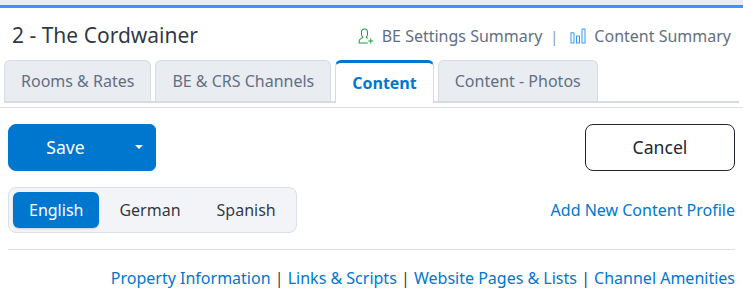
Choose the intended content profile before changing its property information.
- Open Content.
- Select the profile by name. If none exists, use Add New Content Profile and save it in that separate editor.
- Check Content Profile Name and Language before editing property details.
- Complete the property information and relevant links for that profile.
- Repeat for each language you offer.
- Use the main Save & Refresh and revisit every changed profile.
Changing Language relabels which language the profile supplies; it does not translate the wording. If a booking profile already offers the proposed language through another content profile, the save keeps the affected profile's previous language and displays a warning naming the conflict. Other edits can still have saved. Review the warning and the booking profile's language assignments before retrying.
Content Profile fields
| Field | Meaning |
|---|---|
| Content Profile Name | Internal label used to identify this profile, often a language name. Give it a recognizable, nonblank name. |
| Language | The culture/language of this profile's content. Select the correct language; the profile needs one. |
| Booking Engine URL | Shown when a configured website uses this profile. Opens the first matching website at this content language's address; it is not a list of every site using the profile. |
| Public Content URL | A shareable property-content page, separate from the booking website. Check the actual page before sharing it. |
| Public Content URL Enabled | Yes permits the public content link when its other property/channel prerequisites are met. No turns off that content link; it does not turn off the booking website. |
Property Information fields
These values belong to the selected language profile. Keep shared facts consistent across profiles while translating the wording appropriately.
| Field | What to enter or check |
|---|---|
| Property Name | The guest-facing property name for this profile. It is separate from the account/property selector name. |
| Property Name For Url | URL-friendly property-name text. The application normalizes it for URL use. Review actual guest-facing links after changing it; do not assume old links redirect. |
| Business Entity Name | The property's legal/business entity name. |
| Business Entity ID | The relevant business identifier, supplied by the property. |
| Email - Reservations | Valid reservations contact address. This is not the Email Provider password or host. |
| Email - Contact | Valid general contact address; used by the hosted contact workflow where enabled. |
| Phone | Guest-facing telephone number, including the appropriate country/area code. |
| Fax | Optional fax number. Blank removes it. |
| Check In Time, Check Out Time | Select hours and minutes for the property's advertised local check-in/check-out times. These are not a time-zone selector or daily arrival/departure inventory restrictions. |
| # of Rooms | Descriptive whole-number property room count. It does not set date-specific allocation. Blank leaves the optional numeric value unset; enter the actual count for complete property content. |
| Star Rating | Whole-number rating from 0 to 5. Values outside that range are adjusted to its endpoints. Blank leaves the rating unset. Do not invent a rating to clear a summary warning. |
| Star Rating Enabled | Yes or No controls whether the rating is offered for display in supported presentations. |
| Property Address | Street/address text. Use the separate city, state, postal-code and country fields as well. |
| City | Property city. |
| State / Prov | State or province where applicable. |
| PostalCode | This profile's address postal code, separate from PostalCode in General Settings. |
| Country | Choose the property country from the list. |
| Property Tag Line | Short guest-facing introductory line. |
| Property Description - Short | Concise property overview for supported summaries. |
| Property Description - Long | Fuller property description. |
| Amenities | Guest-facing text list for this profile, one amenity per line. This is separate from the structured Channel Amenities selections. |
Plain text fields can be cleared by saving them blank. Numeric fields need whole numbers where shown; a value remaining in the form after an error is not proof it saved. Check edited values after reloading.
Links & Scripts
Some optional fields start folded. Click the label to open the input. Empty, a saved URL, a line count, or the Twitter N of 6 set note describes stored content—not a successful integration check.
| Field | Purpose |
|---|---|
| Google Maps iFrame Embed URL | The map embed URL for supported website layouts. Use the URL intended for embedding, not the latitude/longitude pair or a whole iframe tag. |
| Facebook URL, Instagram URL, You Tube URL, Pinterest URL, Flickr URL, Twitter URL | The property's corresponding public social links. Check each destination after saving. |
| Tweets Username | Account name for the optional tweets integration. |
| Tweets Access Token, Tweets Consumer Key | Integration values for that account. These fields are not the same as the public Twitter URL. Treat them as sensitive. |
| Tweets Access Token Secret, Tweets Consumer Key Secret | Protected integration secrets; use the keep/replace/remove rules above. |
| Script - Trip Advisor Widget | Optional third-party widget code for supported layouts. |
| Page Header, Page Footer | Optional website header/footer content or code. Have your website administrator review it before saving. |
| Script - Accessiblity | Optional accessibility integration code. Confirm the provider and resulting site behavior; storing code is not an accessibility compliance check. |
| Robots.txt | Custom crawler instructions for the hosted site. Incorrect rules can prevent desired search-engine crawling. Review with the person responsible for the website before changing them. |
Which links, widgets and scripts appear depends on the website/theme and the external service. Saving integration values does not establish that the third-party service is available. Only add trusted code; do not paste credentials into header/footer or public script content.
Website Pages & Lists
These sections belong to the selected content profile. Save pending profile edits before following their links; each record is maintained in a separate editor.
| Section | Controls and meaning |
|---|---|
| Additional Pages | ID, Enabled, Name, optional parent-page name, and Delete. Open a name to edit, Add New to add, or Sort when multiple pages exist. |
| Booking Reasons | Short reasons to book. The list shows ID and Name text, with edit/delete links, Add New and conditional Sort. |
| Testimonials | ID, Setup and the person's Name, with edit/delete links, Add New and conditional Sort. Setup describes the testimonial record, not whether a particular theme displays it. |
| Website Sections | Groups for FAQ, Team, Counters, Features / services, Events and Video band. Each group offers Add New; saved rows show an ID, enabled indication and editable label. Sort is offered for multiple items in the sortable groups, not Events or Video band. |
| Blog Posts | ID, Enabled, Publish Date, Title and Delete, plus Add New. Scheduled means the publish date is later than the property's current date. |
| Additional Contacts | ID and contact Name, with edit/delete links and Add New. These are separate records, not replacements for the main contact email/phone fields. |
Website sections provide questions/answers, team details, numeric highlights, service descriptions, dated events or a video. The page explains where the selected website themes show them. Do not assume every section appears on every home page; check the actual site and its About page. Events stop appearing after their end date. A video loads when the visitor chooses to play it.
If the page says website sections and posts are unavailable, contact support; do not interpret that message as proof that the property has no saved items.
Channel Amenities
The expandable Channel Amenities block sits below the language profiles. Its selections apply to the property across all those profiles.
- Expand Channel Amenities.
- Select the amenities the property provides.
- Where offered, select in rate only when the amenity is included in the rate. Select the amenity itself too; the inclusion box alone does not add it.
- Use the main Save or Save & Refresh.
- Reopen the list and check the saved selections.
Clearing all amenities and saving clears the property's structured selection. An unchecked in rate box does not create a charge. This list supplies supported channel-content delivery; it does not automatically fill the per-language free-text Amenities list, and its save is not confirmation of channel acceptance.
Content - Photos: upload, map and order images
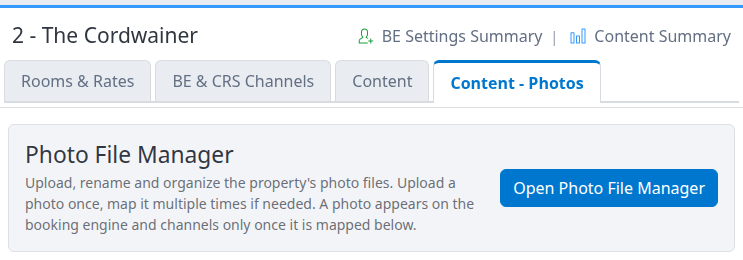
Upload files in the library, then map them to the intended gallery on this page.
Save settings/content edits before opening this tab. It navigates to a separate page with separate forms. The galleries and branding images are shared across language profiles; use this page rather than creating a different photo set in each language.
Upload and map photos
- Open Content - Photos.
- Use Open Photo File Manager if you need to upload or organize files. It opens separately. Uploading starts when you choose files; there is no final page-wide Save for file operations.
- Return to Content - Photos and choose Property Photos, a room type, a venue or an add-on from the target list. Counts show the mappings for each target.
- Click Add photos in the intended target's pane.
- Select the files in the picker. If needed, use Upload to add the source files first.
- Check the target and selected files, then click Select Files. For a gallery, this immediately submits the new mappings; there is no further settings Save.
- Check the returned target, count and thumbnails before adding anything again.
Upload once, then map the same file to different targets when intended. Uploading alone does not place an image in a gallery. Selecting the same file again can create another mapping, so inspect the gallery before repeating an uncertain submission.
If the property has no content profile, the page offers Add New Content Profile. Create that profile before mapping photos; adding a profile and mapping photos are separate actions.
Set the order and main photo
- Drag photos into order, use Move earlier / Move later, or choose Make main.
- Review Order changed, not saved yet.
- Click Save order.
- Reopen the target and check the order.
The first photo is the target's main photo. For the property, it leads the gallery and is used as the booking-engine main image unless a separate search photo is set. On this page, adding photos also saves that target's current pending order before appending the new photos. It does not save pending changes in other target panes.
Logo, Favicon & Search Photo
- Select Logo, Favicon & Search Photo.
- Use Map beside Property Photo Mapping, Logo or Browser Fav Icon.
- Select the intended file and click Select Files. Here, selection fills the field; unlike gallery addition, it does not save immediately.
- Click this pane's Save.
- Reopen it and verify the saved paths and the guest-facing result.
Property Photo Mapping is the search photo: it is shown in supported search results and as the booking-engine main photo. Blank uses the first property photo. Blank Logo or Browser Fav Icon removes that particular assignment. Use files from the property's photo library, not external URLs or paths outside it.
Inspect, describe or remove a photo
- View or the image opens the photo viewer. Use its previous/next controls to inspect the gallery; Original file lets you inspect the upload separately from its optimized display image.
- Edit opens the mapping's text editor for Alt Text and Description. Save in that editor. Check the relevant language content rather than assuming captions are automatically translated.
- Delete opens a confirmation for the mapping. Delete Multiple appears when multiple mappings are available. Review the target and images before confirming.
- Removing a mapping is different from deleting its source file in Photo File Manager. File deletion can remove matching mappings across the property's galleries; use mapping deletion when you only intend to remove a placement.
Photo cards can show dimensions, file size, Not a readable image, or a stored channel badge such as Accepted, Warning or Rejected. Read the badge's message where available. A thumbnail or an absent badge is not proof that a channel received the image. Check the guest-facing result separately; an original file can be available before its optimized image is ready.
For file replacement, renaming, movement and deletion, use Manage property photo files.
Check the result
- Read the save confirmation or warning and confirm the expected destination.
- Reopen CRS Settings for the same property. Check the exact fields, language profiles and shared amenity selections you changed.
- After a separate editor or photo action, check that record or target independently. Confirm names, enabled state, assignments, mappings and order—not only the row count.
- Open or reload BE Settings Summary and Content Summary. Review their specific findings. These summarize saved setup/content; they do not prove channel acceptance or a completed reservation.
- For website/content changes, open the intended website and language, or the enabled Public Content URL. Check the actual text, images and links.
- For selling changes, search the intended room, plan, dates, guest count, language and currency in the guest booking flow without placing a reservation. Review the offered price, fees, taxes and terms. A successful search is not proof of payment or reservation delivery.
- For a CRS partner or channel-content change, confirm the intended connection's setup and applicable delivery outcome with the responsible administrator/support team. Do not repeatedly save or resend merely because a remote page has not changed.
Common problems
| Symptom | Safe next action |
|---|---|
| A tab is visible but its fields or Save are disabled | Ask your administrator to check Booking Engine / CRS - Settings versus Content permission. Viewing a tab does not grant editing rights. |
| General Settings seems missing | Scroll to the bottom of Rooms & Rates and expand General Settings, or use its jump link. Payments and Email Settings are inside it. |
| The page reports setup is incomplete or no rate plans exist | Check the property's enabled state, enabled rooms and enabled assigned rate plans. Review channel and booking-profile readiness separately; do not add duplicate records to clear a warning. |
| The Booking Engine channel is missing/not set up | Prepare content/settings as needed, but coordinate channel assignment/setup before expecting live bookings. Use the displayed Channel settings link when offered. |
| A warning mentions no enabled content mappings or test mode | Review Websites and each site's reservation-enabled state. The warning can use older “Content Mappings” wording. Check widgets and CRS partner statuses independently rather than treating this as their combined live/test status. |
| Credit Card Settings are incomplete | Check the selected gateway and Missing keys against its example. Saved keys are only presence-checked here. Contact support before changing a live processor if you are unsure. |
| Gateway settings are rejected as invalid | Correct the JSON name/value-pair format. Protected replacements are not redisplayed after the failed settings save. Re-enter the intended complete replacement after checking what remains saved. |
| Maps Latitude or Maps Longitude has an incorrect-format error | Enter decimal coordinates with a decimal point and the correct sign, then check the saved location. If a valid coordinate still fails, give support the field and exact error. |
| A save reports that a content profile kept its language | A booking profile already offers the proposed language through another content profile. Check the named profile's assignments. Other changes may have saved; do not repeat the whole edit blindly. |
| A content number or another field did not change despite a success message | Reopen the exact profile and compare it. Correct malformed or out-of-range input; contact support if a valid value still fails to persist. |
| A CRS partner is Active but refused | Read Settings & Inventory and its warning. Check its own setup or the CRS pool, Inventory Send, profile and intended currency. Direct partners do not fall back to the pool. |
| A public content link fails | Check Public Content URL Enabled and the property's CRS/channel setup. It is separate from the booking-site URL; ask support if an enabled link still fails. |
| A photo is uploaded but absent from the site | Confirm the correct target mapping, its saved order and the site's selected content. Check the optimized image and any channel message before uploading duplicates. |
| A save or photo operation ends in an error or uncertain result | Reopen the affected settings/content/gallery before retrying. Earlier changes may have saved. Stop and contact support if you cannot establish what changed. |
For support, provide the property, tab or record, profile/language, intended connection, expected result, exact message, and action time with time zone. Include stay dates and guest count when investigating availability. Do not include passwords, gateway settings, tokens, full widget keys, card details or guest personal information.
Related
- ChannelRUSH CRS - Channel Settings — authorize CRS partners and choose direct or shared inventory.