

Use Org Booking Engine Summary to identify missing booking-engine configuration and content across the properties you can access in an organization.
This is a setup review, not a booking-performance report. Setup complete does not prove that a website can accept bookings, that payments work, or that confirmation emails are delivered.
Before you start
- Select a property in the organization you want to review. Its name below the report title identifies the starting context, not the report's entire property scope.
- Organization administrators see eligible properties within their authorized organization scope. Other users see their assigned eligible properties. Inactive properties and properties without a CRS or booking-engine channel are excluded.
- You can read the summary without permission to edit booking-engine settings. Correcting a finding requires access to the relevant property and editing screen.
Open and review the summary
- Open Reports.
- Under Overview, select Org Booking Engine Summary.
- Check the selected property below Org - Booking Engine Summary.
- Find the property you want to review in the report.
- Read its setup badge and any Missing: line.
- Review Enabled, Payments, any E-mail row, and the fee, tax and example-charge details.
- Review each website/language section and the room findings beneath it.
- Record the property, website/language, room and exact missing item before opening an editing screen.
The report loads when you open it. There is no date range, Search button, Save button, CSV download or Excel view on this page. Use your browser's Find command to locate a property or a particular missing-item label in a long report.
New window opens a separate tab containing the same report without the main navigation. The original report stays open. The separate view does not show another New window control.
Read the property summary
A property's badge has one of these meanings:
- Booking engine not set up: the summary did not find booking-engine settings for that property. Detailed configuration is not shown.
- 1 item missing / N items missing: one or more of the report's property, website-content or room checks found a gap.
- Setup complete: those checks found no gaps. This is not a complete go-live test.
The count is the number of findings displayed across the property's sections, not necessarily the number of distinct corrections. A room or shared content profile can appear under more than one website or language, repeating the same finding.
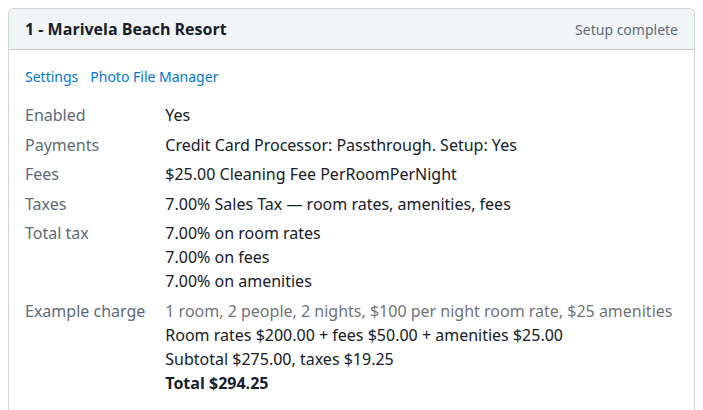
Configuration portion of a demo property. Website and room sections continue below it.
What the badge does not check
Review the details even when the badge says Setup complete. The missing-item count does not include a disabled booking engine or failed payment/email setup. It also does not establish that websites, booking-profile languages or enabled rooms exist.
A website/language section appears only when its linked content can be loaded. Missing sections are not a clean bill of health. The report does not verify available dates, sellable rates, checkout, payment authorization, email receipt or channel delivery.
Review website and room findings
Below each property's configuration, the report groups content by website address and booking-profile language. The same room can appear several times because each website/language is checked separately.
Within each section:
- Missing: below the website identifies missing property content for that section.
- Room headings identify enabled booking-engine room types.
- Missing: below a room identifies missing configuration or content for that room in this section.
- Complete means that room passed this report's checks for this section. It does not establish bookable rates or availability.
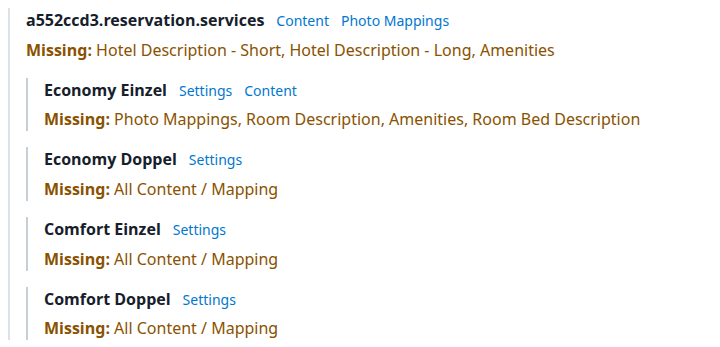
An existing demo website section with property-content and room-content gaps. No configuration was changed for this example.
Follow up without losing the property's context
Some report shortcuts currently lead to an unavailable page or the wrong settings screen. Use the main navigation as the reliable starting point for corrections:
- Return to the normal application tab if you opened New window.
- Select the property named in the finding.
- Open Admin → Settings - CRS.
- Confirm the property name on CRS Settings.
- Choose the section relevant to the finding:
- Rooms & Rates: room types, rate plans, fees, taxes and General Settings.
- Content: choose the relevant content-profile/language tab for property text.
- Content - Photos: photo mappings.
- BE & Channels: websites and booking profiles.
- Use the relevant setup guide before changing configuration. Save changes on that editing screen, not in this report.
For room configuration, the Settings link beside a room points to that room's editor. Check its property and room name before editing. The Settings link at the top of the property section is different: it can return to the main settings page with That channel isn't set up for this property. That message from this shortcut is not proof that the booking engine is absent.
Content, Photo Mappings and Photo File Manager shortcuts in the report can lead to Error - 404 - Page Not Found. Use the sections above instead; do not create replacement content merely because a shortcut failed. For the file library, use Admin → Home, then Photo File Manager under CRS, Booking Engine, Content.
The website-address link opens the configured address in another tab. The presence of the link does not establish that the site is reachable or ready to sell.
Check the result
After authorized changes have been saved on the appropriate editing screen:
- Reopen Reports → Overview → Org Booking Engine Summary, or reload the report tab.
- Find the same property and website/language section.
- Check whether the specific Missing: item disappeared and whether the displayed configuration now matches the saved settings.
- Review other website/language sections that use the same content or room configuration.
A changed finding confirms only what the refreshed report displays. Review the relevant website and booking workflow separately before treating the property as ready to sell. The report has no last-checked timestamp and does not submit a booking, send inventory, charge a card or resend an email.
Field reference
Property configuration and charges
| Field | What it shows | How to interpret it |
|---|---|---|
| Property name | The property owning the section. | Use this name when selecting the property for follow-up. |
| Missing: Latitude / Longitude | A coordinate has not been supplied. | A supplied coordinate passes this presence check; its location is not validated here. |
| Missing: Postal Code | Postal code is empty. | The report does not validate the postal code against an address. |
| Enabled | The stored booking-engine/CRS enabled setting, Yes or No. | Read it separately from the setup badge. |
| Payments | Credit-card processor name and Setup: Yes/No. | This is a stored-configuration check, not a payment test. Passthrough can show Yes without proving online card charging. |
| Mail provider and Setup: Yes/No, when shown. | SMTP does not produce this row. A blank provider can appear as . Setup: No. Neither a missing row nor Yes proves delivery. | |
| Fees | Stored fee amounts, names, calculation types and any Tax Override percentage. None means no fee entries. | This list does not show enabled state or room applicability. A listed fee is not necessarily charged for every booking. |
| Taxes | Flat amounts, then percentage taxes with their selected bases: room rates, amenities, fees. None means no tax entries. | The list does not identify disabled or included taxes, or room-specific applicability. Inspect the actual tax settings for those details. |
| Total tax | Separate sums of percentage rates on room rates, fees and amenities. | These are percentages, not tax amounts. Flat taxes are not included in the sums. 0.00% for a base does not mean no flat tax or fee can apply. The row is absent when there are no tax entries. |
| Example charge | An illustrative calculation for 1 room, 2 people, 2 nights, $100 per night room rate, $25 amenities. | The next lines show room rates, fees, amenities, subtotal, taxes and total. This is not a quote or a charge. |
The example does not select a real room or rate plan, so it does not demonstrate room-specific fees or taxes. It does not use a customer-selected stay date. The fee/tax lists and percentage sums can include entries that do not apply in the example, so they are not a recipe for manually reproducing its total.
The report displays dollar signs without a currency code. Do not use those symbols as confirmation of a property's configured selling currency or as a currency conversion.
Website content findings
| Finding | Meaning | Follow-up |
|---|---|---|
| Hotel Description - Short | Short property description is empty for the linked content. | Review the matching profile in Content. |
| Hotel Description - Long | Long property description is empty. | Review the matching profile in Content. |
| Amenities | The property's content amenities list has no entries. | Review the content amenities list for that profile. This is not a check of every channel-specific amenity setting. |
Room findings
| Finding | Meaning | Follow-up |
|---|---|---|
| Max Occupancy | Maximum occupancy is unset. | Review the room's configuration. A stored zero is not treated as missing by this check. |
| Rate Plan Mappings. Unbookable. | The room has no rate-plan mappings. | Review its mapped rate plans. Having a mapping does not itself establish active rates or availability. |
| All Content / Mapping | This content profile has no room-content entry linked to the booking-engine room. | Review the correct profile and room mapping before creating or replacing content. The room's Content shortcut is absent in this case. |
| Photo Mappings | The linked room-content entry has no photo mappings. | Review the room's photo assignments. Existing mappings are not checked for image quality or reachability here. |
| Room Description | The linked room description is empty. | Review the room text in the relevant profile/language. |
| Amenities | The room-content amenities list has no entries. | Review the room's content amenities. |
| Room Bed Description | The bed-description text is empty. | Review the descriptive text; a separate numeric bed count does not clear this check. |
Disabled booking-engine rooms are omitted. The report checks for missing content, not translation quality, legal completeness or whether wording is suitable for a particular channel.
Common problems
A property is missing, or the report has no property sections
The property may be inactive, outside the selected property's organization, outside your assignments, or without a CRS/booking-engine channel. Confirm the organization and property with your administrator. The report can show no sections even without the No eligible properties are available for this summary. message.
If the property should qualify, contact support with the organization, property name/ID and report URL. Do not interpret an absent section as successful setup.
Setup complete appears beside an email or payment setup problem
The badge counts content/configuration gaps, not every readiness condition. Inspect Enabled, Payments and E-mail separately. Ask your administrator to review the relevant settings; do not change payment credentials or send test messages merely to clear the badge. Escalate if stored settings and the report disagree after reload.
A website, language or room is absent
Check the website's booking profile and linked languages/content. Only enabled rooms are shown within loaded website/language sections. A missing section can hide checks rather than indicate that they passed. Ask your administrator or support to confirm the expected mapping before adding duplicates.
A shortcut fails or opens the wrong page
Use Admin → Settings - CRS for the selected property as described above. Do not repeat setup or create a new channel in response to a failed report shortcut. If the normal navigation also fails, send support the property, link label, destination URL and error text.
A finding remains after a save
Reload the report, then confirm the property, content profile/language and room edited. The same gap may appear under several websites. If the correct saved value is present but the report still flags it, send support the exact finding and the relevant property/profile/room. Do not send passwords, payment details or guest data.