

Choose whether the AI Assistant and connected AI apps may read a property's data, and set the property's assistant limits within your organization's rules.
Before you start
- Select the property you want to configure. This page changes that property, not every property in your organization.
- You need the Property Settings permission to save changes. Users without it can view the settings for reference. An organization administrator manages the organization-level switches, provider and limits.
- At least one of AI Assistant or MCP connections must be on at organization level before you can save property settings. MCP connections let users connect their own AI apps, such as ChatGPT or Claude, to ChannelRUSH. They are separate from the built-in AI Assistant.
- If the page says these features are not available to your account yet, you can prepare the settings, but saving does not activate rollout. Use the page's support link to ask about availability.
The organization sets the maximum access. A property can restrict it further, but cannot turn on something the organization forbids. A checked, disabled property switch does not override an organization-wide Off setting.
Open the property's settings
- Select the property in the application's property selector.
- Open Admin → Home.
- On the Settings page, select AI Assistant in the Admin section.
- Confirm the title is AI Settings - Property Level and the card names the intended property.
- Read the AI Settings - Org Level summary before changing the property controls.
The summary shows the organization's assistant and MCP switches, AI provider, permitted data, daily message limit and monthly limit. It is read-only here. Organization administrators can select its heading to open organization settings; other users should ask their organization administrator to review a restriction.
Set feature and data access
Changes remain unsaved until you select Save. Both Save buttons submit the same form. Close returns to Settings without saving your edits.
- Under Feature Settings, set Enable AI Assistant for this property to allow or stop the built-in assistant for this property.
- Set Allow MCP connections to read this property if available. Turning it off excludes this property from connected AI access; it does not turn off the built-in assistant.
- Under Data Access, select the categories that AI may read. These choices apply to both the assistant and MCP connections.
- Decide whether Guest personal information is necessary. It includes guest names, contact details and reservation notes. It is off by default and requires Reservation data (no guest details). Turning reservation data off also turns guest personal information off; turning reservation data back on does not automatically restore that choice.
- Review Property Limits (AI Assistant only) before saving, even if you only intended to change a switch.
- Select Save.
- Follow Check the result below.
Switching a data category off restricts subsequent AI reads. Do not treat it as deletion of information already disclosed in an earlier conversation or another AI application.
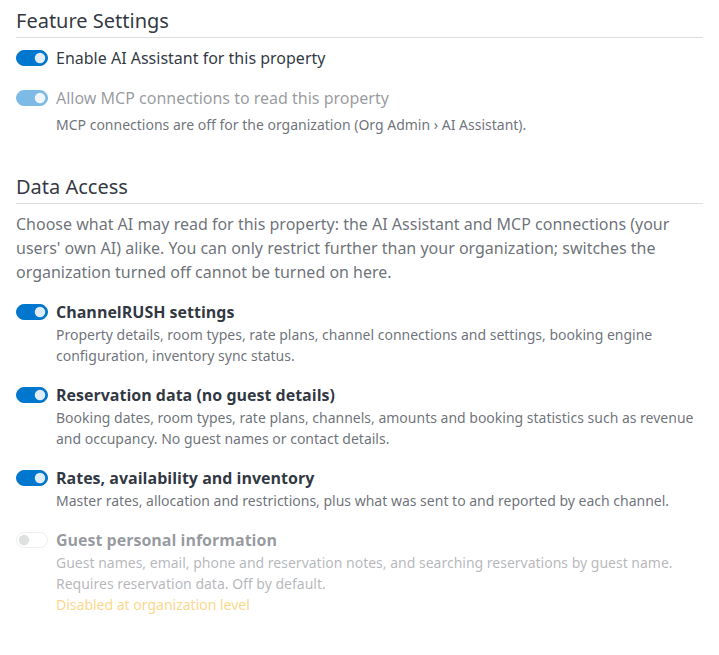
Example: organization restrictions leave MCP and guest details unavailable. Your available switches depend on your organization.
Set the property's assistant limits
These limits apply to the built-in AI Assistant, not to MCP connections. The provider is set for the organization; there is no separate provider or API-key field on this property page.
When you use the ChannelRUSH AI service
All properties share the organization's monthly allowance. Daily Message Limit is read-only here.
- Find Share of Monthly Allowance (%).
- Enter a whole number from 1 to 100.
- Review the other property settings.
- Select Save.
100% means there is no separate property monthly cap: the property may use whatever remains of the organization's allowance. A smaller percentage caps this property's use; it does not reserve that allowance for the property. Other properties can still use up the organization's shared allowance first. Do not use blank or zero to mean unlimited.
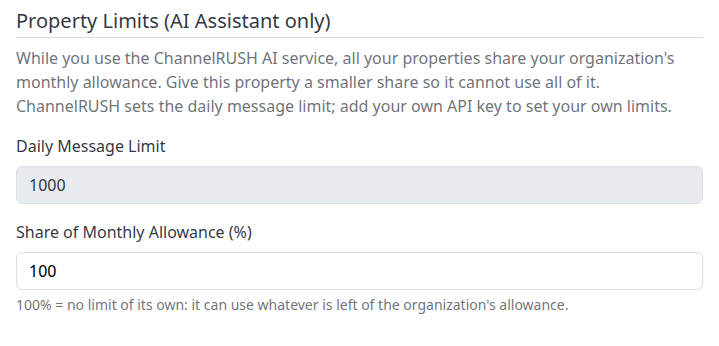
When your organization uses its own API key
The page offers Daily Message Limit and Monthly Token Limit instead of the allowance-share control.
- Enter the property's daily message limit: a whole number from 1 to 10,000, no higher than the organization limit shown above.
- Enter its monthly token limit: a whole number from 1,000 to 100,000,000, no higher than the organization limit.
- Review the feature and data-access switches.
- Select Save.
Tokens measure text processed by the AI, including input and output; they are not a count of messages. Both the organization-wide total and any property-specific cap apply. A value above the organization's limit cannot increase the effective allowance.
Review the displayed limits on the first save. A property without saved property-specific settings follows the organization's limits, but the form can initially show default numeric values. Saving those displayed values can introduce a lower property cap. Blank and zero are not valid unlimited settings.
If the organization turns the assistant off while keeping MCP on, you can still configure MCP and data access. The assistant controls are disabled. Review the saved limits when the assistant is enabled again; organization limits remain an upper bound.
Check the result
After Save, look for the settings-saved confirmation, then reopen AI Settings - Property Level for the same property and verify the saved switches and applicable limits. Read them together with the organization summary: a property checkbox alone does not establish effective access.
Saving confirms configuration was stored. It does not prove that:
- the feature has been rolled out to your account;
- an AI provider is responding successfully;
- an external AI app is connected or has received permission from a user;
- any inventory was changed or sent to a channel.
If the page returns without a clear success message, do not assume the settings were saved. Reopen it and compare the values before repeating your changes. Contact support if the saved values remain unexpected.
Read Current Usage (this property)
The usage section describes the built-in assistant. It is not an MCP activity report or a test that AI is working.
| Tile | What it tells you |
|---|---|
| Messages Today | Messages counted for this property today, alongside its effective daily limit. Organization-wide usage can also prevent further messages. |
| Monthly Allowance Used | In ChannelRUSH-service mode, the percentage used against the nearer limit: the organization's shared allowance or this property's share. Read the caption to see which one is displayed. It is not necessarily this property's percentage of the organization total. |
| Tokens This Month | In own-key mode, the property's input and output tokens this month, with its effective token limit. The organization's total also applies. |
| Conversations | Conversations counted for this property this month. |
| Tool Calls | AI tool calls counted for this property this month. A question can require multiple tool calls; this is not a count of inventory updates or channel sends. |
| Limit Reached | A property or organization limit has been reached. A property's displayed count can still be below its own cap when the organization has exhausted its allowance. |
Daily usage resets at midnight UTC. Monthly usage resets at the start of the next calendar month, UTC, not at the property's local midnight. Organization totals include usage from other properties and other recorded AI features.
Field reference
| Control | Effect and limits |
|---|---|
| Enable AI Assistant for this property | Allows the built-in assistant only when the organization also enables it and the feature is available to the account. Off does not disable MCP. |
| Allow MCP connections to read this property | Allows this property to participate in connected AI access when the organization permits it. Off excludes the property. A checked switch cannot override organization-wide Off. |
| ChannelRUSH settings | Allows reading property details, room types, rate plans, channel connections/settings, booking-engine configuration and inventory-sync status. |
| Reservation data (no guest details) | Allows booking dates, products, channels, amounts and reservation statistics without guest names/contact details. The separate guest-information choice governs those details. |
| Rates, availability and inventory | Allows reading master rates, allocation and restrictions, plus channel inventory information. Permission to read a value is not evidence that a channel accepted it. |
| Guest personal information | Allows guest names, email, phone, reservation notes and guest-name searching. Requires reservation-data access and organization permission; off by default. |
| AI Provider Configuration (AI Assistant only) | Shows the organization's provider. Provider, key and model changes belong in organization settings, not this form. |
| Daily Message Limit | Read-only on the ChannelRUSH service; editable with an organization-owned key. Whole numbers 1–10,000, restricted by the organization ceiling. |
| Monthly Token Limit | Own-key mode. Whole numbers 1,000–100,000,000, restricted by the organization ceiling. Counts input and output tokens. |
| Share of Monthly Allowance (%) | ChannelRUSH-service mode. Whole numbers 1–100; 100 has no separate property monthly cap. It is a usage ceiling, not a reserved allocation. |
| Save | Saves this property's settings. The top and bottom controls perform the same action. Review all editable values first. |
| Close | Returns to Settings without saving the current edits. |
Common problems
Save is missing or the whole form is read-only. You may lack Property Settings permission, or both organization features may be off. Read the page's explanation and ask your organization administrator to review access and organization settings. If those are correct and the form is still unavailable, contact support.
A switch says Disabled at organization level. The organization forbids that data category. A property cannot override it. Ask your organization administrator to review the policy rather than trying another property to bypass it.
MCP is checked but disabled. Check the organization summary. Off at every property takes precedence. If the organization permits MCP but the property control remains unavailable, contact support; a checked control alone does not establish a working connection.
The assistant is enabled, but unavailable. Check the staged-availability notice, organization switch and usage limits. Saving a property setting does not enroll the account in rollout. Use the support link if availability remains unclear.
Limit Reached appears below a small property count. Other properties or organization-level activity may have exhausted the shared limit. Ask an organization administrator to review organization usage. Increasing the property's share cannot restore an exhausted organization allowance.
A limit will not save, or the page returns without confirmation. Use whole numbers within the field's allowed range and organization ceiling. Reopen the page to check persisted values. If the problem continues, give support the property, provider mode, field name, attempted value, action time/time zone and any visible error. Do not include API keys or guest information.
AI cannot read a category you expected. Check both the property switch and organization summary; guest details also require reservation data. Connected apps additionally need their own authorized connection. Ask your administrator to confirm the intended access, and contact support if those settings agree but access still fails.