

Compare the saved weekly office hours, booking-window settings and default restrictions for your selected properties, then export the findings for review.
Before you start
- Sign in with access to the properties you want to review. Open Org Admin → Reports. The menu is available to organization administrators and users with the applicable multi-property or distributor access.
- The property checklist contains the active properties available to your account. Your report selection—not the single property shown in the top navigation—determines which properties appear.
- This is a read-only configuration report. Running it, switching views and downloading its CSV do not change property settings or send inventory updates.
- The report shows the regular weekly schedule. It does not show holiday or special-date overrides, effective restrictions for individual stay dates, or whether a channel accepted an update.
Choose properties and open the report
- Open Org Admin → Reports.
- Under Property Settings, select Office Hours & Default Restrictions.
- In Properties, leave checked only the properties you want to compare. The initial list selects all available properties. Use the checkbox beside Properties to select or clear the list, then select individual properties as needed.
- Check the selected-property count. You must select at least one property; with none selected, the page displays Choose at least one property. and disables the run controls.
- Under View, select List to open the report in a separate tab. Choose Excel instead for the browser spreadsheet, or CSV under Download for a file.
The selection page remains available when you open List or Excel. Return to it to change the property selection and run the report again. Cancel leaves the selection screen without changing settings.
Read the HTML results
The result heading is Office Hours & Default Restrictions, followed by the number of properties returned. Each row represents one property, sorted by property name.
- Confirm the property names and count before interpreting the settings.
- Read each property's Time Zone before comparing its hours with another property.
- Use the horizontal scrollbar to reach Booking Restrictions and all Default Restrictions columns. The Property column stays visible while you scroll.
- Use Excel under View to switch formats with the same property selection, or CSV under Download to export it.
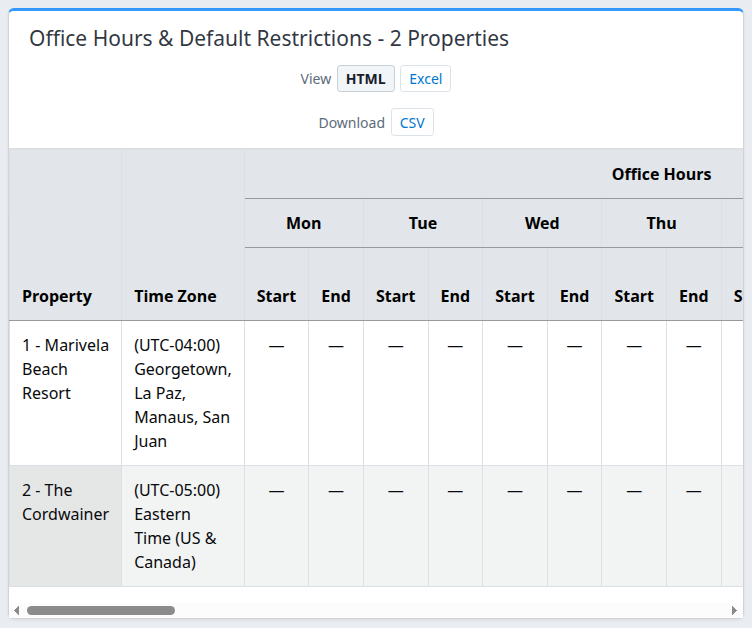
Demo example with weekly hours unset. Scroll right for the remaining weekdays, booking-window settings and default restrictions. A dash does not mean the property is open or unrestricted.
Check the result
A successful report shows the expected property rows and their saved settings. Compare the count and names with your selection; an empty table does not establish that every property is correctly configured.
The report reads saved configuration when it loads. After an authorized change on a property's settings page, reload or rerun the report and check the same property and field. An already-open report or downloaded file is not a live view.
A value appearing here confirms configuration only. To investigate actual date-by-date restrictions or channel processing, use the property's inventory reports and Updates → Status, select the appropriate filters and click Search. This report is not evidence of delivery or channel acceptance.
HTML column reference
Property and time zone
| Column | Meaning |
|---|---|
| Property | The saved property name. One row appears for each returned property. The HTML view does not include a separate property-ID column. |
| Time Zone | The property's local time-zone label. Start and End times in that row use this zone, not your computer's zone. Exports use the IANA identifier, such as America/New_York, rather than the descriptive label. |
Office Hours
Each weekday, Mon through Sun, has Start and End columns.
| Display | Meaning |
|---|---|
| A time such as 09:00 | The saved weekly Start or End time in 24-hour format. |
| closed in both cells | Start and End contain the same time, representing an all-day-closed weekly schedule. |
| — | That endpoint is not set. Excel and CSV show an empty cell instead. |
The End time is used by the office-hours close-out process. An all-day-closed date or a date whose End time has passed can trigger a Stop Sell close-out for configured channels. Consecutive all-day-closed dates can also be included, up to six following days. These are processing rules, not a promise that every channel changes immediately.
Special-date hours take precedence over the weekly schedule, but are not displayed in this report. They can close a normally open day or open a normally closed one. Blank weekly hours therefore do not prove that no automatic close-out applies, and closed across the week does not describe every special date.
Booking Restrictions
| Column | Meaning and example |
|---|---|
| Cut Off | The saved near-term booking-window cutoff in days. A positive value closes the nearest arrival dates: 1 includes today; 2 includes today and tomorrow. 0 means this cutoff rule does not itself close dates. Office hours, special dates and other restrictions can still close them. On the property settings page this is Earliest arrival. |
| Lead | The saved furthest booking horizon, not minimum advance notice. With a positive value of 365, the horizon ends after the date 364 days ahead; dates on or after property-local today plus 365 days are closed by this rule when inventory is generated. Dates inside the horizon are not guaranteed bookable. An unset value means no limit from this property setting. On the property settings page this is Furthest arrival. |
These day boundaries use the property's local date. The report does not calculate each property's current first or last bookable date.
If Lead unexpectedly shows 0, do not interpret it as a normal positive horizon or proof of unrestricted selling. Review the property's Booking window settings or ask support to confirm the stored value.
Default Restrictions
Each group has separate Mon, Tue, Wed, Thu, Fri, Sat and Sun columns.
| Group | Meaning of a configured default |
|---|---|
| Min Nights | Minimum stay length for arrival on that weekday. |
| Min Nights Through | Minimum stay length for a stay that includes that weekday, even when arrival is on another day. |
| Max Nights | Maximum stay length for arrival on that weekday. |
| Max Nights Through | Maximum stay length for a stay that includes that weekday. |
| CTA | Closed To Arrival. Yes supplies a default closure to new arrivals on that weekday; No is an explicit false value. |
| CTD | Closed To Departure. Yes supplies a default closure to departures on that weekday; No is an explicit false value. |
Defaults fill eligible missing restriction values when inventory requests are generated. They require the relevant property feature and channel/product support. Existing date values or explicitly supplied update values can take precedence; changing a default does not overwrite every date's existing restriction.
— means that default is not set. It is not equivalent to No, 0, a one-night stay or unrestricted selling. A numeric 0 is a stored value, not a blank; review an unexpected zero rather than assuming it removes a restriction. The report does not show the effective value after all product, date and channel rules are applied.
Excel view and downloads
Browser spreadsheet
Select Excel on the selection page or HTML report. The spreadsheet adds PropertyId alongside PropertyName, and freezes those first two columns. It displays the same saved settings using the field names listed below.
The browser spreadsheet is read-only. You can use its sorting, filtering and column-resizing tools to inspect the data. Use File → Save As to download a spreadsheet copy. Editing a downloaded copy does not update ChannelRUSH, and this report has no upload-back operation.
CSV
Select CSV under Download on the selection page or report. This downloads the report directly; you do not need to open the spreadsheet first.
- UTF-8, comma-separated, with one header row and one data row per returned property.
- Multiple-property filename:
MultipleProperties-OfficeHours-DefaultRestrictions.csv. - A single-property filename uses the property name without spaces, followed by
-OfficeHours-DefaultRestrictions.csv. - Unset hours and restrictions are empty fields; explicit zero remains
0. - CTA/CTD values use lowercase
yesandno;closedremains lowercase. - Text containing commas, quotes or line breaks is escaped for CSV. Formula-like text may have a protective leading apostrophe.
- A header-only CSV contains no returned property rows. It is not a successful configuration audit by itself.
Exact spreadsheet and CSV fields
The export contains the following 61 fields, in this order. Each weekday group runs Monday through Sunday.
| Group | Exact field names |
|---|---|
| Identity | PropertyId, PropertyName, TimeZone |
| Weekly office hours | MonStart, MonEnd, TueStart, TueEnd, WedStart, WedEnd, ThuStart, ThuEnd, FriStart, FriEnd, SatStart, SatEnd, SunStart, SunEnd |
| Booking window | CutOffDays, LeadDays |
| Minimum stay | MinNightsMon, MinNightsTue, MinNightsWed, MinNightsThu, MinNightsFri, MinNightsSat, MinNightsSun |
| Minimum stay through | MinNightsThroughMon, MinNightsThroughTue, MinNightsThroughWed, MinNightsThroughThu, MinNightsThroughFri, MinNightsThroughSat, MinNightsThroughSun |
| Maximum stay | MaxNightsMon, MaxNightsTue, MaxNightsWed, MaxNightsThu, MaxNightsFri, MaxNightsSat, MaxNightsSun |
| Maximum stay through | MaxNightsThroughMon, MaxNightsThroughTue, MaxNightsThroughWed, MaxNightsThroughThu, MaxNightsThroughFri, MaxNightsThroughSat, MaxNightsThroughSun |
| Closed to arrival | CtaMon, CtaTue, CtaWed, CtaThu, CtaFri, CtaSat, CtaSun |
| Closed to departure | CtdMon, CtdTue, CtdWed, CtdThu, CtdFri, CtdSat, CtdSun |
There is no observation timestamp, special-date exception field or delivery-status field in this export. Matching exported settings do not establish matching channel inventory.
Common problems
List, Excel and CSV are disabled
No property is selected. Select at least one property and check the selection count. If a server validation message says A property is required to be selected, return to the checklist and select the intended properties before running again.
A property is missing, or the result count is smaller than expected
Confirm that the property was checked. The list is limited to active properties within your account's access and organization/distributor scope. If it is absent from the checklist or still absent after rerunning, ask your organization administrator or support to check its access and active status. Include the property name/ID and the report selection; do not assume permissions are the only possible cause.
List or Excel does not open
These buttons open a new tab. Check whether your browser blocked the popup, allow it for ChannelRUSH if appropriate, and run the report again. Running this read-only report does not resend inventory. If the destination shows an error, retain its message and the selected properties for support.
Hours show dashes or closed
Dashes mean unset endpoints; closed means equal Start and End times. Neither is a live availability result. Review that property's Office Hours & Default Restrictions, including special dates, before deciding a setting is wrong. Ask the property's settings administrator to confirm any change; editing the report or export cannot change these settings.
The report differs from a channel's restrictions
This report shows saved defaults, not the final restriction for each product/date. Check special-date hours, product/date values and channel support, then inspect the relevant inventory and update-status results. Do not resend inventory merely because this report and a channel screen differ. Escalate unresolved discrepancies with the property, channel, products, affected dates, report time/time zone and relevant error text.
A changed setting still looks old
Check that the change was saved on the intended property, then reload or rerun this report. Re-download a CSV instead of reopening the earlier file. If the saved settings page and a newly loaded report still disagree, send support the property, field, expected value and the time/time zone of the check. No repeat inventory send is needed to refresh the report.