

Use Calendar Update to change rates, available rooms and booking restrictions for individual dates, either through your property's master values or for a particular channel product, then check the resulting update requests.
Before you start
- Select the correct property and open Updates → Calendar. The page heading is Calendar Update.
- You need property access and the appropriate update permission: rates, availability (including Stop Sell), or restrictions. Available fields also depend on the property's enabled features and the channel's setup, mappings and supported updates.
- Decide whether the change is for the room type, one rate plan, or one channel product. These are different scopes even when they show the same field names.
- If a PMS supplies inventory, review the property's PMS override settings. A manual change can prevent later PMS values from replacing that field; where overrides are disabled, a later PMS update can replace your manual value. Do not assume a channel-specific price or every special mapping creates a lasting PMS override.
Every changed calendar cell submits individually. There is no final Save button. A dropdown submits when you select a different value. A text cell submits when you finish the change by leaving it or pressing Enter. Clicking another cell or a display control can therefore submit the text edit you were making. Choose the intended scope and value before touching an inventory cell.
1. Choose dates and visible fields
- Confirm the property in the selector at the top.
- Set the Date Range, or choose Month / Year. Completing the date selection reloads the calendar automatically. Wait for the grid and check the actual date headings before editing.
- Select the required Room Types. Select a Rate Plan as well if you want its separate section. A room type must be visible for its rate-plan sections to be visible.
- Use Days to show the weekdays you need. Use Options to show Rates, Allocation, Stop Sell, Min Nights, Max Nights, CTA, CTD or Cut Off Days. These selections show and hide existing rows or date columns immediately; they do not submit inventory updates.
- To inspect channel-specific values, leave the required channel selected under Channels, then expand [ + ] Channels beneath the relevant room type or rate plan.
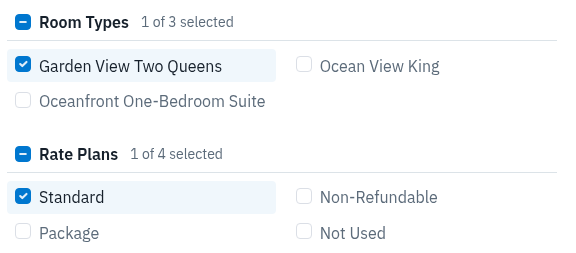
Selecting Standard reveals its own section. It does not make the room-type master cells Standard-only controls.
Use the left and right arrows beside a section's date headings to move the whole calendar back or forward by the displayed date-range length. Check the new dates after navigation. For a wide range, scroll horizontally or shorten the range so you can keep the field label and date together.
Display selections are not a sending checklist. Hiding a channel or rate plan does not exclude it from a master update. Clearing a display selection hides its rows; it does not clear the stored values or cancel changes already submitted.
2. Choose the correct editing level
Master room-type section
The section headed with the room type alone contains the master controls for that room type. A master edit can update eligible products across configured channels, regardless of which channels are visible.
A room-type master edit also updates that room type's standard rate-plan values, including rate plans hidden by your display selections. For rates, configured rate-plan calculations can produce prices different from the room-type price. Mapped channel products, including eligible virtual-room mappings, can receive the resulting updates. Review configured product relationships rather than treating one visible row as the complete effect.
Use this level only when the broader room-type change is intended. For example, to change Standard but not Non-Refundable, do not enter the value in the room-type master row.
Master rate-plan section
Select the rate plan under Rate Plans, then find the heading containing both the room type and Rate Plan — [name]. Its master cells change that room/rate-plan combination across eligible configured channels.
This is narrower than the room-type master section, but it is still not channel-specific. Channel mappings, rate calculations and configured relationships can affect the resulting values. If you see Unmapped, it groups channel rate plans without a standard rate-plan mapping; it is not another ordinary named standard plan. Expand its channel rows and identify the actual channel product before editing.
Channel-specific section
Expand [ + ] Channels beneath the intended room type or rate plan. Read the complete heading: room type, rate plan where present, channel name, and any Virtual Room Type label. Edit the cell in that channel's section, not the master cell above it.
The channel section uses that channel's supported fields and product level. One channel may expose allocation at room-type level while prices and restrictions appear under rate plans. Some channels show additional occupancy or other rate fields. A channel price change can also calculate its enabled additional rate values.
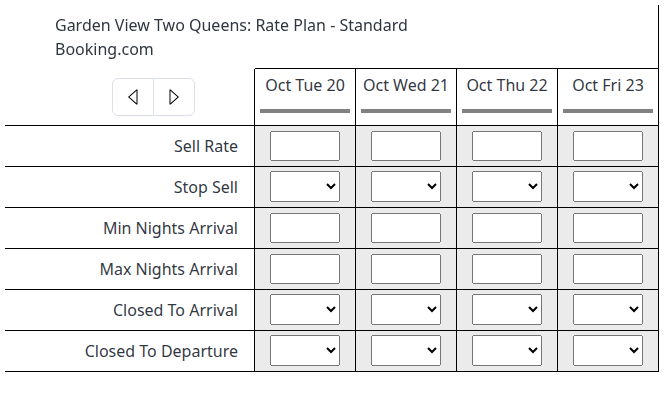
This is a channel-specific rate-plan section. Its fields differ from the master section. Blank values are shown here; they do not mean the channel is open, closed or successfully updated.
Rows received from a PMS can be read-only. Other channel cells can also be read-only because of permissions or the property's update mode. Ask your administrator to check the intended setup; do not use a broader master edit to work around a read-only channel row.
3. Make an individual-date change
Change a price
- Locate the intended master or channel section and the correct date column.
- Find Sell Rate, or the specifically labeled additional rate you intend to change. Confirm the property's/channel's currency and pricing setup; this is a price, not an amount to add or subtract.
- Enter the new positive price. Use the decimal separator shown by your interface, without a currency symbol. The rate must meet the room type's configured minimum allowed rate.
- Press Enter or move out of the cell to submit that edit.
- Read any returned message and inspect related displayed prices. Then follow Check the result below.
For example, entering 150.00 requests a sell rate of 150.00 in the applicable currency. It does not increase the previous price by 150.00. Master-to-channel markup, margin, rounding and rate-plan calculations can make destination prices differ from the value you entered. Do not use a zero rate to close sales; use the appropriate Stop Sell or Allocation control instead.
Change available rooms or close/reopen sales
- Identify the correct product, level and date.
- To replace the available room count, enter a whole number in Allocation, then press Enter or leave the cell.
5means a requested allocation of five, not five additional rooms. - To apply a sales closure, select Yes in Stop Sell. To remove that stop-sell restriction, select No. The dropdown change submits immediately.
- Check Allocation and Stop Sell together, then verify the requests and affected destinations.
Changing master Allocation to 0 also sets Stop Sell to Yes. Increasing Allocation above zero automatically sets Stop Sell to No only when the property's automatic-stop-sell setting is enabled. Allocation changes in channel sections can also interact with this setting. Check Stop Sell explicitly when reopening. A positive allocation or Stop Sell No does not remove minimum stays, arrival/departure closures or other restrictions, and does not by itself prove that a room is bookable.
Set or remove a booking restriction
- Show the relevant option under Options.
- Check the full row label. Min Nights Arrival and Min Nights Thru are different restrictions; the same distinction applies to maximum stays.
- Enter the intended whole-number limit, or choose Yes/No for an arrival/departure closure. Text edits submit on leaving the cell or pressing Enter; dropdown changes submit immediately.
- Use the explicit removal value from the field reference below when removing a restriction. Do not erase a cell to remove it.
- Check the other restrictions for the same dates and verify delivery.
To restrict arrivals on a Friday to stays of at least three nights, use Min Nights Arrival = 3 on that Friday. To apply a three-night minimum to stays that include Friday night even when they arrive earlier, use Min Nights Thru = 3, where supported. These examples illustrate the difference; they are not recommended settings for every property.
Correct an edit safely
Before a text edit submits, Escape restores the cell's remembered value. Clearing a cell and leaving it also restores that remembered value rather than deleting inventory. A blank dropdown option, when present, is not a remove action.
The remembered value is not a server-side undo point. The page remembers a newly entered value before it knows whether the request succeeded. After submission, Escape or clearing the cell may restore that attempted value, not the previously saved value. Neither action reverses an update already submitted.
If you entered the wrong value or saw an error, stop and check stored values, PMS overrides and update requests before making another change. Entering the old value again is a new update, not a rollback.
4. Check the result
A value remaining in a calendar cell, a changed related cell, or a colored line beneath a date does not confirm delivery. Calendar values are stored inventory information, not a live read of the channel's current sales screen.
- Open Updates → Status for the same property.
- Start with Status = All so successful as well as pending or unsuccessful requests remain visible. Select Channel, Room Type and Rate Plan as needed. For a master edit, inspect all affected destinations rather than only the channel you had displayed.
- Open More Filters and select Source = UI Calendar to look for calendar-originated requests.
- If narrowing by affected inventory dates, choose Start/End Date under Date Range and enter both the first and last affected dates. This finds requests whose inventory date ranges overlap those dates. Creation Timestamp and Processing Timestamp concern request activity, not stay dates; use the matching timestamps in the results when identifying the attempt.
- Click Search. Changing the Status filters alone does not run the search. Go belongs to request actions such as Retry, not filtering.
- Match the product, affected dates, requested values, source, Created, Last Run, request ID and reported Status. Do not mistake an older successful request for the edit you just made.
| Result | What it tells you | Next step |
|---|---|---|
| Pending | The request is waiting to be processed. | Check it again; do not assume delivery has completed. |
| Processing | Processing is underway. | Wait for the resulting status and investigate if it does not progress. |
| Successful | ChannelRUSH reports that this request processed successfully. | Check every affected destination. Confirm the channel's own inventory if you need to establish what is currently for sale. |
| Unsuccessful | The request did not complete successfully. | Review its details or Logs and resolve the cause before another edit or retry. |
| No matching request | Your current search found no request. | Broaden the filters and check local inventory/overrides. It does not prove that nothing was saved. |
If you cannot find a request, remove unnecessary product/date filters and search again. Selecting only some of Rates, Availability and Restrictions can hide records, especially older requests without detailed changed-field information; all three or none avoids that data-type narrowing. Include Archived if you are looking for an archived request. Do not use Retry merely to find out whether the original edit worked.
An error or an empty Status result does not guarantee rollback. Master values and applicable PMS overrides can be saved before later channel-request checks fail or reject a request. Some destinations may have progressed when another did not. Reload and inspect the affected inventory as well as Status; if the saved scope is unclear, ask support to confirm it before resubmitting.
Field reference
Display and navigation controls
| Control | What it changes | Defaults and useful details |
|---|---|---|
| Property selector | The property whose calendar you are viewing. | Confirm it before every edit; identical room names can exist at different properties. |
| Date Range | The dates loaded into the calendar, including both endpoints. | A fresh default range starts on the property's current date and covers 14 days. Completing a new range reloads the page; check the resulting headings. |
| Month / Year | Loads a calendar month. | It is an alternative to entering a date range, not a separate inventory submission. |
| Days | Shows or hides weekday columns within the loaded range. | All weekdays are initially selected unless saved preferences or the current page selection say otherwise. The Days heading toggles the group. |
| Options | Shows or hides types of inventory rows. | Rates, Allocation and Stop Sell initially show; the other options initially hide. The Options heading toggles the group. |
| Room Types | Shows the selected room-type sections and their visible plans. | Initially selected. Clearing all room types hides their grids; it does not select all products for updating. |
| Rate Plans | Shows separate plan sections under selected room types. | Initially unselected. Select the named plan to use its own master or channel section. Unmapped appears only when relevant to the property's mappings. |
| Channels | Shows the selected channel rows inside expanded sections. | Setup channels are initially selected. This is a display filter, not the destination list for master updates. |
| Group checkbox and selection count | Selects/clears a display list and shows how many items are selected. | A partially selected group shows a mixed state. These are display selections, not inventory values. |
| [ + ] Channels | Expands/collapses channel rows for that particular room or plan. | The channel, room, rate plan and relevant Options must also be selected. |
| Left/right date arrows | Loads the preceding/following date range of the same length. | Moves the calendar, not the inventory. Verify the dates after navigation. |
The browser remembers display selections for your user and property, so your initial selections can differ from the defaults above. Do not rely on yesterday's visible rows as today's update scope.
Rates, allocation and restrictions
The fields below appear only where supported and enabled. The Options names are shorter than some grid labels. Selecting Min Nights reveals supported Arrival and Thru rows; Max Nights works the same way. CTA shows Closed To Arrival, and CTD shows Closed To Departure.
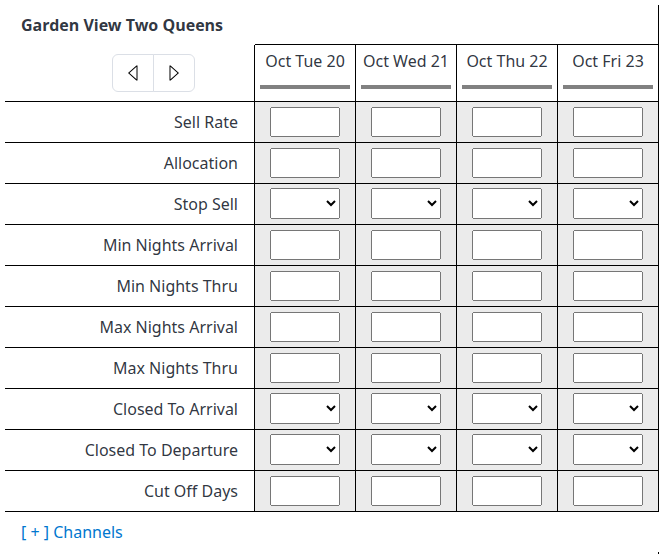
This master section shows all common field families. Blank cells mean no explicit value is shown for that stored field; they are not zero, No, or confirmation that a channel has no restriction.
Number entry: Rates use up to two decimal places. Allocation, night limits and Cut Off Days use non-negative whole numbers, not fractions or negative values. Keep these whole-number values within 0–32767, the range supported by Calendar's request parsing; channels can impose narrower rules. Use operationally appropriate values rather than the technical maximum. A syntactically accepted number is not proof that a channel supports or accepted it.
| Grid field | Meaning and example | Values and removal behavior |
|---|---|---|
| Sell Rate | The selling price for that date and product. 150.00 requests that price, not a price adjustment. A master rate is a starting value for configured destination calculations; a channel rate is entered in that channel's pricing context. |
Enter a positive amount meeting the room type's minimum allowed rate. An amount below that minimum reverts in the browser. Zero is not a safe close-out or deletion command: it can remove a stored master price while the channel rate request is rejected. Use Stop Sell for a closure. |
| Additional labeled Sell Rate rows | Channel-specific rate components, such as a supported occupancy price. The label identifies the component; it is not another generic master price. | Use a positive price and the same minimum-rate rules. Only configured, enabled components appear. Changing the main channel Sell Rate can calculate additional enabled components; check them before making separate overrides. |
| Allocation | Available room inventory for the date at that product level. 5 replaces the requested count with five. |
Whole numbers; 0 means no available inventory, not “leave unchanged.” A master zero also closes Stop Sell. Positive allocation automatically reopens Stop Sell only with the relevant property setting; always check both. |
| Stop Sell | A closure to sales for the date/product. | Yes applies the closure; No removes that stop-sell restriction. No does not restore allocation, prices or remove other restrictions. Blank is not No. |
| Min Nights Arrival | Minimum total stay length for a booking arriving on this date. 3 requires at least three nights for arrivals that day. |
Use 1 for the normal one-night minimum, or a larger whole number. Entering 0 is normalized to 1; it does not remove the field or allow a zero-night stay. |
| Min Nights Thru | Minimum total stay length for a stay that includes this date as a stay night, even if arrival is earlier. | Use 1 to remove a higher minimum-length requirement, or a larger whole number. 0 is normalized to 1. This does not remove a separate Arrival minimum. |
| Max Nights Arrival | Maximum total stay length for a booking arriving on this date. 7 limits those arrivals to seven nights. |
A positive whole number sets the limit. 0 requests removal of this maximum restriction; it is not a zero-night maximum. Confirm that removal on each destination. Clearing the text is not removal. |
| Max Nights Thru | Maximum total stay length for a stay that includes this date as a stay night, even if arrival is earlier. | A positive whole number sets the limit; 0 requests removal of this through maximum. It does not remove the separate Arrival maximum. |
| Closed To Arrival (CTA) | Whether a booking may begin on this date. A Friday closure prevents Friday arrivals; it is not the same as closing Friday to every stay that began earlier. | Yes closes arrivals; No removes this arrival closure. Other restrictions still apply. |
| Closed To Departure (CTD) | Whether a booking may depart on this date. A Sunday closure prevents Sunday departures. | Yes closes departures; No removes this departure closure. Check the departure date, not only the nights occupied. |
| Cut Off Days | Advance-booking lead time for the affected date. 2 requires the applicable date to be at least two days ahead under the destination's cut-off rules. |
Whole numbers; 0 removes this additional days-in-advance requirement. It is not a check-in time or a number of nights. Channel booking cut-offs and other policies can still apply. |
| Other channel-specific fields | Extra restrictions or parameters supported by that integration. Their labels, available choices and any label tooltip define the channel-specific setting. | Use only the displayed choices or the documented format for that channel. Do not transfer zero/No meanings from another field. If the meaning is unclear, check the channel guide or ask support before changing it. |
Arrival versus Thru: Arrival rules are evaluated against the check-in date. Thru rules concern stay nights, not the checkout date itself. For example, a Thursday arrival with Friday night included can be affected by Friday's Thru limit but not Friday's Arrival limit. A departure closure is checked against the checkout date. Channels do not all support both length-of-stay forms; inspect the available channel row and resulting request rather than assuming they are interchangeable.
Keep minimum and maximum limits consistent. For example, a three-night minimum and a two-night maximum can leave no eligible stay for the affected dates. Do not assume that every contradictory combination is prevented before submission.
Stored values, blank cells and date indicators
- Blank numeric cell: no explicit value is displayed for that stored field. It is not the same as allocation zero, a one-night minimum, or removal of a maximum stay. Related product values and channel rules can still affect sales.
- Blank Yes/No cell: no explicit boolean value is displayed. It is not equivalent to No. Once a value exists, the blank dropdown choice may no longer be present.
- Stored versus requested values: normalization can change what is stored. A zero minimum becomes one; removing a maximum with zero can leave the stored master value blank on reload. The attempted value can remain visible until the page reloads or a response changes it.
- Read-only value: you can inspect it, but that row is not an editable control for your current permissions, product setup or update mode.
- Colored line beneath a date: a summary derived from the stored inventory and related products—red for a closure/no allocation, gray for insufficient rate/allocation information, yellow for a restriction signal, green for the remaining available-state classification. It is not a complete stay search or channel-acceptance indicator; a green line does not guarantee every stay is bookable.
- Date-heading tooltip: shows the stored inventory edit timestamp where available, in the displayed user time zone. It is not the channel's delivery/acceptance time.
Common problems
| Symptom | Check and safe next action |
|---|---|
| A field or plan is missing | Check Options, Room Types, Rate Plans, Channels, and the appropriate [ + ] Channels expansion. Fields also require enabled property features and supported, enabled mappings. Ask your administrator if the expected field is still absent. |
| Everything disappeared after a display change | Re-select the room type, relevant weekday, option and plan. Clearing a display group hides its content; it does not erase inventory. |
| A channel row is read-only | It may be a received PMS row, lack the relevant update permission, or be restricted by the property's update mode. Ask your administrator to review the setup; do not broaden the edit to master scope as a workaround. |
| A price immediately reverts | It may be below the room type's minimum allowed rate. Check the intended amount and minimum. If it still fails, stop and provide the field/value and message to support. |
| A minimum entered as zero becomes one | Minimum stays normalize zero to one. Enter the intended positive minimum; use the field reference rather than erasing the cell. |
| Clearing a field restores its previous/attempted value | Blank entry is not a delete command. Use the explicit value for the intended change, such as No for a closure or zero for removing a maximum stay. First check whether a previous edit already submitted. |
| The value stays visible but the update is missing or an error appears | The displayed value is not a save or delivery receipt. Check Updates → Status using Search, reload the affected calendar values, and check applicable PMS overrides. If the saved scope remains uncertain, contact support before retrying. |
| A hidden plan changed after a room-type edit | Hiding a plan does not exclude it from the room-type master's effects. Review all affected plans and destinations before correcting the values. Use a specific plan section for a genuinely plan-specific change. |
| Positive allocation still does not reopen sales | Check Stop Sell and the automatic-stop-sell setting, then prices and the other booking restrictions. Verify the resulting request and channel inventory. |
| A manual value changes later, or PMS changes no longer flow | Review the field's PMS override policy and the product/mapping scope. Not every channel-row edit is stored as a lasting override. Do not clear overrides as a casual retry; that can affect more inventory than the cell you are investigating. |
For support, provide the property, channel, room type/rate plan, affected dates, editing level, field and intended value, action time/time zone, and error text or request ID. Do not include passwords, payment details or unrelated guest information.
Related
- PMS Overrides
- Channel Settings Page — OTA
- Quick Update — for a shared change across a date range rather than individual calendar cells.