

Choose a property's dates, products and data sources, then open a rates-and-availability report or download its results.
Before you start
- Select the property you want to inspect in the property selector. You need access to that property; viewing this report does not require Org Admin access.
- Open Reports → Rates & Availability. The page heading is Rates & Availability Report.
- Know what you want to compare: the PMS values stored in ChannelRUSH, manual PMS overrides, the ChannelRUSH master image, or a channel's stored report data. These are different sources, not interchangeable confirmations of what a guest can book.
- This page selects report data; it is not an inventory editor. Live Read, where offered, requests data from the connected source when you open a report. Refresh Data is a separate request to refresh stored report data. Opening the criteria page can also initiate the application's automatic report-refresh check; it is not a guarantee that every displayed value has just been retrieved.
A displayed value, matching values or a recent-looking timestamp does not by itself prove channel acceptance or current retail availability.
Build your report
1. Choose dates and data
- Set Date Range using the start and end date fields. Both endpoints are included. Use the date format shown in your account; after typing, leave the field and check the range in the summary beside the report buttons.
- To select a whole month, use Month / Year. This replaces both range endpoints; it does not run the report.
- Under Days, leave the weekdays you want to include selected. Keep at least one selected. For example, a Saturday-and-Sunday selection only includes weekend dates inside your range.
- Under Data To Display, select Rates, Availability, Restrictions, or a combination. Keep at least one selected. These choices control the information displayed, not updates to those values.
On an initial visit without remembered checkbox choices, the page starts with all weekdays and data types selected. The date range starts at the property's current date and ends 28 days later. Review the actual controls rather than relying on those defaults: the browser remembers checkbox choices separately for each user and property.
2. Choose room types and rate plans
- Under Room Types, select at least one room type.
- Under Rate Plans, select the plans you want to inspect. Leave every plan clear if you want only the room types' own rows. No rate plans selected does not mean all rate plans.
- If Unmapped is offered, select it to include channel rate plans that do not have a standard property rate-plan mapping. It does not mean unmapped room types or disconnected channels.
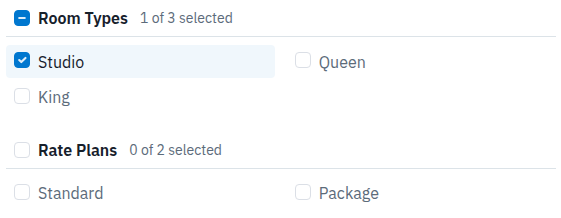
This example selects one room type and no rate plans. The report shows the room type's own rows rather than its Standard or Package plan rows.
The checkbox beside a room-type, rate-plan or source section heading controls the whole section. A dash means some items are selected. Clicking an incomplete section's heading selects all its items; clicking it when all are selected clears them. The count beside the heading shows the current selection.
The Days and Data To Display headings work slightly differently: clicking either heading clears its choices if any are selected, and selects all when none are selected.
3. Choose the sources to compare
Select at least one source across the available source sections. You do not have to select something in every section.
- PMS: select a configured PMS/source, ChannelRUSH Master Image, or the separately listed UI Override source when available.
- Channels: select the channels whose stored report data you want to inspect.
- Live Read, if offered: select it only when you intend to request an on-demand read from that connected source. It is different from selecting the same source's stored PMS data.
For a stored-data comparison, leave Live Read clear. To inspect only the master image, select ChannelRUSH Master Image under PMS and clear the other source choices, including Channels. To compare PMS and channel values, select the PMS entry and the relevant channels together.
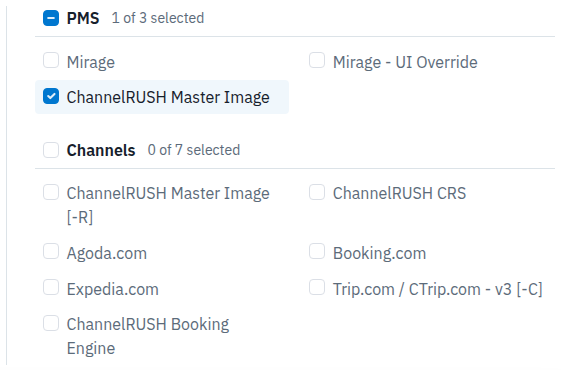
This example selects the stored ChannelRUSH master image only. Clearing Channels does not prevent a report when a PMS source remains selected.
If the same connection appears in both PMS and Channels, selecting it in both places does not create two independent copies of that source.
4. Open or download the report
- Check the summary beside the report buttons. Confirm the dates, matching-day count, products, sources and data choices. This is a summary of the pending selection, not evidence that report data has loaded.
- Choose an output:
- Grid: opens a calendar-style report in a new tab or window, with dates across the page.
- List: opens a date-by-date report in a new tab or window.
- Excel: opens the spreadsheet view in your browser in a new tab or window. It is not the direct CSV download.
- CSV: downloads a file using the selected criteria. The selected data groups determine which data columns are included.
- Leave the original criteria tab open if you expect to change the selection. Changing its filters does not update reports already open in other tabs; choose the output again to run the revised selection.
Do not click Refresh Data to apply filters. The Grid, List, Excel and CSV controls run the report with your choices.
Check the result
In the report you opened, check:
- The property name is the intended property.
- The displayed dates and weekdays match your selection.
- The expected source headings and room types are present.
- Rate-plan rows are present only when you selected plans and applicable data exists. A room-only selection is intentional when every rate plan is clear.
- The displayed data matches your choices. For example, an Availability-only List report shows allocation information rather than rate and restriction columns.
The report's view/download controls let you continue in another format. If you change the filters within a result screen, use its Apply or Load control when offered and check the loaded result again; those controls are separate from this criteria page's run buttons.
An empty result or blank cell does not establish successful distribution, zero availability or the absence of restrictions. A missing stored observation can also produce default-looking fields or a current-looking timestamp in an output. Do not use a timestamp alone as proof of a new provider response. If a comparison matters for a live booking issue, confirm the relevant channel and product separately before changing inventory.
Field reference
Dates, days and products
| Field | What it changes | Requirements and interactions |
|---|---|---|
| Date Range | The stay dates to inspect, including both endpoints. | Both dates must be valid and the end must not precede the start. A date being selectable does not guarantee stored data exists for it. |
| Month / Year | Sets the range to the first and last day of a month. | A shortcut for Date Range, not an additional filter or a report-run button. |
| Days | Limits the range to selected weekdays. | At least one is required. A selected weekday may not occur in a short range, leaving no matching dates. |
| Rates | Includes supported rate information in the chosen output. | At least one data type must remain selected. Availability and restrictions can be selected independently. |
| Availability | Includes availability/allocation information. | A displayed allocation is not a guarantee that a guest can book the product. |
| Restrictions | Includes supported restriction information. | The fields available depend on the source and product. A blank or default value is not independent proof that no restriction exists at the channel. |
| Room Types | Chooses the property's standard room types to inspect. | At least one is required. Eligible configured virtual room products can appear under their selected parent room type. |
| Rate Plans | Chooses standard rate plans within the selected rooms. | All clear means room-level rows only. The section may be absent when there are no choices. |
| Unmapped | Includes configured channel plans without a standard property rate-plan mapping. | Appears only where relevant configuration is found. It is not a diagnostic result by itself. |
Sources
| Source | What you are inspecting | What it does not establish |
|---|---|---|
| A named entry under PMS | The source's stored inventory information in ChannelRUSH. | That the PMS was queried when you opened the report. |
| A source ending in UI Override | Separately stored manual override information, when enabled for the property. | That selecting or clearing this checkbox creates or removes an override. It only changes the report selection. |
| ChannelRUSH Master Image under PMS | ChannelRUSH's stored master inventory image. | That every channel has accepted or currently sells those values. |
| A named entry under Channels | Stored report data for that channel; CRS and booking-engine sources use their own stored data. | A universal independent readback from the channel. Some channel report values can be based on outgoing update data rather than a fresh provider response. |
| Live Read, where available | An on-demand inventory read for a supported monitored source when the report loads. | Guaranteed successful retrieval or delivery. Missing results can reflect unavailable or unsuccessful retrieval. |
The source lists depend on the property's configured connections and their capabilities. Live Read is not available for every connection. UI Override appears only when that option is configured. These criteria lists have no search filter: their section controls apply to the entire list.
Remembered selections
Checkbox changes are remembered immediately in the current browser for your user and property. They can replace the initial choices when you return, even before you run a report. The date range is not saved with these checkbox preferences.
This does not create a saved report or change inventory. Check every source and product selection before running, especially after changing properties, using another browser or clearing browser storage. To change the remembered choices, change the checkboxes themselves; there is no separate Save button on this page.
When to use Refresh Data
Use Refresh Data only when you intend to request a refresh of stored report data for supported selected channels—not to open a report or apply display filters.
- You need at least one of the Update - Rates, Update - Availability or Update - Restrictions permissions. Seeing the button does not prove your account can use it. Demonstration logins cannot submit this action.
- The action works on eligible selected Channels entries. A PMS-only, master-only or Live-Read-only selection is not a substitute for selecting a supported channel to refresh.
- Refresh scope is broader than your report filters. It can include all eligible products for those channels and a broad future date range, even when your display selects one room, one rate plan, a few dates or particular weekdays. Data To Display does not narrow that refresh work.
If a refresh is needed:
- Recheck the selected property and Channels entries. Confirm that the broader refresh scope is intended.
- Click Refresh Data once.
- Read the confirmation or error on the criteria page. A processing message does not prove that eligible work was queued, that retrieval completed or that inventory is accepted by a channel. Unsupported selections can produce no useful refresh work.
- Open the report again using Grid, List or Excel to inspect the relevant data. Do not treat a new-looking timestamp alone as completion evidence.
There is no guaranteed completion time established by this page. If expected data remains missing or unchanged, contact support with the property, selected channels, stay dates and action time/time zone. Do not repeatedly click Refresh Data as a substitute for checking what happened.
Common problems
| Symptom | What to check | Safe next action |
|---|---|---|
| Report buttons are disabled. | Read the selection message beside the buttons. Common messages include Choose at least one room type., Choose at least one source., and requests for a date range, weekday or data type. | Complete that selection. No rate plans is valid; no room types or no sources is not. |
| No report tab opens. | Grid, List and Excel open another tab/window and require the page's JavaScript controls. | Check for a browser pop-up block and allow the report window. If the page still does not respond, reload the criteria page, recheck the controls and report the visible error to support. |
| No dates or rows appear. | Check that your selected weekdays occur inside the range, that a source is selected, and that the required products are configured. | Use a smaller known date range and the intended room/source. If data is still missing, provide the selection and visible error to support; do not infer that channel delivery succeeded. |
| Rate-plan rows are missing. | Check whether every Rate Plans checkbox is clear, or whether the plan lacks a relevant mapping/data for that source. | Select the intended plan and run the report again. Use Mapping Coverage to investigate configuration; do not change mappings merely to fill a report. |
| A checkbox choice reappears on your next visit. | Browser preferences can restore earlier choices. | Set the intended boxes explicitly and inspect the summary before running. |
| A new selection does not change an already-open report. | The original criteria page and result tabs are separate. | Run the revised criteria again, then inspect the newly opened result. |
| Live Read or UI Override is missing. | Availability depends on configured connection capabilities and override settings. | Use the available stored sources. Ask support to confirm expected configuration; do not enable or change settings solely to make the report option appear. |
| Refresh is refused, or its message appears but the report remains unchanged. | Check permissions, selected supported channels and whether new data was actually retrieved. | Do not repeatedly refresh. Ask support to inspect the request with the property, channel, dates, action time/time zone and error text. |
Never send passwords, payment details or unnecessary guest information with a report question.