

Use Daily Update to enter different rates, availability and restrictions for individual dates, review the affected room types and rate plans, and submit the changes for your property's enabled channels.
Before you start
- Select the correct property. You need access to that property and permission to update the relevant Rates, Availability or Restrictions. Channel setup, mappings and supported fields also determine what you can update.
- Daily is not a single-channel editor. Send Updates considers the property's enabled inventory-send channels; there is no channel selector on this page. A displayed field does not mean every channel supports it.
- Check your PMS override settings. Manual changes can block later PMS updates for affected items when overrides are enabled. Without those overrides, later PMS updates can replace your manual values.
- Product selections control the grid, not a complete list of update destinations. In particular, a room-level update can reach that room's configured channel rate plans even when those plans are hidden or unselected. For a narrow update, leave broader fields blank and use the specific room/rate-plan block.
1. Load the dates and products
- Open Updates → Daily for the selected property.
- Set Date Range. You can use Month / Year to choose a month or enter a start and end date. Check the visible dates after entering them. Use today or future dates, with the end on or after the start.
- Under Days, select the weekdays to include. For example, select Fri and Sat for weekend dates within the range. Keep at least one weekday selected.
- Under Options, select Rates, Availability and/or Restrictions. Keep at least one option selected.
- Select the Room Types and Rate Plans to display.
- Click Load Screen. This loads the grid; it does not send inventory updates. Reloading can discard unsent entries, so read any discard confirmation before continuing.
- Check the date headings, room columns, rate-plan rows and selection summary. If you see Not loaded yet: Load Screen to show these choices., the old grid is still displayed. Load the new choices before entering updates.
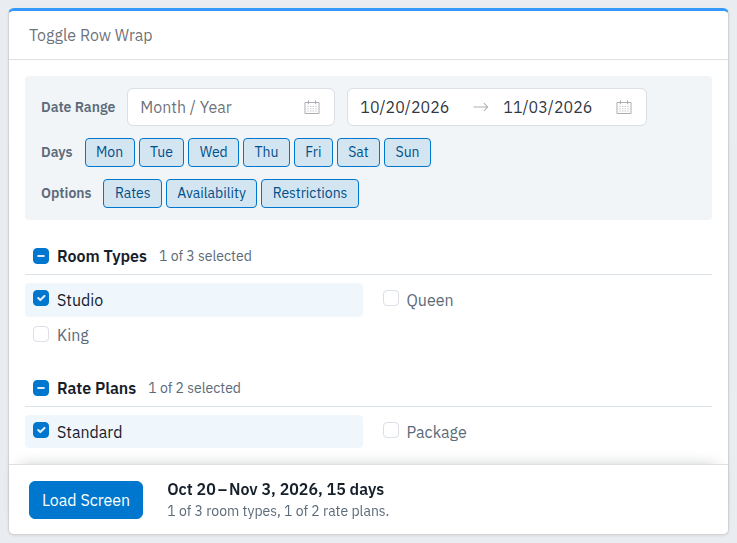
This example loads one room type and one rate plan. The selections are display choices, not a channel-send checklist.
On a fresh page, the initial range runs from the property's current date through 14 days later, with all weekdays, options and available products selected. The Days and Options headings toggle all choices in their group. The checkboxes beside Room Types and Rate Plans select or clear their lists.
Selecting no rate plans leaves room-level controls; it does not prevent room-level updates reaching channel rate plans. Selecting no room types leaves Global controls, not all rooms. Direct Global updates in that case require a channel that supports hotel-level updates. Unmapped appears only where setup provides channel rate plans without a property rate-plan mapping.
If the page shortens the end date because the grid is too large, use fewer options/products or split the work into smaller ranges, then load and check the result again. Where Toggle Row Wrap is shown, it switches the layout between wrapping product blocks and keeping them side by side; it does not change the update values.
2. Choose the right block for each date
Each date has its own set of editing blocks:
| Block | Use it for |
|---|---|
| Global at the upper left | A broad starting value for that date. It can populate room and linked-plan fields. |
| A room-type heading, such as Studio | Changes at that room's level for that date. These can also reach its configured channel rate plans, including plans not displayed. |
| A rate-plan heading in the left-hand column, below Global | A value for that plan across the displayed room types for that date. |
| A rate plan beneath a room type, such as Standard below Studio | Changes to that room/rate-plan combination for that date. Configured links can still populate related products. |
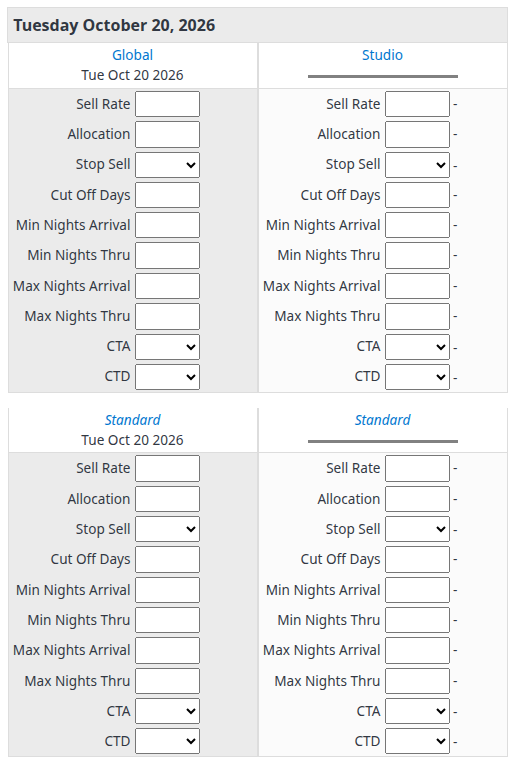
The left-hand Standard block applies across rooms; the right-hand Standard block belongs to Studio. Each date is separate.
Blank fields and stored values
The editable controls hold your new changes. Blank means no new value for that field. It is not zero, No, deletion of a saved value, or removal of a PMS override.
The value or dash beside a room/plan input is the loaded ChannelRUSH master value, not a confirmation from the destination channel. A dash means no stored value is shown; it is not zero. Colored indicators summarize the stored state: red for closed/no availability, gray for missing required rate or availability, yellow for restrictions, and green for available under that indicator. They do not establish channel acceptance. The indicator's hover timestamp, when present, is the stored edit time in your user time zone.
Enter broad values before specific exceptions
Changes to broader fields can populate or overwrite more specific fields. Rate calculations, rounding and configured room/rate-plan links can affect the resulting values. Room-to-plan propagation can differ for rates, availability and restrictions according to the link settings.
If you intend a broad update, enter the broad value first, wait for population to finish, and then make the specific exceptions. Check every affected block and date before submitting. Changing a broader value again can replace those exceptions.
Daily uses Sell Rate; it has no rate-type selector or occupancy-rate inputs.
Common editing workflows
Change one room/rate plan on one date
- Load the required date, room type and rate plan, with Rates selected.
- Find the rate-plan block beneath the room type on that date.
- Enter the new Sell Rate there. Leave Global, room-level and left-hand rate-plan fields blank if you do not intend broader changes.
- Wait for any linked-product population and inspect the other blocks. Repeat only for the other dates you intend to change.
- Follow Submit and check the result below.
Close or reopen sales
- Load the affected dates/products with Availability selected.
- To close sales, set Stop Sell to Yes in the intended block. Use Allocation = 0 only when you also mean zero available units: entering zero sets Stop Sell to Yes during field population.
- To reopen, enter the intended positive Allocation and check Stop Sell. A positive allocation changes Stop Sell to No automatically only when the property is configured to do so; do not assume replenishing allocation reopened sales. Set No explicitly where required.
- Review linked products and other restrictions. Stop Sell = No alone does not provide availability or remove stay-length, arrival or departure restrictions.
- Submit once, then verify the affected destinations.
Apply or remove a restriction
- Load the relevant dates and products with Restrictions selected.
- Enter the required restriction in the appropriate block, using the field reference below. Arrival limits apply to arrivals on that date; Thru limits apply to stays through it, where supported.
- To remove CTA or CTD, select No, not blank. To remove a maximum-night limit or advance-day cutoff, use 0. For a minimum-night limit, use 1 for the least restrictive value; zero is normalized to one, not an unrestricted blank.
- Check the other minimum/maximum limits and populated linked products before submitting.
Clickable headings: clear or repopulate unsent entries
The blue Global, room and plan headings are editing shortcuts, not navigation links. They operate on that date only and use the values currently entered in the form, not the stored values beside the inputs. 0 and No count as populated entries.
| Heading you click | What happens |
|---|---|
| Global | Clears all pending Global, room-type, left-hand rate-plan and room/rate-plan inputs for that date. It does not copy values to other dates. |
| Room type | If its own block contains an entry, clears that room's block and its rate-plan blocks for the date. If its block is empty, repopulates from the date's Global and left-hand rate-plan entries. If neither broad source has entries, it clears the room and its child plan entries instead. |
| Rate plan beneath a room | If the block contains an entry, clears that block. If it is empty, populates from the same-date room and left-hand plan entries; a left-hand plan value takes precedence for a field supplied by both. Rate calculations can apply. With neither source populated, it remains empty. |
| Rate plan in the left-hand column | Checks that plan's room-level blocks for the date. If any contains an entry, clears the left-hand plan block and that plan's blocks across rooms. If they are all empty, fills those room/plan blocks from their room-level entries, applying rate calculations. It is not a copy-across-dates shortcut. |
Review the resulting entries after every shortcut. Clearing a field only removes the pending change from this form; it does not undo an earlier submission, restore server values or remove an existing PMS override.
Submit and check the result
- Confirm the loaded date/product scope and review all populated inputs, including linked fields and any specific exceptions. Check Allocation and Stop Sell together. Wait until field population has finished.
- Click Send Updates once at the bottom of the page.
- Read every success, warning and error message. A saved confirmation means update requests were saved for processing, not that every channel accepted every change. Some requests can save while others are rejected.
- Open Updates → Status for the same property.
- Set Status to All, then select the relevant Channel, Room Type and Rate Plan, or leave them at All for a broader search. An Unsuccessful filter hides successful and pending requests.
- Open More Filters and set Source to UI Daily. Under Date Range, choose Start/End Date and enter both affected inventory dates to find requests whose date ranges overlap your update. These are the dates you changed, not the day you submitted it. Creation Timestamp searches when the request was created; Processing Timestamp searches its processing/edit time instead.
- Click Search. Changing filters alone does not refresh the results. Check that your selections remain applied and review each matching request's channel/product, affected dates, values, Status, Attempts, Created and Last Run. Match the creation time to your submission so you do not mistake an older request for the new one.
- Pending and Processing are not completion. Unsuccessful requires investigation of the request's message/logs. Successful is that request's recorded processing result, not a guarantee that later PMS or channel activity has left the value unchanged. Check the actual affected dates/products on the destination channel before relying on the update.
For an empty or unexpected Status search, widen the filters and click Search again. Leave Rates, Availability and Restrictions all unselected to avoid narrowing by data type; selecting all three also removes that restriction. A subset can exclude older requests without data-type detail. Select Archived if you need to include archived requests. Clear Search Filter resets the criteria. Transaction ID and Users can narrow an investigation when you have the relevant details.
The Go buttons belong to the separate request actions, such as Retry and Archive. They are not Search buttons. Do not retry or repeat Send Updates merely because a filtered list is empty or a result is unclear.
Important: even a message that no updates were saved does not prove nothing changed. Local inventory values and enabled PMS overrides may still have saved independently of channel requests. Check the affected local values, overrides and channel-specific results. If you cannot establish what saved, ask support before resubmitting; an empty Status search alone cannot resolve that uncertainty.
Use Cancel to leave unsent entries and reload Daily's initial view. It does not undo a previous submission.
Field reference
Fields appear according to your permissions, selected Options, property setup and channel support. Use nonnegative whole numbers for quantities, days and nights. Sell Rate accepts up to two decimal places using your displayed number format. Channel-specific limits and validation still apply; there is no single maximum value valid for every channel.
| Field | What it changes | Values and example |
|---|---|---|
| Sell Rate | The selling rate used as the basis for this date/product's update. Linked-product and channel calculations can change the final amount. | A positive amount, for example 150.00. Zero is not a valid selling rate; leave blank for no rate change. |
| Allocation | Available units for this date/product. | A whole number, for example 5. 0 means no available units and also sets Stop Sell to Yes during population. A positive value only automatically reopens Stop Sell when the property setting enables it. |
| Stop Sell | Whether sales are closed for the date/product. | Yes closes; No requests reopening subject to availability and other restrictions; blank makes no new change. |
| Cut Off Days | How many days in advance a booking must be made. | For example, 2 requests a two-day advance requirement. 0 removes that requirement where supported. |
| Min Nights Arrival | Minimum stay length for a guest arriving on the date. | For example, 3 requires at least three nights. Use 1 for the least restrictive minimum; 0 is normalized to 1. |
| Min Nights Thru | Minimum stay length for a stay passing through the date. | For example, 3 requires at least three nights for a stay that includes the date, where supported. 0 is normalized to 1. |
| Max Nights Arrival | Maximum stay length for a guest arriving on the date. | For example, 7 requests a seven-night maximum. 0 removes this maximum where supported. |
| Max Nights Thru | Maximum stay length for a stay passing through the date. | For example, 7 requests a seven-night maximum for a stay that includes the date, where supported. 0 removes this maximum. |
| CTA | Closed to arrival: prevents a guest arriving on this date. | Yes applies the restriction; No removes it; blank makes no new change. It is not a full stop sell. |
| CTD | Closed to departure: prevents a guest departing on this date. | Yes applies the restriction; No removes it; blank makes no new change. It is not a full stop sell. |
Blank has the same no-new-change meaning for every field. To remove an existing PMS override rather than change inventory, follow the separate PMS Overrides guide.
Common problems
- A field or product is missing: check Options and the loaded selections. If it is still missing, ask your administrator to check permissions, mappings, channel setup and support for that field. Do not use a broader update to work around a missing specific control.
- The grid shows the wrong dates/products: check the pending-selection notice and click Load Screen before editing. If the end date was shortened, reduce the grid size and reload. If the loaded result still differs, stop and contact support with the selections and displayed dates.
- Specific values changed after a broader edit: linked-product population or rate calculations may have replaced pending values. Review the whole date, enter broad values first and make exceptions last. If the calculated result is unexpected, have the link/calculation settings checked before sending.
- A channel reports setup, date-limit or value errors: identify the affected channel and product in the messages. Check its configured update horizon and supported values with your administrator. Do not assume the other channels were rolled back; inspect Status and local values before correcting and resubmitting.
- Sales remain closed after increasing Allocation: check Stop Sell and the remaining restrictions. Positive availability is not an unconditional reopen command.
- Values later change, or PMS changes stop appearing: review PMS overrides and the upstream inventory source before changing settings or sending again.
- No saved requests, mixed results or uncertain delivery: follow the result-check procedure above. If you cannot reconcile the local values and request outcomes, contact support before retrying.
For support, include the property, channel, affected dates, room/rate plan, submission time and time zone, request ID if available, and exact message. Do not include passwords or guest information.