

Use Opportunity Center to review stored channel recommendations for a property, narrow the messages you see, and decide what needs investigation.
These messages are not a live audit of every channel. A recommendation, an empty result or a recent refresh time does not by itself establish whether a room is currently bookable or a problem has been resolved.
Before you start
- Sign in with access to the property you want to review. You do not need Org Admin permission solely to view its opportunities.
- To request a refresh, you need at least one of the permissions for updating rates, availability or restrictions. The public demo login can filter existing results but cannot submit Refresh Opportunities.
- Check which system owns the rates or availability before acting on a suggestion. If your PMS supplies them, investigate there rather than entering a conflicting manual update.
Open and filter opportunities
Changing a dropdown applies the display filter immediately. There is no separate Search or Apply button. Refresh Opportunities is a different action: it requests new processing, not merely a filtered view.
- Select the property in Channel Manager.
- Open Channel Tools → Opportunity Center. You can also use Reports → Diagnostics → Opportunity Center.
- Choose Channel, or leave All to include all matching channel and general messages.
- Choose Room Type, or leave All to retain property-wide and channel-wide suggestions as well as room-specific ones.
- Choose Level, or leave All to include every matching level.
- After each selection, wait for the page to reload and check that the dropdown values and results match your selection.
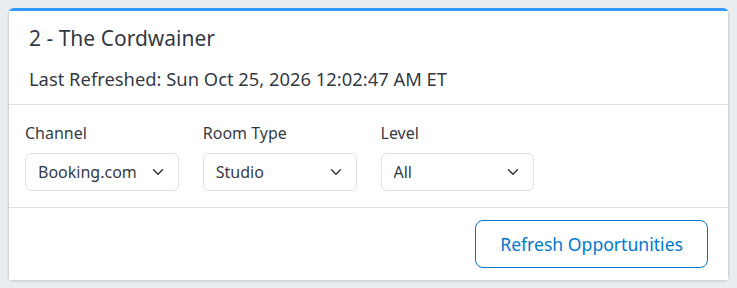
Example from a demo property. The filters change what you see; they do not limit the scope of Refresh Opportunities.
Selecting a room excludes messages that are not attached to a mapped room. A channel-wide recommendation can therefore disappear even when it is relevant to your property. Return Room Type to All before concluding that a channel has no recommendations.
Read a recommendation
Results are grouped under General or the channel name. Room-specific messages appear under the property room-type heading; the message may also show the channel's room name. Those names can differ—for example, your Studio may map to the channel's Single.
Read the message and its Take Action guidance together. Some messages include a Click Here to Learn More link, which opens a separate tab. The destination depends on the message and may be the channel's own site. Review the destination and its requested action before making changes; opening a recommendation does not carry out its suggested fix.
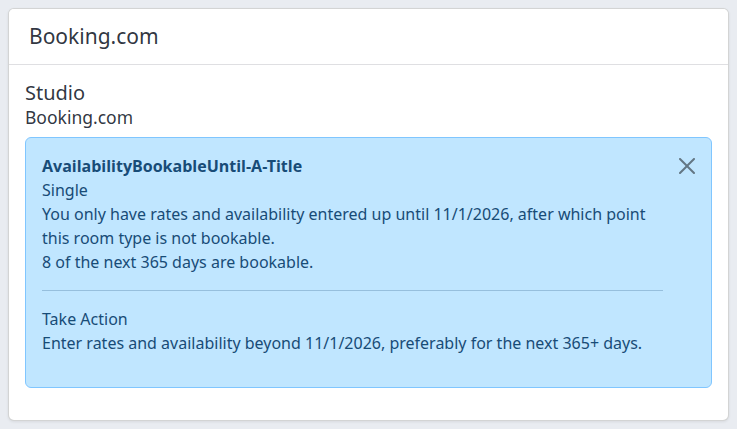
This captured message is an investigation prompt, not a live bookability check. The heading is shown exactly as it appeared in the demo.
Availability-horizon messages
An availability message may identify a last bookable date and a count of bookable days in the next year. This is calculated from stored inventory information. It does not establish that every date up to the stated date is available, that every rate plan is open, or that the channel has accepted a recent update.
Before extending rates or availability:
- Check the named channel and mapped room.
- Inspect the affected dates in your source system and ChannelRUSH's rates-and-availability view.
- Confirm whether a closure or limited booking horizon is intentional.
- Use the appropriate inventory workflow only if a change is needed.
The message can remain unchanged until opportunities are processed again. Its absence is not a substitute for checking the inventory itself.
Close is not Resolve
The Close control on a message is not a confirmation that its recommendation has been completed. Do not use it to track resolution or rely on it as a permanent dismissal. Record useful message details before closing; if a message disappears or returns, recheck the underlying issue rather than repeatedly closing it.
Request updated opportunities
Refresh Opportunities is property-wide. The selected Channel, Room Type and Level do not restrict it. It requests ChannelRUSH's local opportunity calculation and supported channel opportunity retrieval for the property's set-up connections. Not every configured channel provides remote recommendations.
A refresh can replace the stored message set. Keep the relevant message text if you need it for investigation; this page is not a historical record of every recommendation.
- Confirm the property and that you intend to request new opportunity processing.
- Click Refresh Opportunities once.
- Read the on-screen response. A refreshing message does not confirm that background processing completed or that a channel returned successfully.
- Allow processing time, then reload the page with your browser. Browser reload rereads stored results; it does not request another refresh.
- Reapply Room Type and Level if needed. The refresh redirect retains Channel but resets those two filters.
- Compare the returned messages with the underlying inventory or channel information relevant to the issue.
There is no guaranteed completion time shown by this workflow. Avoid repeated refresh requests solely because the message set has not changed.
What Last Refreshed tells you
Last Refreshed shows the recorded time of the property's general opportunity-processing pass, in your signed-in user's time zone. It is not a separate completion time for every channel, and it does not date each individual message. If no time is recorded, the label is absent.
A newer time does not prove that every channel refreshed, that an inventory update was delivered, or that a recommendation was resolved.
When you arrive from Portfolio Overview
A link from Recent opportunity records in Portfolio Overview opens a narrower Opportunity Center selection. Instead of the normal filters and Refresh button, it shows:
- Matching Portfolio opportunity records: the number of stored records matching the originating selection. It is not a count of distinct unresolved problems or a guarantee that the same number of message cards can be rendered.
- The originating channel, message type, level, language and creation-time lower bound. Language-neutral records are also eligible; archived records are excluded.
- Origin extracted and this read timestamps. This page reads the messages again, so they can differ from Portfolio's earlier count.
- Return to Portfolio, when a return link is available.
- Open Opportunity Center controls, which leaves the narrow Portfolio selection and opens the property's ordinary filters.
Portfolio's creation window is not a stay-date filter. Ordinary Opportunity Center does not expose a date-range filter. Do not compare the two views as if they used the same selection.
Field and control reference
| Field or control | Meaning and behavior | Example or caution |
|---|---|---|
| Property | Determines which property's stored opportunities you inspect. | Check the property name above the filters. |
| Channel | Defaults to All. Choose one configured channel, or General for messages without a channel assignment. | General does not include every locally calculated message; local suggestions can belong to a specific channel. |
| Room Type | Defaults to All. A selected property room matches messages through the channel-room mapping. | Selecting Studio excludes roomless channel-wide suggestions. |
| Level | Defaults to All. Info, Warning and Critical each select that exact level. | Warning does not also include Critical. All can include levels without their own dropdown choice. |
| Last Refreshed | General processing timestamp for the property, displayed in your user's time zone. | Not proof that Booking.com or another individual channel completed a refresh. |
| Channel and room headings | Identify how messages are grouped; a channel room name may appear inside the message. | Confirm the mapping when the property and channel use different names. |
| Message and Take Action | Explain a stored finding and its suggested next action. | Read them as an investigation prompt, not proof of present channel state. |
| Click Here to Learn More | Optional message-specific link opening a separate tab. | Available destinations and follow-up actions vary by message. |
| Close | A message-dismissal control, not a completed-task marker. | Do not rely on permanent dismissal or use disappearance as evidence of resolution. |
| Refresh Opportunities | Requests a new opportunity-processing pass for the property and supported set-up channels. | Display filters do not narrow the request. Requires update permission; unavailable to the public demo login. |
The ordinary view uses unarchived records for your current interface language or records with no language assignment. It has no selectable age window. Older messages can remain relevant—or stale—until the underlying collection is updated. This page has no dedicated Excel, CSV or clipboard export control; use the separate Portfolio or Custom Reports workflows where appropriate.
Check the result
After filtering, verify the property, selected values and channel/room headings together. No opportunities at the moment. means no message groups matched the current selection. It does not certify that the property has no distribution issues.
After investigating or making a separate inventory/configuration change, check that change in its own workflow. Opportunity Center does not provide channel-acceptance confirmation for an inventory update. A missing message, a Close action, a refresh banner or a newer Last Refreshed time is not sufficient proof of success.
Common problems
| Symptom | What to check and safe next action |
|---|---|
| No opportunities appear | Verify the property, then return Channel, Room Type and Level to All. Language, stored data and room mappings also affect the results. If you expect a specific message and it remains absent, contact support with the channel, room and missing message details. |
| A suggestion disappears after choosing a room | It may be a property-wide or channel-wide message without a mapped room. Set Room Type to All. Escalate if a known room-specific message still cannot be found. |
A heading looks like AvailabilityBookableUntil-A-Title |
A readable message title was not supplied. Use the channel, room and message body for context; report the visible heading to support. Do not assume the unusual title changes the inventory state. |
| Refresh is refused | Check your update permissions. The public demo login is read-only for this action. Ask your administrator if an ordinary account needs the appropriate access; do not try a different route to bypass the restriction. |
| Refresh says it is running, but the information is unchanged | Reload the page rather than clicking Refresh repeatedly. The banner is not a completion receipt, and the general timestamp does not cover every channel. If the discrepancy persists, contact support with the request time and time zone. |
| A dismissed message returns | Treat the recommendation as unresolved until you verify the underlying issue. Dismissal is not a reliable resolution record, and refreshed messages can reappear. |
| Portfolio's count differs from the visible messages | Confirm that you followed the intended row. The page rereads stored records, and current channel/room mappings can affect which cards render. Return to Portfolio and follow a fresh link. Report persistent discrepancies with both views' timestamps and selection. |
| A saved Portfolio link is rejected or the page fails to load | Reopen it from the originating Portfolio report, or use Channel Tools → Opportunity Center. Do not repair selection parameters by hand. If the ordinary page also fails, send support the property, selected filters, action time and error text. |
When contacting support, include the property, channel, room type, selected filters, relevant message text and action time with its time zone. Do not send passwords, payment details or unnecessary guest information.