

Use Theme Viewer to compare designs for a property's hosted website, open a preview with your own content, and share a preview link. Once you have chosen a design, return to that website's settings to apply it.
Previewing does not save your choice. Choosing a value in the Theme list does not save it either. Save and Save & Refresh on the website settings form are the actions that can change the website your guests use.
Before you start
- Select the correct property and an existing website. Check the address and language when the property has several website rows; a theme is chosen for the individual website mapping, not for every website in the organization.
- You need Booking Engine / CRS - Settings permission to save website settings. Ask your administrator if editing is unavailable or a save is refused.
- Have a working website address if you want to preview your own content. The demonstration site is useful for comparison, but its content and booking mode may differ from yours.
- A preview is not a booking sandbox. You can inspect the appearance without submitting a reservation, payment or contact form. Do not make test bookings just to compare designs.
Open Theme Viewer
- Select the property in ChannelRUSH.
- Open the property's Admin menu, then Settings - CRS in CRS, Booking Engine, Content.
- Select BE & CRS Channels, then find Websites.
- Choose Edit beside the website address and language you want to review.
- Under Theme Options, select Theme Viewer. It opens separately, so you can keep the website settings form available.
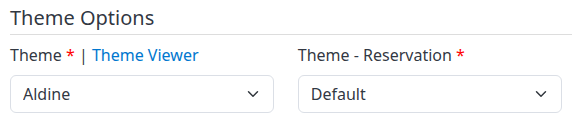
Theme Viewer is beside the website's Theme selector. Theme - Reservation is a separate setting; do not change it just to compare website designs.
Compare designs and open a preview
The Site themes catalogue describes each design, the kinds of properties it suits, its colors and typography. The illustrated card is a design sample, not a screenshot of your complete website. Scroll down to More themes for additional designs without the large illustrated cards.
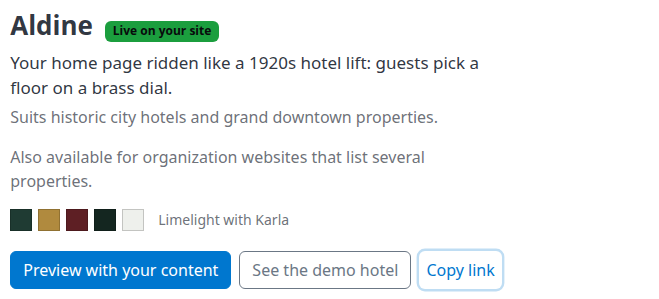
The Aldine card for the demo property's saved website theme. A badge is a useful hint, but the saved Theme value in the website settings is the reliable place to check your selection.
Use the actions for the design you want to compare:
| Action or label | What it means |
|---|---|
| Preview with your content | Opens the selected theme on this website address in a new tab. It uses the website's saved content, not unsaved changes in your settings form. The previewed theme starts with its own option defaults unless the preview link supplies option values. |
| See the demo hotel | Opens the theme on the demonstration hotel's site. Use this to see a different content example, not to confirm your property's setup. |
| Copy link | Copies the preview address so you can share the comparison. When your own-content preview is available, this is that address; otherwise it is the demo address. A successful copy displays Copied. Sharing the link does not select or save the theme. |
| Live on your site | Identifies a matching saved theme when the catalogue displays that exact theme entry. Its absence does not mean that no theme is saved. |
| Also available for organization websites that list several properties | The design also has an organization/multisite version. This does not mean that a standalone website should be switched to that version. |
Depending on the themes available to your organization, you may also see:
- Built for your organization or Multi-property badges, identifying an organization-specific design or a design for multiple properties.
- An option summary and individual option-value links under More themes. When present, these links open a preview of that value, usually on the demonstration site; check the destination rather than assuming it uses your property. They do not save the option.
- A custom design built for this property. Such bespoke designs are not offered as previews on another property's content.
- A message that no compatible demo website is configured. Use a matching single-property or organization website, or ask support rather than changing your live setup simply to obtain a preview.
Compare the preview's headings, navigation, colors and room presentation with your content. A site's booking mode still determines which website or booking pages are available; a demo may open a booking-search page rather than a full home page. Your existing brand settings can also influence the result, so the card's sample colors are not a promise that every part of your preview will look identical.
The preview theme applies to that preview visit, not to ordinary visitors. Links within the preview can carry the preview settings forward. Close the preview when finished; do not treat a page reached from inside it as proof of the saved website appearance.
Preview pages tell search engines not to index them, but that is not privacy or access control. Anyone with a usable preview link may be able to open it. Share only with the people who need to review it.
Apply the theme when you are ready
- Return to the original website settings tab. Confirm the property, address and language again.
- Under Theme Options, select the chosen design in Theme. Opening its preview did not change this list for you.
- Review the rest of the form for unintended edits. Both save actions submit the whole website mapping, not only its theme.
- If you are changing the theme and need to see its settings, open the arrow beside Save and choose Save & Refresh. This saves the theme now and reloads the editor; it is not a draft preview.
- Review the options shown for the saved theme. Set the options you actually want, then use Save when ready. If no further adjustments are needed, there is nothing else to submit after the successful save and refresh.
Save saves and returns to CRS Settings. Save & Refresh saves and reloads the website editor. Cancel leaves the editor without submitting your unsaved changes; it cannot undo a save you already completed.
A theme marked [MS] is for a property page on a compatible organization website. The catalogue can show a single design card for both ordinary and multisite versions, while the selector distinguishes them. Keep the version appropriate to your existing website. Changing between ordinary and multisite setups can affect the property's address and requires more than choosing a look; use Configure a hosted booking website or ask support before changing an established setup.
Preview options for the saved theme
The options available under Theme Options depend on the saved theme. For example, a theme may offer stock-photo, room-list or room-detail choices. A theme without those options will not show the same controls.
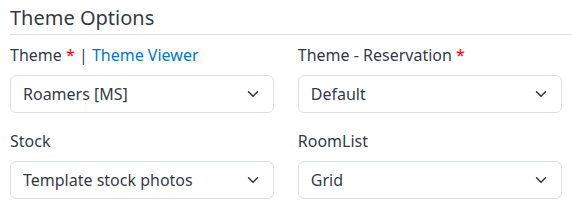
Example: Grid has been selected for preview on an existing Roamers [MS] website. This is an unsaved choice, not a completed application. The screenshot focuses on Stock and RoomList, not every option for the theme.
For an existing website, Preview these values in the Brand section opens a preview using the current form's theme-option and brand values without saving them. You can compare an option, close the preview and restore the previous value before leaving.
This link uses the theme loaded when the editor opened. If you change the main Theme selector without saving, Preview these values does not switch to that newly selected theme. Use Theme Viewer to compare a different design first. Only save and refresh the new theme when you are ready for that real change; the refreshed form then shows its options.
If you decide to keep the option changes, save the settings form. Closing a preview or seeing the desired appearance in it is not confirmation that the changes were saved.
Check the saved result
After saving:
- Reopen the same website row and confirm Theme and the relevant options still have the intended values.
- Open the website's ordinary address from the settings editor in a fresh tab, rather than using a copied preview link or a link inside a preview. The address used for this check should not contain the preview parameters to, tov or tot.
- Check the public appearance and the pages appropriate to the site's booking mode. Confirm that it is the intended property and language.
A retained settings value confirms the configuration. The ordinary website check confirms the visible result. Neither a preview nor the Live on your site badge alone proves both.
If something does not look right
- No themes are available for your account: contact ChannelRUSH support to arrange the available themes; changing another website's settings is not a workaround.
- There is no own-content preview: return to the website settings and check that you opened an existing mapping with the intended working address. You can still use the demonstration link for design comparison.
- The preview still shows the old design: confirm which link you used. Preview these values follows the editor's loaded theme; use the design's Preview with your content action in Theme Viewer to compare another theme.
- There is no Live on your site badge: check the saved Theme selector. A combined ordinary/multisite design card can omit the badge even though the website has a saved theme. Do not resave solely to make a badge appear.
- The preview differs from the sample: check your website content, booking mode, saved brand settings and theme options. A missing photograph or different home page is not by itself proof that the theme failed to apply.
- A save shows an error or the result is uncertain: read the validation message and check the saved mapping before trying again. Do not assume the theme was applied, and do not change unrelated domain or booking settings to fix a display problem.
- The ordinary website still looks wrong after a confirmed save: give support the property, website address, language, selected theme and the page that differs. Say whether you were viewing a preview or the ordinary site. Do not include passwords or guest/payment details.
For address, language, booking-profile and brand configuration, see Configure a hosted booking website.