

Find a reservation for one property or across your authorized properties, check its latest stored details, and follow up on delivery without confusing a booking status with a delivery result.
Choose where to search
- One property: select the property in the application header, then open Reservations → Search. Enter the reservation ID or other criteria and click Search.
- Across properties: open Org Admin → Reservations. On the Org Admin landing page, Reservations is in the Channel Manager section. Use the Property and, when available, Organization filters on that search page. The property in the application header does not by itself restrict this cross-property search.
You need access to the properties you want to search. The Org Admin navigation is available to users with Org Admin access. If you cannot see it, use your property-level search or ask your organization administrator about the access you need. All means all properties within your authorized search scope, not every ChannelRUSH property.
The sections below describe Org Admin → Reservations. This search includes archived reservations automatically; it has no Include Archived checkbox. It lists the latest stored version of each reservation, not every modification. Use History when you need earlier versions or processing information.
Find a reservation by its ID
- Open Org Admin → Reservations.
- Choose Organization, if shown and needed.
- Choose Property, or leave it at All to search across your authorized properties in that scope.
- Enter the complete Reservation ID.
- Click Search.
- Check the property, channel and status in the matching row before opening the reservation ID.
An ID search takes precedence over the other search filters. Property and organization scope still apply, but Channel, Guest Name / Email, Room Type, Status, Stay Dates and Received do not narrow an ID search. Clear Reservation ID before using those filters.
The ID must match a stored channel reservation ID, secondary channel ID or PMS reservation ID. It is not a partial-number search. A numeric ChannelRUSH reservation-version ID can also match, but an old version's ID may not appear because the list shows the latest version.
Search without an ID
- Leave Reservation ID blank.
- Select the organization and property scope you need.
- Enter a guest name or email, or choose a Channel or Status.
- Set Stay Dates if you know when the guest stays, arrives or departs.
- Set Received if you know when ChannelRUSH received the reservation or its latest change.
- Check both ends of each date range. Choosing a start date can also populate the end date.
- Click Search.
- Check Filtered by below the form and the rows underneath it. Editing a control alone does not apply the search.
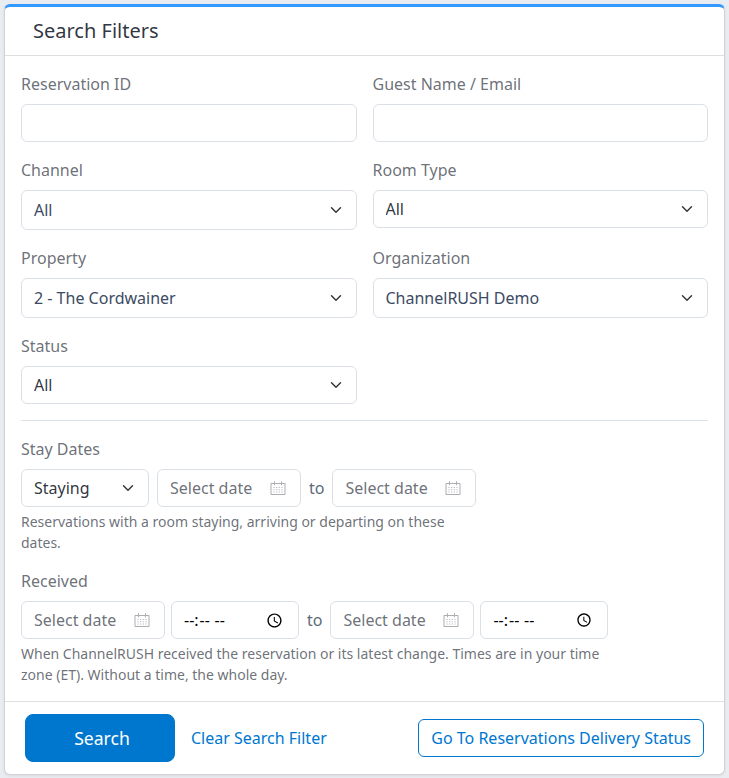
The search form in the demo organization. A narrower window stacks the date sections; the controls have the same meaning.
Filter by room type
- Select Property.
- Click Search to load that property's room choices.
- Select Room Type.
- Click Search again.
Changing Property clears the previous room selection. Selecting Organization clears Property, so choose the property again if you need one. Without a selected property, Room Type has only All.
Room Type uses the property's current channel-room mappings. An old reservation with an unmapped room code may not match. For a multi-room booking, a matching room type and a matching stay date can refer to different rooms; open the reservation to confirm the room-level details.
Read and check the results
The cross-property list has two columns:
| Column | What to check |
|---|---|
| Channel ID / Status | The channel reservation ID, the reservation's New/Modified/Canceled status, channel, optional source-channel name, property and received timestamp. Click the reservation ID to open its details in a new tab. Check the property and channel as well as the number. |
| Info | The booked-by name when supplied, the reservation total and currency when available, and arrival/departure dates. The amount uses the total after tax when supplied, otherwise the total before tax. It is not a payment-received indicator. A dash for an arrival/departure means that date is unavailable. |
The timestamp is when ChannelRUSH received the listed reservation version, displayed in your user time zone. It is not the original channel booking time or a delivery confirmation. For multi-room reservations, inspect individual rooms rather than relying only on the summary dates.
Use » and « above or below the results to move through pages while retaining the search. Ordinary searches normally display 50 rows per page; the visible rows are not a total count. ID searches are not necessarily limited to that page size. A next-page control can lead to an empty last page; go back rather than assuming earlier results disappeared.
Click a Filtered by item to remove that filter, or Clear Search Filter to reset the search. Clearing filters can broaden the scope, including removing a selected Property or Organization. Recheck the scope before continuing. An initially empty screen is not a completed search: click Search.
Row links
- Reservation ID: opens the listed reservation version's details in a new tab.
- History: opens the reservation's history and processing information in a new tab.
- Email: opens a form for sending a reservation email. Opening the form does not send it.
- PMS: appears when the property has enabled PMS/API reservation-delivery destinations. It opens the send form; it does not itself retry delivery.
- Actions: appears for supported channels. These are channel-specific reservation changes, not PMS-delivery retries. Do not use Actions to resolve an undelivered reservation unless the intended task is actually a supported channel action.
History, Email, PMS and Actions use the reservation's latest stored version when opened. The presence of a link does not establish permission to submit its action. Sending or modifying a reservation requires Reservations - Actions permission.
Check delivery across properties
Finding a reservation proves it is stored in ChannelRUSH. New, Modified and Canceled describe the reservation, not whether its PMS or email delivery succeeded.
- Apply your reservation-search filters with Search first.
- Click Go To Reservations Delivery Status.
- Review the destination page's Property, Organization, Channel, Reservation ID and Created range.
- Adjust the delivery filters you need.
- Click Search on that page.
- Inspect the relevant destination and attempt, not only the booking's status.
The shortcut carries the selected Property, Organization, Channel, Reservation ID and Received window from the last applied search. It does not carry Guest Name / Email, Room Type, Stay Dates, reservation Status or the current page. A multi-property selection supplied by another screen is not retained as a list; recheck the destination scope.
The carried dates change meaning: Received filters receipt of the reservation/version; Created on Delivery Status filters creation of a delivery request. A delivery request can be created later. Clear or widen the Created range when investigating attempts outside the original receipt window.
ID behavior also changes. Delivery Status combines ID with its other filters; an ID does not override them. Use the channel reservation ID for the clearest handoff. PMS and secondary channel IDs accepted by reservation search are not searched as those IDs on Delivery Status. Channel there can match the source or destination. Review the carried Channel and dates if you cannot find the expected attempt.
Delivery Status uses Pending, Processing, Successful and Unsuccessful for processing outcomes. An empty list does not prove successful delivery. Use the attempt details and destination confirmation where needed before deciding whether to send again.
Resend a reservation or send an email
Use these actions only after checking the existing delivery history and confirming that another send is appropriate. Repeated submissions create new requests and can cause duplicate delivery. Emailing a reservation does not repair PMS delivery.
Send to the PMS/API destinations
- Find the reservation using either search entry above.
- Confirm its property, channel and reservation ID.
- Click PMS.
- Review the reservation and the destinations on the form.
- Click Send once if another delivery is required and you are authorized to send it.
This sends the latest stored reservation, not an earlier failed request's original version. The action creates requests for all enabled PMS/API push or pickup destinations on the property, not only a destination whose earlier attempt failed. If that scope is not appropriate, stop and contact support rather than submitting.
Send a reservation email
- Find and confirm the reservation.
- Click Email.
- Enter the intended recipient addresses, separated by commas or semicolons, or use the available saved-address selections.
- Check the complete recipient field before sending. Changing a saved-address selection rewrites the field, so review any addresses you typed.
- Click Send once.
A missing address or an address in an invalid format must be corrected before sending. Do not send guest information to an unverified recipient.
Check a send result
The send confirmation means new delivery requests were created; it does not by itself prove the PMS accepted the reservation or an email arrived. The send pages return to the property's reservation search. Open History for that reservation to inspect the new attempt. For the cross-property delivery list, use Org Admin → Reservations - Delivery Status, review its scope and dates, and click Search.
Do not repeat Send merely because the page is slow, an old failure remains visible, or the PMS still appears empty. Check for a new pending/processing request and confirm the receiving system's state first. If the outcome is unclear, ask support before sending again.
Field reference: Org Admin reservation search
| Field or control | Meaning and example |
|---|---|
| Reservation ID | Complete stored identifier, with surrounding spaces ignored. Matches the channel, secondary-channel or PMS ID, or a numeric ChannelRUSH version ID. Takes precedence over non-scope filters. For example, enter the complete confirmation number rather than its last four digits. |
| Guest Name / Email | A valid email searches that exact address without case sensitivity. Name searches match complete first/last-name words; several words can match any one of them, not necessarily the whole name together. Partial spellings are not substring searches. Leave blank when the ID is known. |
| Channel | Filters the reservation's channel when no ID is entered. All leaves it unrestricted. Choices depend on the loaded scope; apply a scope change with Search before choosing from the refreshed list. |
| Room Type | The selected property's standard room type, matched through current mappings. Load the property with Search before choosing a room. All leaves room type unrestricted. |
| Property | Restricts the cross-property search to one accessible property. All searches the authorized scope instead of automatically using the header property. |
| Organization | Shown when more than one organization choice is available. Restricts the search scope; changing it clears Property. Choose a property belonging to that organization if you want a narrower search. |
| Status | New, Modified, Canceled, or All. These are the latest stored reservation's states, not delivery outcomes. |
| Stay Dates — Staying | Finds a reservation with a room whose stay overlaps the dates. The departure date is included, so this is not a count of occupied nights. |
| Stay Dates — Arriving / Departing | Matches a room's arrival or departure on or between the chosen dates, including both bounds. A blank bound leaves that side open. |
| Received dates | When ChannelRUSH received the latest stored reservation/version. Blank bounds are open; with no time, the entire selected local date is included. An earlier version's receipt date may no longer match after a later modification. |
| Received times | Optional times in your user time zone, named beneath the range. Supply the corresponding date; a time alone does not filter. The ending minute is included. Stay Dates are stay dates, not conversions of this timestamp window. |
| Search | Applies the entered criteria and starts from the first results page. It does not resend or alter reservations. |
| Clear Search Filter / Filtered by | Reset all search filters or remove an individual applied filter. Recheck property/organization scope after clearing. |
| Go To Reservations Delivery Status | Opens delivery-request search using the limited handoff described above, based on the last applied search rather than unsaved field edits. |
Common problems
- No matching reservation: click Search, verify property/organization access and use the full channel confirmation number. Without an ID, remove restrictive dates/status/channel/room filters one at a time. No match is not proof that the reservation does not exist at the channel. If it is still missing, give support the property, channel, reservation ID and approximate receipt time with time zone.
- Changing dates or status has no effect: a Reservation ID may still be entered. Clear it and click Search to apply the other filters.
- Room Type only shows All: select Property and click Search first. If expected rooms are still missing, ask your administrator to check property setup; do not change mappings solely to make a historical search match.
- The End Date cannot be before the Start Date: correct the Received range and click Search. The last stay date cannot be before the first means the Stay Dates are reversed. Review both ranges after using a date picker. An ID search ignores these ranges, but the delivery-status page can still reject a carried reversed range.
- The list contains an archived booking: this is expected in Org Admin reservation search. Archiving a booking from a property's list does not remove it from this lookup.
- Reservation found, but no delivery row: verify the delivery page's scope, Channel, Created dates and ID type, then click Search. Do not infer success or resend automatically; ask support if you cannot establish the attempt's state.
- PMS is absent or Send is unavailable: the property may have no enabled PMS/API destination, or your account may lack action permission. Ask your administrator to confirm setup/access. Do not use Email or Actions as an equivalent workaround.
- A send result is uncertain: check History and the receiving system before another Send. Escalate with property, channel, reservation ID, intended destination, action time/time zone and the displayed error. Do not include passwords, card data or unnecessary guest details.