

Choose stay dates and a reservation feed, then read and export nightly reservation metrics for the property you are viewing.
Before you start
You need access to the property and its reports. Select the property first, then open Reports → Reservation Metrics. The page heading may read Reservations; the report reading note describes mapped nightly reservation metrics.
This is a captured-reservation report, not an availability report or an accounting statement. It uses active New and Modified reservations, mapped rooms and the nightly prices supplied with those reservations. Canceled reservations are excluded from the normal report.
The date range selects overlapping stays, not a strict revenue period. The stay-selection check includes the departure date, so a stay checking out on your selected start date can also qualify. Once a stay qualifies, the report includes its supplied nightly rows for the whole stay, even outside your selected dates. Choose Daily OTB from Reports instead when you need the report designed around nights inside the selected stay-date window.
Choose the dates and channel
- Confirm the selected property in the application navigation.
- Open Reports → Reservation Metrics.
- Expand Filters if the criteria are collapsed.
- Set Date Range. You can also use Month / Year to select a calendar month. The initial range runs from today in the property's time zone through 28 days later. Both displayed endpoints are included when the report fills missing dates with zero rows.
- Choose Channel. Select one feed for channel-specific results, or All to combine the property's feeds. All does not produce a separate row for each channel.
- Click View. Changing an input alone does not reload the results.
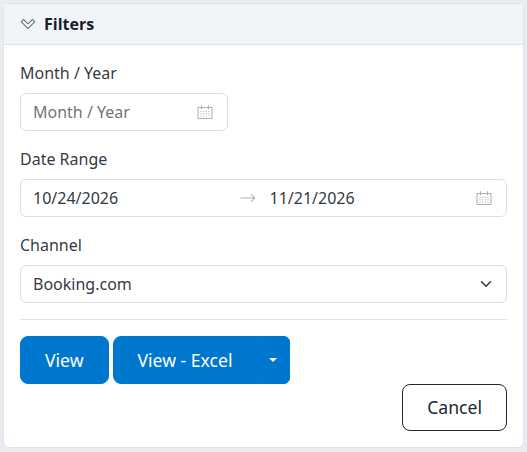
The controls stack vertically on a narrow screen; the same filters appear side by side on a wider screen.
The HTML report appears below the filters on the same page. To change the search, reopen Filters, adjust the criteria and click View again. Cancel returns to the property's Reports page; it does not cancel reservations.
Check the result
Check the property, channel and dates in the report heading and the Selected stay dates reading line before using the numbers. A selected feed can also be identified by its numeric ID in that line.
Rows are grouped by property, supplied night date and mapped room type. They are ordered by property, date and room-type ID. With All, the channel fields are blank; that means the amounts are combined, not that the reservation channel is missing.
Keep these limits in mind:
- Dates outside the range are expected for overlapping stays. The report does not clip those stays' nightly rows to the selected window.
- Zero is not proof that there are no bookings. The report creates zero rows for property room types on selected dates without mapped nightly data. Reservations with missing channel settings or room mappings are omitted, as are room stays without supplied nightly rows.
- Amounts keep the supplied price basis. There is no currency column or currency conversion. Do not combine or compare amounts unless you know they use the same currency and basis. The report does not establish whether the supplied price is gross, net or tax-inclusive.
- There is no freshness confirmation. The report does not show price coverage, report run time or the latest feed update. Its totals do not prove that every booking was captured or delivered to a PMS.
- ALOS and ADTA are arrival-row measures. They can be zero on a date with occupied nightly rows but no arrivals. They are not recalculated across every occupied night.
If the report is empty or shows only zero rows, check the property, stay dates and channel. Then compare an expected booking in Reservations → Search and check its room mapping with your administrator if it is absent from the totals. Do not resend a reservation or change inventory to make this report populate.
View a spreadsheet or download CSV
Browser spreadsheet
- From the criteria, choose View - Excel. If an HTML report is already open, you can also choose Excel in its View group.
- Confirm the property, channel and dates in the spreadsheet heading.
- Use the spreadsheet to inspect the same types of nightly metrics. Its headers use compact names such as
TotalAllocationandTotalADR.
The spreadsheet has its own Filters section and View Report submit control. To return to the HTML report, choose HTML in its View group.
Do not use spreadsheet date cells to open a reservation. This report contains aggregates, not individual reservation IDs, and the current spreadsheet can attach an invalid reservation link to those cells. Open Reservations → Search separately when you need an individual booking.
The number appended to the spreadsheet's Reservations heading is not a reliable count of displayed rows; it can show zero while the sheet contains data. Use the rows and their scope instead.
CSV download
- Load and check the report with your intended dates and channel.
- Choose CSV under Download on the HTML report or spreadsheet.
- Open the downloaded file and check its property, channel and dates before analysis. CSV dates use
yyyy-MM-dd.
The CSV contains the report rows, not a guest-level reservation list. It has no currency, capture-time or delivery-status fields. It follows the same whole-stay inclusion rule, so dates outside your selected interval can remain in the download.
New window, when shown on the HTML result, opens another view of the current report. It does not refresh or resend reservations.
Filter reference
| Control | Meaning and use |
|---|---|
| Property | The current property is fixed for this page. Switch property in the application before running another property's report. For a portfolio selection, use the organization-level guide below. |
| Month / Year | Shortcut for filling a calendar month's Date Range. Check the resulting dates before View. |
| Date Range | Required stay-date selection. End must not precede start. The report uses whole qualifying stays, so displayed rows can extend beyond the selection. |
| Channel | One configured reservation feed, or All. A single selection fills Channel ID and Channel Name; All combines feeds and leaves those output fields blank. |
| View | Loads the HTML report beneath the criteria. |
| View - Excel | Opens the browser spreadsheet for the selected criteria. |
| Cancel | Returns to Reports without changing reservations. |
On-screen column reference
The HTML table contains these columns. A row represents one mapped room type on one supplied night, not one booking.
| Column | What it means |
|---|---|
| Property ID | The property's ChannelRUSH identifier. |
| Property Name | The property name. |
| Channel ID | The selected reservation-feed ID; blank when All combines feeds. |
| Channel Name | The selected feed's name; blank for All. |
| Date | The supplied nightly date, or a date inserted to fill an otherwise missing selected day. Display formatting follows the report's date formatting; CSV is explicitly yyyy-MM-dd. |
| Room Type ID | The mapped property room-type ID. |
| Room Type Name | The mapped property room-type name. |
| Total Allocation | Count of supplied nightly rows. This is not sellable inventory, remaining rooms or a quantity-weighted occupancy measure. |
| Total Arrivals | Count of room stays whose first supplied nightly row falls on this date. A multi-room booking can contribute more than one room stay; this is not a unique-booking count. |
| Total Revenue | Sum of the supplied nightly prices. Missing mappings are excluded. Currency and tax/net/gross basis are not normalized. |
| Total ADR | Total Revenue divided by Total Allocation, rounded to two decimals. Zero when there are no counted nightly rows. |
| ALOS | Average number of supplied nightly rows per arriving room stay, rounded to one decimal. Assigned only to the first supplied night; zero when there are no arrivals. Missing nightly rows affect this value. |
| ADTA | Average calendar-day difference between the first supplied night and the selected reservation version's receipt date, rounded to a whole day. It is not necessarily lead time from the original sale; a later modification can change the receipt basis. Zero when there are no arrivals. |
Export header reference
The browser spreadsheet and CSV have the same field order and metric meanings as the table above, but their headers differ. CSV dates are invariant; the browser spreadsheet displays dates using its cell format.
| CSV header | Browser spreadsheet header |
|---|---|
PropertyId |
PropertyId |
PropertyName |
PropertyName |
ChannelId |
ChannelId |
ChannelName |
ChannelName |
Date |
Date |
RoomTypeId |
RoomTypeId |
RoomTypeName |
RoomTypeName |
Total Allocation |
TotalAllocation |
Total Arrivals |
TotalArrivals |
Total Revenue |
TotalRevenue |
Total ADR |
TotalADR |
ALOS |
ALOS |
ADTA |
ADTA |
Common problems
- View leaves the old result in place: reopen Filters, wait for the date controls to appear, confirm both dates and click View again. Compare the new heading with your inputs. If it still does not reload, record the selected property, dates, channel and visible message for support.
- A date-range error appears: enter both dates, with the end on or after the start, and rerun the report.
- Totals differ from another report: first compare the property, feed, dates and currency basis. This report includes whole overlapping stays and counts supplied nightly rows; a report limited to selected nights or unique bookings can legitimately differ. Escalate an unexplained difference with the report names, scope and affected dates.
- Channel columns are blank: check whether Channel is All. Select one channel and click View if you need a feed-specific result.
- A date cell opens an invalid reservation page: return to the report and use Reservations → Search. The aggregate row does not identify a reservation to open.
- You cannot find the property or report: ask your administrator to check your assigned-property/report access. Do not switch to another property's data as a substitute.
For support, include the property, channel, date range, report view, action time and time zone, and any visible error text. Do not send passwords, payment details or unnecessary guest information.