

Overview
Use Grid View to compare rates, availability and restrictions for selected sources, room types and rate plans, with one column per date. It is a report, not an inventory editor.
Read the source name before comparing values. Stored channel reports, PMS/master images and CRS inventory represent different stages of your inventory. A green cell or matching rate is not confirmation of a live guest-facing offer, successful delivery or rate parity.
Open the report
- Select the property you want to review.
- Go to Reports > Rates & Availability.
- Choose your sources, room types, rate plans, dates, weekdays and data types.
- Click Grid.
You need a signed-in account with access to the selected property. The available sources and products depend on that property's setup. You do not need inventory-update permission merely to read the grid; editing inventory and requesting a data refresh are separate actions with their own access requirements.

The controls above the report let you change dates and filters, switch to List or Excel, download CSV, or open a separate report window. Open calendar leads to the inventory-editing calendar; it does not make the grid editable.
Choose dates and filters
Change the date range
- Set the start and end dates above the grid. In a single-property report, these controls sit beside the legend. Month / Year fills a whole month into the date range.
- Click Load to reload those dates using your current dropdown selections.
- Check the resulting date headers and visible rows. Selecting dates or a month alone does not load them.
The date range and Days work together: a date appears only if its weekday is selected. You can therefore review only weekends within a longer range without changing the range itself.
Use the dropdowns
| Control | What it selects |
|---|---|
| All Channels | Stored sources available for the property, including applicable channel, PMS and master-image sources. It is not a promise that every connected channel has reportable data. |
| Room Types | Standard room types to show across the selected sources. Configured virtual rooms follow their parent room's selection. |
| Rate Plans | Plans to show below the room rows. Unmapped, when offered, includes configured channel plans without a standard rate-plan mapping. Leaving all plans unchecked is allowed and shows room-level rows only. |
| Data | Rates, Availability and Restrictions. Occupancy prices and extra-person charges belong to Rates, not a separate data option. |
| Days | Weekdays whose date columns should appear. |
Select all checks every option in that dropdown. When all are checked, clicking it again clears them. A partial selection shows a count. Clearing a list does not mean “include everything.”
To load a valid report, keep at least one source, room type, data type and weekday selected, and use a valid date range. Rate plans are optional. Follow the selection warning if Apply is disabled.
Know when Apply is needed
In Grid View, hiding data already loaded takes effect immediately. You can also re-show that same loaded data without fetching it again. Selecting a source, room type, rate plan, data type or weekday that was not loaded requires Apply — reloads report. A checked option does not mean its data has loaded yet.
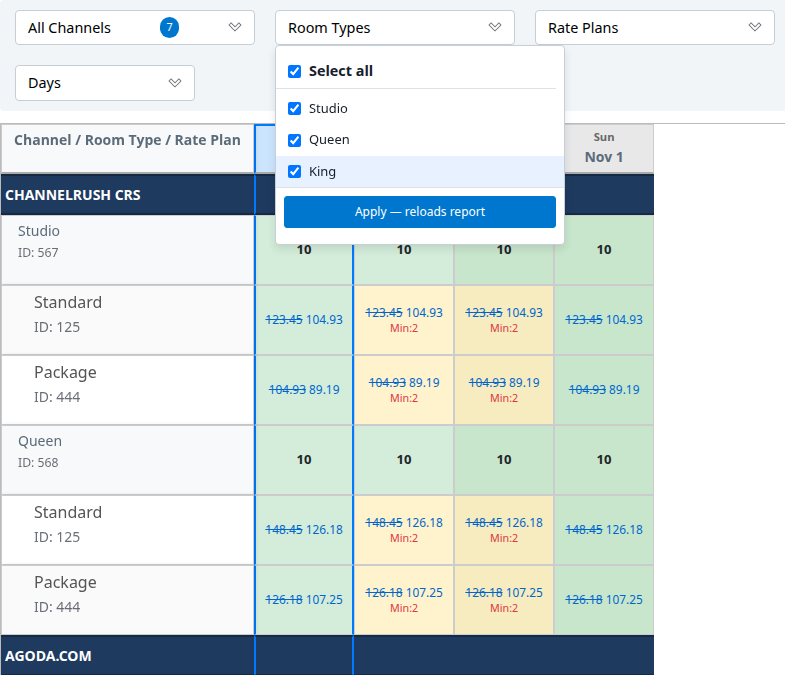
Selecting an option that was not loaded leaves it pending until you apply the selection.
Click Apply — reloads report when it appears. It uses the current selections across the dropdowns, not just the dropdown containing the button. Then confirm the requested rows and dates are visible.
Filters work together: a rate-plan row needs its source, room type and rate plan selected. A room row needs its source and room type selected. A channel heading disappears when all its product rows are hidden. Hiding rows or cell text changes the report display, not the property's inventory or channel setup.
Understand the source headings
The blue section bars identify the source of the rows beneath them. Do not treat similarly named sections as interchangeable.
| Source shown | How to interpret it |
|---|---|
| Ordinary channel name | The stored channel-report representation. Depending on the integration, it can reflect reported data or values recorded through outgoing-update processing. It is not universally an independent read-back from the OTA. |
| PMS - … | An inbound/PMS or master/override source. The master image and an enabled manual-override image are distinct stored sources, not additional OTAs. |
| ChannelRUSH CRS or booking-engine source | Inventory loaded through the CRS configuration, with its room/rate relationships and applicable promotion calculations. It is not a complete guest booking search. |
| … - Live Read, when available | A separate read from a supported PMS inventory-monitoring integration. All Live Read is offered only for an eligible single current property, not every OTA or a multi-property comparison. Loading this source can contact the connected service; it is not just another view of stored data. |
A separate Channel Image source is restricted to ChannelRUSH administrators. Its absence from a customer account is expected; it is not a missing customer permission to request. It represents the stored channel-inventory image, not a screenshot or proof of what an OTA is selling.
For an ordinary stored-data review, use All Channels and leave Live Read unselected. Load and Apply reload the report; they do not guarantee that an upstream service has supplied newer values. The criteria screen's Refresh Data is a separate request action, and that screen can also perform an automatic refresh check. A refresh request is not an immediate-completion guarantee.
Read the rows and dates
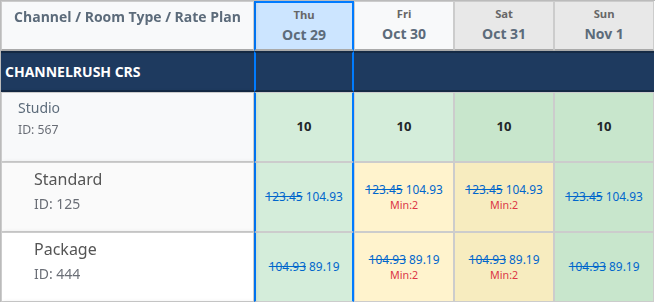
- Blue section bar: the channel or source name.
- Room row: the standard room type, followed by its rate-plan rows where supported.
- Indented rate-plan row: the standard plan name when mapped, otherwise the channel plan name.
- Virtual room: marked Virtual: and associated with its parent room selection.
- ID: a product identifier for the displayed source. Identical names do not prove identical mappings, and identifiers need not be the same across sources.
Some integrations hold availability at room level and rates or restrictions at rate-plan level. Read both levels rather than expecting every cell to contain every field. For CRS, the room row displays availability while rate-plan rows carry rates and restrictions; an empty rate-plan availability line is not automatically missing inventory.

Date-header example captured on October 29, 2026: blue marks that day, and Saturday and Sunday have darker headers.
Dates run left to right. Weekend columns have darker shading, and the report marks its current day in blue. The historical screenshot's blue date is not permanently “today.”
Scroll inside the grid to reach more rows or dates. Date headers stay at the top of that scroll area. On wider screens, the left product column stays visible during horizontal scrolling; on mobile-sized screens it scrolls with the table instead. Hovering a product label can show its channel name. Row hover subtly darkens cells and highlights the left label; it is not a new availability status.
When the loaded report contains more than 8 selected date columns, it uses the full available page width. This is not browser fullscreen. A long range or a narrow screen may still require horizontal scrolling. Use a shorter range or fewer products for a more manageable comparison.
Read the cell values
Availability and rates
With Availability selected, the cell's top number is its allocation value. With Rates selected, the sell rate appears below, formatted to two decimal places. Not every source or product level supplies both.
- A blank can mean no value was supplied, the data type is hidden, or the source does not show that field at that level. It is not automatically zero, open or closed.
- An explicit 0 allocation is different from a missing allocation. However, a CRS room row can display 0 when its allocation is missing, so that display alone does not prove a recorded sellout.
- A main sell rate of 0.00 can be displayed. Do not interpret it as a verified free offer.
- The grid does not display a currency beside every rate. Confirm the currency and equivalent product/occupancy before comparing amounts.
Occupancy prices and extra charges
Where supplied, additional lines can include 1 Pax through 10 Pax, Extra Adult, Extra Child, Extra Bed, Crib, or other source-specific rate parameters. These are separate price values, not the number of rooms available.
The grid lists only positive additional sell-rate values. An absent occupancy or extra-charge line therefore does not establish that the charge is zero or that the occupancy is unavailable. Turning off Rates hides these lines too.
For CRS rate plans, a crossed-out price is the pre-promotion sell rate when the report's promotion calculation supplies one; the following price is the resulting sell rate. This is not an inventory of all promotions or confirmation that a particular guest qualifies. The report does not collect a guest's coupon or full booking context.
Restrictions
With Restrictions selected, applicable codes appear in red beneath the rates:
| Code | Meaning |
|---|---|
| SS | Stop Sell |
| CTA | Closed to Arrival |
| CTD | Closed to Departure |
| Min:n | Minimum nights |
| Min Thru:n | Minimum nights through |
| Max:n | Maximum nights |
| Max Thru:n | Maximum nights through |
| Cut Off:n | Cut-off days |
Here, n is the displayed number of nights or days. CTA and CTD may share one line. Labels can vary with the interface language.
The grid shows minimum-night values only above 1, cut-off days only above 0, and Stop Sell/CTA/CTD only when true. Maximum-night values appear when present. An empty restriction line is not proof that every restriction is explicitly off: values may be missing, hidden or held at a related product level.
Interpret the color legend carefully

The legend labels describe the report's availability classification, not a live bookability check.
| Color and label | What it tells you |
|---|---|
| Green — Available | The classifier found the rate/allocation information it uses and did not flag one of its unavailable or restricted conditions. It does not check every guest, stay or sales rule. |
| Yellow — Has Restrictions | The classifier detected a restriction, such as CTA, CTD, a minimum stay above 1 night, a positive cut-off, or a maximum-stay value from 0 through 27. Read the actual codes and related room/rate rows. |
| Red — Unavailable/Stop Sell | Allocation is non-positive, Stop Sell applies, or a related room/rate condition makes the product unavailable under this source's rules. It is not necessarily a Stop Sell on that exact row. |
| Gray — No Data | The classifier lacks sufficient rate/allocation information. The cell can still contain a rate, allocation or restriction; gray does not mean every field is empty. |
Colors can use parent-room or child-rate information that is not printed in the same cell. A room's classification can also consider configured child plans that are not currently displayed. Hiding Rates or Restrictions does not recalculate the background color.
The rules differ by source. Stored report/image rows can use occupancy-rate parameters and related product data; Live Read's classifier requires both the main sell rate and allocation before it can classify the cell. A missing value can therefore produce a different color in different source sections. Read values and source labels together rather than interpreting color alone.
Compare safely
- Start with a short date range and one room type.
- Select the sources and equivalent rate plans you want to compare. Apply any pending changes.
- Check the source headings, product names/IDs, currency and occupancy basis.
- Read the room row and rate-plan row together, including restrictions and any extra price lines.
- Record the exact source, room, plan and date for any unexpected value. Check the relevant mapping and update status, or ask support to investigate.
This workflow helps identify differences worth investigating. Matching values do not prove live retail parity; different values do not by themselves prove a failed update. Do not resend inventory simply because a cell is gray or two sections differ.
Switch views, download or open the calendar
- Grid: compare dates horizontally.
- List: inspect detailed rows in the list format.
- Excel: open the spreadsheet view; this button does not directly download a workbook.
- CSV: download the selected report as comma-separated values.
- New window: open a separate copy of the report. Grid already uses a standalone layout without the main navigation; this is not a different dataset. The control is omitted in a copy already opened as a new window.
- Open calendar: open the selected property's editable calendar in a separate tab/window. It passes the loaded date range, not all the grid's source, room, rate-plan and data filters. Recheck the calendar's scope before making changes.
Apply pending changes before switching views or downloading. If the page asks Apply pending filters before continuing?, choose Apply and continue to use them, or Cancel to remain on the current report. Cancel closes the navigation prompt; it does not reset your selections.
What CSV includes
CSV is a row-based report, not a copy of the colored grid. Its identity columns are PropertyId, PropertyName, ChannelId, ChannelName, RoomTypeId, RoomTypeName, RatePlanId, RatePlanName, ChannelRatePlanId, ChannelRatePlanName, followed by Date. The selected Data groups add:
- Rates: SellRate.
- Availability: Allocation and RoomsSold.
- Restrictions: StopSell, MinNights, MinNightsThrough, MaxNights, MaxNightsThrough, CutOffDays, CTA and CTD.
Timestamp remains at the end. Occupancy/extra-charge Rate Params are not included in CSV, and the colors are not exported. CSV uses the spreadsheet projection, which can combine room/rate values differently from the grid's separate lines. Do not treat blank RoomsSold as zero or a timestamp as proof of a fresh provider response.
Troubleshooting
An option is checked but its rows or dates are missing
Look for Apply — reloads report, apply the selection and check again. Also check the other dropdowns: a selected rate plan cannot show under a hidden source or room. An offered option represents configured scope, not a guarantee of populated inventory.
The report is empty or Apply is disabled
Follow the selection warning. Choose at least one source, room type, data type and weekday. Check the date range and property. Rate plans may remain unselected for room-only results. If a source still has no rows, check that the channel and room mappings are set up and, for CRS, that the room and plan are enabled.
A rate, restriction or occupancy line is blank
Check Data, the source's supported fields and both the room and rate-plan rows. Do not replace an unknown value with zero or assume a blank restriction is an explicit No.
The colors do not match the visible text
Review the legend rules above. Hidden data and parent/child relationships can affect the classification. A restriction such as Max:28 can be printed without making the cell yellow under the maximum-stay threshold.
A value seems stale or differs from an OTA website
Confirm you are comparing equivalent products, occupancy and currency, and distinguish stored report values from Live Read. Reopening the grid does not certify a new upstream observation. Use update-status evidence and support investigation rather than assuming Refresh Data or an inventory resend is the correct remedy.