

Use Missing Availability to identify gaps in stored rates or allocation for a property, find the affected dates, and decide what needs investigation.
This is a stored-data check, not a live query to a booking channel or your PMS. A listed gap needs investigation; an empty report does not prove that every room is bookable or that an update reached a channel.
Before you start
- Sign in with access to the property you want to inspect. Viewing the report does not grant permission to change inventory.
- Know whether your PMS or your team controls that property's rates and allocation. Investigate the responsible source before making a manual correction.
- Allocation means the number of rooms recorded as available. A missing value is different from an explicit zero. Zero is recorded data, not a missing allocation.
Open and run the report
- Select the property in the property selector.
- Open Reports → Diagnostics → Missing Availability.
- Enter a whole number from 1 to 24 in Number of Months. The default is 18.
- Click View Report.
- Check Next … months and, when findings are shown, Date Range to confirm the report loaded the intended period.
The period starts today in your signed-in user's time zone. It includes today and the ending date the selected number of calendar months ahead. A channel with a shorter supported update horizon is checked only as far ahead as that channel permits, even though Date Range still shows the full report period.
Changing Number of Months does not reload the report until you click View Report or press Enter in that field. Running the report does not submit inventory changes.
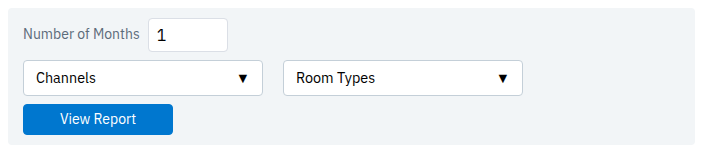
The report controls, shown with a one-month period.
Narrow the findings
Use Channels and Room Types to focus on the findings already loaded:
- Open Channels.
- Leave checked the channels you want to see.
- Open Room Types.
- Leave checked the room types you want to see.
- Close the dropdown to read the matching items.
These selections take effect immediately. You do not need to click View Report to apply them. A row must match both selections when you narrow both controls.
Select all toggles the options in that dropdown. Checking every option or clearing every option removes that filter; clearing all boxes does not mean “show nothing.”
Only channels and room types with findings in the loaded report are offered. A dropdown can be absent when there are fewer than two choices. A channel absent from this list is not necessarily healthy: it may be outside the report's scope or not eligible for a particular check.
Filtering does not recalculate the summary figures or group item counts. They still describe the loaded report, not only the rows you can currently see. Filtering also does not restrict the destinations of a later inventory edit.
The dropdown selections and grouping choice are temporary. Reloading, clicking View Report, or opening New window loads the report again without retaining these display-only selections. If you opened a link that already restricts the report to particular channels or rooms, changing the month range retains that link's underlying scope; clearing the display filters cannot add products that were never loaded. Reopen the report from the menu when you need its default scope.
Read the summary
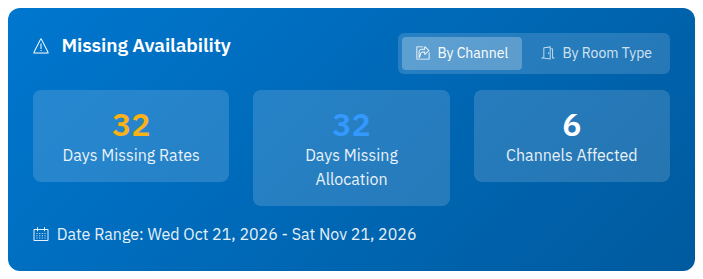
These figures describe the loaded report. Display filters do not change them.
| Field | What it tells you |
|---|---|
| Days Missing Rates | The number of distinct dates with at least one qualifying missing-rate finding. The same date counts once even if several products have a gap. It is not a count of missing rooms or room-nights. |
| Days Missing Allocation | The number of distinct dates with at least one qualifying missing-allocation finding. Dates are counted once across the report. |
| Channels Affected | The number of distinct channel names represented in the findings. |
| Date Range | The overall period requested. Individual channels may have a shorter effective horizon. |
| By Channel | Groups findings under each channel. This is the initial view. |
| By Room Type | Groups the same findings under each property room type. It changes presentation, not the underlying check. |
A zero missing-rate count does not prove that rates are complete. Where allocation is part of the check, missing rates are generally reported only when qualifying positive allocation exists. Missing or zero allocation can therefore prevent a missing-rate finding.
Read an affected item
In By Channel, each heading identifies the channel. The items count is the number of affected room-level or rate-plan-level entries in that group—not a count of dates.
Each item shows:
- The property's room-type name, followed by its channel room-type name in parentheses.
- A channel rate-plan name after the slash, when the finding is at rate-plan level. This can differ from the property's mapped rate-plan name in Calendar.
- days no rate and/or days no allocation badges for that item.
- Missing Rates and/or Missing Allocation, with the affected date ranges beneath each label.
In By Room Type, the group heading supplies the property room type. Each item then shows the channel and, where applicable, the rate plan. Use By Channel when you also need the channel room-type name to distinguish mappings.
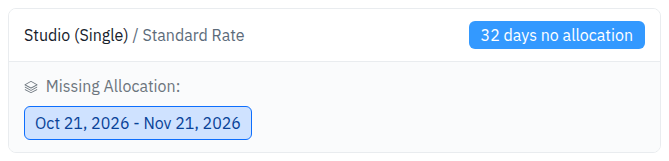
One demo finding from the Booking.com group: the property room is Studio, the channel room is Single, and the plan is Standard Rate.
Consecutive missing dates are combined into one range. Both dates in a range are included. Separate ranges indicate gaps on different runs of dates. The item counts describe all of that item's qualifying dates, not only the first range shown.
What qualifies as missing?
The check depends on the channel's supported fields, configured mappings and room/rate-plan settings. It does not inspect every configured product in the same way.
Booking-channel findings
For supported outbound channels, the report checks the values stored for inventory requests alongside the stored channel-report values. It does not fetch fresh values from the channel when you open this page.
- Missing allocation: neither stored source has an allocation at the checked level. At rate-plan level, a recorded parent-room allocation can also prevent a missing-allocation finding.
- Missing rate: neither source has a sell rate or any recorded occupancy-specific sell rate at the checked level. One recorded occupancy-specific rate is enough to avoid this missing-rate check; it is not a completeness audit of every occupancy price.
- Positive-allocation condition: when allocation is supported and applied at the same level, a missing rate is listed only if at least one source has allocation above zero there. For an outbound rate-plan rate check, parent-room allocation is not used as a substitute for plan-level positive allocation.
A value can be present in the stored request data before delivery succeeds. Its presence does not confirm channel acceptance. Likewise, a stored channel-report value is not proof of a fresh observation made during this report run.
PMS or other inventory-source findings
For eligible incoming inventory connections, the report checks stored master inventory from that source, rather than querying the PMS live.
At rate-plan level, parent-room data can satisfy the check: allocation is missing only when neither the plan nor its parent room has a value; a rate is missing only when neither has a sell rate or an occupancy-specific sell rate. Where allocation applies, positive allocation on the plan or parent room can qualify the rate gap for reporting.
Important boundaries
- Explicit zero rates or allocation count as present values. “Not missing” does not mean the value is valid for sale or accepted by a channel.
- A recorded parent-room allocation of zero can prevent a plan-level missing-allocation finding.
- Unsupported or unapplied fields, incomplete mappings, and ineligible room/rate-plan configurations are excluded from their respective checks. The report is not a setup-completeness audit.
- A connection appearing in the report does not by itself prove it is currently enabled to send updates.
- Stop Sell, arrival/departure restrictions and length-of-stay rules are not used to establish bookability here. Deliberately closed products can still have missing-data findings.
- There is no observation timestamp or delivery outcome attached to each finding. Use the relevant inventory and update-status screens for those separate questions.
Investigate the dates safely
- Note the channel, property room type, channel room type, rate plan and full missing date range from the finding.
- Click the relevant date-range link under Missing Rates or Missing Allocation. Calendar opens in a new tab; the report remains open.
- Check the property and loaded dates in Calendar before continuing.
- Select and load the appropriate room, rate plan and channel display criteria in Calendar, following the Calendar Update guide.
- Compare the finding with the values and inventory source you intended to use. If the PMS controls those values, investigate its supplied data before overriding it manually.
The date link carries the property and dates only. It does not select the finding's channel, room or rate plan. A long range opens only its beginning in Calendar; check the complete range in the report and review the remaining dates separately. Always verify Calendar's actual loaded dates, including when using a different display language.
Opening Calendar does not submit an inventory update. Editing a Calendar cell can submit immediately, however. Do not type a trial value to inspect the screen, and do not use a broad master edit to work around a channel-specific restriction. Follow the Calendar guide's scope, permissions and result-check instructions before making an authorized correction.
Check the result
After the responsible source has been corrected and the relevant data is available in ChannelRUSH:
- Return to Missing Availability for the same property.
- Confirm Number of Months still covers the affected dates.
- Click View Report to load the stored data again.
- Reapply any display filters you need.
- Check whether the affected item or date range remains.
A disappearing finding means the report no longer finds that qualifying gap in its current scope. It does not prove that an update was accepted by the booking channel. Verify any update separately using the result-check procedure in the Calendar Update guide, or investigate requests with the inventory update investigation guide.
If the page says No Missing Availability, interpret it as “no qualifying gaps found within this report's scope.” Do not treat its accompanying all-products message as proof of live availability, complete prices, successful delivery or correct restrictions.
Open a separate report window
Click New window to open the report without the normal application navigation. It retains the property, month range and any underlying URL scope, but not temporary checkbox filtering or grouping changes.
This is another view of the report, not a download. The standalone page has no CSV, Excel or Copy to Clipboard control. Changing the month range with View Report from the separate window returns that tab to the normal application layout.
Common problems
| Symptom | Likely explanation and safe next action |
|---|---|
| The figures stay the same when I filter. | The dropdowns hide findings but do not recalculate totals or group counts. Read the visible item details for your selected subset. |
| Clearing every checkbox shows more rows. | No selected options means no narrowing. Select the specific options you want instead. |
| A channel or room is absent from the dropdown. | Choices come from loaded findings, and single-choice dropdowns may be omitted. Reopen from the menu, check the property and period, and review mappings/support if coverage is still unexpected. Do not infer success from absence. |
| Changing the month number did not change the dates. | Click View Report and check the resulting Date Range. Use a whole number from 1 to 24; if a valid value still fails to load, report the entered value and any error to support. |
| Calendar shows other products or fewer dates. | The link does not carry product filters and long ranges are shortened. Select the intended products and verify loaded dates before editing. If the dates still differ after using Calendar's controls, stop and contact support. |
| A closed or disabled product is listed. | Missing stored data and operational saleability are different questions. Confirm whether the product should be sold and which source owns its values; do not reopen it merely to remove a finding. |
| Missing allocation is shown, but no missing-rate warning appears. | Rate-gap checks may require positive allocation. Investigate the allocation/source first and rerun the report after an appropriate correction; the absent rate warning is not an assurance that a price exists. |
| The finding remains after a correction. | Re-run the report with the same scope and check the source and relevant update outcome. Do not repeatedly resend or broaden an edit based only on this report. Escalate if stored values and the finding remain inconsistent or the earlier action's outcome is unclear. |
| The report is empty, but a room still cannot be booked. | The report does not establish channel acceptance, restrictions, occupancy-price completeness or live bookability. Investigate those separately instead of repeating an inventory update without evidence. |
For support, provide the property, channel, affected room and rate plan, missing date range, report period, relevant action time and time zone, and any error text. Do not send passwords, payment information or unrelated guest details.