

Open the correct reservation version, check its rooms and guests, and understand the amounts, remarks and available payment information for your selected property.
Before you start
You need access to the property in ChannelRUSH. When you open details through Reservations → Search, full card details require Reservations - Credit Card permission; additional account restrictions can still keep the number protected. If your account has password re-verification enabled for that access, ChannelRUSH can ask you to verify your password. The Org Admin → Reservations detail view always uses the protected card summary instead.
This is a view of a stored reservation, not a form for changing or canceling it. Opening it does not send or resend the reservation, collect a payment, or issue a refund. Booking status, delivery status and payment information are different things.
Keep reservation details private. Do not include guest names, contact information, card data or transaction references in screenshots for support. The screenshots below show only actual field labels; all reservation values are outside the crops.
Open the reservation from the property
- Select the property in the property selector.
- Open Reservations → Search.
- Enter the channel reservation number in Reservation ID. If you do not have it, use Guest Name / Email or other appropriate search criteria.
- Select Search. Changing a filter alone does not apply the search.
- Check the result's property, channel and stay dates.
- Select the linked reservation number. Its details open in a new tab, leaving Search available in the original tab.
If Re-Verify Password appears, enter your own account password on that ChannelRUSH page and select Continue. Never send your password to support or another person. If verification fails, stop and use your normal account-access recovery process.
Open the reservation from Org Admin
Use this path when reviewing reservations across properties. If Org Admin is not available, use the property-specific path above for a property you can access.
- Open Org Admin → Reservations.
- Choose the booking's Property in the search filters. If Organization is shown, select the intended organization first, then reselect the property.
- Enter the channel reservation number in Reservation ID, or use the other search filters described in Reservations.
- Select Search. Check that the retained filters and results match the intended property.
- Check the result's property, channel and stay dates.
- Select the linked reservation number. The reservation document opens in a new tab; return to the original Reservations tab to continue searching.
Org Admin search includes archived reservations automatically; there is no Include Archived box. The opened document always uses the protected card summary, even when you have Reservations - Credit Card permission. Other personal and payment information can remain visible, so keep the document private. For authorized full-card access, use the property-specific path above with your own account; opening the Org Admin document again does not change its summary mode.
The Org Admin document does not provide Return to report, Guest messaging or Guest reviews links. Their absence here is expected, not evidence that the reservation failed or that a message was sent.
Review the booking in order
1. Confirm the booking and its version
Check the heading's source channel and property, then Reservation ID and Status in Overview.
| Detail-page status | Corresponding Search status | Meaning |
|---|---|---|
| CONFIRMATION | New | This version records a new reservation. |
| MODIFICATION | Modified | This version records a reservation change. |
| CANCELLATION | Canceled | This version records a cancellation. |
These labels do not establish whether the PMS received that version, whether the guest paid, or whether a refund was made. A cancellation can still show amounts and stay details; do not treat those amounts as a newly calculated cancellation charge or refund.
A prominent previous-version warning means a newer record exists for the same property, channel and channel reservation number. Treat the displayed record as historical. Return to the search you used—Reservations → Search or Org Admin → Reservations—select Search again, and open the matching result to review the latest stored version. Check that the warning is absent there.
A saved detail link continues to identify that particular version. Reloading it does not replace it with the latest version. A detail link from a delivery attempt or report can intentionally open the version associated with that attempt. The latest stored version is not a live re-fetch from the booking channel.
2. Check the whole-booking overview
Use # of Rooms and Room Types to establish how many room entries you need to review. Total describes the reservation as a whole; it is not the price of each room or an amount already collected.
Read Remarks here before moving to the rooms. These are reservation-wide notes, separate from the remarks attached to an individual room. An absent note is not confirmation that a request was accepted or fulfilled.
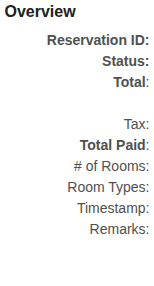
Overview field labels, cropped from the live application to exclude reservation values. Tax and Total Paid are conditional rows.
3. Separate the booking contact from the staying guests
Booked By contains the booking contact's name, company and available contact details. It is not necessarily the person staying in every room, and it is not necessarily the card holder.
For each Room section, check Guest Name, Check In, Check Out, # of Nights and # of Guests. Different rooms can have different guests, dates, prices and remarks. Do not apply the first room's details to the whole booking.
The room's Guest Name lists the people associated with that room. # of Guests is a separate occupancy value: the number of names shown is not a reliable substitute for the guest count.
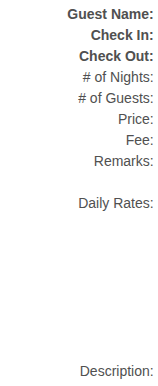
Room field labels, with all values excluded. Fee is conditional. Daily Rates can occupy several lines, one for each recorded date.
4. Read prices, taxes and extras together
Use these three levels rather than treating every amount as another charge:
- Overview → Total: the whole-reservation amount, with tax excluded, tax included, or both lines.
- Room → Price: the total for that room entry's stay, not an average nightly rate and not a per-person rate. It also identifies the tax basis.
- Room → Daily Rates: the individual dated room-rate entries, with currency and any available rate-plan name or ID. These are the rates recorded with the reservation, not today's inventory rates.
Tax, Fee and Addon rows can appear beneath the whole-reservation Total or a room's Price. Their position identifies their scope. Read their names, amounts, quantities and pricing descriptions. Do not automatically add every displayed row to Total again: some items are included, and a supplied total can already account for them.
The page uses an explicitly recorded before-tax or after-tax total when one is available at that level. If neither is recorded, it calculates an amount from daily room rates and non-inclusive extras. The whole-booking calculation includes all room entries plus reservation-level extras; a room calculation includes only that room's rates and extras. Tax-excluded calculation omits extras classified as Tax, not all fees or add-ons.
When both explicit totals are available, both are displayed. When only one is available, only that tax basis is displayed. When neither is available and the two calculated totals differ, both calculated amounts are shown. If the calculated amounts are equal, the display assumes tax excluded for USD, CAD or a missing currency, and tax included for other currencies. This is a display assumption, not confirmation of the channel's tax treatment. Check the booking terms or ask support if the tax basis is unclear.
Currency codes identify the currency recorded for the booking; this screen does not convert amounts. Commission Amount can use a different currency, so check its own code. Differences between the sum of Daily Rates, a room Price and the reservation Total can reflect extras, different scopes or explicitly supplied totals. Investigate a discrepancy rather than changing the reservation or collecting an additional amount based only on this display.
5. Review payment information without treating it as a payment result
Total Paid appears in Overview only when the reservation contains a paid amount, including an explicitly recorded zero. It is the amount recorded with this reservation version, not a live payment-provider check. If the row is absent, the page has no recorded paid amount to show; absence does not mean zero or unpaid.
Credit Card Details can show protected information, incomplete details, or a message that the channel did not provide any credit card information. A protected number does not mean there is no card. Missing card information does not establish whether the guest paid.
The Total inside Credit Card Details has its own meaning:
- When a recorded Total Paid and an explicit reservation total are both available, it shows their difference labeled total due. The after-tax total is used when available; otherwise, the before-tax total is used.
- Otherwise, it repeats the reservation Total and its tax label or labels. Do not assume that every amount in this section is an outstanding balance.
Neither a card, a Transaction ID nor a displayed total proves a successful charge, settlement or refund. Follow the booking's payment arrangement and your authorized payment process. If details are unavailable, ask your organization administrator to check your access and the booking arrangement. Never copy card numbers, security codes or transaction references into email, chat or support tickets.
Check the result
Before relying on the details, confirm the correct property, source channel, reservation number, booking status and room dates. Check every room and both levels of Remarks. If you need current information, reopen the booking from a fresh Search result and make sure there is no previous-version warning.
To investigate delivery, select the booking's property in the application tab and open Reservations → Delivery Status. Enter the reservation number, choose the relevant filters and select Search. Use All delivery statuses when comparing an earlier failure with later attempts. Follow Check reservation delivery status for the complete investigation workflow.
On Delivery Status, the processing status describes a delivery request, and its displayed request time is the request's creation time. These are not the booking Status or Overview Timestamp described below. Do not resend merely because this detail page shows a modification or cancellation, or because an old delivery failure remains.
Field reference
Heading, Overview and footer
| Field or section | What it tells you | Availability and important distinctions |
|---|---|---|
| Reservation … / From … / For … | Booking status, source channel with its reservation number, and the property. | Check all three before using the record. A known original source channel is used in the heading when available. |
| Reservation ID | The channel reservation number, followed by an arrival summary and a guest-name summary. | Use each room's details for the full guest and date information. The number is different from the footer's internal CR-ID. |
| Status | CONFIRMATION, MODIFICATION or CANCELLATION for the displayed version. | Not delivery-processing or payment status. |
| Agency | Agency name and/or IATA reference. | Appears when either is recorded; the reference is shown with IA#. It is separate from Booked By Company. |
| Total | Whole-booking amount in the reservation currency, with its displayed tax basis. | May show one or two lines. Explicit totals take precedence over a component calculation; see the price explanation above. |
| Tax / Fee / Addon | Reservation-level extras with the available name, pricing detail and description. | Only recorded extras appear. Their displayed total may include a quantity or a Per Night, Per Person, or Per Person, Per Night description. An inclusive/no-charge add-on may show its description or quantity without an extra price. Do not interpret an omitted price as a missing booking total. |
| Total Paid | Recorded paid amount in the booking currency. | Appears only when supplied, including zero. Not an independent confirmation of current payment status. |
| # of Rooms | Number of room entries in this reservation version. | A dash appears if there are no room entries. It is not the number of guests, nights or distinct room-type names. |
| Room Types | Names of the reservation's room entries. | Multiple room entries are listed separately, so the same type can appear more than once. Names can be resolved from channel mapping when not supplied. |
| Commission Amount | Recorded commission amount. | Appears only when recorded, including zero. Uses the commission currency if available, otherwise the reservation currency. It is not a separate guest payment or a calculated net-revenue figure. |
| Timestamp | Channel edit time when available; otherwise, this record's creation time in ChannelRUSH. | Displayed in your user time zone. It is not necessarily the original booking time, a delivery time or the time you opened the page. |
| PMS ID | PMS reservation reference stored on this version. | Appears only when present. A reference alone does not confirm that the latest modification or cancellation reached the PMS. |
| Remarks | Notes attached to the whole reservation. | A dash means no reservation-level notes were recorded. Multiple notes are displayed as separate entries. Review room Remarks as well. |
| Footer time / CR-ID / END OF RESERVATION | Creation time and internal identifier of this stored reservation record. | The time uses your user time zone and can differ from Overview Timestamp. CR-ID identifies this record/version, not the channel reservation number or a delivery-request ID. |
Booked By
| Field | What it tells you | Missing or conditional information |
|---|---|---|
| Name | The booking contact's name. | A dash appears when no booking-contact profile is available. This is separate from room guests and the card holder. |
| Company | Company name and/or company ID associated with the booking contact. | The ID can follow ID:. A dash appears when neither is available. |
| Telephone | The booking contact's recorded primary telephone number. | A dash means none is available in that contact profile. |
| The booking contact's recorded email address. | A dash means none is available. Its presence does not establish that an email was delivered. | |
| Address | Available booking-contact address lines, city/region/postcode and country. | Only supplied components are shown; a dash appears if there is no address to display. It need not match the card address. |
Each Room section
| Field | What it tells you | Missing or conditional information |
|---|---|---|
| Room 1, Room 2, … | The sequence of room entries, followed by the room-type name and channel room-type ID when available. | This sequence is not an assigned physical room number. A room-type name may be resolved from mapping. |
| Guest Name | Names associated with this room entry. | Multiple names are joined with &. A dash appears if there are no names to display. It need not match Booked By. |
| Check In / Check Out | Arrival and departure recorded for this room. | A dash appears when the corresponding date is absent. A time is included when the stored hour is nonzero; a date-only display is not confirmation of a midnight arrival or departure. |
| # of Nights | Difference between this room's departure date and arrival date. | A dash appears if either date is missing. It is based on calendar dates, not elapsed hours. |
| # of Guests | Recorded adults/children, or a general guest count when neither breakdown value is present. | See the guest-count rules below. This is per room, not a booking-wide total. |
| Price | This room entry's total for the stay, with currency and tax basis. | May show a before-tax amount, an after-tax amount, or both. Uses explicit room totals when supplied; otherwise calculates from that room's rates and non-inclusive extras. |
| Tax / Fee / Addon | Extras attached to this room, rather than the reservation as a whole. | Only recorded items appear. Read quantities and pricing descriptions; do not add inclusive items again. |
| Remarks | Notes attached specifically to this room entry. | A dash means no room-level notes were recorded. These do not replace Overview Remarks. They are not an editable message or proof that a special request was fulfilled. |
| Daily Rates | Each recorded date and its room-rate amount in the booking currency. | Each entry can also show a rate-plan name, ID or both. Day-level plan information is used first; if both are absent, room-level plan information is used. A missing name may be resolved from mapping. No entries leaves this area blank, not a zero-rate statement. |
| Description | Available room description and amenities. | Amenities can follow the description as separate lines. A dash appears if neither is available. This is descriptive information, separate from Remarks. |
How to interpret # of Guests:
- If either the adult count or the child count is recorded, the page uses that breakdown instead of the general guest count. It shows only the supplied parts; an omitted child count is not the same as an explicit 0 Children.
- If neither breakdown value is recorded, a nonzero general count appears as Guest or Guests. A missing or zero general count displays a dash.
- An explicit adult count of zero with no child count, or with zero children, also displays a dash. Do not interpret that dash as a verified unoccupied room. A supplied children-only count can appear without an adult count.
- Names and occupancy are stored separately. If they conflict or the count is incomplete, check the source booking rather than inferring occupancy from the names or silently treating blanks as zero.
Credit Card Details
Only authorized users should handle the values in this section. The section can be incomplete even when some card information is present.
| Field | What it tells you | Availability and limits |
|---|---|---|
| Card Holder Name | Recorded card-holder name. | May differ from Booked By and the staying guests. Treat it as sensitive. |
| Card Info | Card number, expiry, security code and card type/description, separated by vertical bars. | Number and security code may be protected with # characters. Summary access does not hide every other field. A missing security code is a dash; unavailable expiry components can show zero placeholders. Neither placeholders nor visible fields validate the card. |
| Virtual CC | Indicates that the stored card is a virtual card. | Appears only when the reservation marks it as virtual. An Activation Date is included when recorded, converted to your user time zone. It does not confirm a charge or grant permission to charge it. |
| Total | Calculated total due when the required recorded totals exist; otherwise the reservation Total. | See the payment explanation above. This is not a payment action or a live balance inquiry. |
| Transaction ID | Transaction reference recorded with the reservation. | Appears when present within a displayed card-information block. Its presence alone does not establish payment success. Keep it out of support screenshots and chat. |
| Address | Available address associated with the card. | A dash means no address is available. It can differ from Booked By Address. |
| Channel did not provide any credit card information | No card-information block is available to display for this version. | This is different from protected or partially supplied information. It does not establish an unpaid booking. |
Additional links
The property-specific detail document can also offer these links depending on the entry path and available features. They are not included in the Org Admin detail document:
- Return to report returns to the originating report when that report context was supplied.
- Guest messaging appears when messaging is available to you for the property; it opens the reservation's messaging workspace. Opening it does not send a message.
- Guest reviews appears when reviews are available to you and reviews are associated with the reservation. The link includes a count.
These links are not reservation-modification or delivery-success controls. If an expected feature is absent, ask your organization administrator to check availability and access rather than changing the URL.
Common problems
- No matching Search result: check the selected property and complete reservation number. Clear unnecessary channel, status or date restrictions. In the property-specific search, check Include Archived; Org Admin search already includes archived reservations. Select Search again. An empty search does not prove the reservation was never received. If it remains missing, give support the property, source channel, reservation number, relevant dates and search time with time zone.
- The details look older than the channel booking: check for the previous-version warning and search again for the latest stored version. If that version still differs, provide the reservation reference and the change's approximate time. Do not resend or recreate a booking merely to refresh its details.
- Total does not match the room-rate sum: compare the same currency and tax basis, every room, and both reservation-level and room-level extras. Explicit totals and calculated component sums can differ. If the difference is unexplained, ask support before treating it as an amount to charge or refund.
- Guest counts, contacts or remarks are missing: these fields depend on what was recorded for that version and scope. Check Booked By, every room and both sets of Remarks separately. If operationally necessary information is still missing, confirm it through your authorized booking workflow; a dash is not confirmation of zero guests or no requests.
- Card details are protected or incomplete: the Org Admin document always uses the protected card summary. If you need full details, use the property-specific path with your own account and ask your organization administrator to check Reservations - Credit Card access and any account restrictions. Confirm the source booking's payment arrangement. Do not use another person's login or request payment data through support chat.
- A saved detail link fails: return to Search in the correct property and use its actual result link rather than editing identifiers in the address. If that link also fails, report the property, channel, reservation number, action time and visible error text.
Include only the information needed for investigation. Do not send passwords, card details, transaction references, full reservation screenshots or unnecessary guest information.