

Set a room's CRS availability to guests, eligible rate plans, capacity information, descriptions, amenities and photos.
Before you start
- Select the correct property. This guide is for an existing CRS room type, not the property's Standard Room Type editor.
- You need permission to edit CRS Settings to save room details. Photo changes require permission to edit content settings. Ask your organization administrator if the relevant controls are disabled.
- Have the room's actual capacity, intended rate plans and guest-facing descriptions ready. The page does not check every combination for consistency.
- Save room details before starting photo work. Room details, photo mappings and photo order have separate save controls.
- If Content tabs and Channel Amenities are missing, do not save room changes. Contact support to confirm the property's content-profile setup first. Saving in that state can clear shared channel amenities that the form does not show.
Important for existing room URLs: the Room Type Name For URL field currently displays the room's name rather than reliably showing its saved URL text. If your room uses a custom URL, confirm the intended URL text before saving any room changes, and enter it in every affected content tab. Do not rely on this field's initial value to preserve an existing custom URL. Contact support first if you cannot establish the correct value.
Open the room
- Select the property in the property selector.
- Open Admin, then Settings - CRS.
- Select Rooms & Rates.
- Under Room Types, select the room's name.
- Check the room name and ID at the top of Room Type Edit.
An organization administrator can also open the property's ChannelRUSH CRS link from Accounts, then follow the same Rooms & Rates → Room Types path.
The header identifies the underlying room. Room Type Name inside a Content tab is its guest-facing name for that profile; changing that field does not rename the header.
Set capacity and eligible rate plans
These fields do not save as you type. Use Save or Save & Refresh when you have reviewed the whole form.
- Enter Min Occupancy and the intended Max Occupancy. Use whole numbers and check that the values make sense together. Max Occupancy includes adults and children per room; do not add Max Additional Guests to it when deciding the limit.
- Set Smoking, Enabled and any relevant room, bathroom, bed or extra-capacity information. The field reference below explains which values are descriptive rather than sellable inventory.
- Under Rate Plans, select each existing CRS plan that should apply to this room. All Rate Plans selects or clears the listed plans; check the selection count and individual boxes before saving.
- Review the content and URL fields in each profile before submitting.
- Choose Save to save and return to CRS Settings, or open the arrow beside Save and choose Save & Refresh to save and reload this room.
Scope matters: clearing a rate-plan checkbox removes that room/plan association when you save. It does not delete the rate plan or change its other rooms. With no assigned rate plans, the page warns that the room is not active. An assigned but disabled plan is not sellable.
Enabled = No removes the room from CRS booking availability and the hosted room list. It is not an instruction to close every connected OTA room. To update date-specific rates, availability or restrictions, use the appropriate inventory workflow instead of these descriptive fields.
Edit content for each language profile
The Content tabs contain separate profile values. Switching tabs does not save or translate the text. The main Save or Save & Refresh submits the edited values across the tabs together.
- Select the content profile you want to edit, such as English.
- Enter Room Type Name and deliberately review Room Type Name For URL. Changing URL text can change guest-facing room links; do not assume old links redirect.
- Complete Number of Beds - Description, Room Size and Room Size Unit, where relevant. Changing
sqfttosqmdoes not convert the number: enter the size in the chosen unit. - Write Room Type Description.
- Under Amenities, enter one guest-facing amenity per line. A comma does not split a line into separate amenities.
- Repeat for each profile your booking site uses.
- Use Save or Save & Refresh.
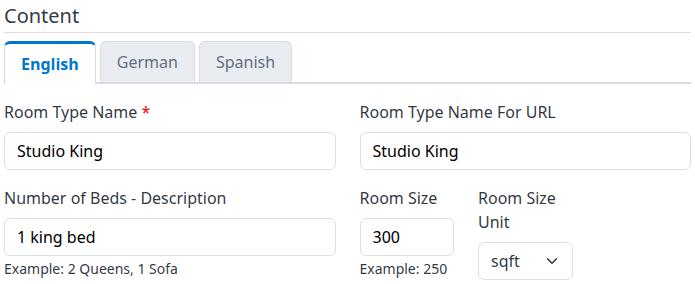
Each profile has its own wording and room-size fields. The example is a demo room, not a recommended configuration.
The free-text Amenities list is separate from Channel Amenities. Editing one does not populate the other.
Set channel amenities
- Expand Channel Amenities below the content tabs.
- Select the amenities that actually apply to this room.
- Where an amenity offers an in rate checkbox, select it only when that amenity is included in the rate. Select the amenity itself as well; an inclusion box alone does not select it.
- Use the main Save or Save & Refresh.
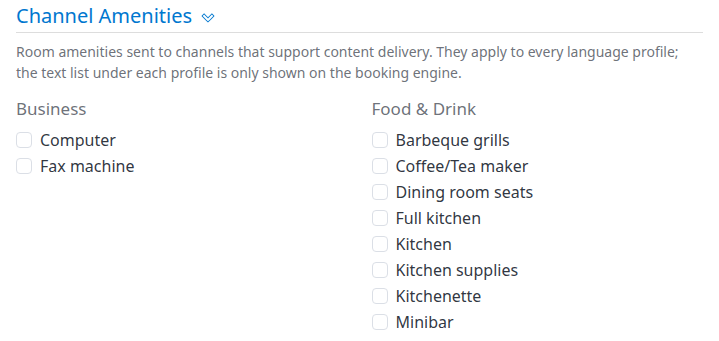
The beginning of the shared channel amenity list. More categories continue below.
This is one selection shared across the room's language profiles. Clearing all amenities and saving clears the saved selection. An unchecked in rate box does not create a charge.
Saving this list is not confirmation that a channel has accepted new content. Content delivery is a separate workflow; supported amenity mappings and channel-specific settings can affect what is sent. Do not use the room's save confirmation as a channel-delivery receipt.
Manage room photos
Save your room details first. Photo actions have separate save paths. Saving photo order does not save pending occupancy, rate-plan or content edits, and returning from a photo action can discard those unsaved edits. The main room Save does not save a rearranged photo order.
Add photos
- Under Photo Mappings, choose Add photos.
- In Add Photo Mappings, select the existing property image files you want for this room. Use Upload first if a file is not already present.
- Check the selected files, then choose Select Files. This submits the room-photo mappings; it is not a preview followed by another room Save.
- Back in the room editor, check the photo count and thumbnails before adding anything again.
Uploading a file and mapping it to this room are separate actions. Cancel does not remove files already uploaded. Avoid repeating Select Files after an uncertain result without checking the gallery first: the same file can be mapped more than once.
Change the order or main photo
- Drag a photo, use Move earlier or Move later, or choose Make main.
- Check the pending order. The first photo is normally the room's main gallery image.
- Choose Save order when the order-change controls appear.
- Reopen the room and check the order, then check the guest-facing room/gallery. A separately configured search thumbnail can differ from the first gallery photo.
Edit or remove a mapping
- Edit opens Edit Photo Mapping, where you can change Alt Text and Description. Save returns to the room; Save & Refresh stays on the photo mapping. Blank text clears that field. Do not assume these captions are translated or copied into every language profile.
- View opens the mapped image for inspection.
- Delete opens a confirmation for that mapping. Check the room and image before confirming. Removing a mapping is not the same as deleting the source image file.
- Delete Multiple, available when more than one photo is present and you have permission, lets you select mappings and then confirm removal. Review the confirmation before proceeding.
- All Photos opens the property's broader photo-management page. Check its room/section context before making changes there.
Photo files and their order are shared across content profiles. Check the guest-facing image as well as the admin thumbnail: an original image can be visible in the editor before an optimized guest-facing image is available. No fixed processing time is implied.
Check the result
- After the room save, look for the save confirmation and expected destination: CRS Settings for Save, or the room editor for Save & Refresh.
- Reopen the same room and verify Enabled, capacity values and Rate Plans.
- Check every content profile you edited, including numeric content fields such as Room Size. Do not assume that a success message proves every entered value was accepted.
- Verify custom room URLs through the actual guest-facing room link, not the URL field's displayed value on this editor.
- For photo changes, check the saved gallery and order separately.
- For booking availability, search the guest-facing booking flow with the intended dates and guest count, without placing a booking merely to test the setup. Check the relevant room/plan result. Room enablement and plan assignment alone do not establish that rates, availability, booking policies and all other selling rules allow the stay.
If an error occurs, reopen and inspect before repeating the operation. Some changes can have saved before a later step failed. Cancel abandons current unsaved form edits; it does not undo previously saved room settings, photo mappings or order.
Field reference
Room settings
Use nonnegative whole numbers in the numeric controls, not decimals. The numeric fields accept values up to 32767; choose realistic capacities rather than treating that technical limit as a valid room setup. Min Occupancy cannot be blank. Most other numeric fields can be blank, meaning no value is stored for that field. Zero is an explicit value, not a general “use the default” instruction.
The existing room's saved values are loaded when you open the page. New room settings start with Min Occupancy = 1, Smoking = No, Enabled = Yes and the other numeric values unset; do not assume an existing room still has those defaults.
| Field | What it changes and what to enter |
|---|---|
| Min Occupancy | Records the room's minimum-occupancy information. Enter a whole number, usually 1. Do not rely on this field alone to enforce a minimum guest count in every booking flow. |
| Max Occupancy | Maximum adults plus children per requested room in the hosted/widget booking flow. Enter the actual total capacity, for example 2. Blank removes this room-specific maximum; 0 does not mean unlimited and prevents a positive guest count from fitting. |
| Room Rate Occupancy | Optional saved CRS occupancy-mapping value. Do not use it to set extra-person charges or assume it changes the displayed price. Leave an unset value unchanged unless support has confirmed how your booking integration uses it. |
| Smoking | Yes or No room smoking information, used by supported guest-facing content and channel-content mappings. |
| Enabled | Yes makes the room eligible for CRS use; No excludes it. Other setup and inventory rules still apply. |
| Number of Rooms | Descriptive room count. It is not the daily allocation available to sell. Some vacation-rental presentations use this information as the bedroom count, so verify the wording on your site. |
| Number of Bathrooms | Descriptive whole-number count, for example 1. Fractional bathroom counts are not accepted by this field. |
| Number of Beds | Descriptive whole-number count. The booking site's bed description can combine it with Number of Beds - Description. |
| Max Additional Guests | Descriptive maximum for additional guests, also available to supported channel-content delivery. It does not increase Max Occupancy or create an extra-person price. |
| Max Extra Beds | Descriptive maximum number of extra beds. It does not itself create sellable extra-bed inventory or a charge. |
| Max Cribs | Descriptive maximum number of cribs. It does not itself create crib inventory or a charge. |
| Rate Plans | Existing CRS plans associated with this room. Checked adds/retains the association; unchecked removes it on Save. No selections means no assigned plans, not “all plans.” |
Content profile fields
| Field | What it changes and what to enter |
|---|---|
| Room Type Name | Guest-facing name for this profile. Complete it for each used profile, for example Studio King. This is separate from the underlying room name in the page header. |
| Room Type Name For URL | Room URL text, normalized to a URL-friendly form such as studio-king. Review custom values on every save because the current editor displays the name instead of reliably showing the stored URL text. Verify the actual guest link afterward. |
| Number of Beds - Description | Optional bed wording, such as 1 king bed or 2 Queens, 1 Sofa. Blank removes the wording, not the numeric bed count. |
| Room Size | Optional whole-number size. Blank clears it; 0 is a stored size rather than an unspecified value. Verify it after saving, especially if correcting invalid input. |
| Room Size Unit | sqft or sqm. The initial unit is sqft. Enter the corresponding number yourself; changing units does not convert Room Size. |
| Room Type Description | Profile-specific descriptive text. Blank clears it. Write readable text rather than relying on HTML markup being displayed. |
| Amenities | Profile-specific guest-facing text, one amenity per line. Blank clears this text list. It is not the channel checkbox list. |
Which descriptive fields appear to guests depends on the booking site or integration. Check the actual guest-facing presentation rather than assuming every stored field is displayed.
Common problems
- The room is disabled or has no rate plans. Check Enabled and the individual Rate Plans boxes. The warning “No rate plans assigned to this room type, not active.” means no plans are associated. After correcting the intended setup, save and reopen. If the room is still absent from a guest search, check dates, guest count and inventory; contact support when the cause is unclear.
- The form remains open or a number does not stay changed. Check for blank Min Occupancy, decimals or out-of-range numbers. A visible input value is not proof it saved. Reopen and compare the affected fields; contact support if valid values still do not persist.
- An error appeared after Save or a photo action. Earlier parts of the operation may already have saved. Inspect the room, content tabs and gallery before retrying. If you cannot tell what changed, stop and give support the property, room, action time/time zone and error text.
- A custom room link changed unexpectedly. Do not keep resaving the initial Room Type Name For URL value. Compare the actual guest link with the intended one and contact support about restoring the correct URL text. Do not assume old links redirect automatically.
- Photos or content are missing. If Content tabs and Channel Amenities are absent, do not save room changes; contact support to confirm the property's content-profile setup before continuing. Saving can clear amenities that are not displayed. If the sections are present but guest content is missing, check the selected profile and room enablement. For photos, check the room mappings, not only uploaded files; contact support if an image remains unavailable rather than uploading duplicates.
- Photo order reverted. The main room Save does not save gallery order. Reorder and use Save order, after saving other room details. Verify the saved order before repeating.
- A channel still shows different amenities or room details. The local room save is not proof of channel delivery. Ask support to check the applicable content mappings, channel-specific settings and delivery result. Include the property, room, channel and affected field; do not send passwords, payment details or guest data.