

Use Property Edit to maintain a property's identity, reservation handling and channel-manager settings, and to open its channel, room, rate-plan and user setup.
Before you start
You need Org Admin access to the organization and property. Property-level access alone does not grant access to this editor. Check the organization and property in the page breadcrumb before changing anything.
The screenshots show a demo property. Its selected switches, currency and time zone are examples, not recommended defaults for your property. Staff-only account administration is not part of this guide.
Open or create a property
Edit an existing property
- Open Accounts.
- Find the property under the correct organization and select its name.
- Check the Property Edit heading and breadcrumb.
- Use the section links near the top to reach the settings you need.
Changes to the main form are not saved as you select them. Save saves and returns to the organization. Open its arrow menu and choose Save & Refresh to save and stay on Property Edit. Cancel leaves without submitting the main form.
Links such as Add New, Sort, Edit, and the room or rate-plan names open separate screens. Save your main-form changes before leaving to work on those records.
Create a property
- From Accounts, open the organization.
- In its property list, select Add New.
- Enter Name, check Time Zone and Currency, and select Country. Complete the available address details.
- Select Save & Continue.
- Confirm that the page now shows the new property and the additional setup sections.
The initial form shows property information and address, not the existing property's channel and reservation sections. Review the suggested time zone and currency rather than assuming they are right; the time zone may be blank. Rounding Setting starts at Do Nothing. Existing properties show their saved settings. Creating the property does not complete channel connections, room/rate mapping or reservation delivery. Organization users who already have access to every existing property may automatically receive access to the new one; check Users With Access To This Property after creation.
Channels
This list shows the property's connected channels, with their internal ID and Name. Select a channel name to open its settings or Add New to start another connection. Use Sort to change the list order. Delete opens a separate removal workflow; do not use it to pause updates without first reviewing the connection's settings.
The channel list is an entry point, not confirmation that inventory is updating or reservations are being delivered. Check the connection's setup, mappings and operation settings in its editor. Property-wide reservation and update settings below work alongside those channel-specific settings.
Reservation Settings
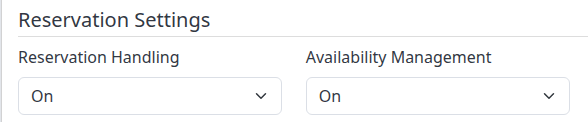
| Field | What it changes |
|---|---|
| Reservation Handling | On enables the property's reservation processing and delivery. Off stops property-level handling; channel-specific handling must also be enabled for the relevant connection. Before enabling it, add and verify at least one reservation delivery email. Coordinate any decision to turn it off with the people who receive bookings. |
| Availability Management | With Reservation Handling On, adjusts availability for mapped room types when bookings are processed and creates updates for eligible connected destinations. For example, a new booking for one room can reduce the available quantity for that room type and stay dates. Off leaves this booking-driven adjustment disabled; it does not turn off a separate PMS inventory feed. |

| Field | What it changes |
|---|---|
| Auto-Replenish On Mod / Cancel | With reservation handling and availability management enabled, On allows availability to be returned for cancellations and for the old room/dates of an availability-changing modification. The changed booking then uses its new room/dates. Off prevents that replenishment. A source channel may have its own cancellation-replenishment behavior, so check that channel too. |
| Enabled Timestamp | Shows when Reservation Handling was last switched On, in your sign-in time zone. Displays a dash while handling is Off. It is not the time of the last booking or successful delivery. |
Availability adjustments depend on mapping and enabled destinations. Do not assume every channel received the same change or that a saved setting proves delivery. After a relevant booking, check the affected room, stay dates and channel update results.
Reservation Delivery Emails
Keep at least one verified recipient even when bookings are normally sent to a PMS. New recipients start as Primary, with HTML format and your sign-in language; review these choices before saving. The overview shows Email Address, Type, Format, Language, and Verified. Select the address to edit it, Add New to add a recipient, or Delete for its separate removal screen.
Add or change a recipient
- Select Add New, or select the existing email address.
- For a new recipient, enter the Email address. Choose Type, Format, and Language. An existing recipient displays its address as the heading, not an editable Email field.
- Select Save to return to the property's recipient list.
- For a new, unverified address, ask the recipient to open the verification email and follow its link.
- Reopen Property Edit and check that Verified is Y, then review Reservation Handling.
Following a new verification link can enable property-level Reservation Handling. Coordinate verification as part of activating reservation delivery, not as an unrelated contact-list change.
| Field | Meaning |
|---|---|
| Recipient address. Enter a valid address monitored by the people responsible for bookings. It must be unique within this property. | |
| Type — Primary | A normal reservation-email destination, alongside any configured PMS delivery. |
| Type — Backup | A fallback destination used when primary/PMS delivery fails, or when no primary/PMS delivery method is available. Do not use it as an instruction to send a routine copy of every booking. |
| Format | HTML for formatted messages or Text for plain text. |
| Language | Required language for this recipient's messages: English, German, or Spanish. |
| Verified | Y means the address has been verified; N means verification is outstanding. An address already verified in the same organization may be marked verified automatically on Save. |
For an existing unverified address, Save & Resend explicitly requests another verification email. Ordinary Save is not the resend action. Check the saved address before retrying if the page reports an email-send error: the address may already have been saved.
Do not use Verified = N as a way to suppress delivery. The fallback delivery path can use an unverified recipient when no other delivery method is available. Configure the intended delivery destinations and verify them before relying on reservation handling.
Standard Room Types
Standard room types provide the property's common room identities for channel mapping. Use Add New to define a room type, its name to edit it, and Sort to change its display order. Delete opens a separate removal screen.
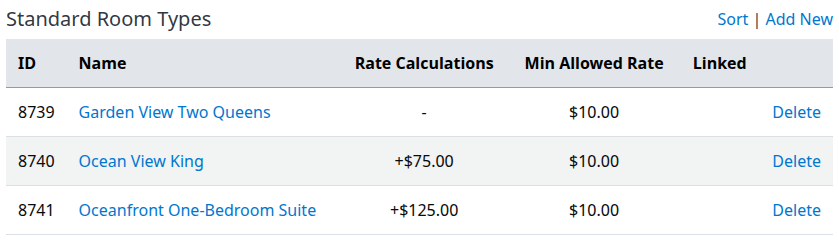
| Column | Meaning |
|---|---|
| ID | ChannelRUSH's internal identifier for the room type. |
| Name | Your common room label, such as Single or Suite. Map channel room types to the appropriate standard room. |
| Rate Calculations | Configured adjustments to the room's rates, such as a percentage discount or fixed amount. Review the room editor for the actual calculation. |
| Min Allowed Rate | The room's minimum-rate safeguard. A lower rate can be rejected rather than sent; check update errors instead of assuming it was raised to the minimum. |
| Linked | The parent room type, when configured. Which values flow from that parent depends on the link settings. A blank cell means no parent is shown. |
Changing a name or adding a standard room does not by itself complete its channel mappings. Check mappings before relying on inventory or reservation adjustments for a new room type.
Standard Rate Plans
Use standard rate plans when you need common plans across channels, such as Standard or Non-Refundable. Select Add New, a plan's name to edit, or Sort to change order. Delete opens a separate removal screen.
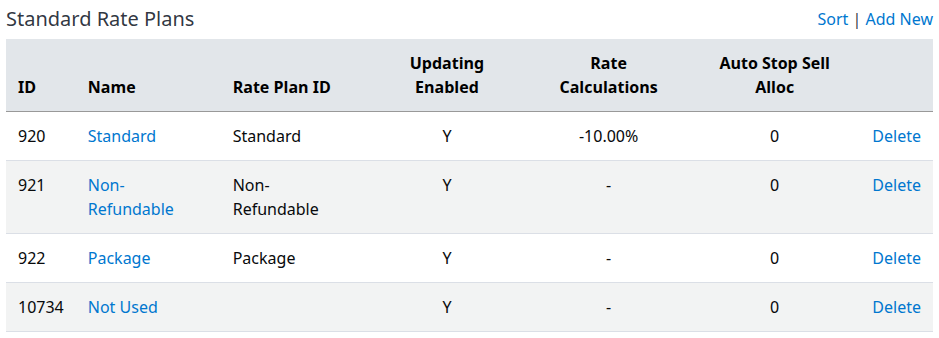
| Column | Meaning |
|---|---|
| ID | ChannelRUSH's internal identifier for the standard plan. |
| Name | Your label for the plan; it need not match every channel's display name. |
| Rate Plan ID | The plan's configured code, separate from its internal numeric ID. |
| Updating Enabled | The standard plan's saved Y/N setting. Check each channel's rate-plan settings when confirming which products can receive updates; this column alone is not a delivery-status check. |
| Rate Calculations | The plan's configured rate adjustments. A dash means no calculation is shown. |
| Auto Stop Sell Alloc | The configured early close-out number, explained below. |
Auto Stop Sell Alloc: Close sales early when a booking or booking change reduces availability from above the configured number to that number or below. For example, enter 5 to close sales when availability falls from above 5 rooms to 5 or fewer.
This setting is edited on the rate plan, not in the Property Edit table. Check the intended room/plan mapping and channel result after an applicable booking change.
Channel Manager Settings

Auto Stop Sell = NO When Allocation > 0
When enabled, an allocation update greater than zero can reopen sales by adding Stop Sell = No, where supported. It does not replace a Stop Sell value already included in the update. Booking-related updates can retain an existing close-out, and a saved Stop Sell override can keep dates closed against later PMS updates.
The same automatic rule can add Stop Sell = Yes when allocation is zero or below, where supported. Review it before changing allocation if dates must remain closed.
Auto Stop Sell = YES For Restrictions Not Supported
Where supported, this lets ChannelRUSH use Stop Sell = Yes when an update contains a restriction that the destination cannot represent, rather than leave the room selling without that restriction. It is not a guarantee that every unsupported restriction becomes a close-out. Check the destination's supported restrictions and update result when using it.

Occupancy Rates
Enables separate occupancy-rate controls in the property's inventory-update screens, where the connected channels support them and you can update rates. Use it when you need to enter prices for specific occupancies. When it is off, those common occupancy-rate inputs are not offered. Review the channel's pricing and mapping settings for the prices it receives.
Updating Mode
- Default: Allows the normal update workflow, including channel-specific controls where the screen, connection and your permissions allow them.
- Standard Room Types & Rate Plans Only: Restricts updates to the common standard-room/standard-plan workflow instead of individually editing channel values.
Changing the mode does not send inventory. Review the destination products and calculated values on the update screen before submitting any later update.
Restrictions - On/Off
These checkboxes control which restriction types can be used for this property; disabled types can also be removed from outgoing updates. The destination must support the restriction too. All Restrictions selects or clears the group. Save the property after changing the selection.
| Restriction | What it controls |
|---|---|
| Min Nights | Minimum length of a stay arriving on the applicable date. |
| Min Nights Through | Minimum length of a stay that includes the applicable date. |
| Max Nights | Maximum length of a stay arriving on the applicable date. |
| Max Nights Through | Maximum length of a stay that includes the applicable date. |
| Closed To Arrival | Prevents arrival on the applicable date. |
| Closed To Departure | Prevents departure on the applicable date. |
| Cut Off Days | Advance-booking cutoff in days, subject to the destination's support. |
Enable the restrictions you use. If you do not use Max Nights Through, uncheck its checkbox. Changing these checkboxes does not itself send or clear restriction values on channels. If automatic close-out for unsupported restrictions is enabled, disabling a restriction can affect how a later update closes sales. Review the applicable channel settings and date-specific inventory when you need to change an existing restriction.
Inventory Groups
Inventory groups route incoming inventory from a selected source to selected target channels. They are useful when a property receives inventory from more than one source and each source should update different destinations.
The table shows Source and Targets. Edit opens a group, Add New creates one, and Delete opens its removal workflow. A blank-source entry is displayed as [BLANK]. Check the actual source and target selections before saving a group; a group is not a room-type grouping or a report filter.
Users With Access To This Property
This list shows organization users who have this property assigned and are not locked out. It is not an exhaustive list of all organization users.
Use Edit for the user's settings or Add New to open the new-user form. Review the user's property assignments and permissions in that separate editor. Delete is the user-deletion workflow, not a shortcut to remove access only to this property.
| Column | Meaning |
|---|---|
| ID | Internal user identifier. |
| Info | Name, available contact details and last-login information. A dash for Last Login means none is recorded. |
| Role | Assigned role or custom permissions. |
| Properties | All for an Org Admin or all-properties user; otherwise the count of selected properties. |
| Announcements | Whether important system announcements are enabled for this user. |
| Active | Whether the user is not locked out. This property list already excludes locked-out users. |
The list does not prove that a user has permission for every feature, and Save & Refresh on Property Edit does not save changes in the user editor.
Property Information
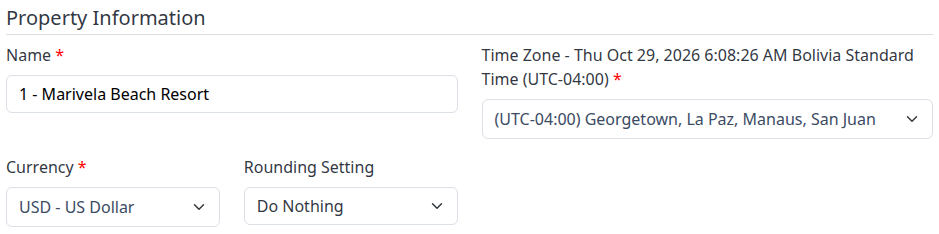
| Field | What to enter |
|---|---|
| Name | The property's name. Required. |
| Time Zone | The time zone where the property is located, not necessarily your own. Required. The label also shows the property's current local time to help you check the selection. |
| Currency | The property's rate currency. Required. Check it against your connected systems before changing it; selecting another currency does not convert existing amounts. |
| Rounding Setting | How calculated rates are rounded, as described below. |
Rounding Setting choices:
- Do Nothing: No whole-unit rounding; calculated rates retain up to two decimal places.
- Round To Nearest Dollar: Rounds to the nearest whole currency unit, with halfway values rounded away from zero.
- Round Up: Rounds up to a whole currency unit.
- Round Down: Rounds down to a whole currency unit.
The label “Dollar” is the option's wording; use it as whole-unit rounding for the property's selected currency.
Property Address
| Field | What to enter |
|---|---|
| Website URL | The property's website address. |
| Number Of Rooms | Total number of rooms/units at the property. This is property information, not the availability for a particular date. |
| Address Line 1 | Main street address. |
| Address Line 2 / Address Line 3 | Additional location details, where needed. |
| City | Property's city. |
| State / Region | State, province or region. |
| Zip / Postal Code | Postal code for the property's location. |
| Country | Property's country; required when creating a property. |
These fields can be edited while the property's address is incomplete or during its first 31 days. An older property with a completed address may show them as read-only text. Contact support if a locked address needs correcting. Complete the property's physical location rather than an unrelated mailing address.
Save and check the result
- Review the property's identity and the settings you changed.
- Select Save & Refresh, or Save if you want to return to the organization.
- Check the save confirmation and any warnings or validation messages.
- Reopen the property and confirm the saved selections. For a newly created property, check its name in the organization's property list as well.
- For reservations, open Reservations → Delivery Status, select the relevant filters, and click Search. For inventory, open Org Admin → Updates, select the affected Property and Channel, and click Search. Check the destination and affected room/plan and dates; use the linked result guides below for status details.
Saving property configuration is not confirmation that an OTA accepted an inventory change or that a reservation reached the PMS or recipient. Do not send or resend a booking merely to test whether a setting saved.
Related guides
- Configure OTA and PMS channel settings
- Check reservation delivery status
- Investigate inventory update requests
Common problems
| Symptom | What to check and do next |
|---|---|
| Reservation handling cannot be enabled | Add at least one reservation delivery email and complete its verification, then reopen the property. A recipient listed with Verified = N does not meet the enablement requirement. |
| Only one delivery email warning | Add a second Primary or Backup recipient, or review the intended PMS connection. Keep an email fallback even with PMS delivery. |
| Reservation Handling or Reservation Availability Management is disabled | Review whether that is intentional. Check both property and channel settings before enabling processing; do not dismiss the warning as proof of a failed Save. |
| Property/organization inactive, overdue or locked out | Contact the organization administrator or ChannelRUSH support. Changing reservation switches does not resolve the account status. |
| Address appears read-only | Check the address-editing conditions above. Ask support to correct the saved details rather than creating a duplicate property. |
| Required-field or invalid-value message | Correct the named field and save again. Confirm the saved value after reopening; text remaining on an error page is not proof that it saved. |
| Save or verification email outcome is uncertain | Reopen the property or recipient list before repeating the action. A later notification error may occur after the record was saved. |
| Inventory or bookings do not reach a destination | Check property switches, channel setup, mappings and the relevant delivery/update result. Escalate with the property, channel, affected dates, action time/time zone and exact message—not passwords or payment details. |