

Update the text attached to an existing organization photo mapping without replacing the uploaded image.
Before you start
- Select a property in the organization you want to manage. The editor changes organization content, not that property's photo library.
- You need the Content permission to save changes.
- The organization needs an existing content profile and a photo mapped to it. Choose the intended profile or language before editing.
Text belongs to the selected photo mapping. Editing it does not update every other mapping of the same file or translate other language profiles. Treat both fields as potentially public content; do not include private notes or guest information.
Find the photo
- Open Admin → Settings - CM to reach the Settings page.
- In CRS, Booking Engine, Content, select Booking Engine Organization Settings.
- Check the organization name on CRS Org Settings.
- Select Content - Photos.
- Select the intended content-profile tab, such as English.
- Under Photo Mappings, find the photo and select Edit.
- Check the filename, profile breadcrumb and image preview on Edit Org Asset Mapping before changing any text.
If Booking Engine Organization Settings is unavailable, ask your administrator whether organization-level website/content settings are available for your organization. Do not substitute the property's photo editor: it changes a different mapping.
Edit and save the text
Typing does not save these fields. Submit the form with Save or Save & Refresh when you are ready.
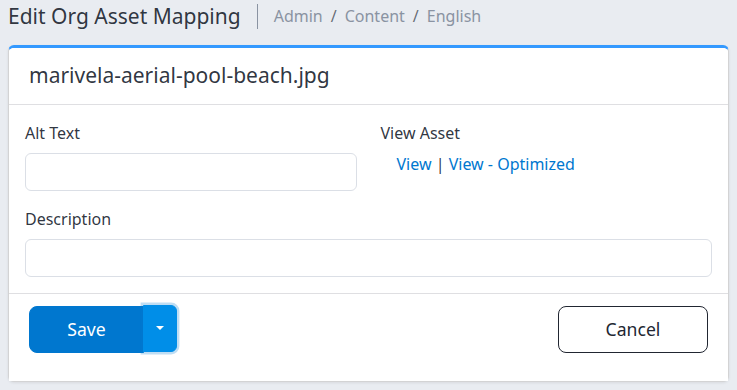
- Enter Alt Text that briefly describes the image. For example: “Aerial view of the resort pool beside the beach.” Write it in the selected content profile's language.
- Enter a Description if you need additional descriptive text for this mapping. For example: “Outdoor pool and beachfront terrace.” This is separate from Alt Text; it is not a guaranteed visible caption on your website.
- Select Save to save and return to CRS Org Settings. Alternatively, open the arrow beside Save and select Save & Refresh to save and reopen this same editor.
To remove existing text, clear the relevant field and save. Neither text field is required by this editor. Leaving a field blank does not copy text from another profile or from the filename.
Select Cancel to return without submitting your current edits. Cancel does not reverse an earlier successful save.
Check the result
After saving, check for the save confirmation. Reopen the same photo through Content - Photos → your profile → Photo Mappings → Edit and confirm that Alt Text and Description contain the intended values. With Save & Refresh, check the values on the reopened editor.
The filename and image remain the same: this form edits text, not the image file. The image preview confirms which photo you are editing; it does not prove that a text change has been saved.
A save confirmation establishes a save in ChannelRUSH, not acceptance by a booking channel or immediate visibility on every website. On a hosted website that uses this organization content profile, Alt Text can be used as the image's text alternative. It normally is not displayed as a caption beside a loaded image. Description is available as content, but its visible presentation depends on the website or application using it.
If you need to check the guest-facing result, open the intended website and language. Keep the stored-text check above separate from that presentation check.
Field and control reference
| Field or control | What it does | Example or detail |
|---|---|---|
| Filename | Identifies the existing mapped file; it is not editable here. | resort-pool.jpg |
| Alt Text | Stores the image's text alternative for this mapping. | Describe what the image shows rather than repeating the filename. Blank clears existing Alt Text when saved. |
| Description | Stores separate descriptive text for this mapping. | Use public-facing wording. Blank clears the existing Description when saved. It does not replace Alt Text. |
| View | Opens the original asset in a new tab. | Use it to inspect the file; opening it does not save edits. |
| View - Optimized | Opens an optimized image in a new tab when that version is available. | This link is conditional. Opening it does not save edits. |
| Image preview | Displays the mapped image beneath the form. | Use it to confirm you selected the intended photo. |
| Save | Saves the text and returns to organization settings. | Reopen the photo to check its stored values. |
| Save & Refresh | Saves the same fields and reloads this editor. | Open the split-button arrow beside Save to find it. |
| Cancel | Leaves the editor without submitting current edits. | It does not undo changes already saved. |
Uploading or replacing a file, adding a mapping, changing photo order, and selecting a main photo are separate tasks on the organization photo screens. This editor does not perform them.
Common problems
The photo is missing from Photo Mappings
Check the organization and content-profile tab first. The same file can be mapped in one profile and absent from another. Uploading a file alone does not place it in this list; it must also be mapped. Use the organization's photo workflow to add a missing mapping, or ask your content administrator to check it.
The fields or Save controls are disabled
Ask an organization administrator to check your Content permission. Do not try another editor as a workaround for missing access.
Text is saved here but is not visible on the website
Reopen the editor to verify the stored text, then check that the website and language use this organization content profile. Alt Text is a text alternative, not normally a visible caption; Description is not guaranteed to render as a caption. If the intended presentation is still wrong, give support the organization, content profile, filename, website URL and affected language.
The preview or View link does not show the photo
Check the mapping's filename and the original file in the organization's Photo File Manager. Do not delete or recreate the mapping merely to repair a preview. If the file appears to exist but cannot be viewed, give support the organization, profile, filename and error text.
Saving shows an error or you are unsure whether it finished
Keep a copy of your intended text. If it is safe to leave the form, reopen the same mapping and inspect its stored values before retrying. If the error repeats or the stored result is unclear, contact support with the organization, profile, filename, action time and time zone, and error text. Do not send passwords or private guest details.