

Use Discounted Reservations to find recently received bookings whose recorded nightly prices fall below a stored channel net rate, then investigate the booking before deciding whether anything needs correction.
Before you start
Select a property you can access. This report covers that property, not your whole organization. It reads stored reservations and inventory; running it does not change prices, amend bookings or resend anything to a channel.
Use this as an investigation shortlist, not a complete discount audit. The report examines at most the newest 50 matching reservation records in the selected receipt window. Canceled bookings and bookings that cannot be compared can occupy places in those 50 before being excluded. There is no next page or truncation warning. Increasing Past Days does not remove that limit.
A reported percentage is a comparison with stored net-rate data—not proof of a promotion, a pricing error, commission-adjusted profitability or the rate currently offered by the channel.
Run the report
- Select the intended property in the property selector.
- Open Reports → Reservations → Discounted Reservations.
- Set Min Discount % to the minimum difference you want to investigate.
- Set Past Days to the receipt lookback you want to examine.
- Select View Report.
- Check that the two fields retain your choices and review the result below them.
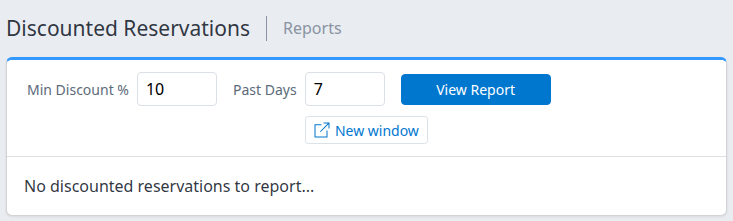
The example shows an empty result. It does not establish that every booking was compared or that all rates are correct.
The initial defaults are 10 for Min Discount % and 1 for Past Days. Changing an input alone does not reload the report.
To keep a separate report tab, apply the filters first and then select New window. It opens the currently loaded criteria without the main navigation. Unsaved input changes are not carried into that tab. You can change the filters and select View Report there too. This page does not offer a CSV, Excel or clipboard export.
Understand the comparison
For each usable booked room-night, the report compares the nightly price recorded in the reservation with the stored net rate for its mapped channel room, rate plan and stay date:
Comparison % = (1 − booked nightly price ÷ stored net rate) × 100
A booking qualifies when at least one comparable night reaches Min Discount %. Its displayed percentage is the largest qualifying nightly difference, rounded to a whole percent. It is not the average for the stay or a discount on the reservation total. Qualification uses the unrounded value, so a value just below your threshold is excluded even if it would round to that threshold.
A rate-plan ID recorded on an individual night takes precedence over the room's rate-plan ID. Current mappings determine the comparison. For certain Expedia mappings, the report can use an enabled related rate-plan code with one additional character when the direct plan is missing or disabled. Ask support to confirm the comparison plan when a result is unexpected; do not assume the booking and comparison always use identical plan codes.
The comparison does not convert currencies or reconcile tax and occupancy bases. The stored net rate is not a historical snapshot of what was offered when the booking was made, and the report does not retrieve a fresh rate from the channel. Check those differences before treating a percentage as a commercial discount.
Read the results and check the booking
Each result is a linked line containing:
- Channel: the reservation's source channel.
- ID: the channel reservation number.
- Status: the stored booking status, not PMS delivery status or payment status.
- Percentage: the largest qualifying nightly comparison for that booking.
The report does not show the specific qualifying night, booked price, comparison rate, room or rate plan alongside the result. Results are grouped by channel rather than ranked by largest percentage.
- Select the reservation's linked result. The stored reservation version opens in a new tab.
- Check its property, source channel, reservation number and status.
- Review every relevant room's Daily Rates, stay dates and rate-plan information. Keep nightly amounts separate from room totals and the whole-reservation total.
- Check currency, tax treatment and occupancy before comparing prices. If the source of the stored comparison rate is unclear, ask support to identify the mapped room, plan, stay date and net rate used.
- If the details show a previous-version warning, return to Reservations → Search, enter the reservation number and select Search. Review the latest stored version before acting.
The result establishes that a stored comparison met your threshold. It does not establish a delivery failure, an incorrect guest charge or a need to resend inventory. Do not amend, cancel, charge, refund or resend a booking based only on this report.
See Review reservation details for the booking document and its price fields.
Missing comparisons and empty results
Some runs show notices for skipped nightly comparisons:
- Unresolved Expedia rate plan: the report could not resolve a usable comparison mapping through that lookup.
- Missing or nonpositive comparison rate: a stored inventory row was found, but its net rate was missing, zero or negative.
These counts describe room-night comparisons, not bookings. One booking can contribute more than one skipped comparison and can still appear because another night qualifies.
The notices are not a complete coverage summary. Missing room mappings, unavailable inventory rows, unsupported comparison setup, some missing or disabled rate plans, and a recorded nightly booking price of zero can cause silent exclusions. A blank notice area therefore does not prove that every night was compared.
No discounted reservations to report... means that none of the records actually examined produced a qualifying comparison. It can mean no recent bookings, no qualifying prices, unavailable comparisons or a combination of these. It does not mean zero discounts across your property.
Field reference
| Control | What it does | Values and important limits |
|---|---|---|
| Property selector | Chooses the property whose stored bookings are examined. | You need access to the property. Check the selected property before running the report. |
| Min Discount % | Minimum nightly difference from the stored net rate required for inclusion. | Whole-number entry; default 10. The form offers 1–100. The threshold is checked before rounding. |
| Past Days | Looks back from the run time using reservation-record creation timestamps. | Whole-number entry; default 1, minimum 1. Each day represents a rolling 24 hours, not a calendar day beginning at midnight. This is not an arrival, departure or stay-date filter, and a received modification can be included. The newest-50-record limit still applies. |
| View Report | Reloads the report with the selected filters. | Applies both fields. It does not save inventory or send reservations. |
| New window | Opens the loaded report in a separate tab without the main navigation. | Apply changed fields first. This control is available on the normal page, not repeated in the standalone view. |
| Reservation result link | Opens the specific stored version used by the report. | Opens in a new tab. A later modification can make that version historical. |
Common problems
- The result did not change after editing a filter: the inputs are not applied until you select View Report. Check their retained values after the page reloads. If they revert or an error appears, give support the property, filter values, action time with time zone and error text.
- An expected booking is absent: check the property and receipt lookback, then use Reservations → Search with the reservation number and select Search. The report may exclude canceled bookings or lack a usable comparison. It may also have reached its 50-record examination limit. If the booking is present in Search but its omission remains unexplained, ask support to inspect its mapping and stored inventory; widening the lookback alone does not guarantee inclusion.
- The percentage looks too high: compare the same night, currency, tax basis, occupancy and rate plan. The displayed percentage is the largest qualifying night, not a stay average. If the amounts still do not reconcile, give support the property, channel, reservation number, affected stay dates, filters and run time. Do not change prices to make the report match.
- Skipped-comparison notices appear: a comparison was unavailable, not necessarily a failed update. Ask an authorized administrator or support to review the relevant mapping and stored net-rate data. Do not resend inventory merely to clear the notice.
- A result link fails or shows an old version: search again from the correct property using the channel reservation number. If the current Search result also fails, report the visible error and relevant references. Do not recreate the booking.
Keep guest details and payment information private. Do not send passwords, card data or full reservation screenshots with an investigation request.