

Review a property's reservation-handling settings and maintain the email recipients used for reservation notifications.
Before you start
Select the correct property in the property selector. To add, edit or delete recipients, you need both Property Settings and Channel Settings permissions. Ask your organization administrator if the management links are missing.
Use only addresses authorized to receive the property's reservation information. Adding a recipient is an operational change, not a test message. Verified = No is not a reliable way to disable delivery: fallback delivery can use unverified addresses when no other delivery method is available.
Open Reservation Settings
- Open Admin → Settings - CM.
- In the Channel Manager section, select Reservations.
- Check General Settings and Reservation Notification Emails for the selected property.
The page is an overview. Its three Yes/No settings are read-only, and it has no Save button. Opening it does not submit a reservation or resend an email.
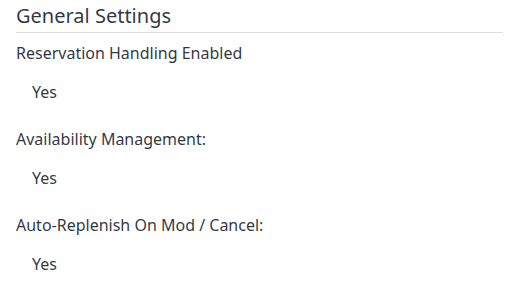
The values shown here are examples from a demo property, not recommended settings for every property.
Understand General Settings
| Setting | What it means |
|---|---|
| Reservation Handling Enabled | Shows the property's reservation-processing setting. Channel-level setup also matters. Yes is not proof that every channel is receiving or delivering reservations correctly; No is not a guarantee that no reservation can be stored or emailed. |
| Availability Management | Controls reservation-driven availability adjustments when property and channel reservation handling are enabled. A qualifying new reservation can reduce available rooms; mapping and channel configuration determine which updates can be produced. |
| Auto-Replenish On Mod / Cancel | Controls returning rooms to availability for a cancellation or the old room/date portion of an availability-changing modification. It operates with reservation handling and availability management, not as an independent channel reopen command. |
If these values do not match your intended PMS and channel workflow, have your administrator or Support review the configuration. Do not change recipient addresses to work around an availability-setting problem. This page does not show channel acceptance or prove that a particular inventory adjustment succeeded.
Review notification recipients
| Column | What to check |
|---|---|
| The address configured for this property's reservation notifications. Confirm the mailbox is still authorized and monitored. | |
| Format | HTML for formatted messages, or Text for plain text. |
| Language | The stored language locale, such as en-US. New recipients use your signed-in language. This editor does not offer a Language control; contact Support if the stored language needs correction. |
| Verified | Yes means a verification timestamp is recorded. It does not prove that a reservation email arrived in the inbox. |
The overview does not show Type. Select Edit beside an address to inspect whether it is Primary or Backup, then use Cancel if you are only checking.
An empty table means no notification addresses are listed for this property. It does not establish that PMS delivery is absent or that reservations have failed.
Primary versus Backup
- Primary: each verified Primary address is eligible for normal reservation notification requests when email delivery is enabled for the reservation's channel. Primary is not a single preferred address and does not mean “email only if the PMS fails.”
- Backup: verified Backup addresses can receive fallback notifications after an unsuccessful or expired primary delivery request, including a PMS/API request. They can also be used immediately when there is no API delivery and no verified Primary address.
Channel email settings and delivery processing still apply. Choosing a type does not prove delivery or promise a particular failover time. Backup email does not repair a failed PMS delivery.
Add and verify a recipient
The form saves only when you select Save. Opening Add New, typing an address or changing a dropdown does not add the recipient.
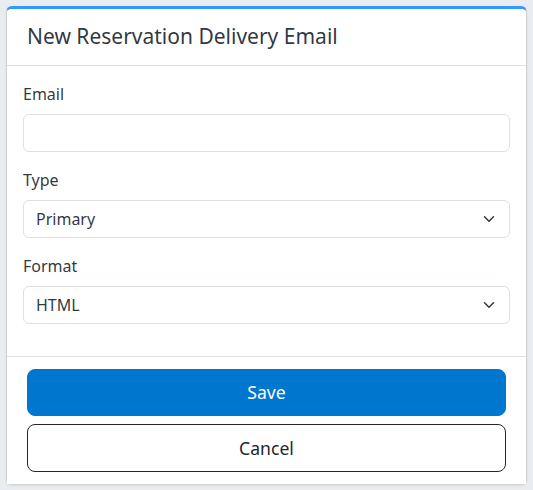
- Under Reservation Notification Emails, select Add New.
- Enter the authorized mailbox in Email. An address must be valid and unique within this property.
- Choose Type: Primary or Backup. New recipients default to Primary.
- Choose Format: HTML or Text. The default is HTML.
- Select Save.
- On the returned overview, check that the intended address appears with the correct format and language.
Use Cancel instead of Save to return without adding the address.
If the address is already verified elsewhere in the same organization, the new recipient can be marked verified automatically. Otherwise, the application attempts to send a verification email to that address. A saved or sent message on screen does not prove mailbox receipt.
Before following the verification link: newly verifying an address can turn on the property's Reservation Handling if it is off. Confirm that the property is ready for reservation handling; ask your administrator or Support if that activation is not intended.
When activation is appropriate, open the verification email in the intended mailbox and follow its link. Return to Reservation Settings, reload the page and confirm Verified = Yes. Complete this check before relying on the recipient for normal notifications. Do not leave an unwanted address configured on the assumption that an unverified address cannot receive anything.
Edit an existing recipient
- Select Edit beside the intended address.
- Confirm the address displayed on Reservation Delivery Email.
- Change Type or Format as required.
- Select Save.
- Confirm the returned overview's format. To confirm Type, reopen Edit, check the selection and select Cancel.
The existing email address is read-only. To replace it, add and verify the new authorized address first, then remove the old recipient when the transition is ready. Coordinate the overlap: both addresses may receive notifications while both are configured.
The existing-recipient form also shows Verified Timestamp, or Not Verified. The timestamp uses your signed-in time zone. Saving an existing recipient does not resend its verification email.
Remove a recipient
Keep a suitable delivery method in place before removing an address. Removing the configured recipient does not guarantee recall of delivery requests already created.
- Select Delete beside the intended address on the overview.
- Check the address on Delete Reservation Delivery Email.
- Select Delete to confirm removal, or Cancel to leave it unchanged.
- Check the returned overview and confirm that the address is no longer listed.
Opening the confirmation page alone does not delete the recipient. Removing a verified recipient can also send a removal notification.
Check the result
Keep these checks separate:
- Configuration saved: the intended row, format and language appear after reloading; Type is checked in Edit. A deleted address is absent.
- Address verified: Verified shows Yes; the editor shows its timestamp.
- Reservation delivered: inspect the particular reservation's delivery record and confirm receipt in the intended destination. Neither the recipient table nor a verification timestamp establishes this. Use Reservation delivery status for that investigation.
Do not resend a reservation merely to test a recipient configuration. If delivery is uncertain, check the existing attempt first and follow the delivery guide's recovery steps.
Common problems
| Symptom | Safe next action |
|---|---|
| Add New, Edit or Delete is missing, or the form is read-only | Confirm the selected property and ask your organization administrator to check both Property Settings and Channel Settings permissions. |
| Email is a required field or the address is not in a valid format | Correct the new recipient's Email field. Recheck the whole address before saving. |
| The address already exists for this hotel | Return to the overview and inspect the existing row. Edit its Type/Format rather than adding a duplicate. |
| No verification email arrives | Check the saved address and mailbox spam/junk folder. Existing-recipient Save is not a resend control. Contact Support if the message remains unavailable; do not repeatedly delete and recreate the recipient. |
| Verified = Yes, but a reservation email is missing | Check the particular delivery record, recipient Type and channel email setup. Verification is not a delivery receipt. Escalate with the affected property, channel, reservation reference and action time/time zone. |
| An error or interruption occurs after Save or Delete | Reopen the overview before repeating. The row may already have been saved or removed before a later notification failed. Ask Support if the resulting state is unclear. |
| The email address or language cannot be edited | This editor exposes neither existing-address changes nor a Language control. Use the replacement-address workflow above; ask Support about a language correction. |
For support, include the property, affected recipient address, action time/time zone and visible error. Include a reservation reference only when investigating a particular delivery. Do not send passwords, payment details, verification-link tokens or unnecessary guest information.