

Use System Log in Org Admin to find recorded sign-ins, settings changes, inventory-update saves and other activity across your authorized organization or properties.
A matching entry confirms that the application recorded an event. It does not prove that every part of the operation finished, that a channel accepted inventory, or that a reservation reached its destination. An empty search does not prove that nobody acted.
Before you start
You need Org Admin access. This guide covers the organization-level System Log, not the separate Admin → System Log page.
The property selected in the main navigation is your application context; it does not automatically restrict this search to that property. Use the Property field on the search card when you want one property's entries.
If your account can administer multiple organizations, choose Organization before searching. All can include a wider authorized portfolio. An organization search uses the organization recorded with each event; it is not a complete history of every object that currently belongs to that organization.
Open the organization log
- Open Org Admin in the main navigation.
- Click Home.
- Under General, click System Log.
- Confirm the organization and property scope on the search card before interpreting the results.
Search for an activity
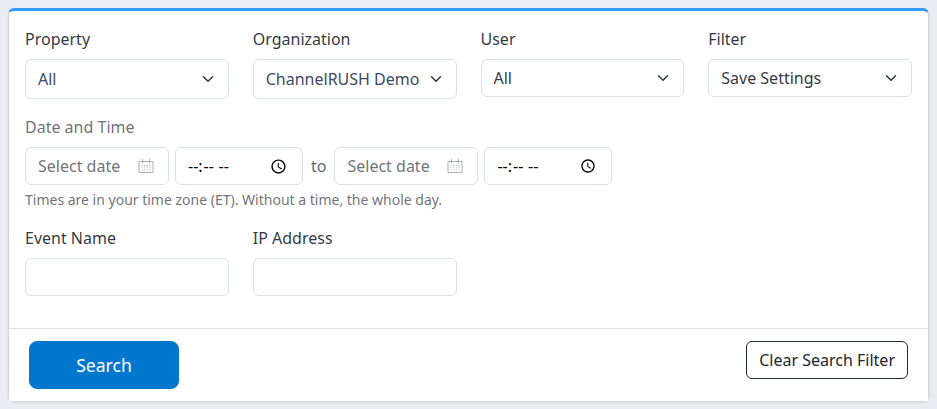
The search card is separate from the main property selector. This example narrows the log to one organization and the Save Settings category.
- If Organization is shown, select the organization you want to investigate. Changing it clears the Property selection.
- In Property, select a property or leave All for the wider scope. A property filter excludes sign-in entries and other records that have no property.
- In User, select a person, or leave All. The list can omit a person whose actions still appear in results; see Common problems below.
- In Filter, select an activity category, or leave it blank to include every category.
- Under Date and Time, enter the start and end dates you need. Add times to narrow the window. The time-zone note below the controls identifies the zone used by your search.
- Optionally enter part of the recorded action or description in Event Name.
- Optionally enter all or part of a recorded IP Address.
- Click Search.
- Check the retained fields and the Filtered by chips above the results. Changing a control alone does not apply a new search.
Searching and paging do not resend inventory, change settings or delete records. The Delete category searches recorded deletion activity; it is not a delete command.
Change or clear a search
- Click a Filtered by chip to remove that filter and reload the results. The Date and Time chip removes the whole date/time window.
- Click Clear Search Filter to start over. This clears the search criteria, not your access restrictions. For a multi-organization account, it can also remove your selected organization and widen the results; select the intended scope again.
- An organization restriction required by your account can reappear after clearing it.
Read further back
Results normally show 50 entries per page, with newer recorded entries first. Use » above or below the table for older entries and « to return toward newer entries. Paging preserves the search filters.
The page does not show a total result count. A full final page can still show »; the next page may be empty. If that happens, use your browser's Back button or click Search to restart at the first matching page. There is no spreadsheet or CSV export control on this page.
Check the result
Read the two result columns together:
| Column | What it shows | How to interpret it |
|---|---|---|
| Info | User name and ID, property name and ID, recorded timestamp in your time zone, and recorded IP address. | The property identifies the context attached to the log entry. A sign-in can have no property name and display ID -1; it is not a property you need to set up. Names are looked up when you view the log, so they can reflect later renaming. |
| Description | Recorded event/category text, any additional description, and the recorded page address when present. | Use the description to identify the actual task. A Save successful. message is the message recorded at that point, not an independent check of the current setting or downstream delivery. |
A log entry's property can be the operator's selected context rather than the owner of the object being edited. When investigating a user, organization or cross-property change, check the description and the affected object as well; do not infer ownership from Info alone.
For a configuration investigation, open the relevant settings page and compare its current saved values. For an inventory-delivery investigation, use Updates → Status, choose the relevant filters and click Search; System Log itself does not show channel acceptance. Do not repeat an update or resend a reservation merely because an expected log entry is absent.
Treat the results as sensitive operational information. They can contain user details, IP addresses and full page addresses. Share only the relevant entry through your approved support channel, and check it for sensitive content before copying or capturing it.
Field reference
All search fields are optional. There is no preselected date range. All in a selection and a blank Filter mean no additional restriction for that field, within the scope your account permits.
| Field | What it searches | Values and interactions |
|---|---|---|
| Property | The property recorded on the entry. | Select a property or All. A selected property is the effective scope rather than an additional organization-wide search. Choose Organization first and then a property belonging to it. Property searches omit entries without a property. |
| Organization | The organization recorded on the entry. | Appears when more than one organization is offered. All uses your account's broader authorized scope; it is not necessarily the organization of the property in the main navigation. Changing this field clears the selected property. |
| User | One recorded user ID. | All includes every user represented in the matching entries. The choices are based on the users offered to your sign-in organization, not recalculated from each selected organization's results. Locked-out users are not listed. A missing choice does not mean that user's history was removed. |
| Filter | One recorded activity category. | Blank: all categories. Login / Logout: sign-in-related entries. Save Updates: activity recorded under update saves. Save Settings: activity recorded under settings saves. Delete: activity categorized as deletion. General: other activity, including navigation. Categories describe how an action was logged, not its delivery status; a deletion can be recorded under Save Settings. |
| Date and Time — start | When the entry was recorded, not stay dates or inventory dates. | A date without a time starts at midnight in the displayed user time zone. With a time, starts at that time. Leave the start date blank for no lower time boundary. |
| Date and Time — end | The last recorded date/time to include. | A date without a time includes the whole local day. An entered end time includes the whole selected minute. Leave the end date blank for no upper time boundary. A time without its corresponding date is ignored. |
| Event Name | Both the stored event name and stored description. | Case-insensitive partial matching, such as profile. The displayed text can be translated, so it may differ from the stored text being searched. % and _ act as pattern wildcards, not literal characters. |
| IP Address | The stored address text. | Partial matching, not an exact-address check. % and _ act as pattern wildcards. An address alone does not establish the identity of a person. |
This organization form has no URL input. If you arrive through a link that already contains a URL restriction, it can appear as a URL chip; remove that chip or use Clear Search Filter to discard it.
Organization-wide versus property searches
An organization-only search includes entries recorded for that organization, including entries without a property. A distributor-wide search without a selected organization instead follows the properties in the authorized portfolio and omits entries without a property. To investigate sign-ins, select the relevant Organization and leave Property at All when those controls are available.
Common problems
| Symptom | Possible cause | Safe next action and when to escalate |
|---|---|---|
| System Log in Org Admin is unavailable. | Your account lacks Org Admin access or the required organization scope. | Ask your organization administrator to confirm access. If access is expected but still refused, contact support with the organization and page name; do not share a password. |
| The End Date cannot be before the Start Date. | The end of the date/time window precedes its start. | Correct the dates and times, then click Search. The invalid window does not return log results. |
| No matching entries. | Scope, user, category, text or time filters may exclude them; the activity may not have been recorded. | Keep the intended organization scope, widen the date window, set User to All, clear text/category filters and click Search. Clear Property when looking for sign-ins. If a consequential change is still unexplained, escalate rather than treating absence as proof. |
| A user appears in results but is absent from User. | The dropdown excludes locked-out users and does not enumerate every actor found in the selected organization's log. | Leave User at All and narrow by time and activity. Do not unlock an account merely to search its history. Contact support if you cannot isolate the relevant entries. |
| A deletion does not appear under Delete. | Some workflows record deletion under Save Settings. | Clear Filter, search by event/description and time, and read the returned description. The category alone cannot establish what changed. |
| A Save successful. entry exists, but the current state or channel result differs. | The log records one point in the workflow; later processing or later edits can change the outcome. | Check the affected settings and the relevant status page. Contact support before repeating an action whose effects are uncertain. |
| The next page is empty. | The preceding page was full but there are no further matching entries. | Use your browser's Back button, or click Search to return to the first matching page. This is not evidence that earlier activity was removed. |
For support, provide the organization/property, approximate action time and time zone, expected action, selected filters, and relevant event text. Do not send passwords, payment information or unrelated guest data.