

Use Mapping Coverage to identify which room and rate targets are represented in one property's stored configuration, separate intentional exclusions from findings that need review, and export the evidence.
Before you start
- Select the property you want to investigate. You need access to that property; organization-wide access and permission to edit mappings are not required to read this report.
- Know which channel and hotel product you expect to be connected. A product can be intentionally excluded from a channel, derived from another product, or priced independently.
- This is a current stored-configuration report, not a live channel check or mapping history. Running it, changing its report filters, paging, and downloading CSV do not refresh mappings, change settings, or send inventory.
Mapped does not mean correctly mapped, available for sale, or accepted by the channel. It means the report found a current target under the checks described below. Confirm that it is the intended target before treating a finding as resolved.
Run the report
- Select the property in the property selector.
- Open Reports → Diagnostics → Mapping Coverage.
- Leave Channel = All property channels, State = All states, and Product kind = All for a first overview. To investigate a known problem, choose the relevant channel and product kind instead.
- Click View report. Opening the page alone shows the filters; it does not run the report.
- Check the property name, matching-row count, and extraction timestamp above the results.
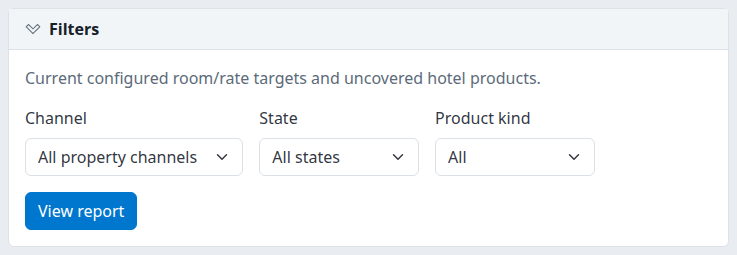
The initial filter card. There is no date-range field: the report examines current stored configuration.
After a run, Filters collapses and the submit button becomes Update report. Expand Filters, change the selection, then click Update report. Changing a dropdown alone does not replace the loaded result.
Narrow by channel within the result
When the result contains more than one channel, an All channels dropdown appears above the report. It offers the channels represented in that result, not every possible channel.
- Open All channels.
- Tick the channels you want to keep. Select all toggles the listed checkboxes.
- Click Apply — reloads report when it appears.
- Check the reloaded count and channel headings. This narrowing applies to the complete filtered result and CSV, not only the visible page.
This is an additional filter: it cannot broaden a single-channel choice in the main Filters card. After narrowing, excluded channels may no longer appear in the result dropdown. To start over, expand Filters, choose All property channels, All states, and All, and click Update report. That also clears the result's extra channel selection.
Unticking every channel is not a way to request zero channels. An empty selection removes that extra narrowing. Use the main filters to establish the scope you want.
Investigate a finding
- Read the channel heading first. Each section names the channel and its ID. The same hotel product can have different findings on different channels.
- Identify the row's direction. A Room mapping or Rate mapping starts with a channel product and points toward a hotel product. A Hotel room coverage or Hotel rate coverage row starts with a hotel product for which that particular channel has no represented mapping. CRS room and CRS rate describe booking-engine configuration.
- Compare Product with Current target. Confirm the IDs and names are the pair you intended. A present but wrong target can still be Mapped.
- Read State, Enabled, Setup, and Evidence / limitation together. State shows one finding, not a checklist of every possible problem. For example, Disabled can take precedence over a missing target.
- Decide whether the configuration is intentional. Check exclusions, virtual parents, inherited inventory, and independent CRS pricing before requesting a correction. The product-kind and state references below explain these cases.
- If you need more configuration context, use Inventory Settings / Channel Settings below the report. It opens the property's Channel Settings report; it is not a repair or save action, and the Mapping Coverage state/product filters are not carried across. Actual mapping changes belong in the separate settings workflow and require the appropriate permission.
- After an authorized person confirms or corrects the configuration, return here and click Update report. Recheck the exact channel/product/target and the new extraction timestamp. If you selected only Missing target, a corrected row may disappear because it now has another state. Use All states to inspect it again.
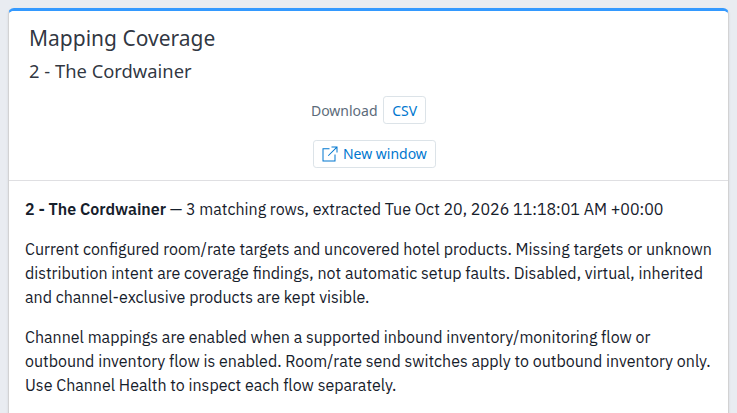
Example: a demo-property result narrowed to Agoda.com room mappings. This is the result header and explanation; the detailed table continues below it.
What a completed check establishes
You have completed the diagnostic check when you can name the affected channel/product, identify its current target or missing relationship, and distinguish a confirmed intentional setup from an unresolved finding. A changed count or an empty result is not enough.
The report does not establish live availability, correct remote product IDs, successful inventory delivery, or what a mapping looked like when an older reservation was made. For separate flow/processing evidence, use Channel Health; its processing states answer a different question from mapping states.
Paging and freshness
The matching-row count is for the full filtered result, not unique rooms, unique rates, or only the rows on screen. Different channels and product kinds can produce several rows for the same hotel product.
The table shows at most 100 rows per page, grouped by channel. When a page contains multiple channel sections, click a channel heading (or focus it and press Enter or Space) to collapse or expand that section. This only hides or reveals rows on screen; it does not change the matching count, filter criteria, or CSV. A page with only one channel section has no collapse control.
Use Next page and Previous page below the report when available. A channel section can continue on another page. Each page load reads current stored configuration again; the extraction time can change, and changes made between page loads can change the result.
Expand Coverage and freshness beneath the results for the scope and limitations. The displayed extraction time is when the stored records were read, not when a mapping was last edited or a channel was last contacted. Preserve its displayed UTC offset when sharing it; do not assume it is your property's local clock.
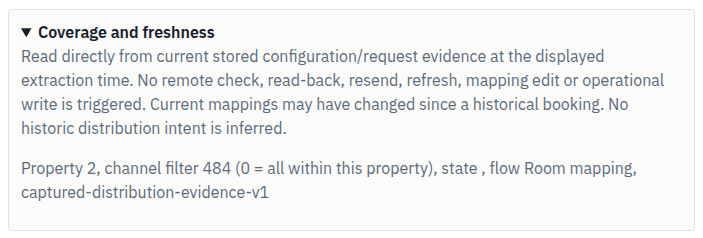
In this technical scope line, “flow” means the selected Product kind for Mapping Coverage. Blank state or flow means no narrowing by that field.
Download and share the evidence
- Apply the filters you want and check the loaded report.
- Click CSV beside Download. The file is named
mapping-coverage.csv. - Open it as comma-separated UTF-8 data. It contains the full filtered selection, including channels chosen through the result dropdown, rather than only the current 100-row page.
- Check
PropertyId,View,ExtractedUTC, and the row-levelChannelId/ChannelNamebefore sharing it. Keep the original file if a spreadsheet reformats IDs or dates. - Include the report URL or a written list of selected channels with the file.
ChannelFilterrecords the main single-channel dropdown only; the additional multi-channel selection has no separate metadata column. A value of0inChannelFiltertherefore does not guarantee that the export was unnarrowed.
CSV is a new read of current stored configuration, not a frozen copy of the table already open in your browser. Its extraction timestamp—and its rows if settings changed—can differ. There is no separate 100-row export limit in this report.
For an empty selection result, CSV still contains the header and one placeholder row with State = No matching rows. That is not a product finding. Its ChannelId = 0 is a placeholder, not a real channel result; other product/evidence cells are blank.
New window opens the loaded selection in a separate report window without the normal application navigation. It preserves the selected report/page criteria and leaves the original open, but also reads current data again. The New window control is not repeated inside that separate window.
Share only what is needed: property, channel, product/target IDs or names, selected filters, extraction timestamp with offset, and the unexpected state or error. Do not send passwords, payment details, or guest information.
Common problems and safe next actions
| What you see | What it can mean | Safe next action |
|---|---|---|
| No rows match | The channel/state/product-kind combination excludes the records, or the expected configuration is not represented. | Reset the three main filters and click Update report. If the product is still absent, ask the mapping owner or support to check the intended setup. Absence is not proof of healthy distribution. |
| A channel is in the results but not the main Channel list | The report reads stored settings, while the main dropdown lists the property's channel choices. Stored configuration can have a wider scope than that dropdown. | Use All property channels, inspect its section or the result-channel dropdown, and provide support with its name and ID if it is unexpected. Do not delete it solely to remove a report row. |
| Missing target but Enabled = Yes | Enablement flags do not establish that a valid hotel target exists. For a CRS rate, independent pricing can also explain a missing hotel-rate target. | Check the product kind and intended target; ask the mapping owner to confirm the relationship. Do not enable, recreate, or send inventory to test it. |
| Disabled with another suspicious value | Disabled takes precedence for mapping/CRS rows and can hide other findings in State. | Read Current target and Evidence / limitation too. Confirm whether disabling was intentional before any change. |
| Mapped but the product is wrong, or a related row has a problem | The existence checks are not a validation of the intended pair or the entire mapping chain. | Compare the exact IDs and inspect related room/rate rows under All states. Escalate a wrong target even when the row says Mapped. |
| Unknown, Enabled = Unknown, or Setup = Not established | Required evidence is absent or not applicable; these are not synonyms for No or for success. | Keep the unknown value in your report. For CRS, remote Setup is not applicable. For unexplained channel rows, send support the channel/product and evidence text. |
| The result dropdown no longer lists a channel you excluded | Its choices come from the latest result. | Reset through the main Filters card and click Update report. |
| A saved/direct link returns a filter error | Its property, channel, page, output, or filter values may be invalid. | Reopen Mapping Coverage from the selected property's Reports menu and use the normal controls. If it persists, give support the exact message and URL without credentials. Do not treat an error page as an empty successful check. |
| You cannot open the property/report | Your account may not have access to that property. | Confirm the selected property and ask your organization administrator to check access. Escalate if access is confirmed but the error remains. |
For a saved link showing Check report filters, page and output format., Select an authorized property and a valid channel., Select valid channels., or Invalid state or flow filter., reopen the report from the property menu and reselect the normal controls. A message about 1–90 days of terminal request history concerns a shared link parameter, not a Mapping Coverage date filter; reopening the page restores the normal defaults. If any error persists, send support the exact message rather than trying arbitrary URL values.
Re-running the report is safe for inspecting the latest stored configuration. It does not repair a mapping, refresh a provider's product list, or resend an update. Stop and seek confirmation when the intended mapping remains unclear.
Field reference: filters and report controls
| Field or control | Values, default, and behavior |
|---|---|
| Property selector | Defines the single property being inspected. Confirm it again after changing property; this is not a portfolio-wide coverage report. |
| Channel | Defaults to All property channels. A named choice narrows to that channel's stored rows. The all-channel result can include retained settings not offered in the main dropdown. |
| State | Defaults to All states. Standard choices are Mapped, Disabled, Missing target, Missing virtual parent, Not set up, and Intent unknown. Unknown can appear in results even though it is not a standard dropdown choice; use All states to include it. |
| Product kind | Defaults to All. Choices are Room mapping, Rate mapping, Hotel room coverage, Hotel rate coverage, CRS room, and CRS rate. This filter intersects with Channel and State. |
| Filters | Expands/collapses the main criteria card. Closing it does not apply pending selections. |
| View report / Update report | Runs the selected main criteria. Update report also resets paging and clears the extra result-channel narrowing. Neither button edits configuration. |
| All channels result dropdown | Available only when more than one channel is represented. Checkboxes stage a selection; Apply — reloads report runs it. All or none removes this extra narrowing. |
| Matching rows | Total detail rows in the loaded, filtered result across all pages. It is not a health score or count of unique hotel products. |
| Extracted timestamp | Time the report read the current stored records, with a displayed offset. It is not a last-mapping-change or last-provider-check timestamp. |
| Channel section heading | Names the channel and ID. When multiple sections appear on a page, click or press Enter/Space to hide/reveal that section's rows. Does not filter counts or CSV. |
| Next page / Previous page | Move through the 100-row pages using the current criteria. Only applicable directions appear. |
| CSV | Downloads every filtered row using the fixed column reference below. Re-reads configuration at download time. |
| New window | Opens the current loaded selection separately; hidden in that separate report window. |
| Coverage and freshness | Explains evidence limits and shows property ID, main channel filter (0 means all), state, product kind labeled “flow,” and the export contract. It does not list the extra multi-channel selection. |
| Inventory Settings / Channel Settings | Opens the property's separate Channel Settings report for context. Does not correct, save, or resend anything on Mapping Coverage. |
Field reference: the on-screen results
The channel name and ID are shown as a section heading, followed by these seven columns.
| Column | Meaning and how to use it |
|---|---|
| Product kind | Identifies the type and direction of the row. Use the product-kind reference below before interpreting Product or Current target. |
| State | One classification from the current stored configuration. Earlier checks can mask later findings; see the precedence reference below. |
| Enabled | Yes, No, or Unknown. Its meaning depends on product kind. It is not proof that every flow is enabled or that delivery works. |
| Setup | Yes, No, or Not established. For channel mapping rows, combines the applicable stored setup flags; it does not run a new setup/connectivity check. CRS rows show Not established because remote setup is not applicable. |
| Product | Channel room/rate identifier, hotel product ID/name, or CRS product identifier/name, according to kind. For a rate mapping, the channel room context appears after / room. Treat IDs as identifiers, not quantities. |
| Current target | The matched current hotel room/rate ID and name, or an explicit missing-target message. Coverage rows instead say No configured channel target. A present target still needs to be the intended target. |
| Evidence / limitation | Context such as real or virtual mapping, parent reference, inherited/derived inventory, independent CRS pricing, or unknown distribution intent. Read it with the other columns, not as independent proof of correctness. |
Product kinds and flag meanings
Room mapping
- Product → target: stored channel room ID → current hotel room ID/name. Missing IDs can display Unknown channel room or No current hotel room.
- Enabled / Setup: Enabled combines the applicable channel inventory flow with the target hotel room's enabled flag when that room exists. Setup combines stored channel and channel-room setup flags.
- Virtual and inherited rooms: a virtual room checks that its referenced parent mapping exists in the same channel settings. Its evidence names that parent. A real mapping can instead show that its hotel room inherits rates, availability, or restrictions from a parent. The report does not expand or validate all inherited values; its evidence text is not an exhaustive dependency check.
Rate mapping
- Product → target: stored channel rate ID plus channel room context → current hotel rate ID/name. A missing rate ID can display Unknown rate.
- Enabled / Setup: Enabled uses applicable channel flows and, for outbound inventory, both room and rate send switches. Setup combines stored channel, room, and rate setup flags.
- Derived rates and related rooms: a derived hotel rate can name its parent in Evidence / limitation. This row does not independently validate the room's hotel target or virtual-parent relationship; inspect the Room mapping row too.
Hotel room coverage
- Product → target: enabled hotel room ID/name → No configured channel target for this channel.
- Enabled / Setup: Enabled is Yes because this coverage check includes enabled hotel rooms only. Setup is the stored channel setup flag. State remains Intent unknown.
- Coverage boundary: generated separately for each configured channel lacking a represented room mapping. Disabled hotel rooms do not receive these gap rows. A represented mapping suppresses the gap row even if that mapping is disabled or not set up.
Hotel rate coverage
- Product → target: hotel rate ID/name → No configured channel target for this channel.
- Enabled / Setup: Enabled is Unknown; the report does not establish that flag for these rows. Setup is the stored channel setup flag. State remains Intent unknown.
- Coverage boundary: checks both a room-level hotel-rate selection and explicit rate mappings. Derived or room-level behavior may still explain an apparent gap. Existence of a disabled/not-set-up mapping still counts as represented for this coverage check.
CRS room
- Product → target: CRS room ID → current hotel room ID/name, or No current hotel room.
- Enabled / Setup: Enabled is the CRS room's own enabled flag. Setup is Not established.
- Coverage boundary: appears under ChannelRUSH Booking Engine when that property's CRS room configuration exists and the channel filters include it. Does not establish overall booking-engine readiness or the hotel's room enablement.
CRS rate
- Product → target: CRS rate ID/name → current hotel rate ID/name, or No current hotel rate.
- Enabled / Setup: Enabled is the CRS rate's own enabled flag. Setup is Not established.
- Independent pricing: a Missing target can reflect valid independent pricing. The report cannot decide whether a hotel-rate target was intended. It is not a test of rate saleability.
How channel-flow enablement works: for Room mapping and Rate mapping, an enabled supported inbound inventory/monitoring flow or an enabled supported outbound inventory flow can make the flow enabled. The channel-level and property-setting switches matter. Room/rate send switches apply only to the outbound side, so turning off a send switch does not necessarily make Enabled = No while inbound remains enabled. Rate mapping does not repeat the target hotel-room enabled check used by Room mapping. Use Channel Health for separate flow evidence rather than inferring direction from a single Yes.
Coverage is per channel, not “missing everywhere.” For example, a hotel rate may be mapped on one channel but have an Intent unknown coverage row on another. Conversely, no gap row does not prove that a represented mapping is enabled, correctly targeted, or operational.
States and which finding takes precedence
| State | Meaning | Diagnostic next step |
|---|---|---|
| Disabled | An applicable flow or product enabled check is false. | Confirm whether that is intentional; still inspect the target and evidence for additional gaps. |
| Missing target | The mapping/CRS product has no matching current hotel target in this property. | Confirm the intended target. For CRS rates, check whether independent pricing is intentional before calling it a fault. |
| Missing virtual parent | A Room mapping references a virtual parent not found in the same channel settings. | Ask the mapping owner to verify the parent relationship. Do not delete/recreate the room to test it. |
| Not set up | At least one applicable stored channel/room/rate setup flag is false. | Review the relevant settings with an authorized person; this is not a fresh provider test. |
| Unknown | Channel-flow enablement cannot be established after the earlier checks. | Preserve the uncertainty and provide support with the row details. Do not read it as disabled or successful. |
| Mapped | A target is present and no earlier state check for that row takes precedence. | Verify that the target is intended. It does not validate all related rows, remote IDs, or inventory delivery. |
| Intent unknown | A hotel-product coverage row has no represented mapping for this channel. | Confirm exclusions, derived rates, or room-level selection before requesting changes. |
The first applicable check wins:
- Room mapping: Disabled → Missing target → Missing virtual parent → Not set up → Unknown → Mapped.
- Rate mapping: Disabled → Missing target → Not set up → Unknown → Mapped.
- CRS room / CRS rate: Disabled → Missing target → Mapped.
- Hotel room coverage / Hotel rate coverage: always Intent unknown, even when Setup is No.
For example, a disabled mapping with no target is classified Disabled, so filtering only to Missing target will miss it. Use All states when checking a product's complete configuration context.
Field reference: every CSV column
The CSV uses the same fixed 25-column schema as the related distribution report, but Mapping Coverage does not populate request-processing evidence. Blank means absent/not established here—not zero, No, or a successful outcome.
Export scope and extraction fields
| Exact CSV header | Mapping Coverage meaning |
|---|---|
Contract |
Schema identifier, currently captured-distribution-evidence-v1. Helps identify the evidence format; not a health verdict. |
PropertyId |
ID of the single property whose configuration was read. Repeated on each row. |
View |
Mapping Coverage. Distinguishes this export from Channel Health even though the headers are shared. |
ExtractedUTC |
Extraction timestamp in ISO-8601 format with fractional seconds and UTC offset, for example 2026-10-20T11:17:57.6497090+00:00. It dates the read, not the last mapping change. |
ChannelFilter |
Main Channel filter: 0 means all property channels at that filter layer; otherwise a channel ID. Does not record the result dropdown's additional channel list. |
Days |
Shared report parameter, normally 30. It does not impose a 30-day mapping-history window; Mapping Coverage reads current configuration and has no days control. |
StateFilter |
Selected State text; blank means All states. Different from each row's State. |
FlowFilter |
Selected Product kind, despite the header's name. Blank means All. For example, Room mapping. |
Channel, product, and finding fields
| Exact CSV header | Mapping Coverage meaning |
|---|---|
ChannelId |
Channel ID for this result row. In the empty-result placeholder only, 0 is not a real channel finding. |
ChannelName |
Channel section name repeated on each row. Unknown channel means a name was not available, not that the channel is healthy or absent. |
Kind |
Product kind: Room mapping, Rate mapping, Hotel room coverage, Hotel rate coverage, CRS room, or CRS rate. |
State |
Row classification described above. No matching rows is the empty-result placeholder, not a normal mapping state. |
Enabled |
True or False for an established boolean; blank when not established. These correspond to Yes, No, and Unknown on screen. Interpret by product kind. |
Setup |
True or False for stored setup evidence; blank corresponds to Not established. CRS rows leave it blank because remote setup is not applicable. |
Product |
Same product identifier/context as the on-screen Product column. |
Target |
Same value as Current target on screen, including explicit missing-target messages. |
Evidence |
Same explanatory text as Evidence / limitation on screen. This is the final CSV column, after the processing fields below. |
Shared processing fields: blank in Mapping Coverage
| Exact CSV header | What its blank value means here |
|---|---|
Pending |
No pending-request count is supplied by this mapping report; not zero pending work. |
Processing |
No processing-request count is supplied; not zero processing work. |
UnresolvedFailures |
No failure count is supplied; not proof that no requests failed. |
OldestPendingUTC |
No oldest-pending timestamp is supplied. |
QueueAgeHours |
No queue age is supplied. It is not mapping age or delivery latency. |
KnownRetries |
No retry count is supplied; not zero retries. |
LatestOutcome |
No request outcome is supplied; blank does not mean success. |
LatestEvidenceUTC |
No processing-evidence timestamp is supplied. Use ExtractedUTC for this export's read time, not for provider freshness. |
Text containing commas, quotes, or line breaks is CSV-quoted. Some text beginning like a spreadsheet formula receives a protective leading apostrophe; do not treat that prefix as a changed mapping ID. Preserve blanks when importing or comparing the file.