

Use the Dashboard to review the selected property's arrivals, departures, reservation counts, PMS update timestamps and inventory-send activity, then open the relevant detail screen when something needs attention.
Open the right property
- Sign in to your organization.
- Select the property in the property selector at the top of the application.
- Select Dashboard in the main navigation.
- Check the property name beneath each report heading before using the results.
You need access to the selected property. You do not need to be an Org Admin to view its Dashboard.
The standard Dashboard includes Reservations - Arrivals, Reservations - Departures and Reservations - Occupancy when reservation handling is enabled for the property. A property with a PMS connection also has PMS ARI Last Update Timestamp. Inventory Send Processing summarizes outbound inventory requests. Your personal Dashboard Report preference can replace these standard sections with a saved report.
Reload the page when you want to read the available data again. Leaving it open does not continuously refresh the reports. Reloading does not request fresh data from a channel or force every background summary to update.
Move between sections
Open Jump to and select the section you want. The menu appears when the report has more than one enabled section. Update Processing Summary in that menu takes you to Inventory Send Processing.
The breadcrumb also has Admin and News & Events links. Recent applicable announcements can appear below the reports; open News & Events for the broader news list.
Review arrivals and departures
Reservations - Arrivals lists received, non-canceled reservations with at least one room arriving on the selected day. Reservations - Departures does the same for rooms departing that day. On the standard Dashboard, that day is today in the property's time zone.
- Find Reservations - Arrivals or Reservations - Departures.
- Review the reservation, room and stay information.
- Select the linked reservation ID to open its details in a new tab.
- Check the individual rooms and dates in the reservation before taking an operational action.
A row represents a reservation, not one guest or one room. A multi-room reservation can match because one room arrives or departs today while another has different dates. The row shows the whole reservation's room information, earliest arrival and latest departure.
These lists do not record an actual check-in or check-out. An empty list means no matching received reservations were found; it does not prove the property has no arrivals or departures in another system.
Arrival and departure columns
| Column | What it shows |
|---|---|
| ID / Channel | The channel reservation ID, linked to reservation details, and the source channel. |
| Guest Info | The booking contact's name. This is not necessarily every staying guest; it can be blank if that information is unavailable. |
| Total | The reservation total after tax when available, otherwise before tax, with its currency. A missing amount can be blank; a genuine zero remains zero. |
| Room Info | Rooms grouped by room name. A repeated room name is shown with its count. For a multi-room reservation, this includes the whole reservation, not only the room matching today's arrival or departure. |
| Arrival | The earliest arrival across the reservation's rooms. |
| Departure | The latest departure across the reservation's rooms. |
Copy an arrivals or departures list
Select Copy to Clipboard above the relevant list, then paste into an appropriate internal document and inspect the pasted result.
The copied text is a text list, not the on-screen table: it includes the reservation count and entries labeled Reservation, Channel, Arrival and Departure, with Guest, Total and Room Types when available. It is not a currency-complete financial export: the copied Total does not include the displayed currency, and the default report's copied date heading can be blank. Add the property, reporting date and currency context before sharing it. An empty copied list states that there are no arrivals or departures for the date.
Treat copied guest information as confidential. A button acknowledgement alone is not a check that the intended text reached your destination; inspect what you pasted. If copying is blocked by the browser, use reservation details rather than repeatedly clicking or sharing an incomplete list.
Interpret Reservations - Occupancy
This section shows reservation counts, not room counts or occupied-room percentages. The standard range runs from the property's today through seven days later, including both endpoints. Check the displayed date range and table, especially when comparing properties in different time zones.
The chart uses bars for Occupancy and lines for Arrivals, Departures and Stayovers. Use the table beneath it to read each day's values.
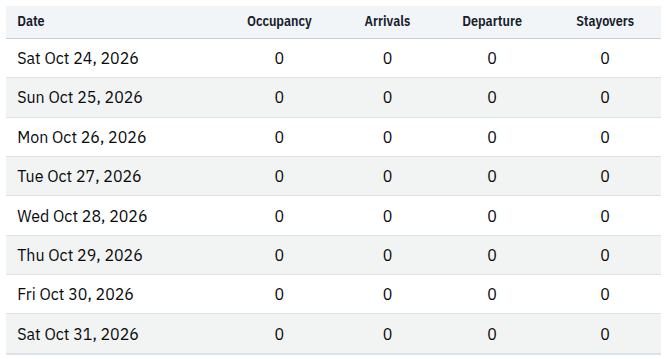
The table beneath the chart. This demo example has no matching reservations; zeros do not establish that every booking source is up to date.
| Column | Meaning |
|---|---|
| Date | The stay date being counted. |
| Occupancy | Arrivals plus Stayovers for that date. It is not an occupied-room percentage. |
| Arrivals | Distinct active reservations with at least one room arriving that date. |
| Departure | Distinct active reservations with at least one room departing that date. The chart label is Departures. |
| Stayovers | Distinct active reservations with at least one room arriving before and departing after that date. |
The counts use the latest received version of reservations in New or Modified status. Bookings that ChannelRUSH has not received are absent. A zero means no matching received reservations in that category, not proof that your channel or PMS has no bookings.
A multi-room reservation can qualify as both an arrival and a stayover on the same date. Because Occupancy adds those categories, do not treat it as a distinct count of all bookings either.
The section does not provide a report-run timestamp or the latest reservation-feed update. The date beside the Dashboard page title is not a freshness indicator and can differ from a property's local day. Use the report's own dates and reservation details for comparisons.
Check PMS ARI Last Update Timestamp
ARI means availability, rates and inventory. This section shows a channel name and a timestamp for each configured inventory-receive or monitoring connection included in the property report.
- For an inbound-message connection, the timestamp belongs to the latest successfully processed inbound message selected by the report. It is the message's creation time, not the latest failed attempt.
- For a monitoring connection, it records completion of the monitoring process. A monitor can complete without finding changes.
- Times are displayed in your user time zone. The timestamp itself does not include a time-zone suffix.
- A dash means no timestamp was available for that row. It does not prove that no inventory was ever received.
If the section says no PMS channel is set up, ask your administrator to check the property's inventory-receive configuration. A PMS connection can exist without an eligible receive or monitoring row.
Compare the timestamp with when you expected activity. An old time is a reason to investigate, not by itself proof of failure: a source may only send when something changes. This timestamp does not confirm that every rate or restriction was received, or that downstream channels accepted updates.
Investigate Inventory Send Processing
Start with the Pending and Processing cards, then review Unsuccessful and Successful for 24h, 7d and 30d.
These are inventory-send request summaries, not reservation-delivery counts and not a count of individual nights or price changes.
What the figures mean
| Figure or table | Interpretation |
|---|---|
| Pending | Current requests waiting in Pending status for channels mapped to this property. It is not restricted to one of the historical windows. |
| Processing | Current requests in Processing status for mapped channels. It is not confirmation that the channel has accepted them. |
| Unsuccessful | Historical requests classified as Unsuccessful or Failed in the summary. Investigate the details; the total alone does not explain the cause or prove the latest intended values remain undelivered. |
| Successful | Historical requests recorded as Successful. This does not establish that every product/date is current or that unrelated requests succeeded. |
| Pending/processing channel table | Appears when either current total is nonzero. Columns are Channel, Pending and Processing. |
| Past 24 Hours, Last 7 Days, Last 30 Days | Historical channel tables with Channel, Unsuccessful and Successful columns. A channel is listed when it has qualifying activity in that window. |
| User / Total, when present | Terminal request activity attributed to the listed users. Some users and channels are excluded from the displayed breakdowns, so user totals are not guaranteed to reconcile to the visible channel totals. |
Historical figures use request creation-time periods, not the time a channel last accepted an update. 24h starts at an hour-rounded boundary; 7d and 30d use calendar-day boundaries and include the current partial day. They are not exact personal-time-zone rolling windows. The periods overlap: do not add the three totals together.
Historical summaries can lag recent processing. Reloading rereads the available summary; it does not force a summary refresh. The message No updates are currently successful or unsuccessful. means that historical block has no qualifying displayed activity. It is not an all-clear for distribution.
Open the underlying status screen
- Find the relevant channel in a processing table.
- Select a linked status count to open Update Status in a new tab. Selecting a channel name instead opens a broader channel search; user links narrow by that user.
- Check the property and all retained filters on Update Status.
- If you change filters, select Search to load the new result.
- Inspect the matching records and their messages before deciding what needs attention.
Treat these links as investigation shortcuts, not exact count drill-downs. Historical channel links select Last Run on Update Status, rather than the Dashboard's creation-time basis, and use a date-only cutoff. User links are not restricted to the same terminal statuses. The status screen can also represent inventory changes differently from the Dashboard's request counts. A different row count is not, by itself, lost data or a fresh processing failure.
Opening a status link does not retry or resend anything. Do not repeat an inventory update merely because the Dashboard has an unsuccessful count or a status search is empty. Check the affected property, channel, products, stay dates and most recent intended values first. See Check inventory update status for the status-screen workflow and action boundaries.
Choose a saved report for your Dashboard
Dashboard Report is a personal preference. It replaces the standard report sections; it does not add sections underneath them. Recent applicable news can still appear below the report.
- Open My Profile from the menu at the top right, or use Admin → My Profile.
- In Settings, find Dashboard Report.
- Choose an available saved report, or leave the selection blank to use the standard Dashboard.
- Select Save.
- Return to Dashboard and check the property name and enabled report sections.
The selection list contains your own reports and reports shared with your organization. If it offers only a blank option, no qualifying saved report is available to select. Leave it blank for the standard Dashboard, or ask your report administrator to create or share an appropriate report. Choosing a report does not change its ownership, contents or email schedule. Start Page is a separate preference controlling where you begin after sign-in; it does not choose the Dashboard's report content.
On the Dashboard, report sections use the current property context. Do not assume a saved report's selected-properties list turns this page into its combined multi-property output. Saved sections can also use their own dates and settings rather than the standard defaults described above.
Only enabled sections are shown, in the saved order. A report with no enabled sections can leave the report area empty. A missing or inaccessible saved selection falls back to the standard Dashboard. To change report contents, use the saved-report editor with the necessary report-edit permission; selecting it in My Profile is not a substitute for editing it.
For profile fields and save/recovery details, see Update your profile, preferences and sign-in security.
Check the result
Before acting on the Dashboard, confirm all three:
- Scope: the property selector and report headings identify the intended property.
- Meaning: you are comparing the relevant stay date, timestamp or request-creation period, rather than treating every section as a single live health measurement.
- Evidence: open reservation or update details when a finding needs investigation. An empty table, zero count, missing timestamp or historical success total is not proof that every external system is current.
Viewing or reloading this page does not itself send inventory, deliver a reservation or repair a failure.
Common problems
| Symptom | Likely explanation and safe next action |
|---|---|
| A standard section is missing | Check the property and Dashboard Report preference. Reservation sections depend on reservation handling; the standard PMS section depends on a PMS connection. Ask your administrator if an expected feature is absent. Do not enable or change connections merely to make a report appear. |
| Arrivals/departures are blank or occupancy is zero | Verify property, dates and received reservation details. These reports cannot include bookings never received by ChannelRUSH. Escalate with the property, source channel, affected dates and a reservation ID if an expected received booking is still missing. |
| The page-title date differs from the report | Property-local dates and the page's date can differ around midnight. Use the section's dates and individual reservation stay dates; include the relevant time zones when escalating. |
| A saved Dashboard has an empty chart but a populated occupancy table | Use the table rather than interpreting the blank chart as zero. Report the saved report name, property and affected section to support; do not change reservation data to repair a chart. |
| The report area is empty after choosing a saved report | Check whether the report has enabled sections. Return to the standard Dashboard by clearing Dashboard Report and saving, or ask its owner to review the report. |
| A PMS timestamp is old or missing | Confirm when a source update was expected and which connection the row represents. Ask support to investigate if expected successful activity is absent. Include property, channel, expected action time and time zone; do not infer downstream failure from this timestamp alone. |
| Processing counts and Update Status results differ | Review the timestamp basis, date boundaries, user/channel/status filters and differing record types. Do not resend to make counts agree. Escalate with the section/window, filters, property, channel and observation time if the discrepancy remains unexplained. |
| Copy to Clipboard does not produce the expected text | Paste into an approved internal destination and inspect it. Check browser clipboard restrictions. Preserve reporting date and currency context, and avoid repeated copying of unrelated guest data. |
Never include passwords, payment details or unnecessary guest information in a support request.