

Create a public key for a property's booking widget, bind it to the websites that may use it, and keep the embed snippet shown after creation.
Before you start
- Select the correct property. Issuing keys requires both Booking Engine / CRS - Settings and Channel Settings - Login Info permissions. Ask your organization administrator if you cannot use the controls.
- Save the property's CRS settings and create a booking profile first. The profile needs a language for the widget to operate. Check its languages, currencies and booking-flow options before assigning it.
- Obtain the website origins from your site builder. An origin is the scheme and hostname, plus a port when used—not the full booking-page address.
- Decide whether this is a live website or a controlled test. A test key does not create a reservation sandbox. A test booking can reduce inventory and trigger configured PMS and email delivery. Use a test property and coordinate the test environment before making bookings.
Create Key submits the form and issues the key. Typing in the fields only changes the form and its preview. Cancel or Back to Keys leaves without submitting this key request; neither undoes an earlier creation.
Open the issuance form
- Open Admin → Settings - CRS for your property.
- Select BE & CRS.
- Find Widgets under Booking Engine Settings.
- Click Add New in the Widgets section.
The page title is Issue a New Key. Check the property name above the fields. If you are already on Booking Widgets, click Issue a New Key instead.
Enter the key settings
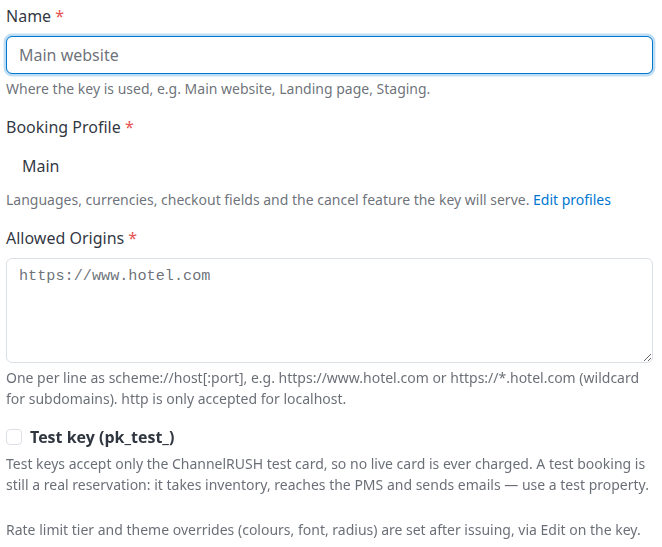
The demo form has one booking profile, Main. The grey example name and website address are placeholders, not entered values.
- Enter a Name that identifies where the key will be used, such as
Main websiteorStaging website. - Choose the Booking Profile for this website. When only one profile exists, its name appears without a visible dropdown.
- Enter each Allowed Origins value on its own line. Use the examples below to distinguish the root domain, subdomains and local development addresses.
- Leave Test key (pk_test_) unchecked for a live key, or check it only for your agreed test setup.
- Review This key will serve and every origin before submitting.
- Click Create Key once.
Do not leave the result page until you have copied the key and snippet. If the request times out or the result is unclear, follow Creation did not return a clear result below before clicking Create Key again.
Choose the allowed origins
For a widget embedded at https://www.example.com/book, enter:
https://www.example.com
If both the root domain and www host serve the widget, enter both:
https://example.com
https://www.example.com
Use a wildcard only when the widget must work across subdomains you control:
https://*.example.com
That wildcard covers www.example.com, booking.example.com and deeper subdomains. It does not cover https://example.com; add the root domain separately when needed. Prefer exact hosts when you do not need broad subdomain access.
For local development, include the actual port:
http://localhost:3000
- Use HTTPS for public websites. HTTP is supported for local loopback addresses such as localhost, not ordinary public hosts.
- Do not include
/book, other paths, query strings, fragments or a username/password in the origin. - Scheme and port must match the website's actual origin. Do not add
:443when the browser's origin omits it. - Leading/trailing whitespace, trailing slashes and duplicate lines do not create additional allowed websites.
- At least one origin is required. Review every line yourself; an issued key is not proof that every configured origin works.
Choose live or test mode
Unchecked — live key (pk_live_): use for the live booking website. Ordinary live-property bookings follow the property's payment and reservation settings.
Checked — test key (pk_test_): accepts only the ChannelRUSH test card, with no live-card charge. It still creates a reservation and can affect inventory, PMS delivery and emails.
A test key against the production widget server is restricted to localhost/loopback origins, which must also be in Allowed Origins. Allowlisting a public staging hostname does not make a test key work there against production. For a public staging site, coordinate the ChannelRUSH test environment and follow the embed guide's test-server instructions.
The generated snippet points to the production widget script even when you select a test key. Do not assume checking Test key changes the script host. Use the script and key issued for your agreed environment; a key is not automatically available on a different server.
Review the profile and preview
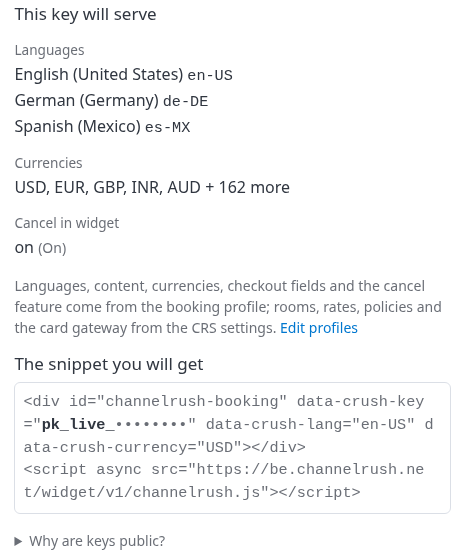
This is a preview before issuance, not a usable key or a completed booking check.
This key will serve summarizes the selected profile's Languages, Currencies and Cancel in widget setting. Edit profiles opens the profile area in CRS Settings. Changes to a shared profile affect its other websites, widgets and CRS connections too.
The profile provides the widget's languages, content, currencies, checkout fields and cancellation options. Rooms, rates, policies and the card gateway come from CRS settings.
The snippet you will get shows the embed structure and live/test prefix. Its dots are placeholders. The displayed language and currency come from property defaults; choosing another profile does not automatically refresh those snippet values to that profile's preferences. Have your site builder check the final snippet's language and currency against the selected profile. The embed guide explains these attributes and language/currency selectors.
Why are keys public? explains why the key is visible in website source. Treat it as a public identifier, not a password. Allowed origins deter copying the widget onto another website; they are not strong authentication for software outside a browser.
Check the result and preserve the snippet
After successful creation, ChannelRUSH returns to Booking Widgets and shows Your new widget key, marked Shown once.
- Use Copy beside the full Key, and paste it into your site's configuration or handoff document.
- Use Copy beside Embed snippet - paste it where the booking widget should appear.
- Check that both pasted values are complete before refreshing, navigating away, changing property or editing another key.
- Check the new entry under Keys against the intended name, allowed origins and live/test type.
- Give the snippet to your site builder and follow the booking widget embed guide for installation on your platform.
If Copy does not work, select and copy the displayed text manually while the result is still open. Do not refresh to repair the clipboard.
The full key cannot be displayed again through the key list. Later visits show a masked value. A new key starts enabled, but Enabled does not mean the property is ready to accept bookings. Issuing a key does not enable CRS settings, supply missing profile languages, load inventory, validate the payment setup or install the widget on your site.
After installation, open the actual allowed website and check that the widget loads for the intended property with the expected languages and currencies. A Last Used timestamp alone is not proof of successful loading or a completed booking. Arrange any checkout test separately, with the correct property and environment.
Field reference
| Field or control | What it does | Requirements and defaults |
|---|---|---|
| Name | Identifies the website or purpose in the key list. | Required; maximum 100 characters. Initially blank. Leading/trailing spaces are removed. A descriptive name helps distinguish separately issued keys. |
| Booking Profile | Assigns one of this property's profiles to the key. | The first available profile is selected initially. One profile appears as text; several profiles offer a dropdown. Create the intended profile before issuance if it is absent. |
| Allowed Origins | Lists the website origins from which the widget may be used. | Initially blank; at least one required. One scheme://host[:port] per line. See the origin examples and wildcard limits above. |
| Test key (pk_test_) | Creates a test rather than a live key. | Unchecked initially. Test-card and server-origin restrictions apply; reservation side effects remain possible. |
| This key will serve | Summarizes the selected profile. | Read-only languages, currencies and cancellation information. It is not a readiness or delivery check. |
| The snippet you will get | Previews the embed and key prefix. | Not a real key. Review the final script host, language and currency before installation. |
| Create Key | Submits the settings and issues a separate key. | Click once. Repeating a successful request can create another key. |
| Cancel / Back to Keys | Returns to Booking Widgets without submitting the current form. | Does not revoke an already-issued key. |
Rate limit tier and theme overrides are configured after issuance using Edit on the key, not on this form. New keys use the Standard tier and no key-level theme overrides.
Common problems
The form is disabled or saving is refused
You need both permissions listed under Before you start. A demonstration login may show the form while refusing changes. Ask your organization administrator to confirm access for the correct property; do not use another property's key as a workaround.
“Choose a booking profile for the key” or no profile is available
Create or select a profile under CRS Settings → BE & CRS → Booking Profiles, then reopen the issuance form. Check the profile's languages before continuing. If an existing profile is still missing, contact support with the property and profile name.
“Save the CRS Settings before issuing a widget key”
The property needs saved CRS settings. Have an authorized administrator complete that setup before issuing the key. Creating a key does not substitute for booking-engine setup.
The name or origins are rejected
For “Name is required (100 characters max).”, enter a nonblank name within the limit. For “At least one allowed origin is required.”, add a website origin. For “is not a valid origin (scheme://host[:port], no path)”, remove paths and other URL extras and check the scheme/host.
Review the entire form and all origin lines before submitting again. If correctly formatted values are still refused, contact support with the exact error and intended origins.
Creation did not return a clear result
The key may already have been saved. Open Booking Widgets for the same property and inspect Keys before repeating the request. Compare the name, type, origins and creation time. Do not assume an error or lost connection means no key was issued.
If you cannot identify the result, contact support with the property, key name, action time/time zone and error text. Do not repeatedly create keys to test whether the page is responding.
The full key is gone
Check the snippet already saved by you or your site builder. The masked key in the list cannot replace the full key. If no copy exists, an authorized administrator must arrange revocation and replacement, then update every affected website or integration. Revocation is irreversible and can interrupt existing users of the key. Confirm where it is used before proceeding.
The widget is not allowed on the website
Check the actual website origin against Allowed Origins, including HTTPS, root versus www, and any port. Check live/test mode and the script's server. For Wix, embedded frames or consent/CSP problems, use the relevant platform section of the embed guide. Do not add broad wildcard access merely to suppress an unexplained error.
The key exists but the property is unavailable
Check that the key is enabled and not revoked, CRS settings are enabled, and its booking profile still exists with a language. If those checks do not resolve the problem, contact support with the property, key name or masked identifier, website URL and error text. Do not send passwords, payment details or guest information.