

Use Updates - Processing Summary to check one property's inventory queue, review recent processing outcomes and open the requests that need investigation.
Before you start
Sign in with access to the property you want to check. You do not need Org Admin access or permission to edit inventory merely to view this summary.
This page concerns outbound rates, availability and restriction requests, not reservation delivery. Viewing the summary and following its links does not retry requests or change inventory.
A Successful count is a recorded processing outcome, not an independent check of the channel's current selling values. An empty queue does not prove that every earlier update succeeded.
Open the summary
- Select the affected property in the property selector.
- Open Updates → Status - Summary.
- Confirm the heading is Updates - Processing Summary.
- Review Pending and Processing at the top.
- Review the Successful / Unsuccessful totals and the detail panels underneath them.
The summary loads when you open the page. It has no date inputs, Search button or inventory-submit control. Reload the page to read it again. Reloading does not retry work or force the recent-outcome totals to refresh immediately.
Read the current queue
- Pending means requests waiting to be processed.
- Processing means requests marked as being processed.
- These counts cover current requests, including requests older than the recent-history periods below.
- If either count is greater than zero, a channel table appears beneath the cards. Its columns are Channel, Pending and Processing.
Click a channel's Pending or Processing count to open Update Status for that channel and state. Clicking the channel name opens its requests without selecting one status. The links open another tab, leaving the summary available.
A request still marked Processing is not, by that label alone, proof of a healthy active connection or a failed one. Investigate the request before deciding whether to retry it.
Read recent outcomes
The six cards show Successful and Unsuccessful totals for 24h, 7d and 30d. The large card totals are not links. Use the detail tables below them to investigate a channel.
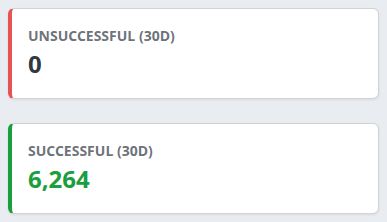
Example from a demo property. Counts change with the selected property and available history.
What the periods mean
- 24h / Past 24 Hours - Detail: requests created since the start of the hour containing the one-day lookback boundary. This is hour-rounded, not an exact second-by-second last 24 hours.
- 7d / Last 7 Days - Detail: requests created from the system's calendar-day boundary seven days ago.
- 30d / Last 30 Days - Detail: requests created from the system's calendar-day boundary thirty days ago.
The calendar boundaries are system-side boundaries; do not assume they are midnight in your profile's time zone. The periods overlap: 7d includes 24h, and 30d includes 7d. Do not add them together.
The periods group requests by when they were created, not by their affected stay dates or most recent processing time. Totals reflect recorded request outcomes and can change when a request's status changes. They are not a count of every processing attempt.
Successful and Unsuccessful totals refresh separately from the current queue. They may lag the request list. No refresh countdown is shown on this page.
Use the detail panels
A populated panel has a Channel column followed by the Unsuccessful count on the left and Successful count on the right. Unsuccessful combines requests recorded as unsuccessful or failed; the total does not identify the cause.
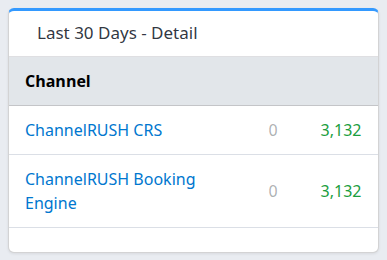
- Click a channel name to open its requests from the linked creation-date start, across statuses.
- Click a positive Unsuccessful count to open unsuccessful requests for that channel.
- Click a Successful count to open successful requests. A displayed zero in this column can also be a link.
- A zero Unsuccessful count is plain text, not a link.
When available, user activity appears beneath a populated panel. The badge counts recent successful/unsuccessful requests attributed to that displayed user, not sign-ins, edits or clicks. Click the user's name, not the badge, to open their requests. That link does not restrict the result to completed outcomes or one channel.
User activity is not a complete audit of every actor: some system, support or unavailable user records are omitted. Its total need not equal the channel totals. The channel totals also follow the property's current channel list; they do not establish complete history for channels removed from the property.
Investigate a request and check the result
The linked list is a starting point for investigation, not an exact reconciliation of the summary count. Summary and list date boundaries can differ. The summary includes archived requests, while the linked list excludes them by default. Requests can also change state between opening the two pages.
- Click the relevant channel or count in the summary.
- Confirm the new tab is Update Status for the same property.
- Check Status and Channel. A channel-name or user-name link can show multiple statuses; an outcome-count link selects that outcome.
- Open More Filters if the additional filters are hidden. When already applied, the control reads More Filters Active.
- Check Date Range. For recent-history investigation, the summary links use Creation Timestamp. Check the actual start date rather than assuming the list reproduces the card's exact cutoff. Queue-count links do not supply a date range.
- Select Archived if you also need archived requests. This includes archived and unarchived requests; it does not show only archived requests or archive anything.
- Click Search after changing filters.
- Review the resulting request's channel, room/rate plan, affected dates, values, Status, Attempts and any status message. Compare Created with Last Run: Created determines the summary's history period; Last Run describes processing time.
Opening a summary link loads its initial results without another Search. Later filter changes require Search. The list is paged, so its visible rows are not necessarily the full matching set. Check the date again after changing filters or paging: those controls use date-only values and can change a time-specific starting boundary.
If you need to find requests for particular inventory dates rather than their creation date, use Start/End Date under Date Range, enter the affected range and click Search. Those results answer a different question from the summary's history cards.
A useful result is an identified request whose property, channel, products, dates and recorded outcome match the issue you are investigating. Successful establishes the recorded result for that request; it does not independently confirm the channel's current rates or availability. Unsuccessful needs investigation. No rows can mean the filters excluded the request, not that the issue is resolved.
Do not use Retry, Archive, Un-Archive or the action Go control to refresh the summary. Those are separate workflows. If you need help investigating, follow Send inventory update requests to support. Do not resend inventory merely to make a total change.
Field and control reference
| Field or control | What it tells you or does |
|---|---|
| Property selector | Selects the property whose summary you are viewing. Check it before investigating another property's counts. |
| Updates breadcrumb | Returns to the property's Updates home. |
| Pending card | Total currently waiting requests across the property's included channels. Not a link. |
| Processing card | Total currently marked as processing. Not a link. |
| Pending/Processing table | Appears when current queue totals are positive. Channel names and status counts open filtered request lists. |
| Successful cards | Recorded successful request counts in overlapping creation-history periods. Not current channel inventory and not a count of attempts. |
| Unsuccessful cards | Recorded unsuccessful and failed request counts combined. Read the request details to establish the cause. |
| Detail channel name | Opens the channel's request list with the panel's linked creation-date start and no outcome restriction. |
| Detail outcome count | Opens the selected channel and outcome. Successful counts are links; unsuccessful counts are links only when positive. |
| User activity name and badge | Name links to that user's requests; the badge reports attributed completed-outcome requests. Neither is a complete user-activity audit. |
| Empty detail message | No updates are currently successful or unsuccessful. No completed-outcome rows are displayed for that period and included channel scope. Pending/Processing may still exist. |
Common problems
The summary count and request list differ.
Check the property, channel, status, creation-date start and Archived, then click Search. Allow for different summary refresh timing, date cutoffs and changes in request state. A user-name link also includes statuses not counted by its activity badge. If you cannot explain a consequential discrepancy, give support the period/card, clicked link, list filters and observation time with time zone. Do not retry or archive requests to reconcile the numbers.
Pending or Processing remains visible.
Reload the summary, open the corresponding channel/status count and inspect the request details. A count alone does not establish the cause or whether repeating the update is safe. If the affected inventory is still wrong or the request's state is unclear, contact support with the property, channel, affected dates, request ID and error text. Do not submit another inventory update as a diagnostic test.
The page has zeros or an empty detail panel.
Confirm the property and period. Check the current queue separately, then open Updates → Status if you need a wider or differently filtered investigation. Zero recent failures is not proof that a particular update succeeded or that current channel inventory is correct. Escalate if you expected a specific request and cannot locate it.
An Unsuccessful total is present.
Open its positive count, confirm the selected filters and inspect each relevant request's status message. The aggregate does not distinguish a validation issue, transport failure or another processing problem. Ask support when the error or safe next action is unclear. Archiving a request does not repair inventory or remove it from this summary's historical totals.
You cannot find a property or open its summary.
Check your selected organization and property access. Ask your organization administrator or support to confirm access to the intended property; do not switch to another property's data to diagnose the missing one.
When escalating, include only the property, channel, request ID, affected dates, observation time/time zone and relevant error text. Do not include passwords, payment details or unnecessary guest information.