

Review the public keys for your property's booking widget, change their website origins and settings, or retire a key without losing track of the sites that use it.
Before you start
- Select the correct property. Saving and revoking keys requires both Booking Engine / CRS - Settings and Channel Settings - Login Info permissions. Ask your organization administrator if controls are unavailable.
- Identify every website and content integration using the key. A change applies to every consumer of that key, not only the page you are viewing. Coordinate changes with your website builder.
- Check the assigned booking profile. It must belong to this property and have at least one language. Its languages, currencies and booking-flow options affect what guests can use.
- Treat Test as a key type, not proof of a reservation sandbox. Do not make a booking merely to check a key: reservations can affect inventory and configured delivery. Coordinate any booking test separately.
Against production, Test keys work only from localhost/loopback origins. Adding a public website to Allowed Origins does not make a Test key work there. Use a Live key for a public production website or a site builder's server.
Widget keys are public identifiers embedded in websites, not account passwords. Allowed origins restrict browser use; they are not a substitute for the booking service's security controls. Never put an account password or private API credential in the widget snippet.
Open the key list
- Select the property in the application header.
- Open Admin → CRS Settings.
- Find Widgets and click its Edit link.
- On Booking Widgets, find the key under Keys. Use its name, masked key and Type together to distinguish live and test entries.
If the list says No widget keys have been issued for this property yet, check the selected property. Use Issue a New Key and follow Issue a booking-widget key when a new key is needed.
The full key and its usable embed snippet are shown only after issuance. The shortened value in this list cannot be expanded into the original key. Editing an existing key does not issue a new one.
Edit a key
Save submits the expanded key's form. Opening Edit or typing into its fields does not save changes. Each key has its own form.
- Click Edit on the key you intend to change. The form opens below the list; scroll down if needed.
- Update Name so you can identify the site or integration.
- Review Booking Profile before changing it. Reassigning the key changes the profile used by every site and content integration using that key; it does not edit the profile itself.
- Update Allowed Origins, keeping every website origin that must continue working. Removing an origin can stop browser requests from that site.
- Review Rate Limit Tier and any Theme Overrides. Use the field reference below.
- Click Save in that key's form.
- Check the save confirmation, then reopen Booking Widgets and the same key. Confirm the saved name, origins, profile, tier and theme values.
A save confirmation means the key settings were saved in ChannelRUSH. It does not prove that the website has loaded the widget successfully or that a booking was accepted. Existing cached configuration may delay the effect of edits; reload the website when checking the result.
To discard unsaved changes, leave or reload the page without pressing Save. Closing the expanded form is not a server-side undo. If you have already saved a wrong value, restore the intended value and save again after checking its impact on the other sites using the key.
Set allowed website origins
An origin is scheme://host[:port], not a full page URL. Enter one per line, for example:
https://www.example-hotel.com
https://example-hotel.com
https://www.example-hotel.com/bookis not an origin: remove/book.www.example-hotel.comis incomplete: includehttps://.- The
wwwand non-wwwhosts are separate origins. Include both if visitors use both. https://*.example-hotel.compermits subdomains, including deeper subdomains, but not the barehttps://example-hotel.comhost. Add the bare host separately when required.- Include a port when it is part of the site's browser origin, such as
http://localhost:3000for local development. Use HTTPS for public websites; HTTP is accepted only for loopback development hosts. - Do not include paths, query strings, fragments or usernames/passwords. Blank lines and duplicate origins are removed when saving. A completely blank list is not valid.
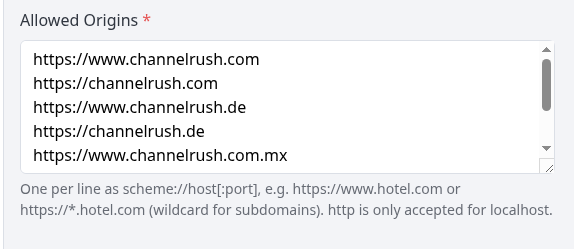
Example from the demo property. Enter your own website origins; do not copy these domains.
Ask your site builder for the origin the browser actually sends, especially for embedded frames or preview sites. Do not remove working origins to troubleshoot an unrelated booking problem.
Change or remove theme overrides
Enter one override per line using the widget's variable name without --crush-:
primary=#1a4d8f
primary-contrast=#ffffff
accent=#e0a100
font=Inter
radius=8px
The prefix is also accepted. Names are case-insensitive and saved in lowercase. If a name appears more than once, the last value wins.
To remove an override, delete its line and click Save. To remove all overrides saved on this key, clear Theme Overrides and save. Reload the website to check the appearance. Your website can supply its own styling too, so removing a key's overrides does not guarantee the website will use every default colour or font.
Use the supported variables in the booking widget guide. An accepted name/value line does not prove that the widget recognizes the name or that the browser accepts the CSS value.
Replace a lost key or move to a new one
The existing full key cannot be recovered from the masked list. For a planned replacement, coordinate the cutover rather than revoking the old key first.
- Identify every website and content integration using the old key.
- Click Issue a New Key and follow the issuance guide. Choose the intended live/test type, profile and origins.
- Copy the new key and snippet when shown. Give the website builder the replacement needed by each consumer.
- Before switching consumers, open the new key's Edit form, review its Rate Limit Tier, recreate any required Theme Overrides, and Save. These settings are not copied from the old key: a new key starts with Standard tier and no theme overrides.
- Have the builder replace the old key wherever it is used, including content API integrations.
- Confirm that the affected sites load with the replacement and that their expected content and booking search work. A loaded widget alone does not verify the payment or reservation-delivery flow.
- Revoke the old key only after the planned cutover checks pass.
If the objective is to stop use immediately rather than preserve continuity, revocation deliberately interrupts those consumers. Coordinate that decision with the people responsible for the affected sites.
Revoke a key
Revocation cannot be undone on this page. Every site and content integration still using the key will lose access. Revocation does not cancel existing reservations or issue refunds.
- Locate the correct property, name, masked key and Type.
- Click that key's Edit link.
- Click Revoke in its form.
- Read the confirmation. Cancel it if the key or scope is wrong; confirm only when the affected consumers should stop using it.
- After the page returns, check that the row says Revoked and shows its timestamp. Its Edit link is no longer available.
Revoke does not save other pending edits in the form. A revoked key remains in the list as history. It cannot be re-enabled here; issue a new key if service must be restored.
Do not assume revocation takes effect at every consumer immediately: cached key information can delay enforcement. Check the affected website or content integration separately. If the response to Revoke is unclear, reload the list and inspect the row before taking another action. Escalate an ambiguous result rather than replacing or revoking additional keys.
Check the result on the website
After an ordinary edit or planned replacement:
- Reopen the key in ChannelRUSH and confirm the intended saved settings.
- Open or reload the actual website URL that uses it—not only the site builder's editor.
- Check that the widget loads and uses the intended language, currency and appearance. If it reads site content, check that content too.
- If booking search is part of your approved check, confirm the expected rooms and dates can be searched. Stop before submitting a booking unless that test is separately coordinated.
Enabled describes the key's stored status. It does not establish that the property's booking setup is complete, that an origin is correct, or that its profile can supply the required content. Last Used is not evidence of a successful booking or even a successful authorized request.
Field reference
Key list
| Column | What it tells you |
|---|---|
| Key | Shortened public identifier. It distinguishes entries but is not the complete key to paste into a website. |
| Name | The saved identifying name. |
| Allowed Origins | Website origins configured for browser use of this key. |
| Profile | The assigned booking profile's name. A dash means the current profile name could not be resolved; investigate the assignment rather than assuming a default. |
| Tier | The saved booking-attempt rate-limit tier. |
| Type | Test or Live. This is fixed when the key is issued and cannot be converted in this editor. |
| Status | Revoked, Enabled or Disabled. Revoked takes precedence. Revoked keys include a timestamp and have no Edit link. There is no enable/disable switch on this page. |
| Last Used | An approximate recorded key-lookup time, not a complete request log. Rejected requests can update it. A dash means no timestamp is stored, not proof that the key has never been attempted. |
| Created | When the key was issued. |
| Edit | Opens the form for a non-revoked key below the list. |
Created, Last Used and the revocation timestamp use your account's time zone.
Edit form
An existing key's form starts with its saved values; opening it does not reset settings to defaults.
| Field | Values, requirements and effect |
|---|---|
| Name | Required, up to 100 characters. Leading and trailing spaces are removed. Use an identifiable site/integration name. |
| Booking Profile | Choose an existing profile for this property. It must have a language configured for the widget to operate. A missing assignment should be corrected explicitly; do not rely on the dropdown merely displaying a choice. |
| Rate Limit Tier | Trial, Standard or High. Controls the key's booking-attempt allowance, not the number of rooms or completed reservations. Standard is the normal tier for newly issued keys. Ask support before increasing it to address unexplained traffic. Other abuse limits still apply. |
| Allowed Origins | At least one valid origin, one per line. Keep all required sites. See the examples and wildcard rules above. |
| Theme Overrides | Optional name=value lines. Names may contain letters a–z, digits and hyphens; the optional --crush- prefix is removed. Each supplied value must be nonempty and at most 200 characters, with no ;, } or url(. Blank entire field removes this key's saved overrides. |
| Save | Saves this key's editable settings. It does not rotate the key, change its Test/Live type or replace snippets installed on websites. |
| Revoke | Permanently disables this key after confirmation. It is a separate action from Save and does not apply unsaved form edits. |
How to use a key: the two tabs
- Booking widget explains the booking flow and shows a placeholder snippet. Use the full snippet preserved at issuance; the placeholder is not a working key. The booking widget guide covers installation, platform-specific instructions, themes, links and analytics.
- Site content explains how the same key can serve property content to a website or site builder. Its content API guide gives request details. The expandable Room type and rate plan ids, for room pages and booking links section provides IDs for links. A listed ID does not guarantee availability for particular dates.
- These keys are public. Why are keys public? explains why a website-visible identifier and origin checks do not provide password-style secrecy.
Use the Content API guide with your developer before changing an integration. Revoking a shared key affects these content requests as well as its booking widget.
Common problems
| Symptom | Likely cause and safe next action |
|---|---|
| Save/Revoke is unavailable or permission is refused | Check that you have both required permissions for the selected property. Ask your organization administrator; do not switch to another property to work around the restriction. |
| Name is required (100 characters max). | Enter a nonblank name within the limit and review the other fields before saving again. |
| At least one allowed origin is required. | Restore the required website origins. A blank list is not a way to disable the key. |
| An origin is rejected as invalid | Use scheme://host[:port] without a path. Check HTTPS, spelling and port with the website builder. |
A theme line must be in the form name=value, or its name/value is not allowed |
Correct the line using the field reference. A theme-format error can return you to the page without retaining your edits: reopen the correct key and recheck all fields. |
| Validation failed but the row appears changed | Some failed submissions can redisplay the attempted values. Leave/reopen the page to check what is stored before assuming the edit succeeded or retrying. |
| The widget says it is not allowed on this site | Compare the actual website origin with the saved list, including www, scheme, port and any iframe origin. Check the key type and status; involve the builder if these match. Do not broaden origins indiscriminately. |
| Enabled, but the widget still cannot load | Check its profile assignment and profile languages, the installed key and origin, then the property's booking setup. Use the embedding guide for script/CSP problems. Escalate with the error rather than issuing repeated replacement keys. |
| Theme changes do not appear | Confirm they were saved, use a supported variable name and reload the website. Have the builder check website-supplied styling and caching before repeating the change. |
| The key was not found or has been revoked. | Reload the list and confirm property/key/status. Another operator may have changed it; revoked entries cannot be edited back into service. |
| Key is Disabled | This screen has no enable switch. Ask your administrator or support to investigate before replacing it. |
| Full key or snippet was lost | The list cannot reveal it. Follow the planned replacement workflow and coordinate every consumer's cutover. |
For unresolved problems, give support the property, key Name and masked identifier, affected website URL, action time and time zone, and exact error. Do not send account passwords, payment details or guest data.