

Use Content Summary to find missing property and product content, review each language profile, and open the settings that need attention.
This is a review screen. Opening it does not save your content or send an update to a channel. Its checks describe saved content and local validation—not a successful booking, a live channel inspection, or proof of delivery.
Before you start
- Sign in and select the correct property. Check the property name at the top of the summary.
- To make corrections, you need the relevant editing permission. Content covers property content and photos. Booking Engine / CRS - Settings is needed for settings such as room types, rate plans, add-ons and booking policies. Ask your organization administrator if a linked editor is read-only or refuses a save.
- Review every language you offer. A complete English profile does not establish that another language is complete.
Open and review the summary
- Open Admin → Settings - CRS for the property.
- Click Content Summary beside BE Settings Summary. It opens a separate tab without the application's main navigation.
- Select the language profile you want to review. With one profile, there is no language-tab selector.
- Read Fix first, when shown. Each item explains the affected room, field or channel scope. Use its editor link when one is provided.
- Review Property, Room types, and the rate-plan, booking-policy, add-on or venue tables that appear below them.
- Review Channels, if it appears. Read setup requirements and excluded-room notices as well as warnings and rejections.
If the page says No content yet, click Add a content profile to open the property's content settings. You need a saved content profile before there is a summary to review.
Do not treat “Nothing blocks booking or sending” as an all-clear. That message means the summary found no issue in its blocking-content and rejection lists. Missing channel setup, required channel fields and rooms excluded from content sending can still need attention. Rates, availability, payment setup and the rest of booking readiness are outside this summary.
Follow a gap to its editor
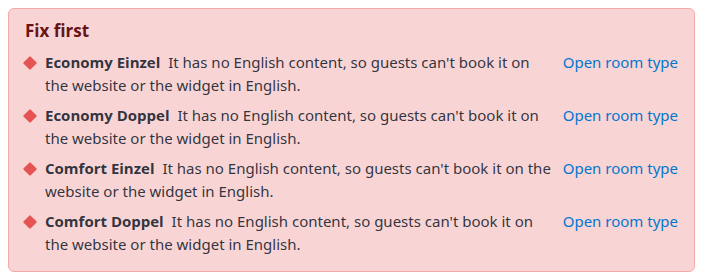
Example from a demo property: the warning identifies the missing language content, not a failed channel transmission.
- Read the note beside the gap before changing anything.
- Click the affected property field, a missing table value, Add content, or the relevant Open room type, Open photos, Open rate plan, Open add-on, Open booking policy, Open venue or Open settings link.
- Confirm the destination property, product and language. Product editor links identify the product; they do not necessarily select the language tab you were reviewing.
- Make the correction in that editor and use its save control. In CRS Settings, Save and Save & Refresh are available. Follow the editor's own validation messages. Saving changes the property's actual settings/content and can trigger downstream channel processing; a successful save does not confirm channel delivery or acceptance.
- Return to the summary tab and reload it, then select the same language again. The already-open summary does not automatically refresh after an editor saves.
Property fields are links even when filled or optional. In the product tables, filled and optional cells may be plain text: click the product's name to open its editor. Channel rejection messages do not always include a direct correction link.
Open content settings returns to the Content tab in the same browser tab. Edit [profile] content opens that profile's settings in another tab.
Opening a room editor can automatically create missing language-content records. Complete and save the intended language fields, then review the individual gaps after reloading the summary. Disappearance of Add content alone does not mean the room content is complete.
Saving locally and delivery to a channel are separate results. Do not resend content solely because an old warning remains on an unrefreshed summary. Check the saved value and the relevant delivery result first.
Understand the markers and counts
- Green circle: the field meets this summary's presence or completeness check. This is not a content-quality or delivery check.
- Amber ring: a required or recommended item is missing. Read the accompanying note for the consequence.
- Red diamond: a blocking issue, also listed in Fix first. Read its specific explanation: not every red issue has the same effect. For example, missing room-language content and an unusable contact-form email affect different workflows.
- Gray marker / optional: the item is not set, but it is not counted as a gap.
A field can be green even when its content needs review. A word count does not judge the writing; saved map coordinates do not establish the right location; a saved link is not a reachability check.
The totals measure different things:
| Indicator | What it counts |
|---|---|
| Number beside a language tab | Missing or blocking content fields and missing product-content rows for that profile. Channel rejections are not added to this number. |
| Property: … gaps | Missing or blocking property fields, not product-table gaps. |
| Room types: … with gaps | Room rows with at least one gap. A room missing several fields still counts as one affected room. |
| Filled in: X of Y | Filled cells in that column, among rows with a content record. Rows showing Add content are excluded from the denominator. Optional empty cells are not counted as filled. |
| Switched off, not checked | Products excluded from that table's checks. For add-ons, exclusion can also reflect how the add-on is offered, rather than its enabled switch alone. |
Use the actual rows as well as the counts. A profile can have a channel rejection without a language-tab gap badge.
Review languages, photos and where content is used
At the top of each profile, the summary shows its language, photo source, websites and booking profiles.
- Photos are managed here identifies the property's source photo profile. It is the oldest content profile, not necessarily English or the currently selected booking language.
- Photos copied from [profile] identifies a profile that uses copies of the source photos. Manage shared photos through Content - Photos rather than replacing each language's gallery independently. Saving source-photo changes synchronizes shared photos and branding to the other language profiles; it does not affect only the language you were reviewing.
- A copied-profile property-photo gap compares its photo count with the source profile's count. Matching counts do not prove that every image, order or caption matches. Inspect the galleries when the visible photos differ.
- Not used by any website or booking profile describes those configured uses only. It does not establish that channels do not use the profile.
- A website marked test mode can still be listed. Being listed is not proof that it is live.
After a photo correction, check the source gallery and the affected language/product content. A missing translated room-content record is not created merely by copying photos.
Property field reference
These are summary indicators, not editable inputs. Click a field to reach its settings. Not set, None and zero counts must be read with the marker and note: an optional zero is not the same as a missing required value.
Story and facts
| Field | What to review |
|---|---|
| Tagline | Optional short property introduction. The summary displays the text. |
| Short description | Missing when no description is stored; otherwise shows its word count. |
| Long description | Missing when no description is stored; otherwise shows its word count. |
| Check-in, Check-out | Saved times displayed for the property. Check that they are correct; a green marker is not a validation of your operating hours. |
| Rooms | Saved property room count. A missing value is a gap; a stored number still needs to be accurate. |
| Stars | Star rating and its display switch. A hidden rating is reported as Hidden and counted as a gap. Do not invent a rating to remove the warning. |
| Business entity | Both the entity name and ID are needed to satisfy this check. The link opens the first missing component. |
Contact and location
| Field | What to review |
|---|---|
| Phone | Property phone number; missing when blank. |
| Reservations email | Reservations contact address; missing when blank. Presence alone does not validate delivery. |
| Contact email | Property contact address. If a configured website uses a contact form, an invalid address is flagged in Fix first. |
| Address | Street, city, postcode and country. The note names missing components; the link opens the first missing component. A filled summary may show only city, state and country. |
| Map pin | CRS latitude and longitude. Both must be present. The shared missing-value gap is counted on the photo-source profile; other profiles can show it as optional. |
| Map on the website | Optional website map embed URL. This is separate from the map pin. |
Amenities, branding and photos
| Field | What to review |
|---|---|
| Website list | Number of entries in this language's website amenities list. No entries is a gap. |
| Channel amenities | Number of structured property amenity assignments. No assignments is a gap on the source profile, optional on other profiles. A nonzero count does not prove that every channel has a matching amenity code. |
| Logo | Source-profile branding image. Missing is a gap; a logo does not count as a property gallery photo. |
| Favicon | Optional browser-tab icon on the source profile. |
| Search photo | Selected search image on the source profile. First photo means a property gallery photo can be used as the fallback. |
| Property photos | Source gallery count, or the copied profile's count compared with its source. No source gallery photos is a gap. |
| Room photos | Aggregate room-gallery photo count on the source profile. Individual room rows have their own photo checks. |
| Not on the website yet | Appears when property or room gallery images do not yet have a website-ready image. This is not a confirmed channel rejection. Recheck the photo page and website; contact support if the image remains unavailable. |
| Alt text | Appears when property or room gallery photos exist. Shows how many lack descriptive alternative text. This is optional in the gap count but useful for accessibility. |
Brand and detailed aggregate photo indicators are shown on the source profile. Other profiles show the copied-property-photo comparison instead.
Website content and social links
| Field | What to review |
|---|---|
| Pages | Count of enabled additional website pages. Zero is optional. |
| Checkout terms | Shown when a booking profile requests acceptance in this language, or terms text exists. Missing requested text is a gap; the acceptance prompt is omitted without it. Review the wording before saving. |
| Testimonials | Count of testimonials that meet their setup requirements. Zero is optional. |
| Sections | Enabled section types, such as FAQ or Features—not a count of all section items. None is optional. |
| Blog posts | Count of enabled posts. Zero is optional. |
| Booking reasons | Number of stored reasons to book. Zero is optional. |
| Contacts | Number of additional contact records. Zero is optional; a count does not establish that each channel can use them. |
| Facebook, Instagram, YouTube, Pinterest, Flickr, X (Twitter) | Optional saved social-link indicators. Set means text is stored, not that the destination was checked. |
If Sections or Blog posts is absent rather than displaying a count, do not assume there is no content. Check the editor; ask support if the summary cannot show content that exists there.
Product table reference
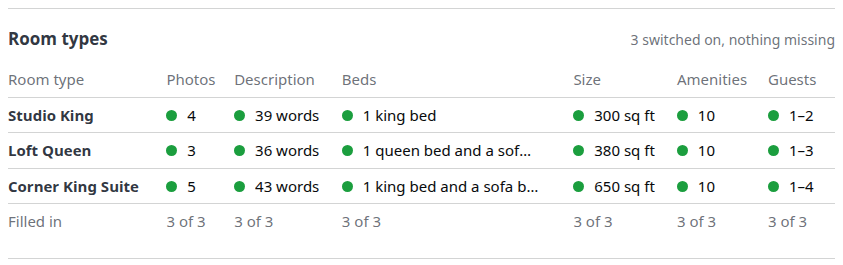
The summary can shorten long cell values. Open the product editor to review the complete content.
Room types
The table normally checks switched-on CRS room types. A room with no content in the selected language shows Add content instead of its field cells. Disabled rooms are not checked.
| Column | Meaning |
|---|---|
| Room type | Name and link to the room editor. |
| Photos | Gallery photo count for this room and language. Source rooms without photos are missing; a translated room can also be flagged when source photos have not been copied. |
| Description | Description word count, or a missing indicator. |
| Beds | Stored bed description; blank is missing. |
| Size | Stored size with square metres or square feet. A displayed number does not establish that its value or unit is correct. |
| Amenities | Number of amenities listed for that room and language. No entries is missing. |
| Guests | Saved occupancy limit or range from CRS settings. A missing maximum is a gap. This is not a search for availability for that many guests. |
Rate plans, policies and extras
- Rate plans: enabled rate plans and their Description word counts. A missing description is a gap. Click the plan name to review its settings and language content.
- Booking policy / Booking policies: policies referenced by rate-plan/default settings or policy-calendar assignments. Notes for partner sites is optional language-specific text. The built-in booking engine words its terms from the policy settings; an empty notes cell is not proof that cancellation/payment terms are absent.
- Add-ons: add-ons eligible for separate sale, with Description and Photos. Missing text/photos is optional here. Included or otherwise ineligible add-ons can be excluded; this table does not verify date-specific price or allocation.
- Venues: enabled venues, with optional Description and Photos.
Some tables are absent when no products qualify. Their absence is not a successful validation of products outside the table.
Channel checks, when available
The Channels section appears for eligible configured content-sending connections. A channel absent from the summary has not received an all-clear from it.
These are ChannelRUSH's local checks of what a property or room-content update would contain. They do not contact the channel to confirm current content or acceptance. They do not cover every channel operation or rate-plan-content send.
| Message | Meaning and next action |
|---|---|
| The channel's settings aren't set up for content, so nothing is sent. | Property-level content setup is incomplete. Review that connection's content settings before planning a send. |
| Needs … | Required property/content values are missing. Review the named fields even if the top of the summary is green. |
| … room types aren't set up for content … left out. | Those room scopes are excluded. A green channel line does not override this notice. |
| [Channel] rejects [scope] in Fix first | Local validation predicts rejection for the stated scope. Read the exact message and correct the relevant content/settings. This is not evidence that a new request was sent and rejected remotely. |
| Expandable warning heading with a count | Click it to see the affected scopes and messages. Warnings can concern unusable or low-resolution photos, or amenities/facilities without channel codes. Follow the specific message; requirements differ by channel. |
| Nothing rejected, no warnings. | No rejection, warning or missing property requirement was found by these checks. Excluded rooms and checks not performed still matter. |
| Last sent [date], optionally … failed | Historical information shared across the property's language profiles for that channel. The date can represent a finished unsuccessful or locally rejected attempt, not successful delivery. The failed number counts scopes whose latest recorded result was unsuccessful, not all past failed attempts. |
| Never sent | No recorded finished channel state is available to this summary. It is not an independent proof that no transmission ever occurred. |
Do not change content or repeat a send merely to remove a historical date/failure indication. Review the relevant content-delivery request and its result separately. If the result is unclear, ask support before repeating an action.
Check the result
After saving an intended correction in its editor:
- Reopen the editor if necessary and confirm the saved property, language and value.
- Reload Content Summary and select the same profile.
- Find the original field or row. Confirm that its value/marker and explanatory note now reflect the correction.
- Check the remaining product and channel notices independently; do not rely only on a lower total or the green top message.
- If the change was intended for a website or booking profile, inspect that destination separately. If it was intended for a channel, check the separate delivery outcome rather than treating this summary as confirmation.
A corrected summary confirms only what its checks now show. It does not establish channel acceptance, successful guest booking or complete booking-engine readiness.
Common problems
- The summary still shows the old value: the tab may not have been reloaded, or you may have edited a different property/language. Confirm the saved value in its editor, reload, and reselect the profile. If they still disagree, send support the field, property and language—not a second blind save.
- A green message appears beside other gaps: the top message checks only blocking items/rejections. Review the remaining property, setup and channel requirements. Escalate if the note does not identify a usable correction.
- A room has Add content instead of individual values: its language content is missing. Open that room and confirm the language before adding content. Do not create a duplicate CRS room merely to add a translation.
- Photos differ between languages: inspect the source gallery and matching translated product content. Equal counts do not prove identical photos. If a missing-copy warning persists after the normal photo-save workflow, ask support before repeatedly uploading duplicates.
- No Channels section appears: there may be no eligible content-sending connection to check. Ask your administrator or support to confirm the intended setup; this is not evidence of successful delivery. Do not enable content sending merely to populate the report.
- An editor is disabled or a save is refused: verify the relevant Content or CRS Settings permission with your organization administrator. Do not work around the restriction through another editor.
- A link opens the editor but not the expected field: confirm property, product and language, then locate the named field in that editor. Report the summary field and destination URL to support if the shortcut is wrong.
For support, include the property, profile/language, affected field or product, channel if relevant, the exact warning and when you checked it. Do not include passwords, payment data or guest information.