

Find email and PMS delivery requests across your authorized properties, distinguish a failed attempt from a booking's status, and choose a safe investigation path.
Before you start
Use Org Admin → Reservations - Delivery Status for a cross-property search. This is different from Reservations → Delivery Status, which searches the selected property.
The Org Admin menu is available to organization administrators and users with the relevant multi-property access. Your account's property and organization access still limits the results. If the menu or a required property is missing, ask your Org Admin to confirm your access.
Search does not send or resend reservations. Opening an investigation link is different from submitting a new delivery. Sending requires the Reservations - Actions permission, including roles that grant it.
Find the delivery requests
- Open Org Admin → Reservations - Delivery Status. Check the heading Reservations - Delivery Status.
- Choose Organization, if that field is available. Choose it before Property: changing organization clears the property selection.
- Choose Property to investigate one property, or leave All to search the permitted scope. The property selected in the application's top bar is not itself this search's Property filter.
- Enter the complete channel reservation number in Reservation ID when investigating one booking. Leave it blank to review multiple bookings. This field does not search PMS confirmation numbers. Numeric values can also match an internal reservation-version ID or a delivery-request ID, so check the displayed booking number, source and property.
- Select Delivery Type: Email, PMS - All, PMS - Pickup / Confirm, or PMS - Push. Leave All to compare delivery methods.
- Select Delivery Status. Use Unsuccessful to find failed requests; use All when looking for a later attempt after a failure.
- Select Channel if needed. It matches either the reservation's source channel or the delivery destination.
- Set the Created date range if needed. Use the left date/time for the start and the right date/time for the end. Move out of a typed date field before continuing. These are request-creation dates, not arrival, departure or processing-completion dates.
- Select Search.
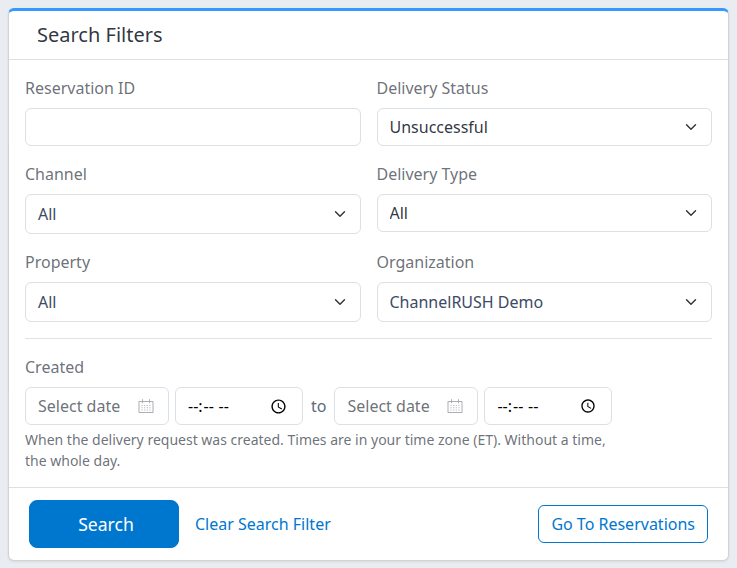
Example filters for unsuccessful delivery requests in one organization. The layout can place more fields on one row on wider screens.
Check the result
After Search, check the retained fields and the Filtered by chips above the table. Confirm the organization, property or selected-property restriction before interpreting any result. Changing a control without selecting Search does not apply the search.
A request row establishes that a delivery attempt was recorded. It does not, by itself, establish that the PMS accepted the booking or that an email recipient read it. An empty table does not prove successful delivery.
Use a filter chip's remove control to remove that criterion. Clear Search Filter removes the search criteria while keeping your application's property context. Recheck scope afterwards: clearing criteria is not the same as limiting the search to that top-bar property.
When a link limits the property selection
A link from another report can open this page with Limited to N selected properties. In that case, Property → All means all properties in that retained selection, not every accessible property.
Search and paging retain the selection. Choosing a single property replaces it. Choosing another organization, removing the Properties filter chip, or using Clear Search Filter removes the retained selection. Review the resulting scope before continuing.
Read a delivery request
One reservation can have several delivery requests, including separate destinations and repeated attempts. Do not count rows as unique bookings.
| Display | What it tells you |
|---|---|
| Reservation ID / Status | The channel reservation number and booking status, such as New, Modified or Canceled. Select the number to open that reservation version. This booking status is not the delivery outcome. |
| Source channel and property | The channel below the reservation identifies its source. The property name is shown for organization/multi-property users. Check both when comparing bookings with similar numbers. |
| Delivered To | The destination PMS/channel or email address. This heading names the destination; it does not mean the attempt succeeded. |
| Status beneath the request | The delivery-processing state described below. |
| ID beneath the request | This delivery request's identifier. Keep it when asking support to investigate. It is not necessarily the channel reservation number. |
| Date/time beside the request ID | When the delivery request was created, displayed in your user time zone. It is not the time processing finished. |
| Error or receipt information | Additional outcome information when recorded. Read it together with the destination and delivery status. |
Delivery-processing states
- Pending: the request is awaiting processing or pickup. This is not delivery confirmation.
- Processing: processing or pickup has begun, but the delivery may still be waiting for a receipt or confirmation. A pickup integration can retrieve a request before confirming it.
- Successful: ChannelRUSH records a successful outcome for this request. Confirm the correct destination. Email success does not establish PMS delivery or prove that a person read the message.
- Unsuccessful: ChannelRUSH records a failed attempt. Read the available error, receipt or logs and check for other attempts before deciding to send again.
There is no universal completion time to infer from these states. If the destination still lacks the booking, investigate the request rather than treating its presence as acceptance.
Paging
Results normally list the newest delivery requests first, up to 50 requests per page. » opens older requests and « returns to newer requests when available. Paging retains the search filters. A full page can offer » even when the next page is empty; return to the previous page in that case.
A Reservation ID search can return more than 50 matching requests. There is no overall matching total on this screen.
Investigate without creating another delivery
- Check the booking number, property, source channel and Delivered To destination.
- Read the delivery Status and any accompanying message.
- Open History to review reservation history, or select the reservation number to inspect the version associated with the request.
- Open Logs, when shown, for request diagnostics. Log timestamps are UTC, unlike the user-time-zone creation timestamp on Delivery Status. A visible Logs link does not guarantee stored log entries are available.
- For an email request, expand Delivery Receipt or Opened Receipt when present. Delivery Receipt can contain failure information as well as delivery information. An absent Opened Receipt does not prove the email was unread.
- Search again with Delivery Status → All to check for newer or successful requests for the same booking and destination.
Email and PMS open send forms; opening them is not a resend. PMS is available only where reservation sending is enabled for that property. Actions opens a separate channel-specific reservation-action workflow when supported; it is not a delivery retry control and can require additional permission or channel eligibility.
If another send is necessary
Do not send again merely because an old unsuccessful request remains visible. First confirm the booking's current state at the destination and resolve the reason for failure. If the previous outcome is uncertain, ask support before repeating it.
The Email and PMS send forms use the latest reservation version, which can differ from the version behind the failed request. Submitting PMS → Send creates requests for all currently enabled PMS push/pickup destinations for that property, not only the failed row's destination. Submitting Email creates requests for the entered recipients; it does not repair PMS delivery. Repeated submissions can create additional requests.
After an authorized send, return to Delivery Status, choose the property and reservation number, select All statuses, and select Search. Inspect the new request ID and correct destination. A newly queued request is not yet proof of destination acceptance, and a separate new send does not remove the earlier failed request.
Continue to a related screen
Go To Reservations
Go To Reservations carries the selected single property, organization, channel, reservation ID and date/time window into the reservation search. It does not carry delivery status or delivery type.
Recheck scope and dates on the destination page. A retained multi-property selection is not carried across, so the search can broaden. The date window now means Received, not delivery-request Created; the two times can differ. When Reservation ID is populated on the Reservations page, it searches by that ID within the permitted property/organization scope and ignores the other search filters, including Channel and Received dates. Clear Reservation ID if you want those filters to restrict the search. This differs from Delivery Status, where the other filters still apply. Check its applied filters and use its Search control after making changes rather than expecting identical results.
Reservation Delivery Failures Report
With Delivery Status → Unsuccessful applied, a Reservation Delivery Failures Report link appears when the selected scope can be represented by that report. It carries the applicable property selection and a lookback derived from the start date; with no start date, the lookback is 30 days.
It does not carry the complete search: reservation ID, channel, delivery type, end date and times are not preserved. Check the report's criteria. Its Timestamp is the request's last-updated time, not the creation time shown here. Use the delivery-failures guide for that separate report.
Search field reference
| Field | Values and behavior | Example |
|---|---|---|
| Reservation ID | Blank searches multiple bookings. Otherwise, matches the complete channel reservation number, ignoring surrounding spaces. Numeric input can also match an internal reservation-version ID or request ID. Other filters still apply. Not a PMS-confirmation search. | Enter the number supplied by the booking channel; verify the source and property in the result. |
| Delivery Status | All, Pending, Processing, Successful, Unsuccessful. Filters the delivery request, not the booking's New/Modified/Canceled status. | Use All when checking whether a later request succeeded. |
| Channel | All or a listed channel. Matches either source or destination. | Select the PMS to narrow to requests involving that destination. |
| Delivery Type | All; Email; PMS - All for both PMS methods; PMS - Pickup / Confirm for pickup requests; PMS - Push for push requests. | Use PMS - All before narrowing to a specific integration method. |
| Property | All or one accessible property. All remains limited by the organization, your access and any retained selected-property list. | Select one property when the same channel reservation number could occur elsewhere. |
| Organization | Shown when more than one organization is offered. All remains within your authorized access. Choosing another organization clears the property selection. | Select the organization before choosing its property. |
| Created — left date and From time | Optional start boundary in your user time zone. A date without a time starts at local midnight. A time without its date does not restrict the search. | A start date with 09:30 includes requests from that minute onward. |
| Created — right date and To time | Optional end boundary in your user time zone. A date without a time includes the whole final local day. An end time includes the whole specified final minute. A time without its date does not restrict the search. | An end time of 17:00 includes that minute, not only exactly 17:00:00. |
Leave both dates blank for no creation-date restriction. You can use only a start or only an end date. Use the date format shown by your account's picker and check the retained value after Search. The help text under Created identifies the time zone.
Common problems
- No results: the current combination of scope, ID, delivery type, status and creation dates may exclude the request. Check the property and channel reservation number, select All statuses, and remove unnecessary restrictions before searching again. An empty list is not proof of successful delivery. Escalate if an expected request remains absent.
- “The End Date cannot be before the Start Date.”: correct the Created boundaries, including times on the same date, then select Search. A Reservation ID does not bypass this validation or the other filters.
- A typed date did not remain after Search: re-enter it in the displayed format, move out of the field, then search and check the retained date. Do not interpret results using a date that did not apply.
- Property shows All but fewer properties are included: check for Limited to N selected properties and the Properties chip. Remove that restriction only when you intend to broaden the search. Missing access cannot be overridden with a filter.
- The adjacent report shows different results: compare its property selection, time window and timestamp meaning. Go To Reservations and Reservation Delivery Failures Report do not preserve every criterion.
- PMS, Logs or a receipt link is missing: availability depends on configuration, request state and recorded diagnostic/receipt information. Use the available history and ask your Org Admin or support when the expected path is unavailable. Do not infer success or failure from a missing link alone.
- The booking is still missing, or the outcome is uncertain: provide support with the property, source channel, channel reservation number, destination, delivery-request ID, status/error text and action time with time zone. Do not send passwords, payment details or unnecessary guest information. Avoid another send until its scope and duplicate risk are understood.