

Add up to ten standard room types to one property, set their minimum-rate safeguards, and check the saved names and amounts before using them.
Before you start
- You need Org Admin access to the property.
- Check the property's existing Standard Room Types first. Use the existing room type when it already represents the accommodation you need; this form adds new records rather than renaming existing ones.
- Agree the room names and minimum amounts with your team. For example, Garden King and Family Suite may be separate room types.
- New room types start Enabled, with no parent room-type mapping or rate adjustments. Creation is not a disabled draft stage. Review the room's settings before using it for inventory updates.
Properties using ChannelRUSH Master Image: saving this form also refreshes that connection's setup. It synchronizes standard room types and rate plans and removes obsolete mappings. The setup check can clear stored master values for data types already disabled in that connection's room or rate-plan settings. If you are unsure about those settings, ask support to review them before adding rooms. Do not submit an empty batch as a test.
Open New Room Types
- Open Org Admin → Accounts.
- Locate the property under the correct organization.
- Click the property's name to open Property Edit.
- Check the property name and ID.
- Find Standard Room Types and review the existing list.
- Click Add New beside that section.
- Check the New Room Types heading and the property shown in the breadcrumb.
Property Edit has several Add New links. Use the one beside Standard Room Types, not the rate-plan or channel section.
Enter the room types
Typing in this form does not save a room type. Either Save button submits the whole batch.
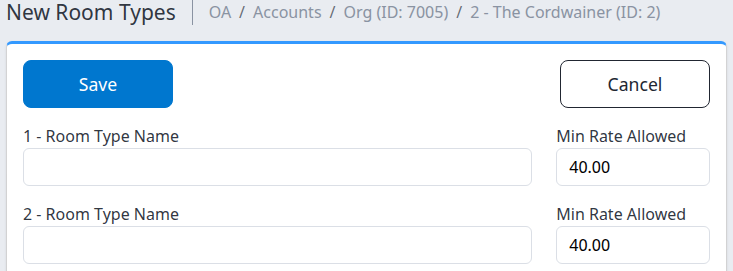
The first two rows of the ten-row form. The displayed 40.00 is the default, not a recommendation for every property.
- Enter one room name in 1 - Room Type Name.
- Enter its Min Rate Allowed as an explicit positive amount, using the decimal format shown in the box.
- Enter each additional room in a separate numbered Room Type Name box, up to ten rooms in this batch.
- Review the minimum amount beside every name you entered.
- Leave unused Room Type Name boxes completely empty. Do not enter spaces as a placeholder; unused minimum boxes can remain at their defaults.
- Check that each name is meaningful and is not already in the property's list or elsewhere in this batch.
- Click Save once.
Use Cancel instead if you do not want to create the batch. It returns to Property Edit without submitting these entries. It does not undo a batch you already saved.
Choose the minimum carefully
Min Rate Allowed is a safeguard used when validating rate updates for the standard room type. It is not a selling rate, and it does not raise a low rate to the minimum automatically. A rate below the threshold can be rejected. The check includes calculated net and sell rates, so check calculations as well as the amount originally entered when investigating a rejection.
The initial value is 40.00. A blank or zero minimum falls back to 40.00; neither disables the safeguard. Use a deliberate positive value appropriate to the room instead of relying on the fallback. An amount equal to the minimum is not below it, but other rate or channel validation can still reject an update.
If your property and channels use different currencies, confirm the appropriate minimum with support before saving. Do not assume the minimum is automatically converted with the rates. The property's room list displays the amount with the property's currency symbol; that display alone does not establish how a different-currency channel will validate it.
Check the result
After a successful save, you return to Property Edit with a saved-settings confirmation.
- Find Standard Room Types.
- Check that each intended room appears once, with its own ID and the expected Name.
- Check Min Allowed Rate for every new room. This is the saved minimum from Min Rate Allowed on the entry form.
- Open a room's name if you need to review its individual settings before using it.
- If you need more than ten rooms, verify this batch first, then use Add New for the next batch.
The list confirms the property's standard room definitions. It does not confirm that an OTA room exists, that channel mapping is complete, or that rates and availability have been delivered. Channel room setup and mapping are separate tasks; do not send inventory merely to make a missing mapping appear.
If Save fails or times out, inspect this list before trying again. Room creation can finish before a later setup step fails. Repeating the whole batch can add unwanted extra records. A missing confirmation is not proof that nothing was saved.
Field and control reference
| Field or control | What it does | Values and example |
|---|---|---|
| 1 - Room Type Name through 10 - Room Type Name | Adds one standard room type for each nonempty row. Surrounding spaces are removed from names. | Use a meaningful name such as Garden King. Leave unused rows fully empty; do not rely on automatic duplicate detection or whitespace-only validation. |
| Min Rate Allowed | Sets the minimum-rate safeguard for the name on the same row. It does not set a nightly selling rate. | Starts at 40.00. Enter a positive number in the displayed decimal format, for example 75.00 if that is your agreed safeguard. The control allows two decimal places. Blank or zero falls back to 40.00. Confirm mixed-currency setups with support. |
| Save at the top or bottom | Submits all ten rows as one batch and then returns to Property Edit on success. | Both buttons perform the same action. Click once, then check the returned room list. Master Image setup may also run as described above. |
| Cancel at the top or bottom | Returns to Property Edit without submitting the current form. | Use before saving if the batch should not be created. It is not a reversal of an earlier save. |
Common problems
You cannot open the page or save
Check that you selected the correct organization and property and have Org Admin access. The demonstration account does not allow this settings submission. If your normal account has the expected access but still cannot proceed, send support the page name and displayed error. Do not send passwords.
Save reports an error, times out, or returns an unexpected result
Open Property Edit again and check Standard Room Types before resubmitting. If all intended rooms are present, do not add them again. If the result is partial or unclear, stop and contact support with the property name/ID, intended room names, action time and time zone, and error text. Do not assume an error rolled back the entire operation.
The minimum shows 40.00 instead of blank or zero
Blank and zero do not switch off minimum-rate protection; they fall back to 40.00. Open the room's individual settings to review the saved value. Confirm the required positive amount with your team or support before changing it.
A rate update is rejected as below the minimum
Check the room's Min Allowed Rate, the intended rate, and any net/sell or room/rate-plan calculations. If currencies differ, ask support to check the comparison. Correct an accidental rate entry rather than lowering the safeguard to force it through. If the intended rate is valid but still rejected, provide the property, room, channel, affected dates, error text and relevant currencies to support before retrying.
You find an extra or duplicate room
Do not create another copy or delete a room merely because its name looks wrong. Check the IDs and any existing mappings first. If you cannot identify which record should be kept, ask support to review the property and room IDs before cleanup.