

Configure a property's standard room type, its minimum-rate setting, parent-room links and rate calculations, then check what was saved and whether any prices were updated.
Saving settings, recalculating stored rates and sending rates to channels are different actions. This editor can offer a recalculation-and-push option. Review that selection before saving; Save & Refresh is a save, not a preview.
Before you start
- You need Org Admin access and access to the intended property. The public demonstration login cannot save these settings.
- Confirm the room, intended source price and pricing changes with your revenue administrator. Standard room settings are separate from each channel's room mapping and inventory-send settings.
- If you intend to recalculate linked rates, confirm the saved parent room, its stored source prices and the affected rate plans first. Do not enable links or change channel setup merely to make a control appear.
Open and edit a standard room type
- Open the intended property's Property Edit page and check the property name.
- Find Standard Room Types, or use the Room Types section link.
- Click the room type's name. Confirm Standard Room Type Edit and the room name above the form.
- Review Room Type Name, Enabled and Min Rate Allowed.
- If applicable, review the parent mapping and each linked-data choice separately.
- Enter the four rate-calculation values and units you need. Use 0.00 for unused steps.
- Review the save-action selector under Rate Calculations, if shown, before choosing a save button.
Fields on this editor do not autosave. Save or discard your changes before following Add New, Edit or other navigation links.
Adding a room: the property's Standard Room Types → Add New link opens a separate room-creation page. After creating the room, open its name to complete these settings. If you are already on a new-room version of this editor, its button is Save & Continue; a successful save reopens the saved room here. Date-range and occupancy sections become available only after the room exists.
Basic room settings
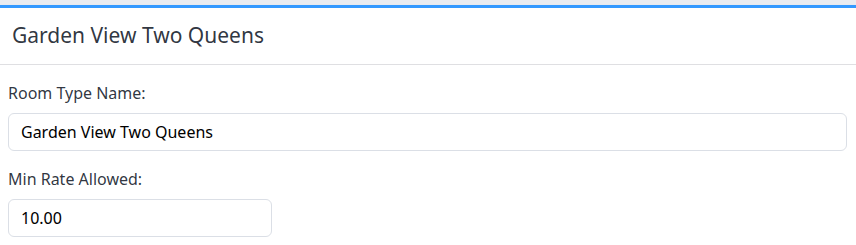
Example: Garden View Two Queens in the demo property. Its 10.00 minimum is an example, not a recommended minimum for your property.
| Field | What to enter or expect |
|---|---|
| Room Type Name | Required display name for this standard room. Leading and trailing spaces are removed. A blank or spaces-only name cannot be saved. |
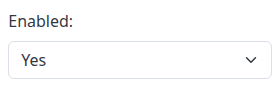
| Enabled | Yes marks this standard room enabled; No marks it disabled. This is not a Stop Sell command, does not delete the room and must not be used as proof that its channel inventory is closed or that every update path is blocked. |
| Min Rate Allowed | Enter an explicit positive amount. This setting is used in outgoing rate validation, including checks on calculated net/sell and additional rates. It does not automatically raise low prices to the minimum or correct previously stored prices. |
Minimum-rate boundary and reset behavior
The minimum comparison is below, not equal to or below. A positive rate equal to the minimum does not fail that minimum check; other rate and channel validation still applies.
Zero or a negative minimum becomes the system default of 40.00; it does not disable the minimum. Do not leave the field blank to remove the safeguard. Enter the intended positive value and reopen the room after saving to verify it.
Check actual calculated prices and any update errors as well as this setting. Do not treat it as an unconditional guarantee of the final price on every channel, or lower it merely to get an unexplained update accepted.
Parent-room links
The parent controls appear when there is another standard room type in the property. The current room is excluded from the parent choices.


In this example the parent mapping is blank. The three Yes selections alone do not establish a parent relationship.
| Field | Meaning |
|---|---|
| Parent Room Type Mapping | Select another standard room in this property as the source for the supported linked workflows. Leave blank for no parent. |
| Parent Room Type Linked Rates | Yes allows linked-rate behavior with the selected parent. It is also required for this editor's explicit parent-based recalculation. No disables that parent-rate link. |
| Parent Room Type Linked Availability | In Quick Update's parent-room population, Yes allows Allocation and Stop Sell values to populate the child. No excludes those fields from that parent-link population. |
| Parent Room Type Linked Restrictions | In Quick Update's parent-room population, Yes allows restriction fields, such as minimum nights and arrival/departure restrictions, to populate the child. No excludes those fields from that parent-link population. |
These are not a promise that every update received from a PMS automatically copies from parent to child. Their effect depends on the update workflow:
- Quick, Daily and Detail Updates: supported parent-rate changes can populate linked child-rate inputs. Review the populated rooms and plans before submitting the update. Population on those forms is not delivery.
- Calendar Update: an immediate parent-rate edit can also save and submit linked child-rate changes. Do not use a calendar edit as a harmless preview of the link.
- Recalculation from this editor: the conditional save actions below can derive stored child rates from the parent's stored master sell rates.
Turning a link to No stops that particular linked behavior; it does not itself configure or authorize independent PMS/channel updates. Confirm those mappings and the intended update method separately. Avoid circular parent relationships; do not assume selecting a parent validates the whole pricing chain.
Four-step rate calculations
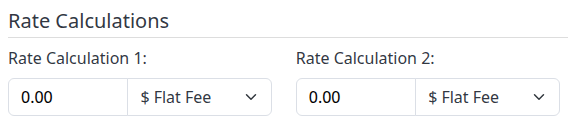

All four adjustments in this saved example are zero. These fields configure a calculation; they are not a preview of a selling price.
The steps run 1 → 2 → 3 → 4, each using the previous step's result.
| Control | Meaning |
|---|---|
| Rate Calculation 1 | First adjustment to the workflow's source price. |
| Rate Calculation 2 | Adjustment to step 1's result. |
| Rate Calculation 3 | Adjustment to step 2's result. |
| Rate Calculation 4 | Adjustment to step 3's result. |
| Flat Fee | Add a signed monetary amount; a negative amount subtracts. The selector shows the property's currency symbol. |
| % Percentage | Increase the current amount by that percentage; use a negative number for a discount. |
Enter numbers without currency or percent symbols. Calculation inputs support up to five decimal places. Use 0.00 for no adjustment at a step; clearing a value is converted to zero when its change handler runs, but explicit zero avoids relying on that behavior.
The property's Rate Rounding Setting applies after every step. Do Nothing still rounds to two decimal places. You can review that setting on Admin → Home → Channel Manager → Rate Calculations.
For example, with rounding set to Do Nothing:
- A source rate of 150.00 with 10 Flat Fee becomes 160.00.
- A source rate of 100.00 with -10 % Percentage becomes 90.00.
- From 100.00, -15 % Percentage followed by 25 Flat Fee gives 110.00. Reversing those two steps gives 106.25, so order matters.
These examples describe arithmetic, not live channel prices. Room calculations apply when the workflow derives a room price, such as populating from a global rate or recalculating from a linked parent. Entering a rate directly for a room does not mean its room markup is applied again. Rate-plan, occupancy and destination-channel calculations can affect later results.
Choose what saving should do
Conditional recalculation options
An additional save-action selector under Rate Calculations is available when the property has ChannelRUSH Master Image (CR Master) configured and the loaded room has both a parent mapping and Parent Room Type Linked Rates = Yes. Otherwise it is absent. Changing a parent selection on the open form does not dynamically reveal it; after an intended configuration change, save and reopen the room to review the available actions.
If the selector is already visible, clearing the parent or changing Linked Rates to No does not cancel a selected Push Live action. Choose No in the save-action selector before saving if you do not intend a refresh.
| Selection | Effect when you save |
|---|---|
| No | Save the settings without requesting this recalculation or push. This is the default choice when the selector is offered. |
| Yes - ReCalculate on Save | Save settings, then recalculate forward stored master sell rates for this child from available parent master sell rates. It also recalculates rate-plan sell rates for this room. It does not invoke this editor's channel-push action. |
| Yes - ReCalculate on Save & Push Live to OTAs | Save settings, perform the same recalculation, then initiate a master-rate refresh toward eligible configured inventory-send channels. Read the scope warning below before selecting it. |
Recalculation uses stored forward dates, not a date range selected on this form. Missing parent sell rates cannot supply a new child price. Matching dated overrides replace the normal room calculation for those dates. This is not a general recalculation of every occupancy price, allocation or restriction.
Push Live is broader than a single-room send. In addition to this room's rates, the refresh can include stored rate-plan prices for other rooms in the property. It targets eligible configured send channels, not a channel selection on this page, and uses the general master prices rather than preserving channel-specific price exceptions. Confirm the full property/rate-plan/channel scope with your administrator or support before using it. If you intend only a narrowly selected room, channel or date update, agree on a suitable update workflow instead.
The push requests a rate refresh; it is not an availability/restriction-copy action. Channel setup, mappings, inventory-send switches, supported fields and validation still determine which updates can proceed.
Save buttons and return destinations
| Button | Result after a successful save |
|---|---|
| Save | Save and return to Property Edit. |
| Save & Refresh | Save and reopen this room editor. Open the arrow beside Save to find it. |
| Save & Continue | On a new-room version of this form, save and reopen the newly saved room. |
| Cancel | Return to Property Edit without submitting current edits. It does not undo a previous save, recalculation or push. |
The save-action selection applies when the form is submitted; Save & Refresh does not bypass it. Settings are saved before optional recalculation and delivery work. An error or missing response later in the process does not mean the settings were rolled back. A “pushed live” confirmation can appear even if the refresh request failed to reach processing. It does not prove that update requests were created or that channels accepted them. Check stored prices and Update Status before retrying.
Date-range overrides and occupancy rules
These sections are available for an existing room. Save current room edits before opening a separate rule editor.
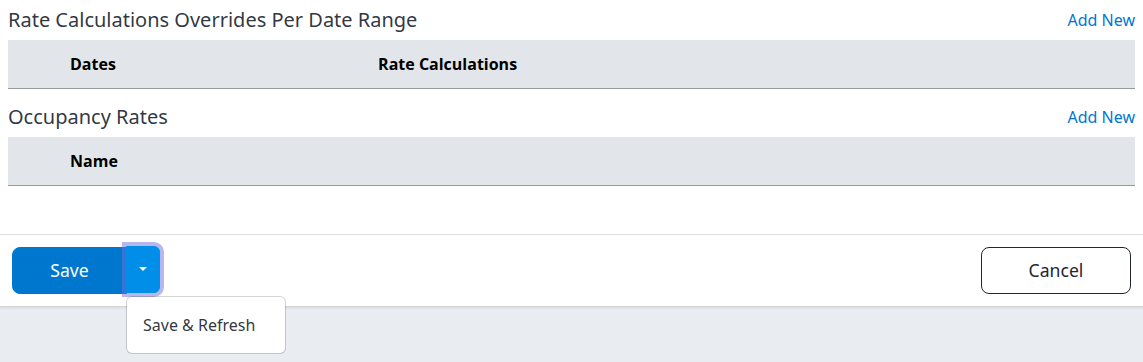
The demo room has no dated or occupancy rules listed. The expanded Save menu shows Save & Refresh; opening this menu does not submit the form.
Rate Calculations Overrides Per Date Range
The Dates column shows each saved interval and any selected-weekday pattern; Rate Calculations summarizes its four steps. Add New opens a separate rule editor, Edit opens that row, and Delete opens a confirmation page.
During the parent-based recalculation described above, a matching dated rule replaces the normal four-step calculation using the original source price. It is not an extra adjustment after the normal calculation. Outside the matching dates, the normal calculation still applies. Four zero steps leave an override in place; they do not delete it.
Use Set date-specific room-type rate calculations for dates, weekdays, overlap validation and deletion. Saving, shortening or deleting a dated rule does not itself recalculate stored prices, restore earlier dates or send updates. Return here to review any separately intended recalculation.
Occupancy Rates
This section also requires occupancy rates to be enabled at property level. Name identifies the configured occupancy type, with its calculation summary beside it. An empty table means no rules are listed here, not that channel occupancy prices are zero.
- Add New opens a separate occupancy editor with an occupancy type, enabled/population controls and up to six calculation steps. An API control is offered when the property has a qualifying inventory-receive connection.
- Edit opens the existing rule; Delete opens confirmation. The rule editors require Channel Manager Update - Rates or Settings permission.
- In those separate editors, Save returns to this room when opened from here; Save & Refresh stays in the rule editor. Their saves change configuration, not an immediate recalculation or channel push.
Confirm the occupancy type and calculation basis before changing a rule; an occupancy-total price is not an extra-person supplement. Reopen the rule after saving to check it. Do not assume that changing the main room rate recalculates every occupancy price.
Check the result
- Check the save confirmation. If you returned to Property Edit, review the room's Rate Calculations, Min Allowed Rate and Linked columns under Standard Room Types.
- Reopen the room and check its name, enabled value, minimum, parent mapping, all three link choices, and all calculation values and units. A form redisplayed with typed values alone is not proof of persistence.
- If you requested recalculation, open Reports → Rates & Availability and use List View for the intended master source, rooms, plans and dates. Load the report after changing its criteria and compare the stored prices with the intended result.
- If you requested a push, open Updates → Status. Choose the destination and relevant dates, leave Status = All while following changing results, and click Search. Review request details and messages. Remember the push can include other rooms' rate plans; do not limit your check to this room alone.
Use Investigate inventory update status for filtering and interpreting the results. Settings saved, stored master rates changed, an update recorded, and a channel accepting that update are separate checks. A blank report or empty status search does not prove that nothing changed or that delivery succeeded.
Common problems
| Symptom | Check and safe next action |
|---|---|
| The minimum reopens as 40.00 | Zero and negative values resolve to the default. Enter the intended positive amount, save and reopen. Escalate an unexpected change to another positive amount. |
| The form remains open or saving fails | Check the required name and numeric entries, particularly a blank minimum or symbols in number fields. Saved occupancy and dated rules are also validated; review a named rule rather than changing unrelated pricing. Reopen to establish saved state before retrying an unclear response. |
| No parent controls | They require another standard room in this property. Confirm the property and room list. |
| No recalculation selector | It requires CR Master plus a loaded parent mapping with linked rates. A blank parent with Yes link flags is not sufficient. Do not change setup merely to reveal the selector. |
| No date or occupancy section | Save a new room first. Occupancy additionally requires the property feature. Ask your administrator to review the intended setup. |
| Prices did not change after saving | A settings-only save does not recalculate existing prices. If you selected recalculation, verify parent source prices, dates and rule eligibility. Do not repeatedly save or select Push Live as a diagnostic shortcut. |
| A rate fails a minimum check | Review the source and calculated prices, units, discounts, additional rates and destination currency. Do not lower the safeguard without understanding the failing price. |
| A push confirmation appears but prices are missing or wrong | Check stored prices and Update Status, including other rooms/rate plans within the refresh scope. Do not repeat the push blindly; some work may already have completed. Ask support to establish scope and outcome before retrying. |
| Access or a save is refused | Confirm Org Admin/property access. The public demo login cannot save. Separate rule editors also enforce their pricing permissions. Do not bypass the restriction through another screen. |
For support, include the property, room and parent, affected plans/channels/dates, exact error, action time and time zone, save button and recalculation choice, plus expected and observed prices. Do not send passwords, payment details or guest information.