

Choose which inventory source supplies each group of destination channels for a property.
An inventory group connects one source, such as a PMS, to selected Inventory Targets. Use groups when a property needs separate inventory sources for different destinations. This is a routing configuration, not a room-type group or an instruction to send inventory immediately.
Before you start
- You need Org Admin permission and access to the property.
- Add the source and destination channels to the property first. The source must support inventory receipt or inventory monitoring; targets must support inventory sending. Appearing in this editor does not mean a connection is enabled, mapped or ready to process inventory.
- Agree which source owns each destination before changing the groups. Review every existing group for the property, not only the one you are editing.
- If you are changing an operating property's inventory sources, coordinate the change with your administrator or ChannelRUSH support. Do not use an empty group or deletion as a general-purpose stop-updates switch.
Understand the routing change
These rules apply to inventory processing that uses the property's group routing. Other connection settings, mappings and processing rules still apply.
| Configuration | Effect |
|---|---|
| A source has an inventory group | That source can route inventory only to the targets selected in its group. |
| A source has a group with no selected targets | Group routing excludes every target for that source. No selection does not mean all channels. |
| A source has no group | It cannot route through this mechanism to a target assigned to any group. Targets outside all groups remain subject to the normal processing rules. |
| A target is selected in two different source groups | Both sources can pass the group-routing check for that target. This does not create source priority or automatic failover. |
Grouping also changes participation in general master-inventory synchronization. Do not assume grouped channels continue using the same general master-image paths. Grouped targets are omitted from Quick Update's direct channel-selection list; this is not a blanket prohibition on every manual-update workflow.
Removing a target is not necessarily a stop. If you remove it from its last group, sources outside all groups can become eligible to update it again. Check the intended ownership before adding, clearing or removing a target.
Open the inventory-group editor
- Select the correct property.
- Open Org Admin → Property Edit.
- Find Inventory Groups, below the channel-manager settings and restrictions.
- Review the existing Source and Targets rows.
- Select Add New to create a group, or Edit on the group you want to change.
The editor heading is Inventory Group Edit. A new group shows New Inventory Group. Confirm the property in the breadcrumb before entering anything.
Create a group
Changes are submitted only when you select Save or Save & Refresh. Selecting a source or checking a target prepares the form; it does not save the routing configuration.
- Under Inventory Source, choose the intended Source Channel. A new group starts with a blank source.
- Under Inventory Targets, select the channels that should receive inventory from that source. A new group starts with no targets selected.
- Review the complete target list. Use All Inventory Targets only when every listed destination belongs to this source. It selects the list when partly or wholly clear, and clears it when all are selected.
- Check the selected count and each checked channel against your intended routing. A count is form feedback, not confirmation that anything has been saved.
- Select Save once.
Choose an explicit source. A blank source is not “all sources” and is not a fallback source. The form can accept a blank source or an empty target list; do not rely on validation to prevent a configuration that stops the intended routing.
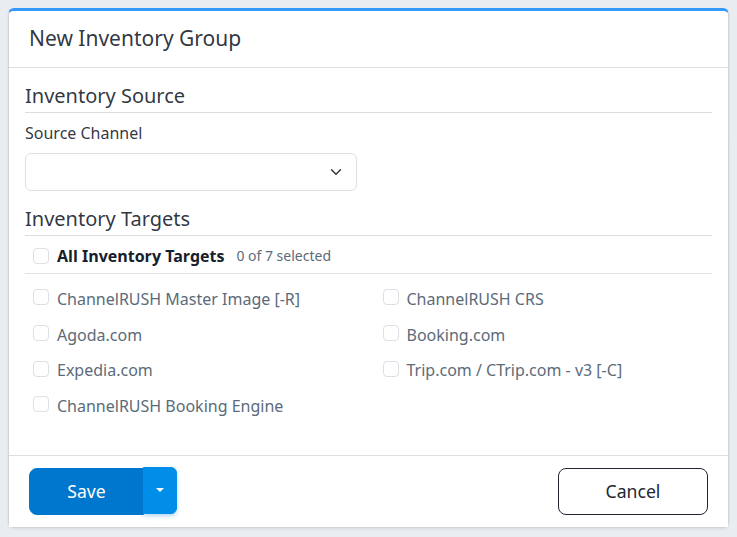
New-group form in the demo property. Its empty source and unchecked targets are the starting state, not a recommended saved configuration. Your channel choices can differ.
Save returns to Property Edit, at Inventory Groups. To save and stay in the editor, open the arrow beside Save and select Save & Refresh. This refreshes the editor; it does not request a fresh inventory pull or send.
Cancel returns to Property Edit without submitting the group form. It does not undo a previous save.
Change an existing group's targets
- Open Property Edit → Inventory Groups for the same property.
- Select Edit on the intended source's row.
- Confirm Source Channel. For an existing group it is displayed as text, not an editable dropdown.
- Check or clear the intended Inventory Targets.
- Review the other groups before saving if a target is being reassigned. Overlapping target selections do not establish priority, and removing the last group assignment can broaden routing from ungrouped sources.
- Select Save, or Save & Refresh if you want to remain in this editor.
You cannot replace the source of an existing group here. Do not delete and recreate a group as an improvised source-switch procedure; agree the change sequence with support first.
Check the result
- Read the save result and any warnings.
- On Property Edit, find the group under Inventory Groups.
- Check its Source and complete Targets list.
- Select Edit again and confirm the source and checked targets match the intended saved configuration. After Save & Refresh, you can inspect the reloaded editor directly.
The property list shows:
| Column or action | Meaning |
|---|---|
| ID | Contains the group's Edit link; it does not display a numeric group ID. |
| Source | The source assigned to the group. [BLANK] means no source is assigned, not all sources. |
| Targets | The destination channels assigned to this group. |
| Edit | Opens that group's target-selection form. |
| Delete | Opens a separate deletion confirmation. It is not a pause control. |
Saved configuration is not delivered inventory. Saving this editor does not itself queue an inventory update or prove that a channel accepted anything. Once normal inventory processing occurs, investigate the relevant requests using Update Status. Follow that guide's filter and Search steps; an empty result is not proof that the routing is correct. Do not send a test update or repeat a configuration change merely to obtain a status row.
If a save times out or the outcome is unclear, reopen the group list before retrying. Confirm whether the group and target changes already exist.
Field reference
| Field or control | What it changes or shows | Important details |
|---|---|---|
| Source Channel, new group | Chooses one of this property's inventory-receive or monitoring channels. | Starts blank. Select the named source you intend to use. Only one group per source is permitted within the property. Adding a group does not enable the source or change its inventory-receive mode. |
| Source Channel, existing group | Shows the saved source. | Read-only. [NOT SET] means no source is assigned. Ask support to review that configuration before changing its targets. |
| Inventory Targets | Chooses the destination channels assigned to this source. | The list contains this property's inventory-send channels. A checkbox does not establish that the destination is enabled, mapped or accepting updates. Clearing every target blocks this source's group-routed destinations. |
| All Inventory Targets | Selects or clears the target checklist. | Changes the unsaved form only. Review individual targets afterward. |
| Selected count | Shows how many targets are checked. | Not a save, processing or delivery result. |
| Save | Saves the group configuration and returns to the property list. | Inspect the saved source and targets afterward. |
| Save & Refresh | Saves and reloads this group editor. | Does not refresh or resend channel inventory. |
| Cancel | Leaves the editor without submitting the current group form. | Does not reverse previously saved changes. |
Common problems and safe recovery
| Symptom | What to check | Safe next action |
|---|---|---|
| The page is unavailable | Org Admin permission and property access. | Ask your administrator to confirm access. Do not change URL identifiers to open another group's record. |
| The expected source or target is missing | Whether the connection is attached to this property and supports the required receive/monitoring or send capability. | Return to the property's channel list. Ask your administrator or support to check the connection; do not substitute a different source to make the form save. |
| A duplicate-source validation error appears | Another group already uses that source in this property. | Return to Inventory Groups and edit the existing group. If the expected group is not visible, ask support to inspect it rather than repeatedly creating groups. |
| A warning says the source is set to InventoryReceiveMode = Off or InventoryReceiveMode = OnQueued | The source's separate connection mode. | Saving this group does not change that mode. Ask your administrator or support to confirm the correct mode and source ownership before expecting automatic distribution. |
| The source shows [NOT SET], or the property list shows [BLANK] | The group has no named source. | Do not interpret it as an all-source group. Ask support to review the intended routing before editing or deleting it. |
| A source no longer updates the expected targets | The group's checked targets, assignments in other groups, and the independent connection setup. | Read back the configuration first. If ownership is unclear, stop changing it and provide support with the source and intended targets. |
| More than one source can update a destination | The destination may be selected in multiple groups. | Review all group assignments with the administrator. Do not assume the first displayed source wins. |
| A channel disappears from Quick Update selection | It may now be assigned as an inventory-group target. | Confirm the intended update workflow with your administrator; do not remove its group merely to restore that checkbox. |
| The page errors after a save, or a saved link no longer opens | The configuration may have changed, or the group may no longer exist. | Return through Property Edit and reopen the current group row. Verify saved state before another submission; escalate if the result remains unclear. |
Before deleting a group
Deleting a group removes its routing assignments; it does not switch off the destination channels. It can broaden eligibility for sources or targets that are no longer grouped.
Deletion can also change the removed group's source to OnQueued when the property has multiple receive/monitoring channels running in On or OnDeltaOnly mode. The group deletion and that connection-mode update are separate saves. An error does not guarantee the group still exists or that both changes succeeded.
For a source replacement or retirement, ask support to agree the routing and source-mode changes first. If a confirmation heading does not match the inventory-group action, cancel and report the mismatch instead of confirming. After an uncertain deletion, have support verify both the group and source mode before repeating anything.
When contacting support, include the property, group ID if available, source channel, intended targets, action time and time zone, and exact warning or error. Do not include passwords, payment details or guest information.