

Use the Channel Settings report to review a property's saved channel configuration and identify room or rate mappings that need attention.
The report does not edit configuration or send inventory. Its counts, badges and green checks describe stored settings—not a live connection test, successful inventory delivery or acceptance by a channel.
Before you start
- Sign in with access to the property you want to review.
- Select that property before opening the report. Check its name above the results.
- You do not need settings-edit permission to read this report. Changing configuration through a Settings shortcut requires the appropriate editing permission.
Open and review the report
- Open Reports.
- Under Diagnostics, select Channel Settings.
- Check the property name above Channel Configuration Overview.
- Review the overview for channels and mapping gaps.
- If Channels is available, open it and select the channels you want to inspect.
- Review each visible channel's status, Hotel ID, Setup value and Mapping record timestamp.
- Read Key Settings, then inspect Room Types & Rate Plans for Unmapped, Invalid Mapping or Not Setup entries.
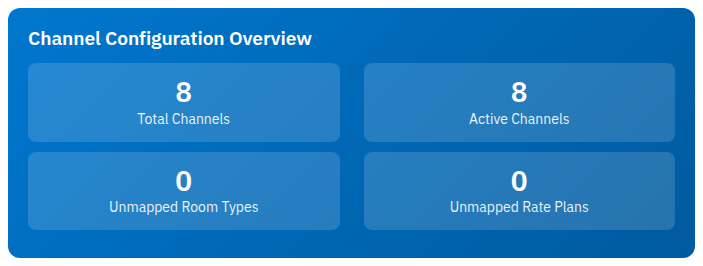
The overview always covers the property's included channels, even when the Channels filter hides some cards.
Filter channels
The Channels dropdown appears when the report has more than one channel. Every channel starts selected.
- Selecting a subset immediately hides the other channel cards. There is no Search or Apply step.
- Select all checks every channel if any are unchecked. Clicking it when every channel is checked clears the checkboxes.
- No checked channels means no filter: all cards are shown. It does not mean an empty result.
- The overview counts and attention message do not change with this filter.
- Reloading the report or opening New window starts with all channels again. The current checkbox selection is not preserved.
Expand details
Channel and room details start expanded. Click a channel heading to collapse or reopen its body. Click a configured room's heading to collapse or reopen its rate plans and room settings.
Toggle Details hides or shows the entire Room Types & Rate Plans list for that channel. These controls only change what is visible; they do not change setup or mapping counts. A yellow Unmapped room entry has no expandable rate-plan details.
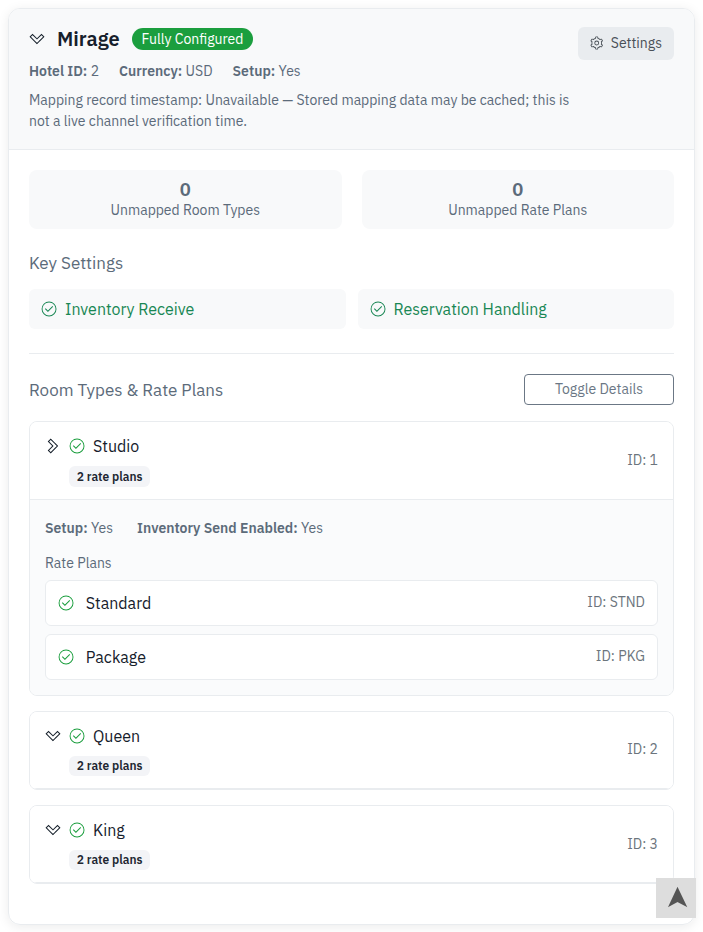
This example shows the channel's saved settings and room/rate IDs. Fully Configured is not confirmation that every flow is enabled or has succeeded.
Open the relevant settings
Each channel card has a Settings link to that channel's configuration for the same property. The booking-engine card also has CRS Settings.
These links open editors in the same tab. They are navigation shortcuts, not repair or retry buttons. Do not change mappings solely to remove a warning: first confirm the intended room, rate plan and channel IDs. Only someone with the appropriate permission should save changes.
After an authorized configuration correction, return to Reports → Diagnostics → Channel Settings and review the affected card again. A report reload reads stored configuration; it does not request a fresh mapping catalog from the channel.
Open a separate report window
Click New window to open a navigation-reduced report in another tab or window, depending on your browser. The original report remains open. The new view keeps the property context, but not your current channel checkbox selection or collapsed sections.
This report does not offer spreadsheet, CSV, PDF, clipboard or scheduled-email controls. There is no date range or historical view.
Check the result
For each channel you intended to review:
- Confirm the Hotel ID and room/rate ID values match the intended channel products. A nonblank ID alone does not prove that it is the correct target.
- Check the status and any Invalid Mappings, Unmapped Room Types or Unmapped Rate Plans counts.
- Expand the relevant rooms and read their own Setup and Inventory Send Enabled values. A channel badge does not replace these checks.
- Read Mapping record timestamp before treating the catalog comparison as current. Unavailable or zero reported issues is not a successful live channel check.
A clean-looking report establishes only what this stored-configuration view checks. It does not confirm that rates or availability reached the channel, reservations were handled successfully, or the channel is selling. Verify those outcomes separately in the relevant operational records or with the channel.
Field reference
Property overview
| Field | What it means |
|---|---|
| Total Channels | Number of channel cards included from the property's saved settings. It is not the number of all channels available in ChannelRUSH. |
| Active Channels | Included channels whose property-channel setup flag is on. It is not a count of successful connections or recently active channels. |
| Unmapped Room Types | Stored channel-catalog rooms with no matching local room setting for that channel ID. This is a channel-catalog-to-ChannelRUSH comparison, not a list of every property room missing a channel target. |
| Unmapped Rate Plans | Stored channel-catalog rates missing from a matching configured room. Rates beneath a wholly unmapped channel room are not included in this count. The same rate across different rooms or channels can contribute more than once. |
| Attention message | Appears for unmapped rooms, unmapped rates or invalid room mappings. It can therefore appear with both overview unmapped counts at zero. Check the channel cards for Invalid Mappings. |
Channel status badges
The report uses the first applicable status in this order:
| Status | Meaning |
|---|---|
| Not Setup | The channel's saved settings are not marked as set up. This badge takes precedence over mapping warnings. |
| Invalid Mappings | At least one configured room ID is missing from a nonempty stored channel room catalog. |
| Incomplete | No invalid-room finding takes precedence, but there are counted unmapped rooms or rates. |
| Fully Configured | Channel setup is on, there are no counted mapping issues, and at least one room is counted as mapped. |
| Setup | Channel setup is on with no counted issues, but no rooms are counted as mapped. |
Fully Configured is a limited structural result. It can coexist with disabled sending or handling, rooms or rates marked Not Setup, no mapped rates, or unavailable channel-catalog data. Rate IDs are not checked for an Invalid Mapping state.
Channel header and counts
| Field | What it means |
|---|---|
| Channel name | The channel whose saved settings are being shown. |
| Hotel ID | The hotel's identifier on that channel, not necessarily its ChannelRUSH property ID. Not Set means the saved channel hotel ID is blank. |
| Currency | Saved currency code for the channel configuration. Omitted when blank; it does not indicate a currency conversion. |
| Setup: Yes/No | Property-channel setup flag. The status badge uses the channel's saved settings and additional mapping rules, so read both rather than treating them as one health indicator. |
| Mapping record timestamp | Timestamp of the stored mapping record, shown with its recorded offset. Unavailable means no usable mapping-record timestamp is available. Stored mapping data may be cached; this is not a live channel verification time. |
| Unmapped Room Types | This channel's catalog rooms without matching local settings. Always shown, including zero. |
| Unmapped Rate Plans | This channel's catalog rates without matching settings beneath already matched rooms. Always shown, including zero. |
| Invalid Mappings | Count of configured room IDs absent from a nonempty stored channel room catalog. The tile appears only when the count is above zero. An absent or empty catalog skips this validity check; it does not confirm the IDs are valid. |
Key Settings
These are display-only indicators, not editable switches. A green check means the saved setting is enabled; a red cross means it is off. An omitted indicator is different from a displayed red cross.
| Indicator | What it means |
|---|---|
| Inventory Send | Saved channel-level inventory-send flag. Shown for channels with inventory-send capability. It does not prove an update was delivered. |
| Inventory Receive | Whether the saved receive mode is anything other than off. Shown for channels with inventory-receive capability. The indicator does not distinguish the enabled receive modes. |
| Reservation Handling | Saved reservation-handling flag. It does not show destinations, queue results or successful booking processing. |
| Content Send | Saved content-send flag. Shown for channels with content-send capability. It does not prove content delivery. |
Other channel and product requirements can affect operation even when an indicator is green.
Room types
| Field or state | What it means |
|---|---|
| Room name and ID | Saved room name and channel room ID. On yellow Unmapped rows, these come from the stored channel catalog. |
| Unmapped | A room exists in the stored channel catalog without a matching local room setting. No nested rate list is shown for that room. Confirm whether it should be distributed before treating its absence as an error. |
| Invalid Mapping | A configured room's channel ID is absent from a nonempty stored channel catalog. This state takes precedence over Not Setup. |
| Green check / Not Setup | When there is no invalid-room finding, the icon reflects the room's setup flag: green for on; a gray minus and Not Setup for off. |
| N rate plans | Number of local rate-plan settings for the room, including settings with blank channel rate IDs that are not displayed below. It can differ from the number of visible rate rows. |
| Setup: Yes/No | Saved room-level setup flag. |
| Inventory Send Enabled: Yes/No | Saved room-level inventory-send flag, separate from the channel-level setting. |
| Allocation: n% | Saved allocation percentage, when present. It is not available-room inventory. Its display alone does not establish that the percentage is applied to every update or property. Omission is not a displayed zero. |
Locally configured rooms with blank channel room IDs are omitted from the room list. The report is therefore not an exhaustive checklist of every property room or virtual product.
Rate plans
| Field or state | What it means |
|---|---|
| Rate-plan name and ID | Saved rate-plan name and channel rate ID. Yellow Unmapped entries use the stored channel-catalog name and ID. |
| Unmapped | A rate exists in the matching stored channel room catalog but has no local rate setting for that ID. |
| Green check | The local rate's setup flag is on. It does not verify that the ID still exists on the channel or that prices have been accepted. |
| Gray minus and Not Setup | The local rate's setup flag is off. |
Local rates with blank channel rate IDs are omitted. There is no separate invalid-rate-ID check, so a stale nonblank rate ID can still appear without a warning.
Common problems
No channels are shown
No Channels Configured means the report has no channel settings to display for the selected property. Check the property name first. If channels should already exist for that property, ask your administrator or support to check its channel configuration. Clearing every checkbox is not how to produce this empty state; that shows all included cards.
The Channels dropdown is missing
It is not shown for zero or one included channel. Review the available card, or confirm that you selected the intended property if you expected more channels. Escalate if expected configured channels are missing.
The overview does not match the visible cards
The overview is property-wide; the dropdown only hides cards. Select every channel to compare the full set. If the attention message appears with zero unmapped counts, inspect Invalid Mappings on the cards.
Fully Configured appears beside disabled or Not Setup details
The badge does not test every operational flag or every child setup state. Review Key Settings, room setup and rate setup separately. Ask an authorized administrator to investigate any mismatch with the intended configuration; do not use the badge as a delivery result.
A mapping looks wrong or the timestamp is unavailable
Confirm the property, channel, Hotel ID and affected room/rate IDs. Compare them with the products you intend to use. The report compares stored data and cannot determine whether a chosen ID is the intended product. An old or unavailable mapping record can also limit the comparison.
Use Settings to inspect the relevant configuration if you have access. Reloading the report is safe for viewing stored settings, but is not a forced channel refresh or repair. If the expected mapping remains unclear, ask support to review it before changing IDs.
A room or rate list is empty, or its count looks different
No room types have been mapped for this channel yet. appears when neither local room settings nor stored channel rooms are available. No rate plans configured for this room type. appears when neither local nor matching catalog rates are available.
Blank-ID local entries are hidden, while the room's rate-plan count includes them. An empty-looking rate list can therefore have a count without the empty-state message. Check configuration through an authorized administrator rather than assuming that every underlying setting is absent.
You can read the report but cannot save in Settings
Report access and settings-edit permissions are separate. Ask your organization administrator to confirm who is authorized to make the change. Do not attempt a broader edit to work around a permission restriction.
What to send support
Provide the property, channel, relevant hotel/room/rate IDs, displayed status or warning, and Mapping record timestamp. Include when you observed the issue and your time zone if timing matters. A focused screenshot can help. Do not send passwords, payment details or unrelated guest information.