

Use Report Status to find properties and channels with pending or unsuccessful inventory-report requests, then open the matching requests for investigation.
These are requests to retrieve inventory information. They are not outbound rate or availability updates, reservation deliveries, or scheduled email reports. Refreshing this screen reloads stored request counts; it does not ask a channel for new inventory.
Before you start
- Sign in to the correct organization and select a property you can access.
- This portfolio report requires organization-administrator access in a distributor or PMS Connect partner organization. Being an administrator of an ordinary property organization alone does not provide this access. If the report is refused, ask your organization administrator or ChannelRUSH support to confirm your account's scope.
- The property selected in the application header provides navigation context. It does not restrict this report to that property: the report covers eligible properties in your organization's distributor portfolio.
Open and filter the report
- Open Org Admin.
- Open Reports.
- Under Inventory, select Report Status.
- Choose a Status. The initial selection is Unsuccessful.
- Choose a Channel, or leave Select ... to avoid narrowing by channel.
- Click Refresh.
Check that the status heading above the table matches your selection. Changing a dropdown without clicking Refresh does not reload the results.
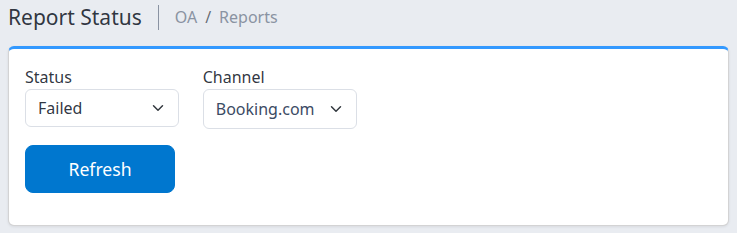
Choose the status and channel, then click Refresh. The example shows filter controls, not evidence of a failed request.
Read the results
Each row represents one organization, property and channel combination. Rows with the largest request counts appear first.
| Column | What it means |
|---|---|
| # | Number of matching inventory-report requests for that combination. It is not the number of properties, inventory dates, rooms or processing attempts. |
| Channel | The channel associated with those requests. Select its name for the narrowest request investigation. |
| Hotel | The property. Select its name to inspect requests for that property across channels. |
| Org | The property's organization. Select its name to inspect requests across that organization. |
The report includes matching unarchived requests for active properties and active organizations with an existing property/channel connection. It does not apply a date window, so older retained requests can contribute to the count. It is not a daily total or a complete historical archive.
There is no date filter, export control or automatic retry on this page. Use the request details screen when you need date filters or an individual request's message.
Status reference
| Status | Meaning and next check |
|---|---|
| Pending | The request is awaiting processing. Open its details to review when it was created and its recorded state. |
| Processing | The request is recorded as being processed. This does not confirm completion or establish a completion deadline. |
| Unsuccessful | Processing did not succeed. Read the request's available status message before deciding what to correct. |
| Failed | Processing encountered an error. Review the available message and involve support when the cause or recovery action is unclear. |
Unsuccessful and Failed are separate selections here. Selecting Unsuccessful does not include Failed. Check both when investigating problems. The label alone does not establish whether the cause is configuration, a connection problem or something requiring support.
This summary does not offer Successful or All. An empty table means no requests match this summary's current status, channel and scope. It does not prove that inventory was retrieved successfully, that the channel has current inventory, or that an earlier problem was resolved.
Investigate a matching request
- Select the row's Channel name. The request list opens in a new tab, leaving the summary available.
- Confirm that the page is Report Requests - Processing Status.
- Check Property, Organization when shown, Status and Channel before interpreting the results.
- If you need to narrow the list, choose the relevant filters and click Search.
- Review the matching request's ID, covered dates, status and available message. Record the property, channel and request ID before contacting support.
The summary's links deliberately carry different scopes:
| Link you select | Scope opened in the request list |
|---|---|
| Channel | That organization, property, channel and status. |
| Hotel | That organization, property and status; the channel restriction is removed. |
| Org | That organization and status; both property and channel restrictions are removed. |
Consequently, a Hotel or Org link can show more requests than the row's # count. The request list also has broader search options than the summary. Check its selected filters rather than assuming every total is directly comparable. Counts can change while requests are processed.
Useful investigation filters
- Status: The request list also offers Successful and All. Choose the state you need, then click Search. The summary's Unsuccessful and Failed selections remain distinct on this list.
- Stay Dates: Narrow by the inventory dates covered by the request. These are not its creation or processing timestamps.
- Date and Time: Choose Created or Last Run and enter the relevant range. The page states your time zone. Without a time, a selected day includes the whole day.
- Request ID: Find a known request within your accessible scope. An exact ID takes precedence over ordinary status, channel and date restrictions; check the returned request's identity rather than relying on those other filter values.
- Room Type, Rate Plan and Requested By: Narrow the request list when the available choices match your investigation.
Use Search, not Go, to apply filters. Go belongs to request actions such as retrying or archiving. Those actions are separate from reviewing the report; do not use them merely to refresh the screen or make a count disappear.
The request list's Created timestamp identifies request creation. Last Run is the recorded request-update timestamp and can change with status changes; it is not proof that a channel retrieval completed. An Attempts value is also not proof of that many completed channel calls.
This summary excludes archived requests. The request list has an Include Archived Reports option, but archived records are outside the summary's counts. If you investigate archived history, recheck the checkbox and returned scope after every search or page change; do not assume it remains selected.
Check the result
After Refresh, confirm the retained filters and the status heading. If rows appear, use the Channel link to inspect the narrowest matching request list. After changing that list's filters, click Search and check the Filtered by labels and the results together.
A pending or processing request is not a completed retrieval. An unsuccessful or failed record is evidence of that recorded outcome, not a diagnosis by itself. A row disappearing from this summary is not proof of recovery: its status, archive state, property eligibility or connection may have changed.
Do not treat a successful inventory-report request as proof that a separate outbound inventory update or reservation delivery succeeded. Investigate those workflows in their own status pages.
Common problems
The report link is visible, but access is refused
The Reports menu can expose the link even when your account does not have the required distributor-portfolio access. Confirm the signed-in organization and ask your organization administrator or support to check your access. Do not switch to an unrelated organization to work around the restriction.
The table is empty
Check the selected Status and Channel, then click Refresh. Clear the channel selection back to Select ... when you want all matching channels, and check Unsuccessful and Failed separately. Archived requests and inactive properties or organizations are excluded. If you expected a particular request, investigate its ID in the request list or ask support; an empty summary is not a success confirmation.
A channel is missing from the dropdown
The available choices depend on your organization's channel configuration. A missing choice does not prove that no report requests exist for that channel. Leave Select ... and refresh, or ask support to check the connection and request scope. Do not add or change a channel connection solely to populate this dropdown.
Counts differ after opening a row
Check which link you used. Hotel removes the channel restriction; Org removes both property and channel restrictions. Also check the request list's status, dates and archive selection. Requests may have changed state between the two page loads. Escalate with the summary filters and a specific request ID if a difference remains unexplained.
A request stays pending, processing, unsuccessful or failed
Refresh the summary and inspect the request's recorded status and message. This page does not give a processing-time guarantee or establish that retrying is safe. If the message does not make the next action clear, contact support with the organization, property, channel, request ID, affected inventory dates, observation time/time zone and error text. Do not include passwords, payment details or unrelated guest information.
Related
- Check inventory update status across properties — for outbound inventory updates rather than report-retrieval requests.
- Investigate inventory update requests across properties — for the separate update-request investigation workflow.