

Compare stored rates, availability and restrictions for selected properties and sources, then inspect the results in a list, spreadsheet or CSV file.
Before you start
- Open Org Admin → Reports → Rates & Availability. The page heading is Org Admin - Rates & Availability Report.
- You need access to the properties you want to compare. Org Admin navigation can also be available to users with multiple properties; the menu name does not mean that every property is accessible to you.
- Check the Properties list rather than assuming the property in the top navigation is your only selection. Your account may offer properties across an authorized organization portfolio.
- This report compares stored source data. A ChannelRUSH master value, a PMS value and a channel report value are different representations. Matching values, a green indicator or a recent-looking timestamp do not confirm channel acceptance or current retail bookability.
Build a comparison
- Open Org Admin → Reports → Rates & Availability.
- Set Date Range to the stay dates you want to inspect. Both endpoints are included. You can use Month / Year to fill a whole month.
- Select the required Days. Leave all seven selected for every date in the range.
- Under Data To Display, select Rates, Availability, Restrictions, or a combination.
- Under Properties, select only the properties you want. Use the group checkbox to select the whole group or clear a fully selected group, then choose individual properties.
- Under Rate Plans, select the shared rate-plan codes you want to compare. Select Unmapped if you also need channel plans that have no mapped property rate plan. Clear all plans only when you want room-level rows without rate-plan rows.
- Select sources under PMS and Channels. For example, select ChannelRUSH Master Image and a channel to compare the internal master with stored channel-report data. You need at least one source across the two groups; you do not need a selection in each.
- Check the selection counts and summary at the bottom of the form.
- Choose List, Excel or CSV.
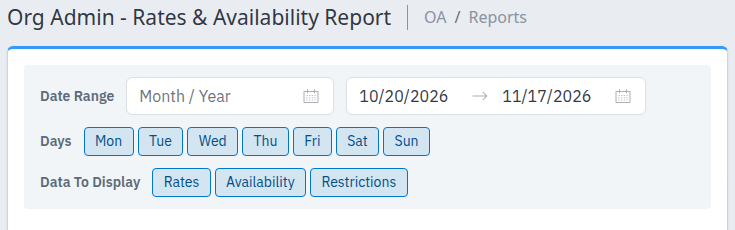
The date and data controls apply to the properties and sources selected below them.
List and Excel open a separate tab or window. Excel opens a read-only spreadsheet; it is not an immediate Excel-file download. CSV downloads a file directly. When you select more than 10 properties, this form changes a List or Excel request into a CSV download instead.
Checkbox selections are remembered in the same browser for your user and current property context. They can replace the initial defaults when you return. The date range is not remembered by that checkbox mechanism. Recheck the summary before each run.
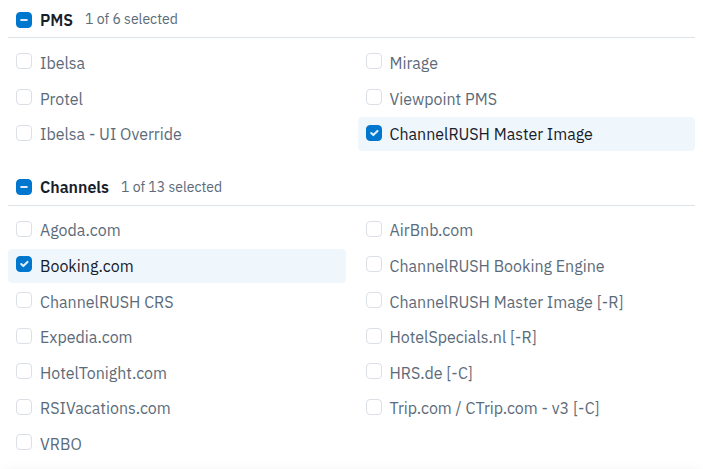
Sources are combined across the properties offered by the form. A checked source contributes data only for properties where that source is configured and applicable.
Check the result
- Confirm the expected property headings in List, or PropertyId and PropertyName in Excel/CSV. Use IDs when property names repeat.
- Confirm the loaded dates, weekdays and sources. The result must match the submitted selection, not merely a newly checked box.
- Check both room-level and rate-plan rows. They are not interchangeable. An unmapped channel plan can have channel-plan details without a property rate-plan ID.
- Confirm that the expected data columns are present. Unchecked data groups are removed from the output, including exports.
- Investigate missing or unexpected values using the guidance below. An empty report, blank value or available indicator does not establish that an update reached a channel.
No currency column or automatic currency conversion is provided. Check that the property and source currencies are comparable before comparing amounts across properties.
Change a loaded report
List and Excel use a report toolbar without the main application navigation.
- Change the dates, then click Load. Choosing a month changes the pending range; it does not load it by itself.
- Open All Channels, Room Types, Rate Plans, Data or Days, change the choices, then click Apply — reloads report. A changed checkbox or count alone is not a loaded result.
- Apply and Load submit all pending toolbar choices together, not only the dropdown or dates beside the button you clicked.
- Use View → List / Excel / Grid to change presentation, or Download → CSV to download. If you have pending filters, the report asks Apply pending filters before continuing? Choose Apply and continue to carry them into the destination, or Cancel to dismiss that continuation.
- New window opens another report window. It is not shown on an already opened new-window copy.
- Return to the original organization form to change the property set. The result toolbar has no property chooser.
For multiple properties, source, room and plan choices can be grouped by property. Repeated choices for the same source stay synchronized; they are not independent on/off switches for that source at each property. The originating form selects plans by shared code, while the result toolbar selects specific property rate plans.
Optional Live Read
If the result toolbar offers All Live Read, it requests data from the selected supported source rather than reading only the stored comparison data. It is a separate operation, not another name for the normal All Channels filter.
Live Read is limited to one property, and that property must be the current property context from which you opened the report. Do not add Live Read to a multi-property comparison. To use it, start from the intended property context and select that property alone. In the result toolbar, select the supported source inside All Live Read, then click Apply — reloads report to initiate the request. A blank Live Read result does not prove that the source returned a successful, complete response.
Read the List view
Results are grouped by property, date and source, followed by rooms and indented rate plans. Virtual room types are labeled separately.
| Visible column or indicator | Meaning |
|---|---|
| Room/rate-plan labels | Identify the product within its property, date and source section. These label columns do not have a separate named header. |
| Sell Rate | Appears when Rates is selected. Shows the source rate and, where available, extra occupancy/additional-rate parameters in the same cell. |
| Allocation | Appears when Availability is selected. Shows the source inventory count where available. |
| Restrictions | Appears when Restrictions is selected. Summarizes active restrictions and values, rather than displaying every restriction field separately. |
| Colored dot | Calculated availability: red indicates closed/no availability; yellow indicates restriction-limited availability; green indicates availability according to the report's calculation; gray indicates insufficient data. It is not an update-delivery status. |
There are no separate Timestamp, RoomsSold, Currency or Rate Params columns in List. Property, date and source appear as section headings, not flat columns.
A blank Restrictions cell can mean default or false restrictions, unavailable values, or fields not applicable to that product. Minimum-stay values of 1 and cutoff values of 0 are normally omitted from the summary. Do not interpret a blank summary as confirmation that a channel has no restrictions.
A missing sell rate can appear as a dash or a blank cell. Availability can also be blank. CRS room rows can display 0 for missing allocation, while their rate-plan allocation cells are intentionally blank. Exported rows therefore are not a cell-for-cell copy of the List view.
Use Excel or CSV
Excel displays a read-only spreadsheet. Its File → Save As menu saves a workbook. The report toolbar's CSV control is a separate, simpler export.
Both exports honor the selected data groups. Identity fields, Date and Timestamp remain; deselecting Rates, Availability or Restrictions removes that group's fields. Neither output contains the List view's colored availability dots.
Use Excel rather than CSV when you need occupancy/additional pricing in Rate Params or source-mapping identifiers. CSV does not include those fields.
Excel column order
With all three data groups selected, the spreadsheet has these columns, in order:
- PropertyId
- PropertyName
- SourceFamily
- ChannelId
- ChannelName
- RoomTypeId
- RoomTypeName
- RatePlanId
- RatePlanName
- SettingRoomTypeId
- SettingRatePlanId
- ChannelRatePlanId
- ChannelRatePlanName
- Date
- SellRate
- Rate Params
- Allocation
- RoomsSold
- StopSell
- MinNights
- MinNightsThrough
- MaxNights
- MaxNightsThrough
- CutOffDays
- CTA
- CTD
- Timestamp
CSV column order
With all three data groups selected, the CSV has these columns, in order:
- PropertyId
- PropertyName
- ChannelId
- ChannelName
- RoomTypeId
- RoomTypeName
- RatePlanId
- RatePlanName
- ChannelRatePlanId
- ChannelRatePlanName
- Date
- SellRate
- Allocation
- StopSell
- MinNights
- MinNightsThrough
- MaxNights
- MaxNightsThrough
- CutOffDays
- CTA
- CTD
- RoomsSold
- Timestamp
CSV excludes SourceFamily, SettingRoomTypeId, SettingRatePlanId and Rate Params. It uses YYYY-MM-DD stay dates and numeric rates without locale-specific decimal formatting. Timestamps include a timezone offset when present. Text containing commas, quotes or line breaks is quoted; formula-like text may carry a protective apostrophe.
Export field reference
| Field | Meaning and limits |
|---|---|
| PropertyId / PropertyName | Property identifier and display name. Check these inside the file rather than relying only on its filename. |
| SourceFamily — Excel only | C means the ordinary stored-source representation, including master, PMS, CRS and stored channel reports. CLR identifies Live Read. CCI, if present in an internally supplied export, identifies a channel inventory image. These are source types, not success statuses. |
| ChannelId / ChannelName | Selected source identity. The source can be a PMS, the internal master, a booking engine or a channel. Additional source representations include a suffix such as Live Read. |
| RoomTypeId / RoomTypeName | Mapped property room identifier and name, not the external channel room identifier. Virtual products can share the mapped room identity. |
| RatePlanId / RatePlanName | Numeric property rate-plan identity and name. Unlike the organization form's plan codes, these identify a specific property plan. Blank on room-only rows and channel plans without a mapped property plan; inspect ChannelRatePlan fields to tell those cases apart. |
| SettingRoomTypeId / SettingRatePlanId — Excel only | Source-mapping/product identifiers. Useful for distinguishing products that share a mapped room or plan. Normally blank for master/PMS rows. They are not external channel IDs. |
| ChannelRatePlanId / ChannelRatePlanName | Channel/source plan identity, including channel plans with no property-plan mapping. Blank for room-only rows and master/PMS projections. |
| Date | Inventory/stay date, not a booking, request or delivery date. Excel uses the displayed date format; CSV uses YYYY-MM-DD. |
| SellRate — Rates | Source sell rate. Missing values export blank. There is no currency field. |
| Rate Params — Rates, Excel only | Occupancy/additional rates shown as amount and parameter key/type, separated by semicolons. CSV omits them. |
| Allocation — Availability | Inventory count. Stored plan rows can fall back to the room's allocation. Missing values export blank; a recorded zero remains zero. |
| RoomsSold — Availability | Sales count where the source supplies it. Master/PMS and Live Read leave it blank, and stored zero values can also become blank. A blank does not prove there were no sales. |
| StopSell — Restrictions | Y when the effective value is true; otherwise N, including missing values. Stored plan rows combine room and plan restrictions: a stop-sell on either closes the effective value. N is not proof of an explicit source confirmation that selling is open. |
| MinNights — Restrictions | Arrival minimum stay. Missing values can fall back to the room and then default to 1. A displayed 1 may be a default rather than a recorded source value. |
| MinNightsThrough — Restrictions | Through-stay minimum. The same fallback/default warning applies. |
| MaxNights — Restrictions | Maximum stay. Missing values and the value 99 export blank. Stored plan rows can use a room fallback. Blank does not prove the channel has no maximum. |
| MaxNightsThrough — Restrictions | Through-stay maximum, with the same blank/fallback rules. |
| CutOffDays — Restrictions | Advance-booking cutoff. Missing values can fall back to the room and then default to 0. A displayed 0 may be a default. |
| CTA — Restrictions | Closed To Arrival: Y if effective true, otherwise N, including missing values. For stored plan rows, either a room or plan closure can set it. |
| CTD — Restrictions | Closed To Departure, with the same representation and room/plan combination as CTA. |
| Timestamp | The exported inventory record's edit time, displayed in the signed-in user's timezone; CSV includes the offset. It is not a channel-acceptance or refresh-completion timestamp. Live Read leaves it blank. Missing stored-day placeholders can show a newly generated time, so a recent timestamp beside blank/default data does not prove a fresh channel report. |
For stored plan exports, numeric restrictions and allocation can fall back to room values, while boolean restrictions combine room and plan values. The plan timestamp does not necessarily date a room value used as a fallback. Use the source, product and actual values together rather than treating one field as a freshness certificate.
Criteria field reference
| Control | What to select |
|---|---|
| Date Range | Required start and end stay dates. The initial range starts on the current property's local today and ends 28 days later, inclusive. |
| Month / Year | Whole-month shortcut for Date Range. It does not generate a report by itself. |
| Days | At least one weekday. All seven are initially selected. Clicking the heading clears the selected days; clicking it again when none are selected selects all. Choose a weekday that actually falls within your range. |
| Data To Display | At least one of Rates, Availability or Restrictions. All three are initially selected. The heading clears the selections when any are selected, or selects all when none are selected. These choices affect display/export fields, not stored inventory. |
| Properties | At least one accessible property. All offered properties are initially selected, so reduce the scope before running a smaller comparison. A mixed group checkbox selects the whole group; a fully selected one clears it. |
| Rate Plans | Shared rate-plan codes from the offered properties. All offered codes and Unmapped are initially selected. With no plans selected, request room-level rows only. A source that only reports plan-level inventory may then have no export rows. The group can be absent if no plan codes are available. |
| Unmapped | Include configured channel plans without a mapped property plan. This is a report selection, not a mapping repair. |
| PMS | Stored received/monitored sources, any configured UI-override source, and ChannelRUSH Master Image. Normally not selected initially unless the same source is also an outgoing channel or remembered selections apply. |
| Channels | Configured outgoing sources across the offered properties. Initially selected. A source may not apply to every chosen property. |
| List / Excel / CSV | Run the selected comparison. List and Excel use a separate tab/window; above 10 properties the form downloads CSV instead. |
| Refresh Data | Request updated report data from eligible sources. This is separate from generating a view; see the next section before using it. |
| Cancel | Return to the organization Reports page. Does not undo an earlier refresh request or erase remembered checkbox selections. |
Refresh stored report data
Refresh Data is not required to open the comparison. It explicitly requests new report data from eligible configured outgoing channels. It is not an instruction to resend your rates to them. On eligible accounts, opening this criteria page or downloading CSV can also trigger an automatic refresh check for the current property. Neither that check nor an explicit request guarantees that refreshed data is already present in the comparison.
The request scope is broader than your displayed comparison: selected weekdays, data groups and rate plans do not limit the refresh requests. The refresh covers configured room products from today for roughly a year, extended if your selected end date is later. The selected report start date does not restrict that refresh start.
You need at least one rates, availability or restrictions update permission for this action. Public demo logins cannot submit it. Some selected sources are not eligible for this kind of report refresh; selecting PMS or the master image does not guarantee a new external report request.
If you need to request refreshed reports:
- Recheck the selected Properties and Channels carefully, taking the broader refresh scope above into account.
- Click Refresh Data once.
- Read the confirmation or error message. A processing message is not confirmation that every source was eligible or that new data has arrived. Do not rely on its timing wording as a completion guarantee.
- Recheck the form's selections after the page returns, then generate the comparison again when you need to inspect it. Compare the relevant values; a recent-looking Timestamp alone is insufficient.
- If values remain unexplained, contact support with the property, source, room/rate plan, stay dates and the action time/timezone. Avoid repeated Refresh clicks while the first request's outcome is unclear.
Common problems
| Symptom | Likely cause and safe next action |
|---|---|
| Run buttons are disabled | Read the selection summary. Messages include Choose a date range., Choose a valid date range., Choose at least one weekday., Choose at least one data type., Choose at least one property., and Choose at least one source. Correct the indicated choice. No rate plans is allowed. If valid selections still fail, send support the shown error and selected dates/scope. |
| List or Excel downloads a CSV | More than 10 properties were selected. Use the CSV, or reduce the selection to 10 or fewer for an on-screen view. |
| No List/Excel window appears | The report uses a new browser tab/window. Check for a blocked popup and allow this site if appropriate, or use CSV. If there is no blocking notice, recheck the form summary before retrying. |
| Expected property or source is missing from the choices | Access assignments or source configuration may exclude it. Check the current account/property context and ask your organization administrator or support to verify access/setup. A source listed elsewhere does not establish availability on this property. |
| Empty output or missing room/plan rows | Check dates, weekdays, selected properties, source applicability and plan choices. No selected plans intentionally excludes plan rows; unsupported or unconfigured products can also produce no rows. Restore a known applicable selection before escalating with the affected product details. Empty output is not proof of zero availability. |
| Toolbar boxes changed but results did not | Changes are pending. Click Apply — reloads report or Load, then check the loaded dates, headings and rows. If these still disagree, report the selections and resulting URL to support. |
| CSV has fewer columns than expected | Check Data To Display or the loaded report's Data choices. Unchecked groups are removed. Use Excel if you need Rate Params or mapping identifiers; CSV never includes them. |
| Blank, N, 1 or 0 values look unexpectedly reassuring | Some missing values are blank and others are normalized to defaults. Check the field reference and source/product context. Do not treat these values or a fresh-looking timestamp as channel acknowledgement. |
| Live Read fails for a portfolio comparison | Live Read supports only one property matching the starting property context. Return to that property and select it alone, or retain stored sources for the multi-property comparison. If a valid single-property request still fails, send support the source, dates and error. |
| Refresh is refused or data still appears unchanged | Check the required update permission and whether the source supports report refresh. Public demo accounts cannot submit it. A processing notice does not establish completion. Do not repeatedly request refresh; ask support to investigate using the property/source, dates, action time/timezone and message. |
Support does not need passwords, payment details or guest information for this comparison.