

Use Updates Status - Summary to review recorded inventory update counts for your organization's properties and open the requests that need investigation.
This page concerns outbound rates, availability and restrictions, not reservation delivery or inventory-report requests. Opening it, reloading it and following its count links do not retry updates.
Before you start
- Use an organization-administrator account with access to all active properties directly belonging to the organization. The summary does not limit itself to only the properties you can access; an access refusal for an included property can prevent the page from loading. Ask your administrator or ChannelRUSH support to confirm access if this happens.
- Confirm the intended organization in Accounts. The normal organization summary includes its active properties directly belonging to that organization, not every property in child organizations.
- The property selected in the application's top bar provides navigation context. It does not restrict this organization summary to that property. Read the property heading on each card.
Do not use this page as proof that every queued update is shown or every channel is up to date. The current queue section can omit a channel that has Pending requests but no Processing requests. Some queue combinations can also prevent the summary from loading. For a queue investigation, use the request-search procedure below rather than relying on a missing row.
Open the organization summary
- Open Org Admin → Home. The OA breadcrumb on organization-admin pages also opens this home page.
- Under Channel Manager, select Update Status - Summary - Per Org.
- Confirm the heading is Updates Status - Summary.
- Find the property card you want to review.
- Read its Pending / Processing and Completed (last 90 days) sections using the definitions below.
The summary loads when you open the page. It has no filter form, date selector, Search button, export control or pagination. Reload the browser page to read it again. Reloading does not force the completed counts to refresh immediately and does not initiate a channel send.
Read a property card
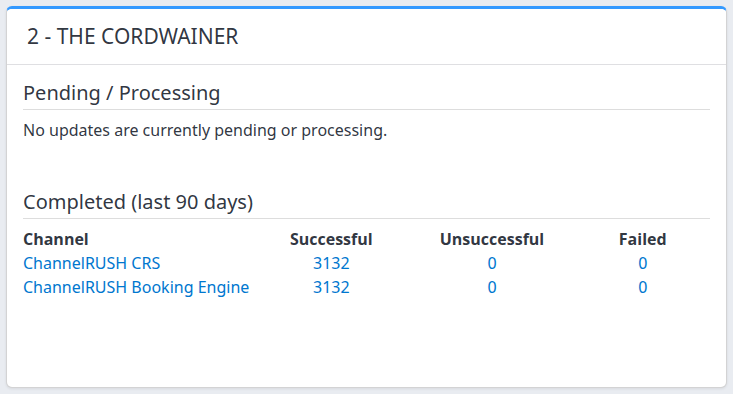
Each card belongs to the property named at its top. This example shows recorded successful requests and no displayed queue; it is not a live check of channel inventory.
Pending / Processing
- Pending means the request is waiting to be processed.
- Processing means the request is marked as being processed.
- These are current stored request states, without the completed section's 90-day date restriction. Archived requests are included in these summary counts too.
- Counts refer to requests, not rooms, affected nights or delivery attempts. One request can cover several inventory dates.
The normal empty-state message is No updates are currently pending or processing. A missing channel row or a section containing only headers must not be treated as a complete queue check: use Org Admin → Updates, select the property and channel, and search Pending and Processing separately. The steps below explain how.
A nonzero count alone does not establish that processing is overdue. Check the individual request and its timestamps before deciding what to do.
Completed (last 90 days)
The completed table has Channel, Successful, Unsuccessful and Failed columns.
| Column | Meaning |
|---|---|
| Channel | A channel currently mapped to the property with qualifying completed-count data. It is not a list of every possible channel or only channels currently enabled for sending. |
| Successful | Requests with a recorded successful processing outcome. This is not an independent check of the channel's current selling values. |
| Unsuccessful | Requests with a recorded unsuccessful processing outcome. Read the request's message to investigate. This column does not include Failed. |
| Failed | Requests recorded separately as failed. Inspect their messages and contact support when the cause or recovery is unclear. |
A zero in an otherwise populated row means no requests are counted in that status for that channel in the summary period. Channels without qualifying completed-count data are omitted. The empty-state message is No updates are currently successful or unsuccessful. It does not establish that the channel received all intended updates.
What “last 90 days” means here
The period is based on when a request was created, not its affected stay dates or when it finished processing. It begins at the system reporting day's start 90 days ago, rather than exactly 90 × 24 hours before you opened the page. It is not calculated from your personal display time zone.
Completed counts are periodically refreshed and include archived requests. They can lag behind the individual request screen. They summarize recorded request outcomes, not every historical processing attempt: a retried request can later be counted under a different outcome in its original creation period.
Do not add queue and completed counts together to calculate unique requests. A previous completed outcome can remain in the summary while a retry is back in the queue. Archiving a request does not remove it from this summary or repair its delivery.
Open and investigate requests
- In the relevant property card, click the number under the status you want to investigate.
- In the new tab, confirm the heading is Update Requests - Processing Status.
- Check Property, Organization, Channel and Status in Search Filters before interpreting the results.
- If you change any filter, click Search.
- Inspect the request's affected inventory dates, room/rate plan, requested values, Status, Attempts, ID, Created, Last Run and any message.
The summary remains open in its original tab. Opening a count does not retry or archive anything. Clicking a Channel name instead opens that property/channel's request search without selecting a particular status; use a status number when you want to retain that status.
On the request screen, Created is the request's creation timestamp. Last Run is the stored update/processing timestamp; it does not by itself prove successful delivery. These timestamps are displayed in your signed-in time zone. The inventory dates shown beside requested values are the dates being changed, not those processing timestamps.
Check a queue without relying on the summary table
- Open Org Admin → Updates.
- Select the affected Property inside Search Filters.
- Select the affected Channel, or All to inspect the property's channels.
- Select Pending in Status.
- Click Search.
- Check the retained property/channel/status selections and the returned requests.
- Change Status to Processing.
- Click Search again.
This searches requests; it does not create or resend them. The request search excludes archived requests by default. Select Include Archived Updates and click Search if archived records are relevant. Recheck that selection before another search or paging: it can clear after results load. If scope or archive inclusion cannot be confirmed, contact support rather than treating an empty result as an all-clear.
Why the number of detail rows may differ
The summary and its linked search are not the same frozen result:
- Count links retain the property, channel and chosen status, but do not carry the summary's 90-day date boundary or include-archived setting.
- Completed counts use refreshed summaries; request rows reflect the current request records.
- The request search excludes archived requests by default and shows a page of results, normally 50 requests at a time. Older detail records may no longer be available.
- A request can change status between opening the summary and opening its details.
- The Pending, Unsuccessful and Failed count panels on the request screen are separate, capped indicators. They are not a total for the summary number you clicked.
Leave date filters blank for the initial investigation. If you need dates, Stay Dates filters the inventory dates affected by an update. Date and Time → Created or Last Run filters request timestamps instead. Click Search after changing them and check the resulting selections.
A Failed filter can return a row whose displayed status says Unsuccessful. Keep the selected filter, request ID and message together when escalating; do not infer a different diagnosis from that row label alone.
Check the result safely
You have completed the investigation when you have identified the intended property/channel requests, checked their recorded status and message, and either understood the result or collected the context support needs.
Successful confirms the recorded processing outcome, not an independent comparison with the channel's current inventory. An empty summary or request search does not prove an earlier failure was resolved.
Use Search for investigation. The separate Select Action and Go controls can retry or archive requests and are not refresh controls. Do not retry solely because a count is nonzero or a request is old: a retry can also requeue later overlapping requests. If the intended scope or current values are unclear, stop and contact support before taking action.
Common problems
- The summary will not open, is blank, or has incomplete queue rows. Check that you entered through the intended organization's normal navigation. The current queue display has limitations described above. Use Org Admin → Updates to search the affected property and status directly. If the summary remains broken or request access is refused, send support the page URL, organization, property and observation time.
- A property is absent. The normal organization view includes active properties directly belonging to that organization. Confirm the property's organization and active status in Accounts. If you expect it to be included but cannot explain the omission, contact your administrator or support; do not change configuration merely to make it appear.
- A channel has no completed row. It may have no qualifying summary data or no longer be mapped to that property. Search the relevant requests and verify the intended channel with your administrator. An absent row is not evidence of delivery success.
- A completed count does not change after reloading. Completed totals can lag behind request details. Inspect the individual request's message and timestamps. Escalate persistent unexplained differences rather than repeatedly retrying updates.
- A count opens no matching requests. Recheck the property, channel and status, the date filters and archived inclusion. The summary/detail differences above can explain mismatches. If the record remains missing, ask support to investigate; do not assume the original issue repaired itself.
For support, include the organization, property, channel, selected status, affected inventory dates, request ID when available, observation time/time zone and exact message. Do not include passwords, payment details or guest information.