

Send a support request for the selected property, include the details needed to investigate, and check whether your request was submitted.
Before you start
- Sign in and select the affected property. The form includes that property's name with your request.
- Check that you are using your own account. The request uses your signed-in name and email; you cannot change them on this form.
- Gather the affected channel or PMS, room type/rate plan, dates, action time and time zone, and any visible error text. Include only what is relevant to the issue.
- Do not include passwords, verification codes, API keys, payment-card details or unnecessary guest information.
You do not need Org Admin access to request support. The public demonstration login cannot submit this form.
Open Support Request
- Select the affected property in the property selector.
- Open Admin → Home. The page heading is Settings.
- Find General and select Support.
- Confirm that the page heading is Support Request and that the intended property remains selected.
Choose how to get help
- Knowledge Base → View Help Center opens the help center in a new tab. Use it to look for an existing guide without leaving the application.
- Live Chat → Start Chat opens the separate chat panel when live chat is available. It does not submit the Send Us a Message form. Opening chat is not confirmation that an agent has received a new message or is immediately available.
- Email & Phone shows the contact details available for your account. Select the email address to compose an email in your mail application, or use the displayed telephone number and option. Opening an email draft does not send it.
- Send Us a Message submits a support request from this page. Follow the steps below.
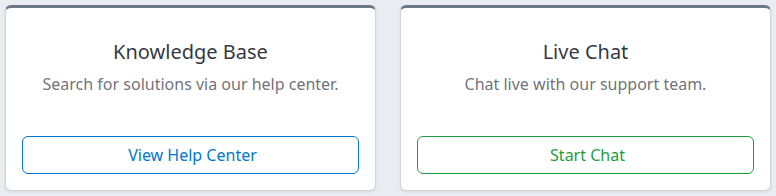
The Knowledge Base and Live Chat cards appear above the message form. Email & Phone is alongside them on a desktop screen.
Send a message
Typing does not send a request. Send submits it.
- Under Send Us a Message, check Name and Email. They are read-only. If they identify the wrong account, stop before sending. If your email is incorrect, ask your organization administrator for help rather than trying to change it in the message form.
- Enter a meaningful description in Message. Start with what you were trying to do and what happened instead.
- Add the diagnostic details relevant to that problem, using the checklist below.
- Check the selected property and remove any sensitive or unrelated information.
- Select Send once.
- Wait for the result before taking another action.
There is no separate subject field, attachment control or priority selector on this form. Put a short issue summary at the beginning of Message. If you need to provide a screenshot or file, contact support through the displayed email/chat options to arrange it; remove sensitive information first.
What to include
A useful message answers these questions:
- Where? Property name and, if available, its ID; affected channel or PMS; room type and rate plan where relevant.
- What did you do? Page name and the exact control/action you used.
- What happened? Visible error text, current status or value, and what you expected instead.
- When? Action time with time zone, affected stay dates, and when you last saw the problem.
- Which record? The relevant update request ID or reservation confirmation number, if needed to identify the issue. Do not include card details or a full guest record.
- What is the impact? Whether it affects one booking/product or a wider set, and whether you have already contacted support about it.
For an inventory-update issue with known request records, Send inventory update requests to support explains the separate workflow that includes selected requests. The general form on this page does not automatically attach those records.
Do not resend inventory, retry a reservation delivery or change configuration merely to collect evidence for support.
Check the result
After a successful submission, the application returns to Settings and displays “Your support request has been sent.”
This confirms that the application received confirmation that your support request was created. It does not confirm that an agent has replied, that a confirmation email reached you, or that the original issue is resolved. This page does not display a ticket number or a request-history list.
If the page times out, stays on the form with an error, or you do not see a clear result, do not repeatedly select Send. A request may have been created even when its confirmation did not reach your browser. Use the displayed email or phone contact and mention the earlier attempt, including its time and property, so support can check before you submit another request.
To leave without sending, use the Admin breadcrumb. Leaving is not a submission; retain your own non-sensitive notes if you need them later.
Field and control reference
| Field or control | What it does | What to check |
|---|---|---|
| Property selector | Sets the property context included with the request. | Select the affected property before entering your message. |
| Name | Displays the signed-in user's name. | Read-only here; do not send under someone else's account. |
| Displays the signed-in user's email. | Read-only here; ask your organization administrator if it is incorrect. | |
| Message | Contains your issue summary and diagnostic details. | Enter meaningful text. There is no separate Subject control. |
| Send | Submits a new support request. | Select once and check the result; repeated submissions can create duplicates. |
| View Help Center | Opens the knowledge base in a new tab. | Reading an article does not create a support request. |
| Start Chat | Opens the chat panel when available. | Separate from the form; it does not send the text entered in Message. |
| Admin breadcrumb | Returns to the General section of Settings. | Does not submit the message. |
Support hours and urgent issues
Read the Support Hours notice on the page. It currently states Monday–Friday, 9:00am–8:00pm EST, with non-critical after-hours issues handled the next business day. This is the displayed notice, not a guaranteed response deadline.
If your page shows After-Hours Emergency Support, follow the telephone and option instructions in that panel for an issue that cannot wait until the next business day. The panel is not shown to every account at every time. Do not assume that submitting the general form immediately pages an on-call person; use the applicable displayed contact instructions.
Common problems
| Symptom | Likely cause and safe next action |
|---|---|
| “A subject or a message must be entered in order to send a request.” | Message is empty. This form has no Subject control: enter a meaningful Message, then select Send. If the same validation appears with text entered, contact support through the displayed alternative contact details. |
| “There was an error submitting your request…” | The application could not confirm submission. Keep the error text and attempt time. Contact support directly before repeating an uncertain request; the error alone does not prove that no conversation was created. |
| The page times out or there is no clear confirmation | The outcome is uncertain. Do not keep clicking Send or resubmit a browser's previous POST. Ask support to check the earlier attempt. |
| “Live chat is unavailable right now” | The chat widget could not become ready. Use the message form or displayed email/phone contact instead. This warning does not establish whether support staff are online. |
| Name, Email or property is wrong | The current account or property context is not the one you intend. Correct the property selection before writing, or seek account help before sending. |
| The demonstration account refuses Send | The public demo login does not allow support submissions. Do not retry to bypass the restriction; use your normal authorized account for a real support request. |
| A sent confirmation appears but the original problem remains | Submission requests investigation; it does not repair inventory, reservations or settings. Follow up with the original context and current evidence rather than sending repeated copies. |