

Create a named language profile for a property's content, then verify it before using it in a booking profile or hosted website.
A content profile holds property and product information for one selected language. It is different from a booking profile, which controls booking options, currencies and language assignments.
Before you start
- Select the correct property. You need Content permission to save. Ask your organization administrator if the form is read-only or saving is refused.
- Check the existing profiles under Admin → Settings - Content. Edit an existing profile if it already represents the content you need; a new profile does not copy or translate another profile.
- Choose a recognizable profile name and the intended language, including its regional variant. For example, English - US can identify content using English (United States).
- Treat the profile as public-facing content, not a private draft. New profiles have Public Content URL Enabled set to Yes. Do not put confidential information in them.
Create the profile
This form saves only when you select Save; entering a name or choosing a language does not create the profile.
- Select your property in the property selector.
- Open Admin → Settings - Content. The Content section of CRS Settings opens.
- Review the existing profile tabs before adding another.
- Select Add New Content Profile.
- Enter Content Profile Name.
- Choose Language. Replace Select ... with the required language and region.
- Select Save once.
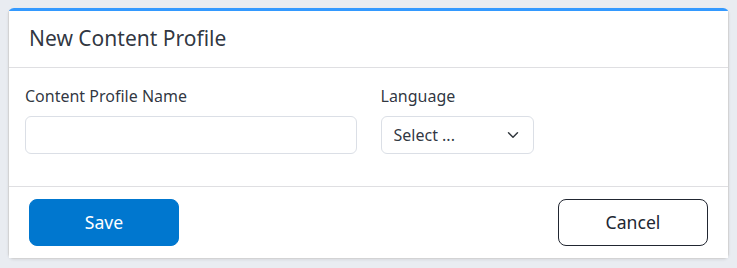
The new-profile form before any values are entered.
To leave without creating this profile, select Cancel. It returns to CRS Settings → Content without submitting the form.
If Save times out or gives an unexpected error, check the existing profiles before trying again. Repeating the submission can create another profile. For properties using CRS, setup can also save related settings separately; an error does not establish that nothing changed.
Check the result
- After a successful save, check for the success message on CRS Settings → Content.
- Find the tab with the name you entered. The page can open the first profile rather than automatically selecting the new one.
- Select the new profile's tab.
- Confirm Content Profile Name and Language match your intended values.
- Review Public Content URL Enabled before adding or sharing content.
The profile starts with basic property details taken from the property's settings, such as its name and address. Review those details and complete the descriptions and product content for this language. Do not assume an existing profile's text was copied or translated, or that all room and rate-plan content is complete.
A saved profile confirms local creation. It does not confirm channel delivery, complete translations or a bookable website. On first-time CRS setup, additional default configuration may be initialized; verify the intended profile and assignments rather than relying on the success message alone.
Use the content where it is needed
Creation and assignment are separate tasks. Adding a content profile does not automatically add that language to an existing booking profile or hosted website.
- For widgets and CRS partners, select the intended content profile under the booking profile's Languages, then verify which connections use that booking profile. Follow Set up a booking profile. Choose only one profile for each exact language/culture.
- For a hosted website, select the intended profile in the website mapping's Content Mapping and check the website's language configuration. Follow Configure a hosted booking website.
- To find missing information, use Check property content readiness with Content Summary and review every language you offer. Complete missing content before treating the profile as ready for guests.
The assignment editors require Booking Engine / CRS - Settings permission. Creating content does not itself grant that access or send it to an OTA.
Field and control reference
| Field or control | What it does | Requirements and example |
|---|---|---|
| Content Profile Name | Identifies the profile in the property's content tabs. It is not the property's name. | Required; starts blank. Spaces alone are not accepted. Use a recognizable name such as English - US. Do not rely on the form to reject duplicate names. |
| Language | Sets the language/culture associated with this profile. It does not translate the content. | Required; starts at Select .... Choose a listed language and region, such as English (United States) or German (Germany). |
| Save | Submits a new profile and returns to the property's Content section after success. | Select once, then check the saved profile. Do not repeat an uncertain submission without checking the existing tabs. |
| Cancel | Returns to the property's Content section without submitting this form. | Entered values are not saved by Cancel. It does not reverse an earlier successful Save. |
Common problems
The form stays open and reports that saving was unsuccessful
Check that Content Profile Name contains a name and Language is not Select .... Review any errors shown on the page, correct the fields and select Save. If both fields are valid and saving still fails, check the property's existing profiles before repeating the action, then contact support.
The controls are disabled or saving is refused
Your account may not have Content permission, or it may be a demonstration account that cannot submit changes. Ask your organization administrator to check your access. Do not switch to another property merely to bypass a restriction.
The new profile is not the tab currently shown
The return page can select the first profile. Look through the Content tabs and select the name you created. If it is missing after reopening the correct property's Content section, contact support before trying an uncertain submission again.
A second profile appeared after retrying
A repeated submission can create a separate profile rather than updating the first. Stop creating more. Confirm which profile contains the intended content and which profile any website or booking configuration uses before removing or changing anything. Ask support if the assignments are unclear.
The language is saved, but the website or widget is unchanged
Selecting Language does not translate text or change an existing connection's content assignment. Complete the content and check the relevant booking profile or website mapping using the guides above. If the assignments look correct but the result is still wrong, send support the property, profile name, selected language, affected website/widget and the action time with time zone. Include the error text when applicable; do not send passwords or guest/payment details.