

Update the text attached to an existing add-on photo without replacing its image file.
Before you start
- Select the correct property. The add-on and its photo must already exist in that property’s content.
- You need Content permission to save or remove a photo mapping.
- A photo mapping is the placement of an uploaded file in an add-on’s photo list. Editing that placement does not rename or replace the uploaded file.
The text belongs to the mapping you open. It is not automatically translated or copied to other language profiles, property photos, room photos or other add-ons that use the same file.
Open the add-on photo
- Sign in to ChannelRUSH and select the property in the property selector.
- Open Content - Photos. This opens the photo workspace for your selected property; check its property name before continuing.
- Under Add Ons, select the add-on’s name.
- Select Edit beneath the intended photo.
- On Edit Photo Mapping, check the add-on name in the breadcrumb, the filename and the image preview.
Use the workspace link above if opening CRS Settings shows an error. If the photo workspace or the add-on’s Edit link also fails, stop and contact support rather than changing identifiers in the address bar.
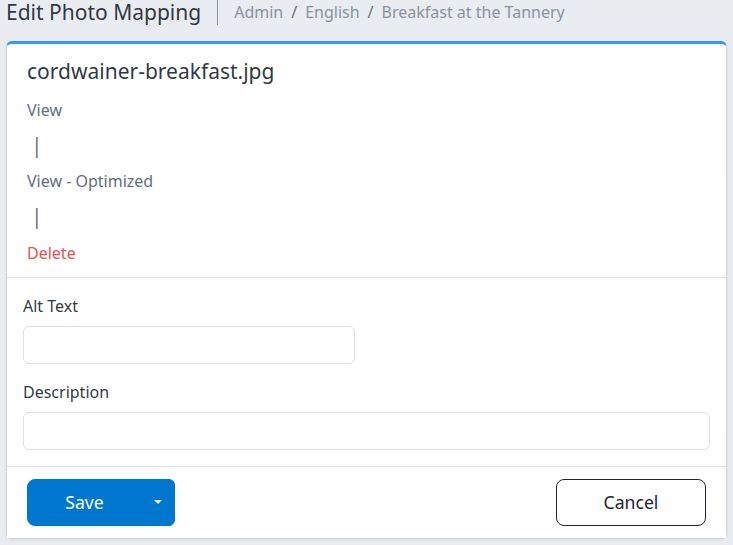
Edit and save the text
Typing does not save these fields. Submit Save or Save & Refresh to store your changes.
- Enter a short description of the image in Alt Text, such as “Breakfast with fruit, eggs and coffee.” Describe the photo rather than repeating a promotional message.
- Enter any additional photo description in Description. Whether this appears as a visible caption depends on the website or other system using the content.
- Choose how to finish:
- Save saves the changes and returns to the add-on’s photo section in Content - Photos when you opened the editor from that workspace.
- Open the arrow beside Save and choose Save & Refresh to save and stay on the editor.
- Cancel leaves without submitting your current edits. It does not undo a previous save.
If you entered through the add-on settings page instead, Save and Cancel return to that add-on’s Photo Mappings section.
Saving also synchronizes the property’s photo lists across its language profiles. This can reconcile photo membership and order beyond the single text field you changed. It does not copy Alt Text or Description between profiles. Existing text on corresponding mappings is retained; newly created counterparts have no copied text.
Check the result
- Look for the save confirmation. If you chose Save, reopen the same photo with Edit.
- Check that Alt Text and Description contain the intended saved values.
- Confirm that the filename and preview still identify the intended photo.
- If you need to verify the guest-facing result, open the relevant booking site and language and inspect that add-on’s photo there.
The confirmation establishes a saved change in ChannelRUSH. It is not confirmation that an OTA accepted new content or that every website displays the description. This editor does not send a channel photo update.
If an error appears after saving, do not assume nothing was stored. The text can be saved before the later photo-list synchronization fails. Reopen the mapping and check its values before repeating the action; contact support if you cannot establish what was saved.
Field and control reference
| Field or control | What it does |
|---|---|
| Add-on breadcrumb | Identifies the add-on whose photo mapping you are editing. The profile name can also appear in the breadcrumb. |
| Filename | Identifies the uploaded file used by this mapping. It is not editable here. |
| Alt Text | Optional, single-line text describing the image. Leave it blank to remove this mapping’s stored alt text. The photo-list preview falls back to the filename when alt text is empty; other consumers can render it differently. |
| Description | Optional, single-line photo description. Leave it blank to remove this mapping’s stored description. It does not change the add-on’s main description or guarantee a visible caption. |
| View | Opens the original-file viewer in a new tab. It does not save pending text. |
| View - Optimized | Appears when the mapping has a cached-image URL. Opens an image rendition in a new tab; while a cache refresh is pending it can use the original file instead. It does not save pending text. |
| Save | Stores the text, synchronizes photo lists and returns to the originating photo section. |
| Save & Refresh | Available under the arrow beside Save. Performs the same save and synchronization, then reloads this editor. |
| Cancel | Returns to the originating photo section without submitting current edits. |
| Delete | Opens a separate confirmation page for removing the mapping. It is not a way to clear the two text fields. |
| Image preview | Helps you identify the mapped image. It does not prove that a booking site or channel has received updated content. |
Both text fields can be blank. Clearing either field still requires Save or Save & Refresh. There is no image upload, photo-order control or channel-selection control on this editor.
Removing a mapping is different from clearing text
Use blank Alt Text or Description when you only want to remove that text.
Use Delete only when you intend to remove the photo’s placement in the add-on gallery. Opening Delete does not remove it; the separate confirmation must be submitted. Cancel that confirmation if the file or add-on is wrong.
Removing the source mapping also removes its corresponding photo mappings from matching add-ons in the other language profiles during synchronization. It does not delete the uploaded image file from the property’s file library, or independently remove a separate property or room placement of that file.
After a confirmed removal, check the add-on’s photo list and the relevant guest-facing gallery. Do not delete the uploaded file to try to repair a missing caption or undo an uncertain save.
Common problems
- The editor shows the wrong add-on or photo. Leave without saving, reopen Content - Photos, and use the intended add-on’s photo card. Do not reuse another photo’s address or change its identifiers.
- Fields are disabled or saving is refused. Check your Content permission with your organization administrator. The demonstration login cannot be used to make content changes, even when editing controls are visible.
- Your change disappears after leaving the page. Typing alone does not save. Reopen the mapping and check the values; use Save or Save & Refresh after editing. If a save produced an error, follow the result-check steps before retrying.
- The image is present but the description is not visible to guests. The receiving site may not display photo descriptions. Check the saved mapping, selected site and language, and that the site is using the intended add-on content. A text change does not replace the image file.
- Another language still has different or blank photo text. Photo-list synchronization does not translate or copy these text fields. Ask support to confirm the intended language-profile workflow rather than changing addresses to edit an arbitrary profile.
- A stale link or the page itself shows an error. Start again from the verified property’s photo workspace. If it still fails, provide support with the property, add-on, filename, action time and time zone, and error text. Do not send passwords or guest information.