

Add or correct the text attached to an existing property photo mapping, then check that the saved values are retained.
A photo mapping is an uploaded image’s placement in a gallery. This page edits the text for one property-photo mapping; it does not replace the image, change its order or assign it to another room or product.
Before you start
- Select the correct property in the property selector.
- You need Content permission to save changes. Ask your administrator if the controls are disabled or saving is refused.
- The photo must already appear under Property Photos on Content - Photos. Uploading a file alone does not create a photo mapping.
These text fields belong to the mapping you open. They do not automatically update another placement of the same file, a room or add-on photo, or the photo’s text in another language profile. Photo-list synchronization is separate from text translation.
Open the photo mapping
- Open Admin in the top navigation.
- Choose Settings - CRS.
- Open Content - Photos.
- Find the image under Property Photos.
- Click that image’s Edit link.
- Check the filename at the top of Edit Photo Mapping and the image preview below the form.
Use the photo’s own Edit link rather than an old bookmark, so you open the current mapping for the selected property.
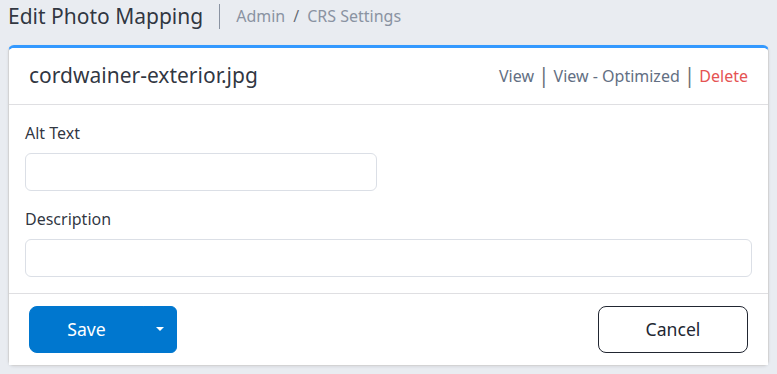
The fields can be blank. This example shows an existing demo-property photo mapping; no text has been entered or saved.
Edit and save the text
Typing does not save your changes. Submit them with Save or Save & Refresh.
- Enter a concise image description in Alt Text, such as “Hotel entrance with a covered drop-off area.”
- Enter any additional photo description in Description, such as “Main entrance viewed from the street.”
- Choose how to finish:
- Click Save to save and return to Content - Photos → Property Photos.
- Open the arrow beside Save and choose Save & Refresh to save and reopen this photo editor.
Both fields are optional. To remove existing text, clear that field and save. Keep guest names, personal contact details and other private information out of both fields: connected websites or content integrations can display them.
Saving also synchronizes the property’s photo mappings to its other content profiles. That synchronization does not copy these text fields into the other profiles. It is not confirmation that a booking channel has received or displayed your changes.
To leave without submitting your text, click Cancel. It returns to Property Photos. If a warning appears about unsaved changes, leave only if you intend to discard them.
Check the result
After saving, look for the save confirmation. With Save & Refresh, confirm that the editor shows the intended Alt Text and Description. With Save, reopen the same photo’s Edit link and check those fields.
The image preview is not a text-preview panel. It can look unchanged even when the text has saved. Where the text appears to guests depends on the website, theme or integration using the photo. Check the relevant guest-facing page separately; a successful local save does not establish channel delivery or acceptance.
If saving reports an error or the result is uncertain, reopen the mapping before repeating the operation. The initial save may have completed before a later photo-synchronization error. If the text is present but the error remains unexplained, contact support instead of repeatedly saving or deleting the mapping.
Field and control reference
| Field or control | What it does |
|---|---|
| Filename | Identifies the image file attached to this mapping. It is not editable here. |
| Alt Text | Optional alternative text describing the image. Websites can use it for accessibility and may also display it as a caption. Describe what is visible rather than repeating a filename. |
| Description | Optional additional text for this mapping. Content consumers may use it as a caption or description; it is not guaranteed to appear beneath every booking-site image. |
| View | Opens the original uploaded image in a new tab. It does not save text changes. |
| View - Optimized | When shown, opens an image rendition requested at 1,200 pixels wide in a new tab. It is an image check, not evidence that the edited text has been published. |
| Image preview | Shows the mapped image beneath the form. It does not preview the two text fields. |
| Save | Saves the text and returns to Property Photos. |
| Save & Refresh | Saves the same text and reopens this editor. Find it under the arrow beside Save. |
| Cancel | Returns to Property Photos without submitting the text edits. |
| Delete | Opens a separate confirmation page for removing this photo mapping. Opening that page alone does not delete anything. |
If you meant to remove the photo
Do not use Delete to clear a caption. Clear the relevant text field and save instead.
The editor’s Delete link opens Delete Property Photo Mapping. Check the filename before taking any further action. Confirming Delete removes the mapping and synchronizes the property-photo lists across content profiles; it does not delete the original uploaded file. Cancel on the confirmation page returns to Property Photos without deleting the mapping.
Removing this property-photo mapping is different from deleting the uploaded file or removing a separate room or add-on mapping. If you need to replace a file, reorder photos or change where a photo is used, return to Content - Photos rather than changing its description.
Common problems
- The photo is missing from Property Photos. The file may not be mapped to that gallery, or you may have selected another property. Check the property and the existing mappings on Content - Photos. If the expected mapping is still absent, ask your content administrator or support to investigate before adding duplicates.
- The form is disabled or refuses to save. Check Content permission with your administrator. Demonstration accounts can restrict saves even when fields are visible. Reopening the form does not remove those restrictions.
- A preview is missing or View cannot open the file. The mapping may refer to an unavailable file. Return to Content - Photos and check the filename in Photo File Manager. Contact support if the file exists but cannot be viewed; do not delete mappings as a repair attempt.
- The text saved, but another photo or language version is unchanged. Text belongs to the individual mapping and is not copied with the photo list. Check which content profile and mapping the destination uses. Ask support for help with the other profile’s text rather than repeatedly editing this one.
- A website or booking channel still shows different text. Reopen this mapping to verify the local value, then check the destination using that photo. Consumers display these fields differently. Give support the property, filename, affected website or channel, action time and time zone, and exact error text if any. Do not send passwords or guest details.