

Use Detail Update to prepare rates, available rooms and selling restrictions for selected dates, inspect the pending values for each channel, and submit the intended changes for processing.
Before you start
- Select the correct property, then open Updates → Detail. Confirm the Detail Update heading before entering anything.
- Your user needs property access and the relevant update permissions for rates, availability or restrictions. Channels, rooms and rate plans must be enabled and set up for updates. A field appears only where its permissions, channel capabilities and configuration support it.
- Know which rooms, rate plans, channels and dates should change. Check the property's rate calculations, linked products and rounding rules before using broad fields. A room change can populate related rate plans or linked rooms; a plan change can populate linked plans.
- If a PMS supplies inventory, check the override policy first. Manual updates can block later PMS changes for configured fields. Without an override, a later PMS update can replace your manual values. Leaving a field blank does not remove an existing override. See PMS Overrides.
This is a pending-update form, not a display of current inventory. A fresh form starts with blank update fields. Blank does not mean the channel currently has no rate, no availability or no restriction.
Changing a field can start calculations that populate other fields on the form. Those calculations prepare the update; Send Updates is the submission control. Leave the edited field, let population finish, and review the results before continuing. Do not treat a value remaining on screen as proof of a saved update.
1. Choose dates and weekdays
- Under Date Ranges, enter Start date and End date using the displayed date format or calendar. Both dates are included. For one day, use the same date twice.
- Under Days, keep the weekdays that should receive the changes. All seven are selected initially. Each range must include at least one selected weekday that actually occurs within that range.
- For a separate period with the same values, click Add Date Range and set that range's dates and weekdays. The screen supports up to ten ranges.
- Remove an unwanted additional range with its [ X ] link. Recheck the remaining ranges before submission.

Use today or a later date in the property's time zone, and put the end date on or after the start date. An unused extra range may remain blank; a partially entered range needs both dates. A Friday-only selection in a Monday-to-Thursday range contains no update days.
Every selected date receives the same pending values. Multiple ranges do not give you separate prices or restrictions per range. If two periods need different values, handle them as separate, reviewed submissions. Avoid overlapping ranges when one range will do.
Channels can have different advance-booking limits. Read any future-date warning: dates beyond a channel's supported limit may be trimmed or omitted, not held for automatic delivery later.
2. Choose the intended channels
In the normal Detail mode, scroll to the channel sections and select the intended channel checkboxes before entering upper-level values. Select All Channels selects all enabled channel boxes; when all are selected, clicking it clears them. A partly selected group shows a partial-selection indicator.
These boxes are populate/clear controls, not a final sending checklist:
- Selecting a channel can copy the current upper room and rate-plan values into its mapped products, with configured calculations.
- Clearing a channel clears its pending channel fields and calculated labels. It does not clear the upper room and rate-plan entries.
- Selecting it again can repopulate those fields. This is not a way to restore a previously typed channel-specific exception.
- What matters at submission is the populated destination fields. Do not assume that an unchecked box by itself prevents a populated channel value from being submitted.
Review every channel section before sending, including channels you do not intend to change. Their pending fields should be empty. Never use a channel checkbox as a substitute for checking the values.
If your property uses standard-only updates
The channel boxes are fixed and the channel room/rate-plan fields are disabled. Enter changes in the upper Room Types and Rate Plans sections. The configured channel mappings determine the destinations; you cannot use Detail to select an individual channel in this mode.
Do not use a broader upper-level edit to work around a disabled channel field when your actual goal is a channel-only change. Ask your administrator or support which update mode and workflow are appropriate.
3. Enter values at the narrowest useful scope
For a broad change, work from broad to specific: global fields first, individual rooms next, individual room/plan combinations next, and channel-specific exceptions last. A later broad change can replace a more specific pending value.
| Where you enter the value | Intended scope and what to review |
|---|---|
| Global Room Type in Room Types | A starting value across the property's room types. It populates individual room fields and their eligible mapped channel products. Rate calculations can make the room or channel values differ from the global entry. This is not a separate room you can sell. |
| A named room column in Room Types | That property's room, with configured room-to-plan and parent/child relationships. Review the room's rate plans and any linked rooms as well as the main room field. |
| Global - [plan name] in Rate Plans | That property rate plan across room types. Review each room's plan values and mapped channel destinations. |
| A plan field in one room's column in Rate Plans | That room/plan combination, plus any configured linked-plan propagation. Keep broader fields blank for a plan-only change. Columns follow the room order shown above. |
| A room field inside a named channel | That channel's mapped room-level value, where supported. It is different from the upper property-room field. Review any associated channel rate-plan fields separately. |
| A rate-plan field inside a named channel | That channel's mapped room/rate-plan value, where supported. Check both the property name and the channel mapping name shown in parentheses. |
| Unmapped, when shown in Rate Plans | Channel rate plans that do not have a property rate-plan mapping. It does not mean all plans, and it does not repair a missing mapping. Review the actual destination products. |
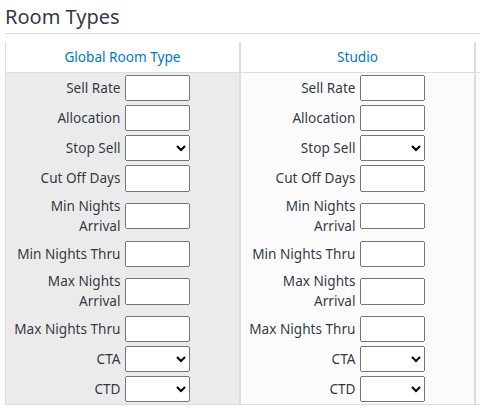
This focused crop shows Global Room Type and the first room, Studio. Your room names and available fields may differ.
Change a rate
- Enter the positive Sell Rate at the intended scope. For one room only, leave Global Room Type blank and use that room's field.
- Leave the field and wait for the pending calculations to finish.
- Review the Rate Plans section, linked rooms/plans, and each selected channel's final rate. Check additional occupancy rates and Net Rate displays where present.
- Leave allocation and restrictions blank unless you also intend to change them. If calculations or channel-specific edits do not populate as expected, stop before sending and contact support; do not assume submission will repair a missing calculation.
Changing a channel's main rate can affect configured additional rates. Enter channel-specific exceptions only after the broader values have settled, then recheck the entire destination product.
Change availability or close/reopen sales
- Enter Allocation at the intended scope when changing the number of rooms available. Enter the intended quantity, not a plus/minus adjustment.
- Review Stop Sell immediately. An upper allocation of 0 also populates a close-out. A positive allocation can populate Stop Sell = No when automatic reopening is configured. Review the resulting room, linked-plan and channel values—not only the field you typed.
- To close sales explicitly where supported, use Stop Sell = Yes. To request reopening, use Stop Sell = No and verify that availability and the other restrictions permit selling.
- Check the channel fields before sending. Depending on the channel and configuration, a close-out can be represented by zero allocation instead of a separate Stop Sell value. Reopening may require restoring a valid allocation; No alone is not a guarantee that a room becomes bookable.
Restrictions that a channel cannot represent may also lead to a configured close-out. If an unexpected Stop Sell or zero Allocation appears, resolve it before submission rather than treating the value as harmless.
Change one rate plan's restrictions
- Leave the global room and individual room restriction fields blank if the change is only for one plan.
- In Rate Plans, use Global - [plan name] for that plan across rooms, or the plan field under one room's column for one room/plan combination.
- Enter the restriction, such as Min Nights Arrival = 3, and wait for population.
- Review the mapped destination plans and any configured linked plans. Check that unrelated plans remain blank and that no unintended close-out was populated.
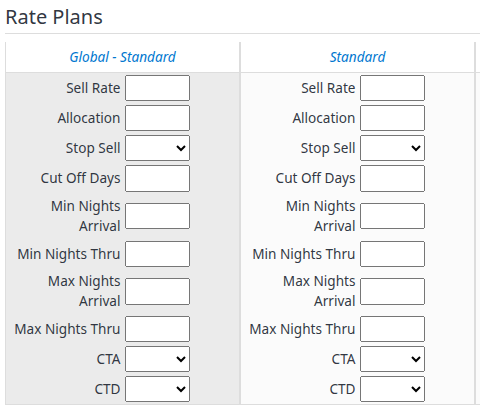
The left column applies to Standard across rooms. The next column is Standard for the first room in the room order above; it is not a second global field.
Review a channel-specific change
In normal Detail mode, a channel section may offer direct room and rate-plan entry. First select the channel, confirm the correct mapped product and review any existing pending entries. Keep upper fields blank if you do not want to prepare a broader change. Enter only the intended channel fields, then check the channel checkbox, rates, additional rates and calculated labels yourself.
Do not assume direct entry automatically selects the channel or refreshes every calculated value. If the field, checkbox or calculated labels behave unexpectedly, stop and contact support before Send Updates. Do not switch to an all-channel/global edit to bypass the problem.
4. Review, send and check the result
Before sending, check:
- The property, every date range and each range's selected weekdays.
- Every nonblank upper room/plan value and the linked products it populated.
- Every channel section, including those you intended to leave unchanged.
- Rates and any occupancy rates; allocation together with Stop Sell; arrival and through-stay restrictions; channel-specific options.
- That population has finished and Send Updates is available.
- Click Send Updates once.
- Read all confirmations, warnings and errors. A saved confirmation means requests were saved for processing—not that every destination accepted them. Some requests can save while others fail.
- Open Updates → Status for the same property. Set Status to All, choose the relevant Channel, Room Type and Rate Plan, then click Search. Check any other active criteria if the expected requests do not appear.
- Match the request's affected dates, values and creation time to your submission. One submission may produce multiple requests, so check the complete intended scope rather than one successful row.
- Pending and Processing are not completion. Inspect Unsuccessful messages. Successful is the recorded processing outcome; check the channel's extranet when you need to confirm its current selling state.
An error is not a rollback. Valid requests can already be saved when other requests fail. Some fields may clear while failed values remain, and dates or upper values may reset after a partial success. Do not resend the form based only on what remains visible.
Master inventory and configured PMS overrides can save independently of channel-request success. An empty Status search or a “No updates have been saved” message does not prove that nothing changed. Check request history and ask support to confirm saved inventory and overrides before resubmitting when the result is uncertain.
Cancel reloads Detail and discards unsent form entries. It does not cancel processing, undo a saved request or remove an existing PMS override.
Worked examples
These are planning examples, not suggested prices or inventory levels for your property. Use the actual product names and supported fields in your account.
Friday and Saturday arrivals: one plan, one room
To require three nights for Friday/Saturday arrivals on one room's Standard plan:
- Choose the period, keeping only Fri and Sat under Days.
- Select the intended channels in normal Detail mode.
- Leave global fields and the room's general restriction fields blank.
- In that room's Standard column under Rate Plans, enter 3 in Min Nights Arrival. Do not use Min Nights Thru for an arrival-only rule.
- Inspect that plan's channel fields and linked plans, then send and verify through Updates → Status → Search.
Close one room for a maintenance period
To close a room across its intended selling products, select the dates and channels, then use that room's Stop Sell = Yes. Review all of its mapped plans and virtual/linked products. If the channel uses allocation for closure, verify the resulting zero allocation. Do not enter a new rate unless it should also change. Before reopening later, confirm both availability and all remaining restrictions; clearing the old form is not reopening.
Two separate periods with the same rate
Use Add Date Range for the second period, set the weekdays independently, and enter the rate once at the intended scope. The same values apply to both ranges. If the second period needs a different rate, do not add it to this submission; complete and verify the first scope before preparing the second.
Full field reference
Defaults, blanks and accepted input
A fresh Detail form has one visible date-range row, blank dates, all weekdays selected and blank update entries. In normal mode the channel boxes start unselected; standard-only mode fixes the channel selection. The examples below are input examples, not defaults and not guarantees that a particular channel accepts the value.
- Blank: no explicit change supplied by that field. It does not erase a stored rate/restriction or remove a PMS override. Clearing an upper field may clear pending values below it; always inspect the destinations afterward. Other populated fields, calculations and configured channel defaults can still affect the request.
- 0: a real numeric value, not blank. It closes availability when used for allocation. It is not a valid way to clear a selling rate. For nights, cut-off days and channel-specific options, zero's accepted meaning is channel-dependent; do not assume it universally means “unlimited” or “remove.”
- No: an explicit negative value. For Stop Sell, CTA and CTD it requests removal of that particular restriction, not removal of all restrictions.
- Whole-number fields: use nonnegative whole numbers, without a sign, currency symbol or thousands separator. Standard allocation/day/night inputs must fit 0–32767; this is the form's parsing limit, not a channel's accepted business range. A channel may impose a much smaller maximum.
- Rate fields: enter a positive amount, normally to two decimal places, using the page's decimal convention and without a currency symbol. Room minimum-rate rules, calculated net rates and channel requirements still apply.
Rates and inventory
| Field | What it changes | Accepted input, blank/zero meaning and example |
|---|---|---|
| Sell Rate | The selling amount for the identified scope. Upper values can be transformed by room, plan, channel and rounding rules. | Positive decimal amount, for example 150.00. Blank supplies no rate change. Zero or a negative rate is not a clearing command; rates at or below zero and rates below the room's allowed minimum can be rejected. Check calculated destination values too. |
| Net Rate | A calculated display for channels using a sell/net markup or margin model. | Read-only display, not another amount to type and not proof of channel acceptance. It can be blank before calculation. If it does not refresh as expected, stop rather than assuming the displayed value is current. |
| Occ 1 Sell Rate, Occ 2 Sell Rate, and other configured occupancy Sell Rate fields | A price for the stated number of occupants on that channel product. Occ 1 means one occupant; it is not an extra-person surcharge or a room-count field. | Positive decimal amount for each displayed occupancy. These fields appear only for supported and enabled occupancy pricing. Configured calculations may populate them from the main rate. Some channel pricing models require a complete set; review the displayed set and any validation message rather than assuming one field is enough. |
| Occupancy Net Rate displays | The calculated net counterpart of an occupancy Sell Rate where the channel supports the model. | Read-only. Review alongside the corresponding occupancy Sell Rate; do not enter a rate into the label or assume a blank label means zero. |
| Allocation | The number of rooms offered for the selected dates and scope. It is an absolute available quantity, not a delta or occupancy count. | Nonnegative whole number, for example 5. 0 supplies no availability and can also close Stop Sell. A positive value can reopen Stop Sell when automatic reopening is configured. Blank supplies no allocation change. |
| Stop Sell | Whether sales are closed for the specified product and dates. | Blank / Yes / No. Yes closes; No requests opening. It does not restore missing inventory, clear CTA/CTD or override stay-length limits. Review allocation-based closure where a channel does not support a separate Stop Sell field. |
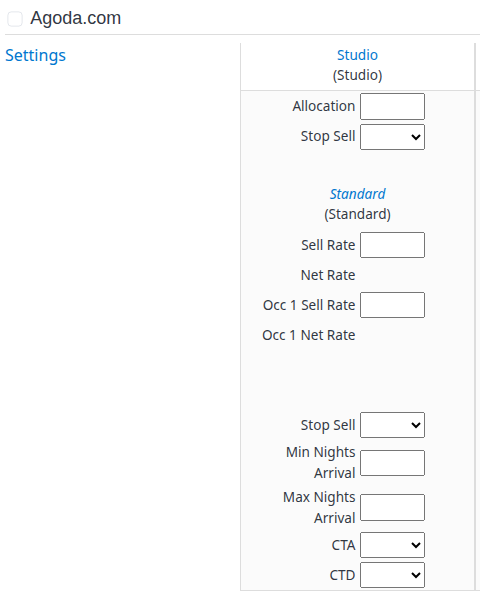
Example channel section: the Studio room has Allocation and Stop Sell, while its Standard plan has rates and stay restrictions. Occ 1 Sell Rate and the Net Rate labels are separate from the main Sell Rate. This is a blank pending form, not a current-inventory report.
Booking and stay restrictions
| Field | What it changes | Accepted input and example |
|---|---|---|
| Cut Off Days | The minimum advance-booking lead time, in days before arrival, where supported. This is not a stay-length limit. | Nonnegative whole number; 2 requests a two-day lead-time rule. Blank supplies no change. Use 0 only when that channel's zero-day/reset rule is appropriate; it is still an explicit value. |
| Min Nights Arrival | Minimum stay length for bookings arriving on a selected date. | Whole number of nights; 3 requires a stay of at least three nights for those arrivals. Blank supplies no change. Use the channel's supported value to relax the minimum; zero is not a universal reset. |
| Max Nights Arrival | Maximum stay length for bookings arriving on a selected date. | Whole number of nights; 7 requests a maximum seven-night stay for those arrivals. Keep it consistent with the corresponding minimum. Blank supplies no change; confirm the channel's unlimited/reset convention before using zero. |
| Min Nights Thru | A minimum-stay restriction for stays passing through a selected stay date, rather than only arrivals on that date. | Whole number of nights, for example 3, where supported. A guest arriving before the selected date can be affected. Blank supplies no change. Channel rules determine the treatment of a zero and how multiple stay-date restrictions combine. |
| Max Nights Thru | A maximum-stay restriction for stays passing through a selected stay date. | Whole number of nights, for example 7, where supported. Keep it consistent with the through-stay minimum. Blank supplies no change; do not assume zero means unlimited. |
| CTA — Closed to Arrival | Whether arrival is prohibited on each selected date. It does not by itself close every stay that crosses that date. | Blank / Yes / No. Yes closes arrivals; No removes this arrival restriction. Availability, Stop Sell and other restrictions still apply. |
| CTD — Closed to Departure | Whether departure is prohibited on each selected date. | Blank / Yes / No. Yes closes departures; No removes this departure restriction. It is not interchangeable with CTA or Stop Sell. |
For all restriction fields, the selected weekday/date combination is the date to which the rule applies. Arrival rules and through-stay rules are different; do not substitute one because the other is unavailable.
Additional channel fields, when enabled
A channel can expose additional rate or restriction options inside its own room or rate-plan section. These are not global fields. Their presence and choices depend on the integration and the enabled product settings. Use the displayed label, choices and tooltip for that destination. Do not copy a provider-specific value into another channel's similarly named field.
Additional entries start blank. Blank omits an explicit value; some integrations then use configured defaults when constructing a request. It does not necessarily remove the existing channel setting. A zero amount, No, or a named “no meal/no guarantee” choice is an explicit selection, not an empty entry.
| Additional field or group | Meaning and input |
|---|---|
| Extra Adult, Extra Child, Extra Person or Extra Person Fee | Additional-person pricing where that integration offers it. Enter the amount for the named supplement, not an occupancy-total price. Depending on the integration, it appears as an additional Sell Rate or a channel-specific amount field. Follow its configured pricing basis; do not assume zero is accepted or clears the supplement. |
| Extra Bed, Child Rate, Junior Rate | Additional channel rate fields where configured, such as Agoda extra-bed pricing or Best Day child/junior pricing. Enter a positive amount for the named category and review its configured calculation. Child and junior age categories belong to the channel's setup; do not assume these mean the same as Occ 1 or Occ 2. |
| Rollaway Adult, Rollaway Child, Crib rates | The named extra-bed/crib amounts on integrations such as reconline. Review the configured calculation/default for each item. These are not room allocation fields. |
| Maximum advance booking days | A maximum advance-purchase window on integrations that expose it, such as Trip.com. Enter whole days according to that channel's rule. It is separate from Cut Off Days, which supplies the minimum lead time, and from the channel's technical limit on how far ahead updates can be sent. |
| Breakfast Included | Whether breakfast is included on integrations such as Caesar Data. Choose blank, Yes or No; No is an explicit exclusion, not “leave unchanged.” |
| Credit Card Guarantee | Whether the product requires a credit-card guarantee where offered. Choose the displayed blank/Yes/No option. This sets a booking rule; it is not a field for entering card details. |
| Breakfast Type | A channel-specific included/excluded breakfast choice. HRS displays blank, Exclusive (breakfast excluded), or Inclusive (breakfast included). Select the applicable option rather than entering a price or occupancy. |
| Exclusive Rate | The channel's exclusive-rate flag where offered. Choose blank, Yes or No in accordance with the channel agreement. It does not mean an exclusive change to only that room. |
| Surcharge / additional-room surcharge | A channel-specific surcharge amount, such as HRS additional-room/category pricing. Enter a monetary amount on the integration's agreed basis. |
| Rebate / additional-room rebate and Rebate Type | A rebate value together with its unit: flat amount or percentage where offered. Keep the value and type consistent; do not enter a percentage as a flat currency amount. |
| Free Sale | A channel-specific free-sale flag at room or rate-plan level where supported. Choose blank, Yes or No only with a confirmed channel configuration; do not treat it as a substitute for an ordinary allocation update. |
| Cancellation Possible | Whether cancellation is allowed under the offered channel policy. Choose blank, Yes or No where provided. It changes a policy, not an existing reservation's cancellation status. |
| Reservations / reservation mode | The product's reservation/guarantee mode, such as standard, guaranteed or guaranteed with credit card on HRS. Select a displayed option, not a reservation number. |
| Cancellation Deadline | A provider-defined deadline choice. HRS can offer standard or named day-before-arrival choices; reconline can offer time-of-day or day-based choices. Select the appropriate labeled option; do not interchange raw numbers between providers. |
| Cancellation Deadline Days | A whole-day cancellation lead-time value where the channel exposes a separate numeric field. Coordinate it with that product's policy and any deadline selector. |
| Cancellation Fee Percent | The cancellation penalty percentage where offered. Enter a whole-number percentage consistent with the agreement; do not enter a currency amount. |
| Pre Pay Percentage | The prepayment percentage where offered. Enter a whole-number percentage consistent with the agreement, not a monetary amount. |
| Advance Booking Deadline | A whole-day advance-booking/reservation deadline where offered by HRS. Use the integration's agreed policy; it is not a length-of-stay field or the technical horizon for sending updates. |
| Board Type / Meal Plan | The included meal basis. HRS Board Type offers blank, Exclusive, InclusiveBreakfast, InclusiveHalfBoard, InclusiveFullBoard, and AllInclusive. Other channels can offer named meal/breakfast variants. Only the choices offered in that field are supported. A named no-meal option is an explicit selection; blank is not the same thing. |
| Guarantee | A provider-specific guarantee selection, such as no guarantee, IATA guarantee, credit-card guarantee or credit-card deposit on reconline. Select the displayed choice rather than entering payment credentials. |
Some additional controls accept whole numbers, two-decimal amounts, or a single/multiple selection. A multi-select can supply several supported choices; review all selected options. Do not guess a channel-specific default, reset value or allowed maximum from the field's appearance. If the option or its meaning is unclear, confirm it with support before sending.
Date, selection and page controls
| Control | What it does |
|---|---|
| Start date / End date | Inclusive date boundaries. Required for each range you use; dates must not be in the property's past. |
| Days: Mon–Sun | Limits that range to the selected weekdays. All start selected; at least one must occur within the range. |
| Add Date Range | Reveals another range for the same pending values, up to ten total. |
| [ X ] beside an additional range | Clears/removes that extra range from the pending submission. It does not undo saved updates. |
| Channel checkbox | Selects/populates or clears that channel's pending fields in normal mode. It is not a server-side sending allowlist. |
| Select All Channels | Applies the selection/clearing action to enabled channel boxes. Selecting again can repopulate from upper values. |
| Settings inside a channel | Opens that channel's configuration in another tab. Opening it does not submit this form. Settings changes are a separate task; do not alter configuration to bypass an unexplained disabled field. |
| Toggle Row Wrap, when shown | Changes the visual arrangement of long product rows. It does not change the intended update scope. |
| Send Updates | Submits the pending form for validation and request processing. A saved message is not channel acceptance. |
| Cancel | Reloads the editor and discards unsent entries; it does not undo previous submissions. |
Linked headings: exact populate/clear behavior
Blue room and plan headings are actions, not expanders. Scroll to inspect a section; do not click a heading merely to read it. These shortcuts affect pending values and calculated labels, not saved inventory. A field containing 0 or No counts as populated, and a nonblank calculated label can count too.
| Heading you click | Behavior to expect and review |
|---|---|
| Global Room Type | Always clears the global room values, global plan values, individual room values and individual room/plan values. It also clears pending fields in selected, enabled channels. This is a broad clear action, not a toggle that reloads current inventory. Review every channel afterward; do not assume it is a universal reset of unchecked or disabled sections. |
| A named room in the upper Room Types section | If its controls/labels contain a value, clears that room's pending upper values, its upper plan values and corresponding fields in selected, enabled channels. If the room is empty, the populate action reads Global Room Type values and applies the room calculations. It does not load saved inventory or take its values from the global plan fields. With no usable source values, there is nothing to restore. |
| Global - [plan name] | If any individual room/plan field for that plan contains a value, clears the global plan fields and the individual room/plan entries for that plan, with corresponding clearing in selected, enabled channels. If those individual plan fields are empty, it repopulates from each room's upper room values, using the plan calculation for rates. It does not restore the last saved channel values. |
| A plan heading under one room in the upper Rate Plans section | If that room/plan block contains pending values or labels, clears that block and corresponding mapped fields in selected, enabled channels. If empty, populates from that plan's global values where provided, otherwise from the room's upper values, with the relevant rate calculation. |
| A linked room heading inside a channel | If that channel-room block contains pending controls/labels, clears that room-level block. Otherwise it populates from the applicable upper room/plan data. Associated channel rate-plan blocks are separate: clearing the room heading does not mean all its plans were cleared. |
| A linked rate-plan heading inside a channel | If that channel-plan block contains pending controls/labels, clears it. Otherwise it populates from the applicable upper room/plan data and mappings. A successful populate response can select the channel. Review the actual fields and checkbox rather than relying on that side effect. |
Headings rendered as plain text are not populate controls. Channel mappings, virtual rooms, linked plans and disabled controls can make the affected scope less obvious, so inspect the resulting destination fields after any shortcut. For a clean restart of the entire unsent form, use Cancel rather than a sequence of heading clicks.
Troubleshooting
| What you see | Likely cause and safe next step |
|---|---|
| Missing/disabled fields, Not Setup, or Channel Temporarily Disabled | Check update permissions, product setup, channel availability and the property's update mode with an administrator. Do not use a broader field to circumvent the restriction. Escalate if the expected supported product remains unavailable. |
| Date-format, missing-date or past-date error | Use the date picker and confirm both boundaries in the displayed format and the property's time zone. Read the full result before retrying; do not assume every kind of error means no earlier request saved. |
| No weekdays selected, or no selected weekdays within the range | Select at least one weekday that occurs inside each range. Recheck additional ranges as well as the first. |
| A rate is rejected | Check that it is positive, meets the room minimum and leaves valid calculated sell/net and additional rates. Correct only the outstanding scope after checking Status for partial saves. |
| Values disappear after clicking a heading | The heading may have cleared pending entries. Review the shortcut reference above. It did not undo saved inventory; re-enter only the intended unsent changes. |
| Unexpected rates, missing population, a checkbox not updating, or a stale Net Rate label | Stop before sending. Check the property, product mappings and configured calculations with support. Do not assume the missing values will be repaired at submission. |
| Unexpected close-out or reopening after an allocation/restriction edit | Review Allocation and Stop Sell together at room, plan and channel level. Automatic closure/reopening or unsupported-restriction handling may be configured. Resolve the discrepancy before sending. |
| A future-date warning | A channel supports a shorter update horizon. Inspect the saved request dates; dates outside that horizon may not have been included. Do not assume they are queued for later. |
| Mixed confirmations/errors, an uncertain response, or No updates have been saved | Open Updates → Status, use All, apply the relevant filters and click Search. Master inventory/overrides may have saved independently. Ask support to confirm the saved scope before repeating an uncertain submission. |
| A saved request is still Pending/Processing or is Unsuccessful | Inspect its recorded details and error message. Do not repeatedly resend or use a blanket retry. Escalate with the request identity and intended scope if the correct next action is unclear. |
| A later PMS update replaces your manual value, or PMS values no longer flow through | Review the configured override policy and existing overrides. Blanking Detail is not an override-removal workflow. Use the PMS Overrides guide and obtain confirmation before changing override settings. |
For support, provide the property, channel, room/rate plan, affected dates and weekdays, intended values, action time with time zone, request IDs and exact error text. Do not include passwords, card details or unnecessary guest information.
Related guide
- PMS Overrides — understand how manual changes interact with PMS-supplied inventory.