

Set a standard rate plan's four calculation steps, choose whether to recalculate stored base rates, and check any requested channel updates separately.
Before you start
- Select the correct property. You need its Channel Manager Update - Rates or Settings permission to save pricing calculations. A view-only user or public demo login cannot perform this workflow's saves.
- Know the rate plan's intended source: a room type's rate or a configured parent rate plan's rate. These calculations modify that source; they do not create the missing source prices.
- Before choosing recalculation, have your property administrator or support confirm that the plan's room-type rate inheritance is enabled and, if it has a parent rate plan, that parent-plan rate inheritance is also enabled. This editor does not show those switches. Do not change inheritance merely to make a recalculation run.
- Re-Calculate Rates On Save is available only for properties with ChannelRUSH Master Image configured. Its absence does not prevent saving the calculation settings.
Important: the full-plan recalculation on this page updates base sell rates, not stored occupancy-rate values. If your change must refresh occupancy prices, ask support to confirm the appropriate workflow before recalculating or pushing. Do not use a date-range override as a workaround.
Open the rate plan
- Select the property in the property selector.
- Open Admin → Home.
- In Channel Manager, open Rate Calculations.
- In the rate-plan list, open the plan's name.
- Check the plan name above Rate Calculation 1 before editing.
The page heading is Edit Rate Plan. This editor changes calculation settings for the property's standard plan, not an individual channel's markup or a single room/date price.
Set the calculation steps
Changes are submitted only when you choose Save or Save & Refresh. Changing a number or calculation type does not itself save the form.
- Enter the adjustment in Rate Calculation 1.
- Choose % Percentage or Flat Fee beside it. The flat-fee choice displays the property's currency symbol, for example $ Flat Fee.
- Complete Rate Calculation 2, 3 and 4 in the order you want them applied.
- Enter 0 for each unused step.
- Review Rate Calculations Overrides Per Date Range. A matching date rule replaces these four ordinary adjustments for that date; it is not added after them.
- Choose what this save should do using the next section.
Positive values increase the rate. Negative values reduce it. Enter a numeric amount without typing a percent sign or currency symbol into the amount box. Use 0 to remove a step's adjustment; the page also converts an emptied amount box to zero when its change handler runs. Explicit zero is the clearer reset.
The steps run in order. Each uses the result of the previous step, with the property's rounding setting applied at each stage. For example, a source rate of 100 with 10% in step 1 and a 5 flat fee in step 2 becomes 115. Reversing those steps gives 115.50 when rounding to two decimals. Two percentage steps are compounded, not added into one percentage.
The property's Do Nothing rounding option still rounds to two decimal places. This page does not change the rounding setting. Review the resulting price rather than assuming every entered decimal survives calculation.
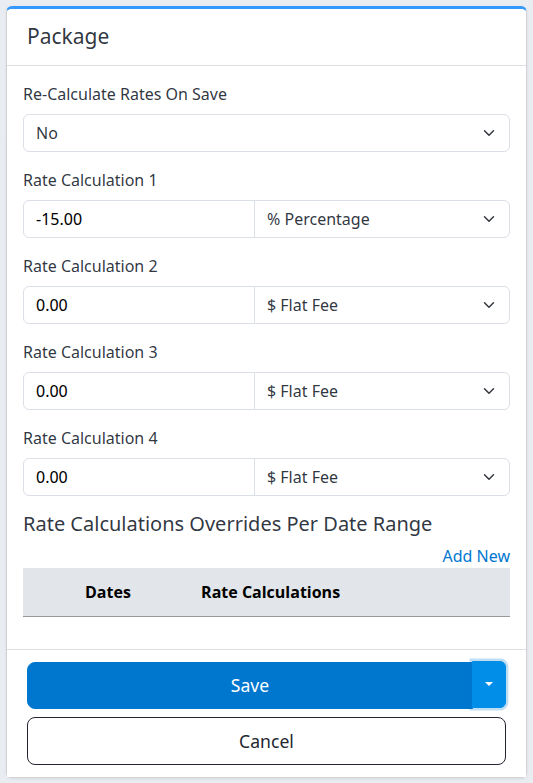
The same form at a narrow screen width. This demo plan has a negative percentage in step 1 and no date overrides. Wider screens place the four steps side by side.
Choose the save action
When Re-Calculate Rates On Save is shown, review it for this submission. It starts at No when the editor is opened; it is not a permanent automatic-recalculation setting.
| Choice | What this submission does | What it does not establish |
|---|---|---|
| No | Saves the calculation configuration. | It does not run this page's stored-rate recalculation or push operation. Existing stored prices need not change immediately. |
| Yes - ReCalculate on Save | Saves the settings, then recalculates eligible stored base rates for this plan across the property's room types. | It does not refresh stored occupancy rates or request this page's channel push. |
| Yes - ReCalculate on Save & Push Live to OTAs | Saves, runs the same recalculation, then requests a rates-only refresh from the selected plan's master image to eligible configured destinations. | It does not confirm that requests were created or accepted by every channel. |
Before choosing either Yes option: confirm the inheritance prerequisites above. Recalculation can be skipped when they are not met, even though the page displays a recalculation-success message.
Recalculation works from stored source prices for current and future dates within its forward inventory window. It skips dates with no source sell rate. It is not a historical recalculation, and it does not promise that every date has inventory. Matching date overrides take precedence over the ordinary calculation steps.
Before choosing Push Live: there is no room, date or destination selector on this page. It is a plan-wide master-image refresh, subject to channel setup and send eligibility, rather than a push limited to the dates where you changed a rule. Do not assume channel-specific price differences are preserved by a master-image refresh. Review that scope with support if you maintain channel-specific exceptions.
- Choose the intended Re-Calculate Rates On Save option, when available.
- Click Save to submit and return to Rate Calculations.
- Alternatively, open the arrow beside Save and choose Save & Refresh to submit and return to this editor.
Both save buttons use the selected recalculation option. Save & Refresh is not a preview and does not independently mean “push to channels.”
Cancel returns to Rate Calculations without submitting this form's unsaved edits. It does not undo a previous save, recalculation or push request. Save your intended changes before following another editor link; those links do not submit this form.
Check the result
1. Confirm the configuration
Reopen the same plan from Rate Calculations, or inspect it after Save & Refresh. Check all four values and types. The recalculation selector returning to No is expected and does not mean your numeric settings were lost.
A saved-settings message confirms a different stage from recalculation or channel delivery. Settings are saved before recalculation and dispatch begin. A later error does not undo that earlier save, and recalculation is not guaranteed to roll back across every room type.
2. Check stored base rates after recalculation
- Open Reports → Rates & Availability for the same property.
- Select a small affected date range, the relevant room types and this rate plan.
- Include Rates and select ChannelRUSH Master Image under PMS, when offered. Clear other sources for a master-only check and leave Live Read clear.
- Open List or Grid and inspect the actual plan/date values.
- Compare representative dates with and without date overrides against the intended source and calculation.
See Choose filters for a rates and availability report for the complete report controls. A blank result is not evidence that recalculation succeeded. A stored master price is not evidence of channel acceptance.
3. Check a requested push separately
- Open Updates → Status for the same property.
- Select the destination Channel and relevant Rate Plan, and use Status → All while following the operation.
- Click Search.
- Inspect matching requests' products, affected dates, values, creation time, status and messages. Repeat for the destinations you intended to update.
- Confirm important live prices in the channel itself when channel-side confirmation is needed.
Do not use Go to refresh the search; it runs request actions. The editor's “pushed live” message is not proof of queue creation or channel acceptance. An empty Status search is also not proof of success. Do not repeat the push merely because the banner appeared or the channel still differs. See Investigate inventory update status for a property.
Field and section reference
| Field or section | Meaning and interaction |
|---|---|
| Plan name | Identifies the standard rate plan you opened. It is not editable here. |
| Rate Calculation 1 | First adjustment to the source base rate. Choose its amount and type together. |
| Rate Calculation 2 | Adjustment to the result of step 1. Zero leaves that step without an adjustment. |
| Rate Calculation 3 | Adjustment to the result of step 2. |
| Rate Calculation 4 | Final ordinary adjustment to the result of step 3. |
| % Percentage | Adds or subtracts a percentage of the value entering that step. A negative percentage is a reduction. |
| Flat Fee | Adds or subtracts the numeric amount in the property's calculation currency. The displayed currency symbol is not a separate currency selector. |
| Re-Calculate Rates On Save | Controls recalculation and optional dispatch for this submission only. See the save-action table and prerequisites. |
| Rate Calculations Overrides Per Date Range | Lists separately saved date rules. Dates shows the range and any weekday narrowing; Rate Calculations summarizes the rule's adjustments. An empty table means this plan has no listed date overrides. Add New, and existing rows' Edit or Delete links, open separate screens; they do not save the four numbers above. |
| Occupancy Rates | Shown when occupancy rates are enabled for the property. Lists separately configured occupancy-rate calculation parameters by Name, with their calculation summaries. Add New, Edit and Delete lead to separate parameter screens where permitted. This page's full-plan recalculation does not refresh stored occupancy values. |
Date-rule and occupancy editors have their own save/delete behavior. This guide's full-plan recalculation instructions must not be assumed to apply to those separate operations. Ask support before using them to repair an unexpected stored price.
Common problems
| Symptom | Check and safe next action |
|---|---|
| The form is read-only or Save is denied. | Ask your administrator to check Channel Manager pricing permissions. Public demo access is read-only for these changes. Do not switch to a broader editor to bypass a restriction. |
| The recalculation selector is missing. | The property may not have ChannelRUSH Master Image configured. You can save the calculation configuration, but ask support how existing prices should be updated for that property's setup. |
| Prices do not change after Save. | Check whether you chose No, whether source rates exist, whether inheritance permits recalculation, and whether a matching date rule replaced the ordinary adjustments. Inspect stored master values before another submission. |
| The recalculation message appears, but some dates or occupancy prices are unchanged. | Missing source prices are skipped; the inheritance gate can skip the operation; occupancy values are not recalculated here. Stop and ask support if the result does not match that scope. |
| The page rejects the form or displays a validation message. | Recheck the numeric inputs and read the message. The plan and its existing date/occupancy rules are also validated, so the issue may not be one of the four visible amounts. If the message concerns an unavailable field or remains unexplained, contact support rather than changing unrelated settings. |
| An error appears after saving, or you are unsure whether a push ran. | Reopen the plan and check saved settings, master prices and Update Status before retrying. Earlier settings or some rates may already have changed. A repeat push can create additional work; do not assume a timeout means nothing happened. |
| A channel price differs despite a “pushed live” message. | Inspect the relevant request and its message, mapping/setup and affected dates, then confirm the channel value. Escalate unexplained missing requests or mismatches before resending. |
For support, include the property, rate plan, room type, destination channel if relevant, affected dates, selected save action, action time and time zone, and exact message. Include a request ID if one exists. Do not include passwords, payment details or unnecessary guest information.