

Choose properties, dates and reservation filters, then inspect captured reservations or download them for operational reconciliation.
Before you start
You need access to the properties you want to include. Open Org Admin → Reports → Reservations. The properties offered depend on your account's access. If you cannot see the menu or a required property, ask your organization administrator to check your access.
The property in the application header supplies the page context. It does not replace the Properties selection in this report.
This report shows the latest captured version of each reservation, not every change in its history or a snapshot as of a past date. New, Modified and Canceled describe reservation versions—not delivery success. Viewing and downloading the report does not change reservations or resend them.
Reports and exports may contain booked-by names and confirmation numbers. Share them only with authorized recipients.
Choose the properties and run the report
- Open Org Admin → Reports → Reservations.
- Set the start and end under Date Range. Use Month / Year to select a calendar month, or enter the dates you need. Check both dates before continuing.
- Choose Booking Date Range, Arrival Date, Departure Date or Stay Date. Their meanings are explained below.
- Choose a Channel, or leave All selected.
- Choose a Status, or leave All selected to include New, Modified and Canceled versions.
- In Properties, tick the properties to include. Use the checkbox beside the section heading to select or clear the list, then check the selected count. At least one property is required. Select no more than 200 properties for List.
- Choose an output:
- Under View, click List to open List & Export in another tab.
- Under View, click Excel to open the spreadsheet view in another tab.
- Under Download, click CSV to download the criteria page's CSV file.
The original criteria page remains available when List or Excel opens. Cancel leaves the criteria page without running a report.
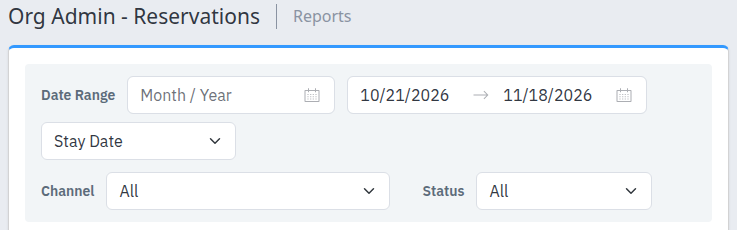
The top criteria section. Choose the properties below it before running a report.
On a fresh page, the dates start at the context property's current local date and end 28 days later. Booking Date Range, Channel: All and Status: All are initially selected, and all offered properties are checked. Recheck these choices whenever you start a new report.
Understand the date and status filters
| Control | What it selects | Important distinction |
|---|---|---|
| Booking Date Range | Receipt time of the latest captured reservation version. List calls this Booking date. | It is not necessarily the original booking/sale date. A later modification can move the booking out of an earlier receipt-date report. |
| Arrival Date | Reservations with a room arrival in the selected date range. | The reservation's displayed dates can cover additional rooms outside that range. |
| Departure Date | Reservations with a room departure in the selected date range. | This is not a filter for occupied nights. |
| Stay Date | Reservations whose room date ranges overlap the selected dates. List calls this Stay overlap (checkout included). | Checkout is included. Records with incomplete room-date boundaries can also appear. This is not a room-night occupancy calculation. |
| Channel | The recorded reservation feed/channel. All removes channel narrowing. | The criteria page offers channels across the properties available to you, including properties you have not checked. A choice need not have reservations in your selected properties. |
| Status | The latest captured version's New, Modified or Canceled state. All includes all three. | A prior matching version is not restored when a newer version has a different status or falls outside your dates. |
| Properties | The checked properties. | Clearing the list means no valid selection, not “all properties.” |
The selected dates determine which reservations qualify. They do not clip a reservation's dates, nights or monetary totals to that period.
For receipt-date reconciliation, keep the output path consistent. List and the separate Excel/criteria CSV path handle date boundaries and displayed timestamps differently. They are not interchangeable accounting extracts. If a boundary reservation appears in one output but not another, retain both report selections and ask support to check the receipt-time boundaries rather than treating the difference as a missing booking.
Work with List & Export
Check the result
Confirm the date basis, date range and matching-reservation count above the table. Open Filters to confirm the properties, channels and statuses. The list contains captured reservations only; neither a populated list nor zero matches proves that all bookings were received or delivered.
Click a reservation's Confirmation link to open its details. Check the property as well as the confirmation number when investigating a record. For the individual detail fields, see Review reservation details.
Change the report selection
- Open Filters.
- Change the dates or Date basis as needed.
- Adjust Channels and Status.
- Click Update report.
- Check the resulting date basis, dates, count and rows before downloading.
The List screen shows the selected properties but does not provide a replacement property picker. Return to the original Org Admin criteria page to change the properties and run List again.
In List's checklists, keep at least one Status selected and at least one Channel when channels are offered. Checking every item removes narrowing for that list; clearing a required list prevents Update report. A property with no offered inventory channels can still have captured reservations from other feeds. A retained Recorded channel entry means the report URL names a channel that is no longer in the offered list; it remains a filter until you change the selection.
Reset report retains the property/context selection but clears dates and other report/table choices. Select dates again before running. If an old link shows No date filter — the dates above are ignored, choose a date basis and click Update report; displayed dates alone do not establish that filtering is active.
Narrow or arrange the table
Open Table filters and sorting. Choose a sort column and direction, an optional Add filter field with Operator and Value, a Property/channel search, and the number of Rows. Click Apply table.
- Property/channel search searches property and channel names, not guest names or confirmation numbers. Use a Confirmation or PMS confirmation column filter for those identifiers.
- Internal ID, Property ID and Channel ID support Equals or Does not equal, with a positive whole-number value. Status supports the same two operators, with
New,ModifiedorCanceled. - Confirmation, PMS confirmation, Property, Channel and Currency also support Contains.
- Dates, amounts, stay nights and receipt timestamps support equality, inequality and range comparisons. The Operator list can show choices that are invalid for the selected field; choose from the supported combinations above.
- Enter date filter values as
YYYY-MM-DD. Use decimal-point numbers without grouping separators, such as1250.50. Receipt-time filters require an explicit offset, for example2026-10-21T12:00:00Z. - Booked by and Single rate plan cannot be filtered or sorted.
- Additional table filters combine with AND: a row must satisfy every filter. Up to ten filters and three grid sorts are supported; search is limited to 100 characters and each filter value to 128 characters. Reset table clears table filtering, search, sorting and paging while retaining the report's properties, dates, channels and statuses.
- The table form applies one sort column. Applying it replaces a multi-column sort previously chosen in the grid.
- Rows offers 25, 50 or 100; the initial page size is 100. Paging limits what is on screen, not the full matching export.
- Use Columns to show or hide table columns. Columns can also be resized and reordered. Density changes between Comfortable and Compact. These presentation choices do not remove fields from the default downloads.
If an update fails, do not treat the old visible rows as the result of your pending changes. Check the error and retained filters. Retry, when offered, retries report retrieval; it does not resend a reservation.
Download from List
- Open Download.
- Choose the required scope and format:
- Full report CSV or Full report XLSX includes the report's selected properties, dates, channels and statuses, ignoring additional table search, filters and sorting.
- Matching table CSV or Matching table XLSX keeps the table constraints and sort order. It includes all matching rows, not only the current page.
- Check the downloaded file's headers and scope before using it.
XLSX files include a Context sheet and reservation data sheets. The Context sheet records the selection, scope, row count, date basis and extraction information. CSV uses the fields described below instead of a separate Context sheet.
Downloads retrieve the data again. A new reservation version arriving between viewing and downloading can change the result. New window opens the committed report selection in another tab.
Use the separate Excel view and criteria CSV
Excel on the original criteria page opens a spreadsheet viewer. It is not the same output as Full report XLSX in List's Download menu.
- Open Filters to change the date range, date type, channel or status, then click View Report. The selected property list is retained.
- HTML opens List for the current selection. CSV downloads the spreadsheet path's CSV schema.
- The spreadsheet exposes a File menu with Save As and Print controls. Downloaded files and printed pages contain reservation data; handle them as confidential operational records.
- This is a report viewer, not a reservation editor. Return to the original Org Admin criteria page to choose different properties.
Prefer List's exports when you need explicit currency, internal version identity and UTC receipt/extraction fields. The separate spreadsheet and its CSV omit currency. Do not sum their amounts across properties or channels unless you have independently established a common currency and price basis.
The spreadsheet's BookingDate displays the source's edit timestamp when available, otherwise the version's receipt timestamp. Its Timestamp is the version receipt timestamp. Both are displayed using the property selected in the application header, even in a multi-property report. These display fields do not redefine the Booking Date Range filter.
List column reference
| Column | Meaning and limits |
|---|---|
| Confirmation | The channel's reservation identifier; links to the captured reservation details. |
| Booked by | The supplied booked-by name. It is not necessarily every guest staying. Blank means no usable name is shown. |
| Property / Property ID | Property name and ChannelRUSH property identity. |
| Channel / Channel ID | Recorded feed/channel name and ChannelRUSH channel identity. |
| Status | New, Modified or Canceled for this captured version; not a delivery state. |
| Arrival / Departure | Whole-reservation date boundaries. A qualifying room can have different dates from these overall boundaries. Blank dates remain unknown. |
| Stay nights | Difference between the reservation's overall date boundaries, not summed room-nights or nights clipped to the report range. Missing endpoints can produce zero; zero is not proof of a zero-night stay. |
| Currency | Supplied currency. Missing currency is unknown; amounts are not converted to a common currency. |
| Before tax / After tax | Captured source totals on their respective tax bases. Blank means unavailable, not zero. Neither figure establishes accounting revenue or completeness. |
| Version receipt UTC | When ChannelRUSH received this version, displayed in UTC; not necessarily the original booking time. |
| Internal ID | ChannelRUSH's identifier for this reservation version. |
| PMS confirmation | Captured PMS confirmation when supplied. Its presence alone does not prove current delivery success. |
| Single rate plan | One channel rate-plan ID when the room stays resolve to a single plan; blank can mean multiple or missing plans. |
If the interactive grid cannot initialize, the fallback table combines these into Confirmation / status, Booked by, Property / channel, Arrival → departure, Stay nights, Amount / currency, and Version receipt UTC. The combined amount uses the applicable tax basis; it does not fill a missing amount by substituting the other total.
Export field reference
List CSV and XLSX
The default headers, in order, are:
contract,propertyId,propertyName,channelId,channelName,reservationId,confirmation,pmsConfirmation,guestName,ratePlan,status,currency,totalBeforeTax,totalAfterTax,arrival,departure,nights,receiptUtc,sourceEditedUtc,extractedUtc,dateBasis
| Field | Meaning |
|---|---|
| contract | Export schema identifier, reservations-v1. |
| propertyId / propertyName | Property identity and name. |
| channelId / channelName | Recorded channel identity and name. |
| reservationId | Internal ChannelRUSH version ID, not the channel confirmation. |
| confirmation | Channel reservation identifier. |
| pmsConfirmation | Captured PMS identifier, or blank if unavailable. |
| guestName | Booked-by name, or blank. |
| ratePlan | Single channel rate-plan identifier when available; not an inventory rate. |
| status | Captured version's New, Modified or Canceled state. |
| currency | Source currency; no currency conversion. |
| totalBeforeTax / totalAfterTax | Source totals; unavailable amounts remain blank. |
| arrival / departure | Whole-reservation date boundaries, formatted as dates. |
| nights | Whole-reservation date-envelope nights; missing endpoints can produce zero. |
| receiptUtc | Version receipt timestamp in UTC. |
| sourceEditedUtc | Source edit timestamp in UTC when supplied; otherwise blank. It is not replaced with receipt time. |
| extractedUtc | Time of this extraction, not a vendor response or delivery timestamp. |
| dateBasis | Meaning of the date filter used for the report. |
IDs are exported as text. CSV numbers use invariant decimal notation and dates use YYYY-MM-DD; UTC timestamp fields include their UTC offset. Formula-like text can have a protective leading apostrophe in CSV. Treat an identifier as text when importing it into other software.
Criteria/Excel CSV and spreadsheet columns
The CSV downloaded from the original criteria page or the Excel view has these headers, in order:
PropertyId,PropertyName,ChannelId,ChannelName,ReservationId,ReservationIdPms,Status,Info,TotalBeforeTax,TotalAfterTax,NumNights,ArrivalDate,DepartureDate,BookingDate,Timestamp
| Field | Meaning or difference from List exports |
|---|---|
| PropertyId / PropertyName | Property identity and name. |
| ChannelId / ChannelName | Recorded channel identity and name. |
| ReservationId | Channel confirmation, unlike List's reservationId. |
| ReservationIdPms | Captured PMS confirmation. |
| Status | Captured reservation-version status. |
| Info | Booked-by name, not a general diagnostic message. |
| TotalBeforeTax / TotalAfterTax | Source totals displayed to two decimal places; missing values are blank. Currency is not included. |
| NumNights | Whole-reservation date-envelope nights. |
| ArrivalDate / DepartureDate | Overall dates; CSV normalizes these to YYYY-MM-DD. |
| BookingDate | Source edit timestamp if available, otherwise version receipt; not necessarily the booking's original creation time. |
| Timestamp | Version receipt timestamp. |
The spreadsheet adds ReservationRatePlanId between ReservationIdPms and Status. That field identifies a single rate plan when available and is not included in this CSV. Spreadsheet date display follows the application's culture; CSV timestamp fields retain an explicit offset. This CSV has no internal version ID, currency, extraction time, contract or date-basis field.
Common problems
- List, Excel or CSV is unavailable: check that both dates are valid, the end is not before the start, and at least one property is checked. A property-selection error means you must choose a property; it does not mean the report is empty. If the controls still do not run, check browser popup blocking for List/Excel and contact support with the error and selection.
- A property is missing or access is rejected: return to the criteria page and choose properties currently available to you. Ask your administrator to check access if a required property is absent. Do not edit property IDs in a URL to work around it.
- Too many properties selected: run List with no more than 200 selected properties, dividing a larger portfolio into separate reports.
- Zero matches: check the property selection, date basis, dates, channel and status. In List, try Reset table to remove additional table narrowing. A receipt-date report can exclude an older version after a newer version arrives. Zero matches does not prove there were no bookings or that delivery succeeded.
- A file contains more rows than the visible table: check whether you selected Full report instead of Matching table. Matching table still exports all matching pages. Compare the recorded selection before assuming a scope error.
- List and Excel/CSV differ: first check their date basis, channels, status and properties. Then check receipt-time boundaries and the different identifier/timestamp meanings above. Do not merge columns based only on similar header names.
- A report update fails but rows remain visible: those may be the last successful results. Review the error and filters, then retry the read or reload the page. Do not use those rows as confirmation of a new selection.
- An amount, date or PMS confirmation is blank: the captured record does not supply a usable value in that field. Do not replace it with zero or infer successful delivery. Open the reservation details and use the relevant delivery-status screen when delivery is the question.
If the result remains unexplained, give support the selected properties, date basis and range, channel/status filters, output choice, action time and timezone, and the error text. Include a confirmation number only when needed to identify the affected reservation. Do not send passwords, payment details or unnecessary guest information.